Flatten PDF: Lock Form Fields, Signatures, and Markups Before You Share or Archive
To flatten a PDF, use LifetimePDF's Flatten PDF Form Data tool when you want completed fields to stay visible, or Flatten PDF when the whole file needs a more stable final version before sharing, printing, uploading, or archiving.
If the document still needs edits, signatures, or another pass through the form, do not flatten it yet; flattening works best as the final cleanup step before the file leaves your hands.
That is the short answer. The useful part is knowing which kind of flattening you actually need, why flattening is different from casually printing another copy, and how to avoid the very normal mistake of flattening one version while the real final PDF is still sitting somewhere else with almost the same filename.
Fastest path: finish the document first, flatten the exact copy you plan to send, reopen it once, and only then compress, protect, print, or upload the reviewed result.
In a hurry? Jump to Quick start: flatten a PDF in a few minutes.
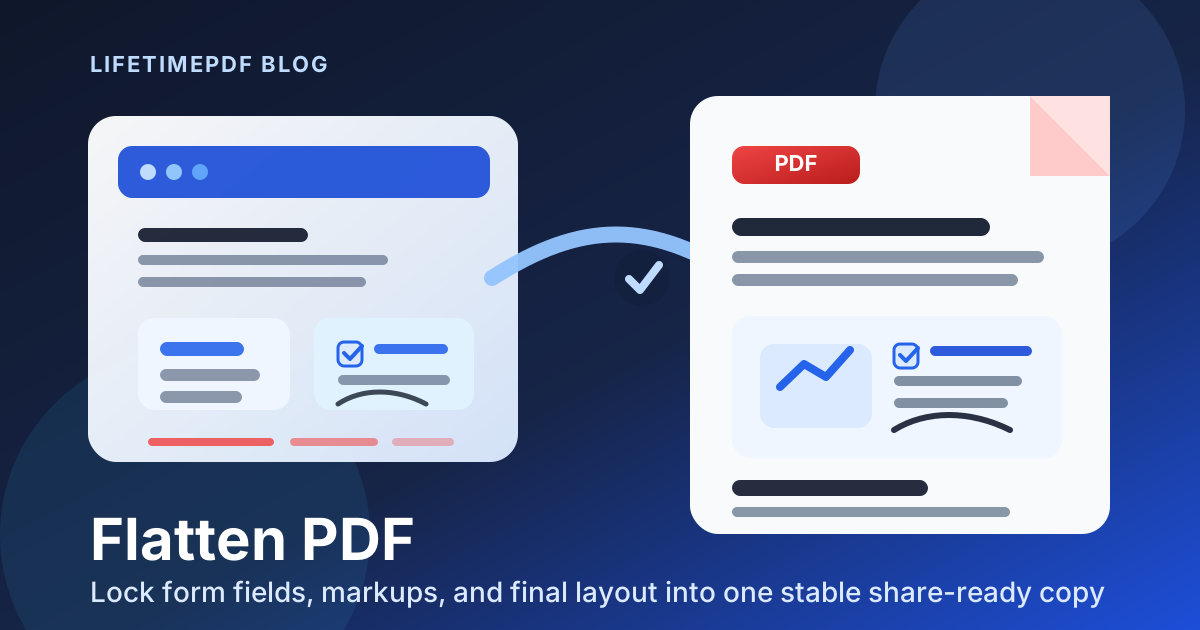
Table of contents
- Quick start: flatten a PDF in a few minutes
- What “flatten PDF” actually means in real workflows
- Flatten PDF Form Data vs Flatten PDF
- Step-by-step: how to flatten a PDF without creating version chaos
- When flattening helps most and when to wait
- Flattening vs print workarounds vs rasterizing
- What to do after you flatten a PDF
- Related LifetimePDF tools and companion guides
- FAQ (People Also Ask)
Quick start: flatten a PDF in a few minutes
If the document is already finished and you just need a calmer final copy, this is the workflow most people actually want:
- Finish every field, checkbox, signature, and visible note first.
- If the PDF is mainly a completed form, open Flatten PDF Form Data.
- If the whole file needs a broader finalization pass, open Flatten PDF.
- Upload the exact copy you plan to email, upload, print, or archive.
- Flatten it once, then reopen the result and verify the smallest important details.
- If the final copy is too large or still sensitive, use Compress PDF or PDF Protect on that reviewed output.
What “flatten PDF” actually means in real workflows
In plain English, flattening a PDF means turning a file that still behaves a little like a working document into a file that behaves more like a final document. The visible content stays there, but the loose, interactive, or easily shifted parts become steadier.
In practice, people usually search for this when one of five things is happening: they finished a fillable form, they added a signature or visible markup, they are about to upload the PDF to a portal that behaves unpredictably, they want the print result to stop changing from viewer to viewer, or they want an archive copy that feels fixed instead of half-editable.
| Situation | Why flattening helps | Best next move |
|---|---|---|
| A form is complete and ready to send | Visible field values stay more consistent for the recipient | Use Flatten PDF Form Data |
| The file has broader overlays, annotations, or final-state issues | You get a steadier delivery copy of the whole document | Use Flatten PDF |
| The document is still a draft | Flattening will lock in work too early | Wait and keep editing |
| The file is already final but too large or too sensitive | Flattening creates the right base copy for the next step | Flatten first, then compress or protect |
The important idea is that flattening is not a drafting step. It is a finishing step. Once you think of it that way, the workflow becomes much less confusing.
Flatten PDF Form Data vs Flatten PDF
These sound similar because they are related, but they solve slightly different problems.
Use Flatten PDF Form Data when the form itself is the main issue
If the PDF is mostly a filled application, intake packet, HR form, school form, lease form, approval sheet, or questionnaire, the common goal is simple: make the visible answers behave more like page content instead of leaving them as loose interactive fields. That is where Flatten PDF Form Data is usually the better fit.
Use Flatten PDF when the whole file needs broader finalization
Sometimes the document problem is wider than form fields. You may want the full PDF to act more like a stable final copy because it includes visible markups, layered elements, or a broader “this file should now stop behaving like a draft” moment. In that case, Flatten PDF is the cleaner choice.
Step-by-step: how to flatten a PDF without creating version chaos
The biggest real-world mistake is not technical. It is version confusion. One file came from email, one from a browser download, one was saved after editing, and the wrong copy gets flattened or sent. This workflow keeps things boring in the best way.
1) Finish the document first
If the PDF still needs typed answers, corrections, missing initials, a signature, or a final note, do that first with PDF Form Filler or your preferred editing step. Flattening too early is how people create unnecessary rework.
2) Identify the exact copy you plan to send
This sounds obvious, but it matters. If you have multiple versions, pause long enough to decide which one is the real source file. Flattening the wrong copy is one of the fastest ways to make a simple PDF workflow annoying.
3) Choose the right flattening path
Open Flatten PDF Form Data for completed forms, or Flatten PDF for broader whole-file finalization. Picking the right route first is what keeps the rest of the job short.
4) Flatten the final copy once
The goal is not to run the file through multiple improvised workarounds. The goal is to create one stable output that you can review and trust. If you already know you will need to change something afterward, stop and fix that before flattening.
5) Reopen the result and check the small details
Look at the narrow fields, the checkboxes, the initials, the total, the date, the signature block, and any tiny line of text that would be painful to discover was wrong after submission. A ten-second review here is worth far more than a ten-minute apology later.
6) Only then move to the next workflow step
If the reviewed file is too large, use Compress PDF. If it contains sensitive information, use PDF Protect. If it still needs a signature on the exact final version, use Sign PDF after you know you are working from the right copy.
Recommended sequence: finish the PDF, flatten the exact copy once, review it once, then compress, protect, sign, print, or upload that reviewed result.
When flattening helps most and when to wait
Flattening is usually the right move when:
- the form is complete and you are about to send it,
- you want visible field values or markups to survive other viewers more gracefully,
- the PDF is heading into an upload portal, print workflow, or archive folder,
- you want the final copy to feel fixed instead of half-editable.
Wait before flattening when:
- someone still needs to edit the document,
- the PDF is still serving as a reusable template,
- you still need to change a field value,
- you are not sure which version is actually the final one yet.
If you are unsure, ask yourself one blunt question: would I call this file final right now? If the honest answer is no, keep working and flatten later.
Flattening vs print workarounds vs rasterizing
These ideas get mixed together constantly, so it helps to separate them.
| Approach | What it is really doing | Best use case |
|---|---|---|
| Flatten PDF | Creates a steadier final document from a completed working document | Sharing, upload portals, printing, archiving, final forms |
| Print to PDF | Creates another PDF copy, sometimes as a workaround rather than a clean finalization workflow | Occasional emergency workaround, not the best default habit |
| Rasterizing | Turns pages into images rather than preserving a more normal PDF text-and-layout structure | Rare compatibility edge cases, not the first choice for normal flattening |
The practical takeaway is simple: if you want a deliberate final-file workflow, flattening is usually the cleaner answer. Print workarounds can help in a hurry, but they are not the same thing as choosing the right finalization step on purpose.
What to do after you flatten a PDF
Flattening is often one step in a broader PDF workflow. Once the file looks right, the next move depends on what happens next.
- Need a smaller upload? Use Compress PDF.
- Need restricted access? Use PDF Protect.
- Need a visible signature on the exact final version? Use Sign PDF.
- Need a long-term record? Keep the reviewed final file and store the editable original separately.
- Need to keep private details out of the outgoing copy? Use Redact PDF before or as part of the final review workflow, depending on the document.
This is why flattening is so useful: it gives the rest of the workflow one obvious final copy to work from. That is less glamorous than a fancy feature list, but it is exactly what makes real document handling calmer.
Related LifetimePDF tools and companion guides
If flattening a PDF is part of a bigger workflow, these are the most relevant next steps:
- Flatten PDF Form Data — lock visible form answers into the page.
- Flatten PDF — broader whole-file flattening for final delivery copies.
- PDF Form Filler — finish the form before you flatten it.
- Sign PDF — sign the exact version you intend to send.
- Compress PDF — reduce size after the final copy is correct.
- PDF Protect — protect sensitive final copies.
Related reading on LifetimePDF: PDF Form Flattener, Flatten PDF Form Data Online, Flatten Filled PDF Form Before Emailing It, How to Flatten a PDF on Windows, How to Flatten a PDF on Mac, How to Flatten a PDF on iPad, and PDF/A Archival Guide.
Ready to make your PDF feel final?
Best simple sequence: finish the PDF → flatten the right copy → review it once → send that reviewed version.
FAQ (People Also Ask)
How do I flatten a PDF?
Finish the document first, choose whether you need to flatten completed form fields or the whole file, flatten the exact copy you plan to share, and review the result once before sending it anywhere important.
What does flatten PDF mean?
It means turning a working PDF into a steadier final version so visible form values, signatures, annotations, or other on-page elements behave more like fixed content instead of loose editable pieces.
Should I flatten a PDF before emailing it?
Usually yes if the file is final and you want filled fields or annotations to display more consistently for the recipient. If the PDF is still a template or still needs edits, wait.
Is Print to PDF the same as flattening a PDF?
No. Print to PDF can create another copy, but flattening is the deliberate finishing step that makes the final file behave more like a stable delivery version.
Can I edit a PDF after flattening it?
You should treat flattening as a final step. Keep the original working copy if you think you may need to change fields, signatures, or layout later.
Published by LifetimePDF — Pay once. Use forever.