PDF Form Flattener: Lock Filled Fields Before You Email, Upload, or Print
A PDF form flattener turns the visible answers in a fillable PDF into regular page content, which helps the form stay readable and consistent when you email, upload, print, or archive it.
Use it after every answer is final, then reopen the flattened copy once before you send or store the document.
This sounds like a tiny finishing step until a form breaks in exactly the wrong place. Someone opens the attachment in a mail app and the filled fields look blank. A portal preview shows odd checkboxes. A coworker clicks into the file and starts editing what you thought was already final. A good PDF form flattener exists to stop that kind of document drama before it starts.
Fastest path: finish the form, flatten the field data, reopen the result once, then use that stable copy for email, uploads, printing, or archiving.
Need the quick version? Jump to Quick start: use a PDF form flattener in a few minutes.
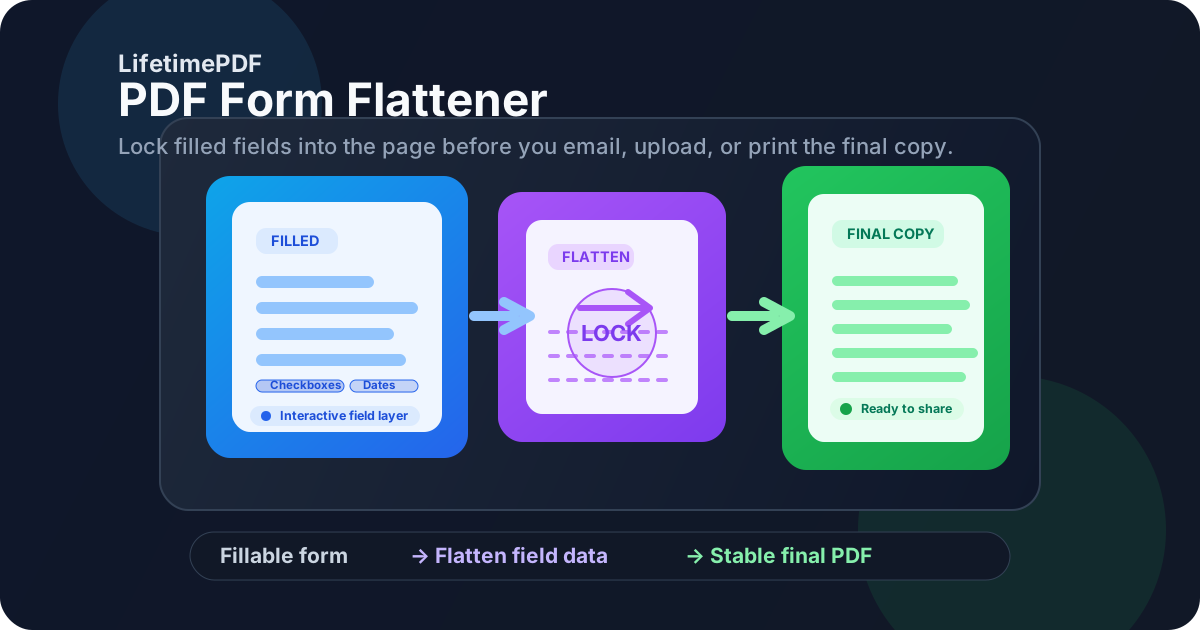
Table of contents
- Quick start: use a PDF form flattener in a few minutes
- What a PDF form flattener actually does
- When flattening is the smart move
- Step-by-step: the cleanest flattening workflow
- PDF form flattener vs Print to PDF
- Signatures, uploads, and archive-ready final copies
- Common mistakes that make forms harder to trust
- Related LifetimePDF tools and guides
- FAQ (People Also Ask)
Quick start: use a PDF form flattener in a few minutes
If your form is already filled and you just want a dependable final copy, use this order:
- Open PDF Form Filler if you still need to review or finish the form.
- Double-check names, dates, totals, checkboxes, initials, and signatures before flattening.
- Use Flatten PDF Form Data when your goal is locking the visible field values into the page.
- Download the flattened PDF and open it once in a normal viewer to confirm nothing disappeared or shifted.
- If the final file is sensitive, add protection with PDF Protect.
- If the attachment is too large, reduce it with Compress PDF.
- Send, upload, print, or archive the flattened copy rather than the editable working file.
What a PDF form flattener actually does
Fillable PDF forms are built with interactive fields layered on top of the page. That is what lets you click into a box, tab forward, choose a dropdown, or tick a checkbox. A PDF form flattener takes the visible result of those fields and merges it into the page itself.
In plain language, it turns this field is showing an answer into this answer now behaves like normal page content. That does not make the file magically secure by itself, but it usually makes the completed form much more predictable across email clients, browser viewers, upload previews, mobile devices, and office printers.
| Before flattening | After flattening |
|---|---|
| Fields are interactive and viewer-dependent | Visible answers behave more like normal page content |
| Some apps may show blank fields or odd appearances | The completed form usually looks more consistent |
| Recipients may click into fields and edit by accident | The file feels much more final |
| Printing can be unpredictable with certain field appearances | Print output is usually more stable |
When flattening is the smart move
Not every PDF needs flattening. If a form is still being revised, passed back and forth for edits, or kept as a reusable template, flattening too early is just annoying. But there are a few situations where a PDF form flattener is usually the right tool.
Use a PDF form flattener when:
- the form is complete and you are sending the final copy,
- you have seen blank-field issues in email or browser viewers before,
- you are uploading the PDF to a portal that previews documents badly,
- the form will be printed and you want predictable output,
- you want to reduce casual edits to completed answers.
Wait before flattening when:
- the form is still being reviewed for corrections,
- you still need someone to fill or update fields,
- the document is a reusable blank template,
- you are not sure whether the signed version should be applied before or after finalization.
My bias here is simple: once the document is leaving your hands as a delivery version, flattening becomes much easier to justify. If it is still a working version, leave it interactive a little longer.
Best default: keep one editable original, and create one separate flattened copy for the version you actually send.
Step-by-step: the cleanest flattening workflow
The most reliable workflow is short and boring in the best way. You are trying to reduce surprises, not create a more dramatic PDF pipeline.
1) Finish the form before you flatten anything
This sounds obvious, but it is the mistake that causes the most rework. Review names, dates, amounts, dropdowns, radio buttons, initials, and signatures while the form is still interactive. Flattening too early turns a quick field edit into a bigger cleanup job.
2) Use the form-data flattener when the problem is field behavior
If the issue is that filled fields may display badly, print strangely, or remain casually editable, start with Flatten PDF Form Data. That is the cleanest match for most completed forms. If your PDF also includes other layered objects or you need a broader finalization pass, Flatten PDF may be the better companion step.
3) Reopen the output once like a normal recipient would
Open the flattened file in a regular viewer. Do the answers still look correct? Are checkboxes visible? Did the signature appearance stay where it belongs? Does printing still look normal? One sixty-second review catches a surprising amount of avoidable embarrassment.
4) Add protection only if you actually need it
Flattening is not the same thing as password protection. If the file contains sensitive information, use PDF Protect after the flattening step so the final copy is both stable and harder to share casually.
5) Compress only after the form behaves correctly
If an upload limit or email attachment cap is the real problem, use Compress PDF after you confirm the flattened file looks right. There is no point optimizing the wrong version.
Recommended sequence: Fill → Review → Flatten → Reopen → Protect or Compress if needed → Send.
PDF form flattener vs Print to PDF
A lot of people use Print to PDF as a workaround because it feels universal. Sometimes it works well enough. But it is rarely the cleanest option if your real goal is to preserve a completed form without weird side effects.
| Approach | Why people use it | Tradeoff |
|---|---|---|
| PDF form flattener | Locks visible field data into the page more directly | Best when you want a stable final form without unnecessary detours |
| Print to PDF | Feels familiar and available everywhere | Can enlarge file size, soften text, and create avoidable output quirks |
| Do nothing | Fastest in the moment | Leaves you exposed to viewer glitches, accidental edits, and inconsistent print behavior |
My rule of thumb: if the completed form matters enough that you would be annoyed by blank fields, upload preview issues, or editable answers on the other side, use the PDF form flattener. Print to PDF is more of a rescue move than a best practice.
Signatures, uploads, and archive-ready final copies
The reason people search for this keyword is usually not the flattening itself. It is the next step after flattening that matters. The form is about to be emailed to a client, uploaded to a portal, printed for records, or archived where it needs to stay dependable months later.
For uploads and portal submissions
Portals and internal systems often show rough previews of PDFs. Flattening the completed form first makes it more likely that what the system previews is what you actually intended to submit.
For signatures
Be careful with order. If you are adding a final signature, the safer pattern is usually fill first, flatten second, sign last. Once a digital signature is applied, later changes can invalidate it.
For archiving
Interactive working forms are useful while work is happening. Archive copies should usually feel calmer. A flattened copy is easier to reopen later without wondering whether the answers depend on a specific app, browser, or mail client.
Common mistakes that make forms harder to trust
Most flattening problems come from timing problems, not tool problems.
Flattening before the answers are truly final
This is the classic self-own. One little typo becomes a needless do-over because the convenient field editing stage is already gone.
Assuming flattening equals security
It does not. Flattening helps the file look stable. It does not replace passwords, redaction, or document access decisions.
Sending the editable working file instead of the flattened copy
That is how recipients end up seeing different field behavior, or worse, casually editing something you thought was already finished.
Skipping the one-minute verification pass
The flattened output should always be opened once. The whole point is predictable delivery, so verify the version you are actually about to send.
Signing in the wrong order
If the exact final document needs a digital signature, do not keep changing it afterward. Finalize the form, flatten it if appropriate, then sign the copy you intend to preserve.
Related LifetimePDF tools and guides
A PDF form flattener fits best as part of a simple document-finishing workflow. These tools and guides pair naturally with it:
- Flatten PDF Form Data — lock visible field values into the page for a cleaner final form
- Flatten PDF — broader flattening for documents that need a more complete finalization pass
- PDF Form Filler — complete or correct the form before you flatten it
- Sign PDF — add the final signature after the document is ready
- PDF Protect — protect sensitive finished forms before sharing
- Compress PDF — reduce file size if the flattened copy is too large to send
Related blog guides
- Flatten PDF Form Data Online
- Flatten a Filled PDF Form Before Emailing It
- Flatten PDF Without Monthly Fees
- Sign PDF
- Browse all LifetimePDF articles
FAQ (People Also Ask)
1) What does a PDF form flattener do?
It turns the visible answers inside interactive form fields into regular page content so the completed PDF behaves more like a final document and less like a working form.
2) When should I flatten a PDF form?
Flatten it after the answers are final and before you email, upload, print, or archive the delivery copy. Keep the editable original separately if future changes are possible.
3) Is a PDF form flattener better than Print to PDF?
Usually yes. A dedicated flattening workflow is normally cleaner and more predictable than printing the document back into a PDF as a workaround.
4) Can I still edit the form after flattening it?
Not in the same simple field-based way. That is why flattening works best for final copies, not for drafts you still expect to revise.
5) Should I flatten before or after signing the PDF?
Usually before. Finish the form, flatten the final content if needed, then sign the exact version you want to preserve or send.
Ready to turn a completed form into a cleaner final PDF?
Best practical workflow: Fill → Review → Flatten → Reopen → Sign or Protect → Send.
Published by LifetimePDF — Pay once. Use forever.