Check PDF Attachments: Find Embedded Files Before You Share, Archive, or Trust the Document
To check PDF attachments, open the PDF's attachments, embedded files, or portfolio panel and confirm every file belongs there before you share, archive, or trust the document.
If you find unexpected spreadsheets, ZIPs, duplicate exhibits, stale source files, or anything you were not expecting, stop and review the package before the PDF leaves your workflow.
That is the short answer. The useful answer is knowing why attachment checks matter even when the visible pages look perfectly normal. A PDF can appear clean on screen while still carrying extra files underneath: a contract draft in Word, an old spreadsheet that contradicts the numbers in the final PDF, a zipped folder someone forgot to remove, or a portfolio bundle that makes sense internally but not for the person receiving it. If nobody checks the hidden payload, the wrong version can travel farther than the clean-looking cover pages suggest.
Fastest practical path: open the attachment panel, list every embedded file, decide whether each item truly belongs, then send or archive only the cleaned copy you would be comfortable defending later.
In a hurry? Jump to quick start: check PDF attachments in about 6 minutes.
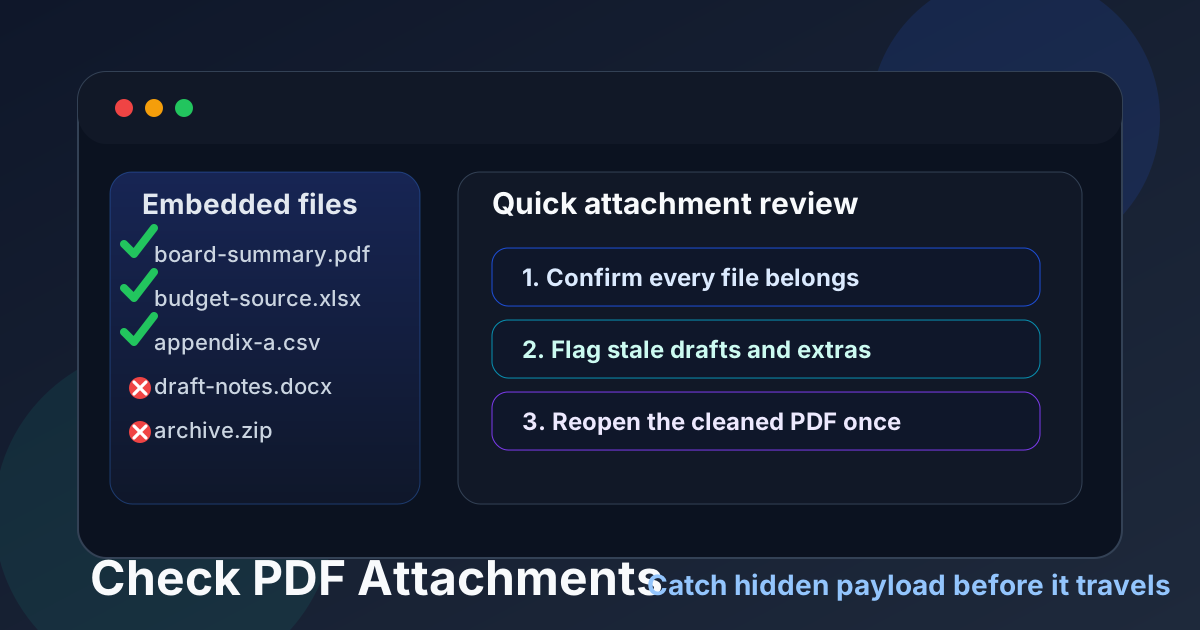
Table of contents
- Quick start: check PDF attachments in about 6 minutes
- What counts as a PDF attachment
- Step-by-step: practical PDF attachment review workflow
- Warning signs that the embedded files need attention
- When attachments are legitimate and worth keeping
- What to verify before sharing or archiving the PDF
- Final checklist before the file leaves your hands
- Related LifetimePDF tools and guides
- FAQ
Quick start: check PDF attachments in about 6 minutes
If your goal is simply tell me whether this PDF is carrying anything extra, this quick review catches most real-world problems:
- Open the PDF and look for the paperclip, attachments, embedded files, or portfolio view.
- Write down every attached filename exactly as it appears.
- Ask whether each file belongs with this document, this recipient, and this version.
- Flag anything stale, duplicated, oversized, unexplained, or unrelated to the visible PDF.
- Open only trusted items that you genuinely need to inspect, then re-save or re-export a cleaned copy if anything should be removed.
- Before sending or archiving, reopen the outgoing PDF once and confirm the attachment list now matches your intent.
That short pass is enough for many proposals, legal packets, technical reports, HR forms, and archived records. You do not need a long forensic ritual every time, but you do need a habit of checking for hidden passengers before the PDF travels.
What counts as a PDF attachment
In PDF language, attachments are usually embedded files: separate documents stored inside the PDF package rather than printed on the visible pages. They might be spreadsheets, Word drafts, XML exports, images, CAD references, ZIP files, audio, or other supporting materials. Some workflows also present them as a PDF portfolio, where the PDF acts more like a container holding multiple related files.
That is different from comments, highlights, redactions, bookmarks, or form fields. Those features live on the page layer or document structure. Attachments are extra payload. If the visible PDF says one thing but an attached workbook, raw export, or draft source says another, the recipient may trust the wrong artifact.
Common harmless uses
- Supporting exhibits bundled with a master filing
- Source spreadsheets behind a board packet or report
- Machine-readable XML or data exports delivered with a final PDF
- Reference files intentionally packaged for one recipient
Common risky surprises
- An old draft still carrying tracked changes
- A spreadsheet with more rows than the PDF summary shows
- Duplicate versions with conflicting dates or names
- A file type the recipient never asked for
Why people miss them
- Many viewers hide the attachment panel by default
- The visible pages look finished, so nobody checks deeper
- Merged workflows quietly preserve embedded files
- Teams assume attachments are obvious when they are not
Step-by-step: practical PDF attachment review workflow
The best workflow is simple: identify the attachments, judge whether they belong, then make a deliberate keep-or-remove decision. Most mistakes happen when that middle step is skipped.
1. Open the exact outgoing PDF, not an older draft
Start with the file you actually plan to send, upload, archive, or publish. Attachment problems often survive because someone checks yesterday's copy and assumes the final export is identical.
2. Reveal the attachment list fully
Use whichever panel your viewer exposes for attachments, embedded files, or portfolios. Do not stop at the first filename. Expand the full list and note the count, names, file types, and whether anything looks truncated or oddly generic.
3. Compare the attachment names against the document's purpose
A proposal PDF with one expected pricing spreadsheet might make sense. A signed contract PDF carrying an editable draft, two old annexes, and a ZIP archive usually deserves questions. Names alone often expose the problem: final_v3_old, raw-export, client-list, or notes-temp are not confidence-building labels.
4. Inspect only what you need, and treat surprises cautiously
If an attachment is unexpected, do not casually open it just because it is inside a PDF. First decide whether the file should exist at all. If inspection is necessary, use a safe review path and keep your goal narrow: confirm version, relevance, and whether it reveals anything the PDF itself should not reveal.
5. Decide whether to keep, replace, separate, or remove
Some attachments belong in the package. Others are better shared separately, versioned more clearly, or removed entirely. The key is intent. If you cannot explain why the embedded file is there, it probably should not remain embedded.
6. Reopen the cleaned copy once before it leaves your hands
After editing, exporting, flattening, protecting, or repackaging, open the outgoing PDF one last time. Confirm that the attachments you intended to keep are still present, the ones you meant to remove are gone, and the visible pages still match the package you are sending.
Warning signs that the embedded files need attention
Not every attachment is a problem, but some patterns should slow you down. These are the red flags that most often turn into embarrassing or risky sends:
- Draft language in filenames: words like draft, old, backup, temp, v2, or final-final often mean the package was assembled in a hurry.
- Mismatch between PDF and attachment dates: if the main PDF looks current but the embedded spreadsheet is months older, the package may be internally inconsistent.
- Attachments that reveal more than the visible pages: a summary PDF can accidentally ship with raw data, hidden formulas, full contact lists, or unredacted source material.
- Duplicate versions of the same exhibit: recipients may not know which file to trust, and reviewers often open the wrong one first.
- Unexpected file types: archives, executables, macros, or unusual media formats deserve extra caution and a strong reason to remain embedded.
- Portfolio bundles that hide complexity: a PDF portfolio can look neat while actually containing several moving parts, each of which needs the same version-control discipline as the cover file.
When attachments are legitimate and worth keeping
This is not an argument against PDF attachments. Some workflows genuinely benefit from them. The point is to keep them on purpose, not by accident.
| Scenario | Why embedded files may belong | What to verify first |
|---|---|---|
| Regulatory, legal, or procurement packet | The PDF acts as the cover document for exhibits, supporting declarations, or machine-readable records. | Each attachment is named clearly, current, expected by the recipient, and referenced somewhere in the packet. |
| Board, finance, or operations report | Readers may need the source spreadsheet or appendix behind a summary PDF. | The numbers align, the workbook is the right version, and no hidden tabs or extra data leak beyond the intended audience. |
| Technical handoff or project archive | The PDF may be a human-readable wrapper around drawings, logs, exports, or structured data. | The package is documented clearly enough that someone opening it later understands what each embedded file is for. |
A good rule of thumb: if the recipient would be confused or surprised by the embedded file, the attachment needs either a clearer explanation or a different delivery method.
What to verify before sharing or archiving the PDF
Sending and archiving are different goals, but they both reward the same discipline. Before the file leaves your hands, confirm the package is as lean and intentional as possible.
- Purpose: every attachment has a clear reason to exist in this PDF.
- Version control: the embedded files match the visible PDF and are not stale sidecars from an earlier draft.
- Audience fit: the recipient is actually supposed to receive those files, not just the cover document.
- Sensitivity: nothing attached exposes raw data, internal notes, or source material that the visible PDF carefully avoids showing.
- Retention logic: if the PDF is being archived, the attachments are either part of the record or intentionally removed so the archive stays clean and defensible.
For public-facing PDFs, this check matters even more. A file that is safe for a private working group may be completely wrong for a customer download, a job application upload, a filing portal, or a public website.
Final checklist before the file leaves your hands
Use this short checklist when you need a decision fast:
- Do I know exactly how many attachments are inside this PDF?
- Can I explain why each one belongs?
- Do the names and dates support the story the PDF is telling?
- Would I be comfortable if the recipient opened every embedded file first?
- Have I reopened the outgoing copy after cleanup to confirm the package is now correct?
If any answer is no, the PDF is not done yet. One extra minute here is cheaper than sending a package that leaks the wrong spreadsheet, the wrong draft, or a file nobody meant to ship.
FAQ
How do I check whether a PDF has attachments?
Open the PDF and look for an attachments, embedded files, paperclip, or portfolio panel. If the document contains extra files, review each one by name, type, date, and purpose before you trust or share the PDF.
Are PDF attachments the same as annotations or comments?
No. Annotations live on the page as markup or notes, while attachments are separate files stored inside the document package. A PDF can contain both, but they solve different problems and create different risks.
Can PDF attachments be risky?
Yes. Embedded files can expose source data, outdated drafts, duplicate exhibits, or unexpected content that the visible PDF does not reveal. Treat surprise attachments as something to understand, not something to ignore.
Should I archive a PDF with attachments intact?
Only when the embedded files are intentionally part of the record. If they are merely convenience files, stale working copies, or extras that future readers do not need, a cleaned archive version is usually safer and easier to defend.
What if the recipient actually needs the embedded files?
Then keep them, but deliberately. Make sure the filenames are clear, the versions are current, and the package does not contain anything you would not want the recipient to open first.
Published by LifetimePDF — Pay once. Use forever.