Check PDF Permissions: See Whether Printing, Copying, or Editing Is Restricted Before You Share
To check PDF permissions, open the file properties or a metadata tool and review what the PDF allows people to do after it opens, such as print, copy text, comment, fill forms, or edit content.
If those restrictions do not match the real purpose of the file, change them before you send the PDF so recipients are neither blocked unnecessarily nor given more freedom than you intended.
This is one of those hidden settings that can quietly save or sabotage a workflow. A PDF may open fine but still frustrate a reviewer who cannot print it, a teammate who cannot copy text, or a signer who cannot complete the form because the permissions are tighter than the job requires.
Fastest practical path: inspect the current permission rules, decide what the recipient actually needs to do, then keep, tighten, or relax the restrictions before the file leaves your hands.
In a hurry? Jump to quick start: check PDF permissions in about 5 minutes.
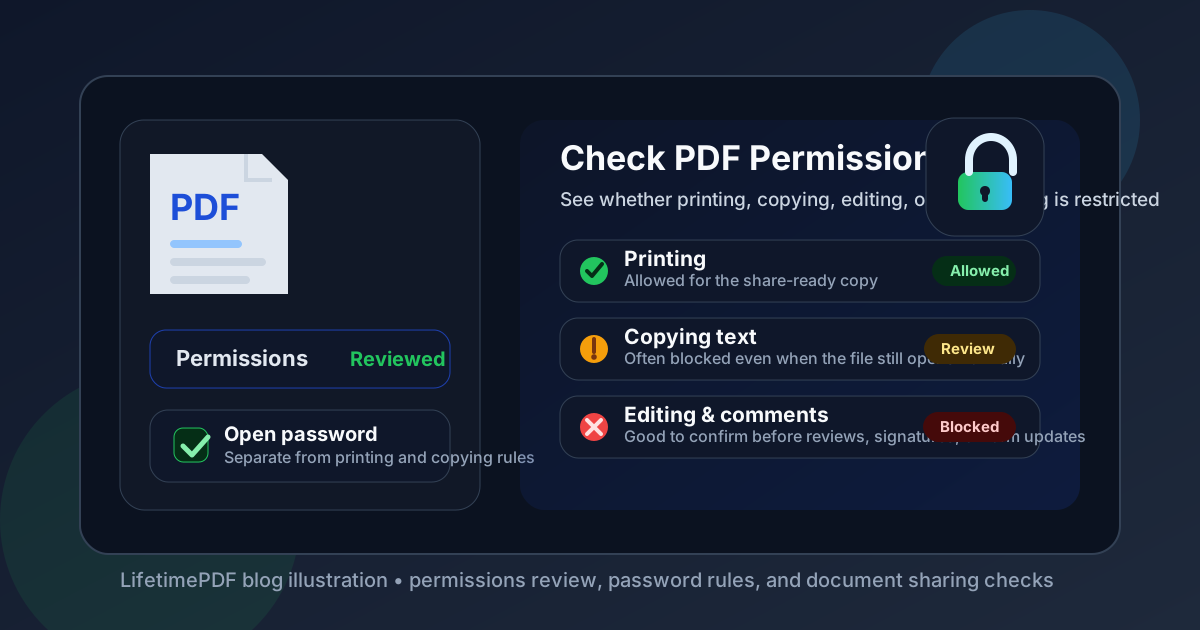
Table of contents
- Quick start: check PDF permissions in about 5 minutes
- What PDF permissions actually mean
- Open password vs permission settings
- Step-by-step: practical PDF permissions review workflow
- What to review before you share the file
- When to keep, change, or remove PDF permissions
- Final checklist before you send the PDF
- Related LifetimePDF tools and guides
- FAQ
Quick start: check PDF permissions in about 5 minutes
If your real goal is simply make sure this PDF lets the right people do the right things without opening the door too far, use this fast workflow:
- Open the exact copy you plan to share, not an older export or an internal draft.
- Inspect the file through View PDF Properties or a metadata tool so you can review the permission settings directly.
- Check whether printing, copying text, comments, form filling, page extraction, or editing are allowed, limited, or blocked.
- Ask what the recipient truly needs to do. Review-only? Print and sign? Fill fields? Extract text? Mark up revisions?
- If the rules are wrong, update them with Protect PDF or remove unnecessary restrictions with Unlock PDF.
- Save the final version and, if the file is important, reopen it once so you verify the permissions you meant to send are the ones the PDF actually carries.
What PDF permissions actually mean
PDF permissions are the hidden rules attached to a document that say what people can do after the file opens. Depending on the PDF and the app reading it, those rules may cover printing, copying text, editing pages, adding comments, filling forms, signing, extracting content, or making accessibility-related changes.
This is why two PDFs can both open normally but behave very differently. One might let a client print and annotate it freely, while another opens to the same first page but blocks copy-paste, disables comments, and refuses edits.
| Permission area | What it controls | Why it matters |
|---|---|---|
| Printing | Whether someone can print the PDF, sometimes at full or lower quality | Useful for contracts, invoices, handouts, and approval packets |
| Copying text or images | Whether content can be selected and reused | Important when recipients need quotes, data, excerpts, or accessibility workflows |
| Editing | Whether content, pages, or objects can be changed | Helps prevent accidental or unauthorized revision |
| Comments and annotations | Whether reviewers can highlight, comment, or mark up the PDF | Critical for approvals, legal review, and team feedback loops |
| Form filling and signing | Whether interactive fields can still be used | Necessary for applications, onboarding, and signature workflows |
Open password vs permission settings
People often mix up two different ideas: the password needed to open a PDF and the permissions that control what happens after it opens. They are related, but they are not the same thing.
Open password
An open password blocks access to the file itself. Until someone enters the password, they cannot read the document at all.
Permission settings
Permission settings usually apply once the document is already open. They decide whether someone can print, copy, edit, or annotate the content, often through rules connected to the owner-password side of PDF security.
Common confusion to avoid
A PDF can open without any user password and still have tight permission restrictions. It can also require an open password yet remain fairly flexible once unlocked. That is why you should check the actual permission summary, not just whether the file asks for a password.
If you want a deeper explanation of owner-password behavior, read PDF owner password alongside Encrypt PDF Online: Complete Guide.
Step-by-step: practical PDF permissions review workflow
1) Start with the exact file that will be shared
Permissions can change between draft exports, repaired copies, signed versions, and portal-ready uploads. Review the actual file you are about to send.
2) Inspect properties instead of assuming from a lock icon
Use View PDF Properties or PDF Metadata Editor so you can read what the PDF is really enforcing. Some apps show a padlock but do not clearly explain whether printing or text copying is still allowed.
3) Match the restrictions to the real job
A board packet, a contract draft, a job application form, and a public download do not need the same settings. Check whether the rules support the actual use case instead of applying one generic locked-down profile to everything.
4) Test the most likely recipient action
If the recipient needs to print, try printing. If they need to quote text, test copy-paste. If they need to review, confirm comments work. If they need to complete the document, make sure form filling or signing is still possible.
5) Tighten or relax the file only as much as needed
Use Protect PDF when the document really should limit reuse or edits. Use Unlock PDF when the restrictions are getting in the way of a legitimate workflow.
6) Reopen the final copy once
This final check is boring but valuable. It confirms the permission rules you intended to ship are the ones that survived export, save, and upload.
Reliable sequence: inspect the current rules, decide what the next person must be able to do, then protect or unlock the PDF to fit the real workflow.
What to review before you share the file
The smartest permission check is not just "is it locked?" but "does it behave the way this workflow needs?"
Printing
If the recipient is going to hand the PDF to a client, bring it to a meeting, or sign it on paper, blocked printing may create unnecessary friction. On the other hand, internal review drafts or licensed content may reasonably keep printing tighter.
Copying text and images
Copy restrictions may sound protective, but they can also frustrate real tasks like quoting contract language, extracting invoice details, pasting an address, or supporting screen-reader-friendly workflows. If people are expected to reuse snippets, blocking copying may be the wrong call.
Comments and markups
A locked review copy that disables annotations is a classic own goal. If someone needs to redline, highlight, or leave approval notes, comment permissions deserve a specific check.
Editing
Broad editing permissions are often unnecessary for final client-facing deliverables. But if the file is still moving through internal revision, over-locking it too early can force awkward workarounds or duplicate exports.
Form filling and signatures
Some of the most expensive permission mistakes happen here. A form that opens but refuses entry or a signature packet that blocks the final step wastes time fast. If the document is interactive, always test the action that matters most.
Good situations for a deeper permissions check
- The PDF is going to a client, applicant, patient, vendor, or signer who is outside your team.
- People previously said they could not print, copy, comment, or fill the file.
- The document is meant for review, but annotations mysteriously stopped working.
- You changed the file after protecting it and want to confirm the final export still carries the intended rules.
- You need a controlled share copy without creating a frustrating dead-end for legitimate users.
When to keep, change, or remove PDF permissions
Not every PDF should be wide open, and not every PDF should be heavily restricted. The right answer depends on who needs the file and what they need from it.
Keep the permissions when they support a real policy
If the goal is to reduce accidental edits, discourage casual reuse, or keep a review copy stable, the permissions may be doing exactly what they should.
Change them when the PDF is blocking normal work
If a teammate needs to quote text, a client needs to print it, or a signer needs to complete fields, the restrictions may be technically correct but operationally wrong. That is usually the moment to revise the rules instead of blaming the recipient.
Remove them when the file no longer needs controlled handling
Some PDFs start life as protected drafts but end up as public-facing handouts, archived records, or approved final deliverables. When the purpose changes, the permission settings should change too.
Do not confuse permissions with absolute protection
Permission settings are useful controls, but they are not magic. They help shape ordinary document behavior in supported apps, yet they are not a complete substitute for access controls, proper storage, or judgment about what should be distributed in the first place.
Final checklist before you send the PDF
Before the file leaves your workflow, run this short checklist:
- Did you inspect the actual permission summary instead of assuming based on a lock icon or password prompt?
- Can the recipient still do the one or two things they genuinely need to do, such as print, comment, sign, or copy a few lines?
- Are editing restrictions intentional, or are they just leftovers from an earlier stage of the workflow?
- If the PDF includes forms or signature steps, did you test the interaction once?
- Did you review related document controls such as owner-password behavior and broader metadata cleanup?
- Did you save and reopen the final distributed copy, not just the working source file?
That short review catches a surprising number of preventable headaches. Most permission problems are not deep technical mysteries. They are simple mismatches between the file's hidden rules and the human task waiting on the other side.
Ready to review the share settings? Check the current rules now, then protect or unlock the PDF so recipients get exactly the level of access they need.
Best workflow for important files: review permissions → test the real recipient action → adjust the rules → reopen the final PDF → share with confidence.
Related LifetimePDF tools and guides
Permission checks work best when you treat them as part of a broader sharing review instead of a one-off security toggle.
Inspect and understand the current rules
- View PDF Properties to inspect what the file is carrying now
- PDF Metadata Editor to review hidden document settings more closely
- PDF owner password to understand where permission restrictions usually come from
Change the file for the next step
- Protect PDF when you need tighter sharing rules
- Unlock PDF when current restrictions are getting in the way
- Remove Metadata From PDF if the share copy also needs a hidden-data cleanup
FAQ
1) How do I check PDF permissions?
Open the file properties or a metadata tool and review whether printing, copying, editing, comments, or form actions are restricted. Then compare those settings with what the recipient actually needs to do.
2) Are PDF permissions the same as a password to open the file?
No. An open password controls access to the document itself, while permissions usually control actions after the file is already open.
3) What is the difference between owner password and user password in a PDF?
A user password is typically required to open the file. An owner password is usually tied to the permission rules that restrict actions such as printing, copying, or editing.
4) Can PDF permissions stop every kind of copying or editing?
Not completely. They are useful practical controls for ordinary supported workflows, but they should not be treated as absolute protection against every possible workaround.
5) Should I remove PDF permissions before sending a file?
Only if the current restrictions no longer fit the document's purpose. Keep them when they help the workflow, and relax them when they are blocking legitimate printing, review, signing, or form completion.
Published by LifetimePDF — Pay once. Use forever.