Remove Metadata From PDF: Clean Hidden Author, Title, Keywords, and File Properties Before You Share
To remove metadata from PDF, open a PDF Metadata Editor, upload the file, clear or replace fields like title, author, subject, keywords, creator, producer, and dates, then save the cleaned copy before sharing it.
If the PDF also shows sensitive information on the page itself, use redaction too, because metadata cleanup only removes hidden file properties.
That is the short answer, but the useful part is knowing what should actually be cleared, what can be kept, and what kinds of hidden details quietly travel with a document. A PDF can look perfectly harmless on the page while still exposing the person who created it, the internal project name, the software used to produce it, or dates that tell more of the story than you meant to share. Good metadata cleanup is not about paranoia. It is about making the file say only what you intend it to say.
Fastest path: open LifetimePDF PDF Metadata Editor, clean the hidden fields you do not want to share, then decide whether the final document also needs redaction or password protection.
Need the short workflow? Jump to quick start: remove metadata in a few minutes.
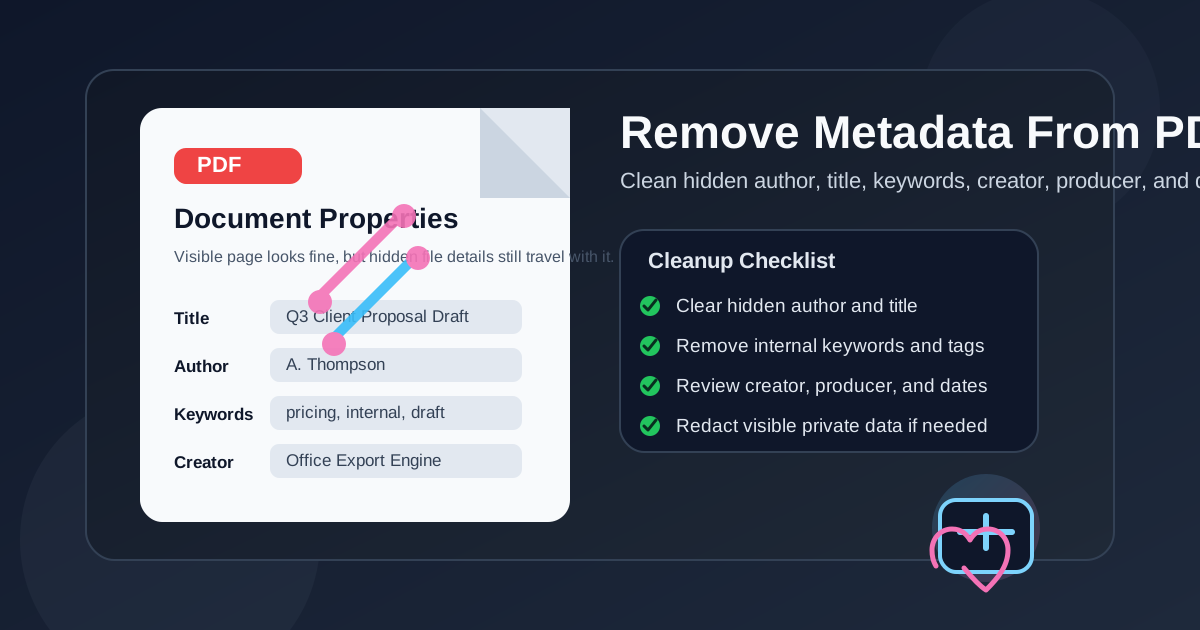
Table of contents
- Quick start: remove metadata in a few minutes
- What PDF metadata actually includes
- Why people remove metadata before sharing
- Step-by-step: remove metadata with LifetimePDF
- Which metadata fields to clear, replace, or keep
- Metadata removal vs redaction vs password protection
- What to do if the PDF is locked or restricted
- Final checklist before you send the cleaned PDF
- Related LifetimePDF tools and internal guides
- FAQ (People Also Ask)
Quick start: remove metadata in a few minutes
If you already know the file should not carry hidden author, title, or software information, this is the fast workflow:
- Open PDF Metadata Editor.
- Upload the exact PDF you plan to share.
- Review the hidden fields already stored in the file.
- Clear or replace fields like Title, Author, Subject, Keywords, Creator, Producer, and dates.
- Save the cleaned PDF.
- Reopen the file once and confirm the document properties now say only what you intended.
What PDF metadata actually includes
PDF metadata is information stored inside the file that usually does not appear on the visible page. It often travels with the document automatically when the PDF is exported from Word, Google Docs, InDesign, a scanner app, a contract system, or an internal workflow tool.
Common metadata fields include:
| Field | What it often contains | Why it can matter |
|---|---|---|
| Title | A document label, export name, or project title | Can expose draft status, client names, or internal naming conventions |
| Author | A person, department, or organization name | Can reveal identity or stale attribution |
| Subject | A short summary or category | Can leak context you did not mean to send along |
| Keywords | Tags, search terms, internal labels | Can expose projects, case names, or workflow labels |
| Creator | The app that originally created the file | Can reveal part of your internal software stack |
| Producer | The tool or engine that generated the PDF | Can show conversion paths or software versions |
| Creation / modification dates | Timestamps tied to the document history | Can reveal timeline details you do not need to share |
Some PDFs also contain richer metadata layers such as XMP properties. You do not need to obsess over the technical format to make a practical decision. If the file is going outside your team, it is usually worth reviewing and cleaning the hidden properties first.
Why people remove metadata before sharing
Most people do not remove metadata because they love document hygiene as a hobby. They do it because the file is about to leave a controlled environment and they want the PDF to look intentional, professional, and private enough for the situation.
1) Privacy
A PDF can quietly reveal who created it, what software touched it, and what internal labels or search terms were attached to it. That may be harmless for a casual handout, but it is different when the file is a contract, policy, HR form, client deliverable, proposal, medical record, or legal packet.
2) Cleaner professional presentation
Old metadata can make an otherwise polished document feel sloppy. An updated report may still show last quarter's author, a renamed project, or a template subject line that no longer matches the final file. Cleaning the metadata helps the document feel finished rather than recycled.
3) Safer external sharing
Files get forwarded. Vendors forward them to managers, clients forward them to legal teams, and coworkers upload them into portals or archive systems. The less unnecessary hidden context the file carries, the less surprise you create later.
4) Better standardization
Sometimes the right move is not to blank everything out. Sometimes you want to replace messy metadata with clean, deliberate values so the PDF still sorts well in a document management system. Standardized metadata can be useful. Random inherited metadata usually is not.
Step-by-step: remove metadata with LifetimePDF
A good remove-metadata workflow is short. The real value is making one clean decision at each step instead of blindly erasing everything and hoping for the best.
Step 1: Start with the right copy
Use the exact PDF you are about to send. Many people accidentally clean an older draft in Downloads while the attachment or shared drive version still carries the original metadata.
Step 2: Open PDF Metadata Editor
Go to LifetimePDF PDF Metadata Editor and upload the file. Review what the document already contains before you start clearing fields.
Step 3: Clear the fields that do not belong
Remove old author names, internal project tags, draft titles, template keywords, unnecessary timestamps, and software traces that do not help the recipient. If a field is still useful, replace it with a clean value rather than leaving a messy inherited one.
Step 4: Save the cleaned copy
Download the updated file and treat it as the new shareable version. If needed, rename it clearly so nobody sends the dirty original by mistake.
Step 5: Decide what the file needs next
If the page itself contains sensitive text, switch to Redact PDF. If the document needs controlled access after cleanup, use PDF Protect. If the file is restricted and you are authorized to edit it, start with PDF Unlock.
Which metadata fields to clear, replace, or keep
Not every field deserves the same treatment. The best choice depends on where the PDF is going and why it exists.
Usually good candidates to clear
- Personal names that do not need to travel with the file
- Internal project codes or draft labels
- Keywords used only for internal search or template systems
- Creator and producer data that reveal toolchain details
- Dates that give away an internal review timeline without helping the recipient
Often better to replace than erase
- Title — useful when the file should still identify itself clearly
- Subject — useful when a document system depends on a clean category
- Author — sometimes worth replacing with an organization name instead of a person
Sometimes reasonable to keep
If the PDF is staying inside an organized internal archive, some metadata may still be helpful. The goal is not to remove information for the sake of it. The goal is to make sure hidden properties match the document's real purpose and audience.
Metadata removal vs redaction vs password protection
These are related workflows, but they solve different problems. Mixing them up is where many document-sharing mistakes begin.
Metadata removal
Clears hidden properties like author, title, keywords, creator, producer, and dates. It does not remove visible words or numbers printed on the page.
Redaction
Permanently removes visible content from the page. Use it when the PDF itself displays names, prices, addresses, signatures, case details, account numbers, or anything else the recipient should not see.
Password protection
Controls who can open or change the final file. It is useful after cleanup when you still need a safer handoff. But a password does not fix sloppy metadata or visible private content. It simply wraps the final version in access control.
The clean sequence for sensitive documents is often: unlock if authorized → remove metadata → redact visible content if needed → protect the final PDF → share.
What to do if the PDF is locked or restricted
Sometimes the metadata cleanup step is blocked because the PDF is protected. If you are authorized to work with the file, start by unlocking it through PDF Unlock, then return to metadata editing.
If you do not have permission to unlock the file, the right move is to ask the owner for an editable or cleaned copy. That is better than creating a messy workaround and much better than risking a policy problem.
Final checklist before you send the cleaned PDF
Before you attach the file to an email or upload it to a portal, do one quick review:
- Does the metadata now show only the values you intended to keep?
- Does the visible page still contain anything that should be redacted?
- Did you clean the final version, not an older draft?
- Does the filename itself reveal anything private or outdated?
- Does the file need password protection before it leaves your control?
This last minute check matters because metadata cleanup is usually fast. Most mistakes happen not during the editing step, but when someone sends the wrong copy or assumes hidden properties and visible content are the same thing.
Related LifetimePDF tools and internal guides
Removing metadata works best when it is part of a complete PDF cleanup workflow. These are the most useful companion tools and guides:
- PDF Metadata Editor – clear or replace hidden title, author, subject, keyword, creator, and date fields
- Redact PDF – permanently remove visible private content from the page
- PDF Unlock – unlock an authorized file before editing metadata
- PDF Protect – lock the cleaned final version before sending it onward
- Compress PDF – shrink the finished file after cleanup if an email or portal has strict size limits
Suggested internal blog links
- Remove Metadata from PDF Online
- How to Remove PII from PDF Metadata
- Remove Password From PDF
- Password Protect PDF for Email
- Protect PDF
FAQ (People Also Ask)
1) How do I remove metadata from PDF?
Open a metadata editor, upload the PDF, clear or replace hidden fields like title, author, subject, keywords, creator, producer, and dates, then save the cleaned copy. LifetimePDF's PDF Metadata Editor is designed for exactly that workflow.
2) What metadata can be removed from a PDF?
Most PDFs let you edit or clear standard document properties such as title, author, subject, keywords, creator, producer, and date fields. Depending on the file, richer metadata layers may also need review, but the standard fields are the first place to start.
3) Will removing metadata change the visible page content?
No. Metadata cleanup affects hidden file properties, not the visible page itself. If you need to remove names, numbers, signatures, or text from the page, use Redact PDF.
4) Should I erase every metadata field or keep some of them?
Clear the fields that do not help the recipient. If a title, subject, or organization-level author still helps with filing or search, replace random inherited values with clean intentional ones instead of leaving them messy.
5) What should I do after I clean the metadata?
Reopen the cleaned PDF once, confirm the properties look right, then decide whether the file also needs redaction, password protection, or compression before you share it.
Ready to clean hidden file properties before you share?
Best workflow for sensitive files: Unlock if needed → Remove Metadata → Redact visible data if needed → Protect final copy → Share.
Published by LifetimePDF — Pay once. Use forever.