Remove Password From PDF: Unlock a File You're Allowed to Use and Keep Work Moving
To remove password from PDF, use a trusted PDF Unlock tool, upload the file, enter the current password if the document requires one, and download the unlocked copy so you can edit, print, convert, or share it more easily.
If you do not know the password or do not have permission to remove it, the right move is to ask the owner or sender for the password or an unrestricted copy.
That is the short answer. The useful part is knowing what kind of lock the PDF actually has, when removing it makes sense, and what to do next so you do not unlock one problem only to create another one. Most people are not trying to do anything exotic here. They just need a document they are allowed to use to stop blocking the next step in the workflow.
Fastest path: if you know the current password and you are allowed to remove it, open LifetimePDF PDF Unlock, unlock the file once, then move straight into editing, printing, converting, or protecting the finished version again.
In a hurry? Jump to the quick answer and step-by-step workflow.
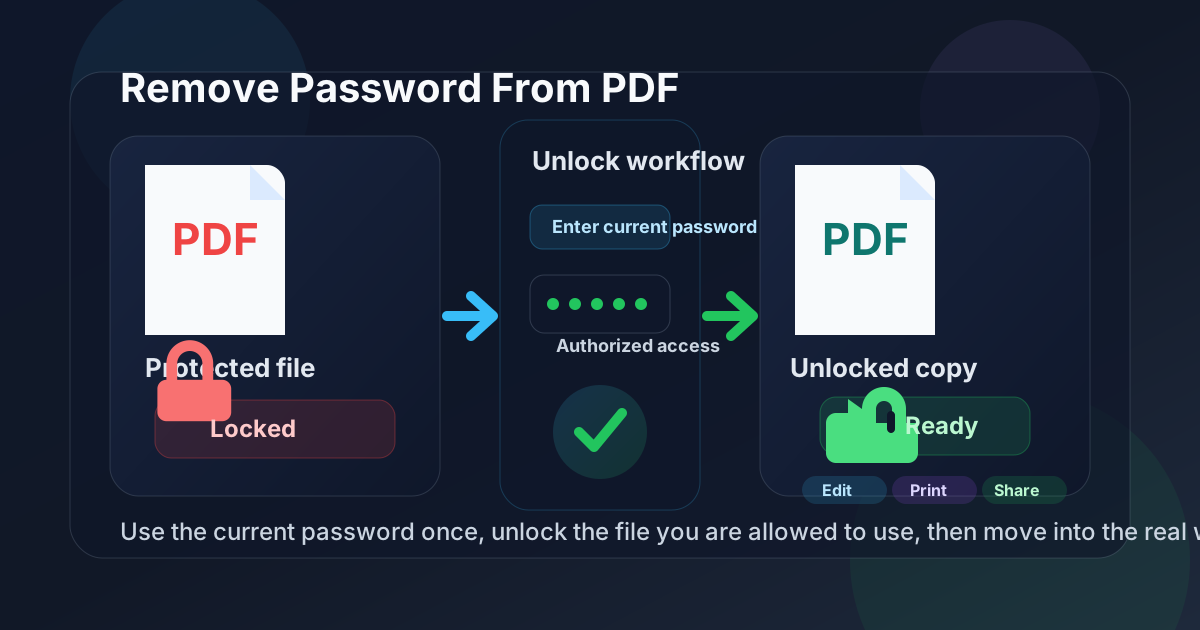
Table of contents
- Quick answer: the cleanest remove-password workflow
- When removing a PDF password actually makes sense
- Open password vs permissions restrictions
- Step-by-step: remove password from PDF
- What to do after the PDF is unlocked
- Common problems and quick fixes
- Security and privacy tips
- Related LifetimePDF tools and guides
- FAQ
Quick answer: the cleanest remove-password workflow
If you are allowed to remove the password, the most practical workflow is simple:
- Confirm you are working with a file you own or are authorized to manage.
- Open PDF Unlock.
- Upload the exact PDF you need, not an older duplicate from Downloads or email.
- Enter the current password if the file uses one to open.
- Download the unlocked copy and review it once before doing anything else.
That is usually enough. The bigger question is what kind of protection you are removing and why. Some PDFs are blocked from opening at all. Others open normally but refuse to print, copy, sign, or edit. Knowing which problem you actually have saves time and avoids the false hope that one tool click will solve a different problem.
When removing a PDF password actually makes sense
People usually search remove password from PDF at the exact moment a document has become annoying enough to slow down real work. The file may be a contract, invoice packet, client form, bank statement, application document, or archive record that keeps asking for a password or blocks normal actions.
| Situation | Why removing the password helps | What you often do next |
|---|---|---|
| You know the password and need to stop re-entering it | Makes a repetitive workflow easier | Edit, print, or share the file |
| The PDF opens but blocks printing, copying, or editing | Removes restrictions from a file you are allowed to use | Fill, sign, extract pages, or convert it |
| You inherited an internal document from an old workflow | Restores practical access for an authorized team | Archive, update, or reuse the document |
| You need to convert the PDF into another format | Unlocking may be necessary before conversion or reuse | Convert to Word, Excel, or editable text |
| You are preparing a cleaned, safer outgoing copy | Lets you unlock, redact, trim, then protect again with better rules | Redact, compress, and re-protect before sharing |
In other words, password removal is rarely the final destination. It is the practical bridge between a locked file and the thing you actually need to get done.
Open password vs permissions restrictions
This is the distinction that clears up most confusion. Not every protected PDF is protected in the same way.
Open password
This is the password that prevents the file from opening at all. If the PDF stops you before you can even read page one, you are dealing with an open password.
- Typical symptom: password prompt appears before the document opens
- What you need: the current password or a replacement file from the owner
- Best mindset: this is an access question, not a formatting question
Permissions restrictions
This is when you can read the PDF but some actions are blocked, such as printing, copying text, editing, signing, or extracting pages.
- Typical symptom: the file opens, but normal actions are disabled
- What you need: authorization to remove the restrictions
- Best mindset: this is a workflow-access question
The difference matters because it changes expectations. If you do not know the open password, the correct move is usually to ask the sender, owner, client, school, bank, HR team, or colleague for the password or an unlocked copy. If the document already opens and only blocks certain actions, the next step is deciding whether you are authorized to remove those restrictions and continue the workflow.
Step-by-step: remove password from PDF
Here is the cleanest practical workflow when the document is yours to manage and the goal is simply to keep work moving.
1) Confirm you are working with the right file and the right authority
This sounds obvious, but it prevents a lot of wasted effort. Make sure you are handling the current PDF, not an older email attachment or a similar copy from a shared folder. Also make sure you are actually allowed to remove the password.
2) Open LifetimePDF PDF Unlock
Open PDF Unlock and upload the protected file. If the PDF uses an open password, enter the current password once so the file can be processed into an unlocked copy.
3) Download the unlocked version with a clear filename
Save the result with a name that makes the difference obvious, such as contract-unlocked.pdf, statement-editable.pdf, or packet-for-review.pdf. That reduces the chance that you accidentally keep using the locked original when the job becomes busy again.
4) Open the unlocked copy once before continuing
Check that the file now behaves the way you expected. Can it open without the old prompt? Can you print it, copy text from it, fill it, or send it into the next tool? One quick review here is better than discovering a problem halfway through a longer workflow.
5) Move directly into the real task
Once the PDF is unlocked, stop treating unlock as the main event. If the real job is editing, converting, extracting pages, signing, or sharing, do that part next while the file state is clear in your mind.
Recommended sequence: unlock the PDF, confirm the result, then either finish the work or protect the final version again with cleaner rules.
What to do after the PDF is unlocked
For most people, removing the password is just the unlock step before the real work starts. These are the most common next moves.
Edit or repurpose the file
If the goal is updating content, use PDF to Word or another relevant conversion route after unlocking. That is often the fastest path for contracts, forms, internal documents, and archived reports.
Print, sign, or fill the file
If the password was getting in the way of a routine task, unlocking may be enough by itself. You can then move into Sign PDF or PDF Form Filler without fighting the old restrictions.
Extract or delete pages
A lot of protected PDFs are big packets with only one section that matters. After unlocking, Extract Pages or Delete Pages can turn one awkward packet into a cleaner final document.
Protect it again with better intent
Sometimes the original password was the problem, not the idea of protection itself. After cleanup, use PDF Protect if the finished file still needs controlled sharing.
That last point matters. Removing a password does not automatically mean the document should stay wide open forever. It often just means the old restrictions were getting in the way of normal work and the file needed to be re-secured more thoughtfully afterward.
Common problems and quick fixes
I do not know the password
If the file uses an open password and you do not know it, the correct path is to request the password or an unlocked replacement file. That is especially true for documents from banks, schools, HR systems, clients, or legal workflows.
The PDF opens, but I still cannot do what I need
That usually means one of two things: either the file still has restrictions you have not addressed yet, or the real issue is not security at all. For example, a scanned PDF may still need OCR PDF before the text becomes usable.
I unlocked the wrong copy
This is a normal Downloads-folder mistake. Go back, confirm which file is current, and rename both the original and the unlocked version more clearly before you continue.
I need to share the file externally after unlocking
Do not treat unlock as the last security decision. If the file contains private or regulated content, redact what should not leave the document, then protect the outgoing copy again if appropriate.
The unlocked PDF is still too large to email or upload
Use Compress PDF after the access issue is solved. First fix access. Then fix file size.
Security and privacy tips
Unlocking a PDF can be completely reasonable and still deserve careful handling. These habits keep the process practical without getting sloppy.
- Only unlock files you are allowed to manage: if that is unclear, stop and confirm first.
- Keep the original until the job is complete: it is your reference point if something goes wrong.
- Use clear filenames: especially when you now have both a locked and unlocked copy in the same folder.
- Redact before sharing: unlocked does not mean ready for outside eyes.
- Re-protect the final copy when needed: some documents should stay controlled even after the original lock is removed.
- Review the finished PDF once: make sure you are sending the right version, not the old locked file or an intermediate draft.
That mix of caution and practicality is the real professional workflow. You are not just making the lock disappear. You are deciding what the file should be allowed to do next.
Related LifetimePDF tools and guides
If removing the password is only the first step, these are the most useful follow-up tools and references:
- PDF Unlock for removing the existing access barrier
- PDF Protect for locking the final version again with cleaner intent
- PDF to Word when you need editable content next
- Extract Pages to keep only the section that matters
- Delete Pages to trim the packet after unlocking
- Redact PDF for removing private information before sharing
- Compress PDF to make the finished file easier to send
- How to Unlock Password Protected PDFs for the broader recovery angle
- Protect PDF for the opposite workflow
Need the simplest path? Unlock the PDF only once, do the work you actually need, then use LifetimePDF to redact, compress, convert, or protect the finished copy instead of bouncing between unrelated tools.
FAQ
How do I remove password from PDF?
Use a PDF unlock tool when you are allowed to do so: upload the PDF, enter the current password if the file requires one, download the unlocked copy, and review it before editing, printing, or sharing it.
Can I remove a PDF password if I do not know the password?
If the document has an open password and you do not know it, the right move is to ask the owner or sender for the password or an unlocked copy. If the file only has permissions restrictions, you still need authorization to remove them.
What is the difference between an open password and permissions restrictions?
An open password blocks you from opening the PDF at all. Permissions restrictions let you read the file but may block printing, copying, signing, or editing. The right workflow depends on which kind of protection is actually in the file.
Will removing a PDF password hurt the document quality?
Usually no. Removing a password normally changes access, not visual quality. Still, open the unlocked copy once to make sure the document looks normal and behaves the way you expected.
What should I do after I unlock a PDF?
Do the task that was blocked, such as editing, printing, extracting pages, converting the file, or preparing a safer outgoing copy. If the PDF still contains private information, redact it or protect it again before sharing.
Published by LifetimePDF — Pay once. Use forever.