Protect PDF: Add a Password to the Final Copy, Share It Safer, and Avoid Rework
Yes — you can protect PDF files by adding a password to the final version you actually plan to share, testing it once, and sending the password in a different channel.
If the file still needs edits, signatures, redaction, or compression, do those first because protecting too early is what creates most avoidable rework.
That is the practical answer most people need. They are not trying to build an elaborate security program. They just need to send a contract, HR packet, invoice, report, school record, onboarding form, or client deliverable without attaching a fully open file. The trick is not merely clicking a lock button. The trick is locking the right version, sharing it sensibly, and knowing when redaction matters more than password protection.
Fastest practical path: finish the PDF first, protect the final copy second, then send the password separately from the file.
In a hurry? Jump to Quick start: protect a PDF in a few minutes.
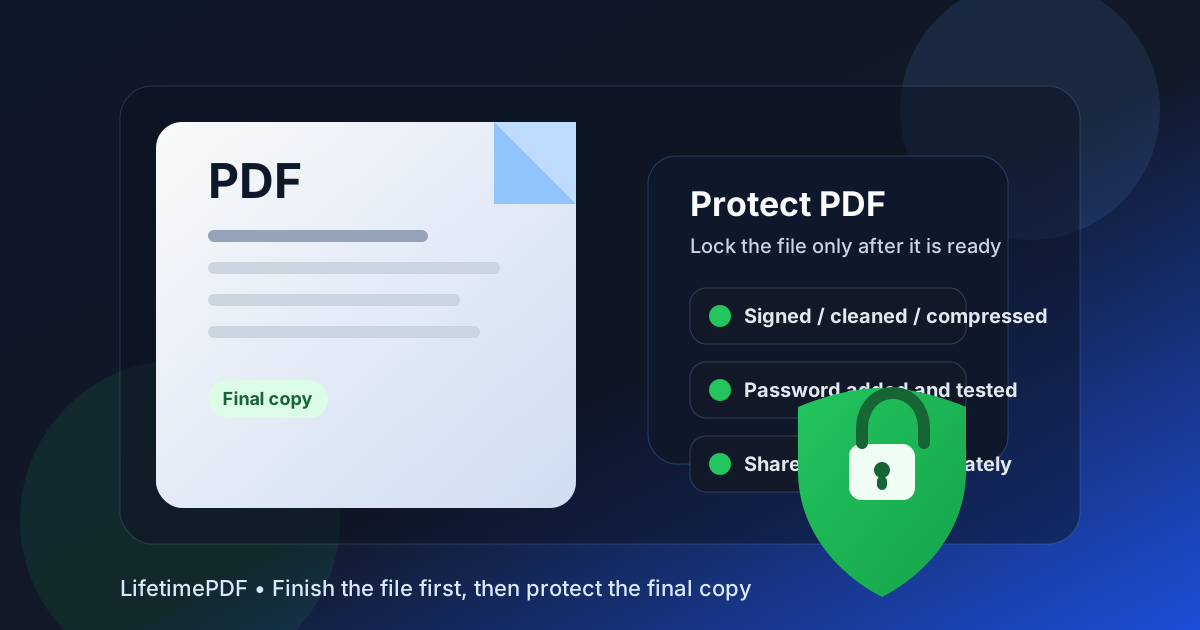
Table of contents
- Quick start: protect a PDF in a few minutes
- When protecting a PDF is the right move
- What PDF protection does and does not do
- Step-by-step: the clean protection workflow
- Best order for redact, sign, compress, and protect
- Password and sharing habits that actually help
- Common real-world protect PDF scenarios
- Common mistakes and the fastest fixes
- Related LifetimePDF tools and guides
- FAQ (People Also Ask)
Quick start: protect a PDF in a few minutes
If you just need the shortest useful version, this order works well:
- Open PDF Protect.
- Upload the exact PDF you actually plan to share.
- Add and confirm a strong password or passphrase.
- Download the secured file and open it once to confirm the password prompt appears.
- Send the PDF, then send the password through a different channel.
When protecting a PDF is the right move
A PDF looks finished, so people often assume it is private enough already. It usually is not. Most PDFs open instantly for anyone who receives the file. Protecting the document makes sense when access itself should be controlled, even if only at the practical everyday level of "the right person should open this, and everyone else should hit a wall first."
| Your situation | Best move | Why it helps |
|---|---|---|
| Sending a contract, invoice, HR packet, or school record | Protect the final PDF with a password | It reduces casual access if the file is opened by the wrong person or forwarded carelessly |
| The PDF still contains details the recipient should never see | Use Redact PDF before protecting it | Protection controls access, but redaction removes the information from the outgoing copy |
| You only need to send a few pages | Use Extract Pages, then protect the smaller file | Smaller files expose less and are usually easier for recipients to handle |
| The document still needs a signature or final cleanup | Finish those steps first | Otherwise you will protect the file, unlock it again, and repeat work you did not need to repeat |
In plain terms, protect a PDF when you want to control who opens the file. Redact it when you want to control what information exists in the shared copy at all. Those two goals often work together, but they are not the same job.
What PDF protection does and does not do
People often expect one password step to solve every privacy problem. It does not. Protection is useful, but it has a specific role.
| Goal | Use protection? | Better supporting move |
|---|---|---|
| Stop casual opening of the attachment | Yes | Add a password and share it separately from the file |
| Remove bank details, IDs, or private notes permanently | Not by itself | Use Redact PDF first |
| Make a large PDF easier to email or upload | Sometimes | Use Compress PDF before protection |
| Discourage careless redistribution | Partly | Protect the file, trim unnecessary pages, and consider a watermark if appropriate |
Step-by-step: the clean protection workflow
The best protect PDF workflow is simple because it respects the order of operations. Most problems happen when someone locks the document too early and then discovers the file still needs one more change.
1. Finish the content first
If the PDF still needs a signature, page extraction, crop, merge, rotation, or conversion step, do that before protection. Useful tools here include Sign PDF, Extract Pages, and Merge PDF.
2. Remove anything the recipient does not need
If the packet includes extra pages, remove them. If it contains details that should not leave your hands, redact them before protection. Locking a bloated or overexposed PDF does not make it cleaner. It only makes the same problem harder to revise later.
3. Compress the file if size limits matter
If the PDF has to fit an email system, job application portal, court upload form, support desk, or customer portal, use Compress PDF before protection. That keeps the version you lock aligned with the version you actually intend to send.
4. Upload the final version to PDF Protect
Open PDF Protect and upload the exact file you are ready to share. Think of this as the send-ready copy, not a rough draft hiding in a convenient folder.
5. Add and confirm the password carefully
A secure file nobody can open is still a failed workflow. Choose a strong password or passphrase, store it safely, and confirm it carefully so you are not solving a privacy problem by creating an access problem.
6. Test the protected file once
Open the secured copy after download. That small check catches typos, copy-paste mistakes, and the occasional broken export before the recipient has to tell you the attachment is unusable.
7. Share the password separately
A protected PDF works better when the file and the password travel through different channels. Email the PDF, then send the password by chat, text, or a quick call. That simple habit is still one of the easiest practical upgrades you can make.
Simple sequence to remember: finish → trim or redact → compress if needed → protect → test → share password separately.
Best order for redact, sign, compress, and protect
These tasks all sound like general PDF cleanup, which is why people mix them up. The right order saves time.
| Task | Best timing | Why |
|---|---|---|
| Redact PDF | Before protection | It permanently removes information from the outgoing copy instead of merely hiding it behind a password |
| Sign PDF | Before protection | It is easier to sign the final document once than unlock it later and repeat the workflow |
| Compress PDF | Usually before protection | You want the locked version to already meet the upload or email limit |
| Watermark PDF | Usually before protection | It helps with attribution or discouraging casual reuse, but it does not replace redaction |
| PDF Unlock | Later, only when authorized | Useful if you must revise a password-protected file you are allowed to update |
The broader rule is easy: do the content-changing work first, then protect the version you are truly ready to send.
Password and sharing habits that actually help
Most of the real-world quality of a protected PDF comes from the habits around it, not just the click that adds the lock.
Use a password you can store and share accurately
A strong passphrase stored in a password manager is usually better than a short password you are likely to mistype or forget. Security should not depend on you remembering a random string under deadline pressure.
Do not send the password in the same message as the PDF
If the file and password travel together, you lose much of the separation you were trying to create. Email plus chat is already better than email plus password in the same email thread.
Share the smallest useful file, not the largest convenient one
The best protected PDF is often a trimmed version. If the recipient only needs two signed pages, send those two pages instead of a fifty-page packet containing everything else by habit.
Common real-world protect PDF scenarios
Contracts and approvals
Once a contract is finalized and signed, protecting the PDF can make sense before you send it to a client, vendor, or counterparty. The key is to lock the final version, not the one that still needs a missing signature block or page correction.
Invoices and finance paperwork
Billing files often contain names, addresses, account references, or internal notes. Trim what the recipient does not need, redact what should not leave, then protect the outgoing copy.
HR and onboarding packets
Offer letters, payroll forms, and identity-related documents are common candidates for password protection. These are also the documents where trimming unnecessary pages and double-checking the final recipient matters most.
School and application documents
Students and job applicants often need to share transcripts, ID scans, recommendation packets, or forms through email and portals. In those cases, protecting the final send-ready PDF adds useful friction without making the workflow complicated.
Common mistakes and the fastest fixes
"I protected the PDF, then realized it still needed a signature."
If you are authorized, use PDF Unlock, finish the change, then protect the final version again. Next time, move signing ahead of protection.
"The recipient says the password does not work."
Check for accidental spaces, case mismatches, and copy-paste issues. If there is any doubt, create a fresh protected copy instead of turning the situation into a long email chain about whether the old file is broken.
"The file is still too large for email."
Compress the finished file before protection, or extract only the pages the recipient actually needs. That is usually cleaner than protecting a huge attachment and troubleshooting size limits afterward.
"I need privacy, not just a password prompt."
Start with Redact PDF. Protection controls who opens the file. Redaction controls what information is still inside the file at all.
Related LifetimePDF tools and guides
Protecting a PDF usually works best as part of a short workflow rather than as one isolated click. These tools and guides fit naturally around the same job:
- PDF Protect - add a password to the final copy you are ready to share.
- Redact PDF - permanently remove details that should not travel in the outgoing file.
- Sign PDF - finish signatures before you lock the file.
- Compress PDF - reduce file size before email or portal upload.
- Extract Pages - keep only the pages the recipient actually needs.
- PDF Unlock - remove protection later when you are authorized to revise the file.
Related blog guides
- Protect PDF Online
- Protect PDF Online Free
- Protect PDF Without Monthly Fees
- Protect PDF Online Without Monthly Fees
- Password Protect PDF Without Monthly Fees
- Remove Password From PDF Online
- Redact PDF Online Permanently
Need the least annoying workflow? Finish the file, protect the final version once, and send the password separately.
Good default order: trim or redact → sign if needed → compress if needed → protect the final copy → share password separately.
FAQ (People Also Ask)
How do I protect a PDF?
Upload the finished PDF to a protection tool, add a password, download the secured copy, test it once, and share the password separately from the file.
Should I protect a PDF before or after signing it?
Usually after. It is cleaner to finish signatures, page cleanup, and compression before protecting the final version you plan to send.
Is protecting a PDF the same as redacting it?
No. Protection controls access to the file, while redaction permanently removes information from the shared copy. Many sensitive documents need both steps in the right order.
Can I share a protected PDF by email?
Yes, but the safer habit is to send the PDF by email and send the password in a different channel, such as chat, text, or a quick call.
What should I do if I protected the PDF too early?
If you are authorized, unlock it, finish the needed edits or signatures, then protect the final version again so you are not sharing a file that still needs work.