Password Protect PDF for Email: The Practical Way to Send Sensitive Attachments More Safely
To password protect a PDF for email, finish the document first, make it smaller or shorter if needed, add the password to the final copy, test it once, and only then attach it in Gmail, Outlook, or another mail app.
If the file matters enough to protect, send the password through a different channel instead of putting it in the same email thread.
That is the short answer. The part that actually saves time is getting the order right: clean up the attachment before you lock it, avoid creating three near-identical versions in Downloads, and make sure the recipient can open the file without an awkward back-and-forth. A good email workflow is not just about adding a password. It is about sending the right PDF, at the right size, with the right access habits.
Fastest path: finalize the PDF, compress or trim it if necessary, protect the final copy, open it once to confirm the password prompt, then attach that protected file in email.
In a hurry? Jump to the quick answer and clean workflow.
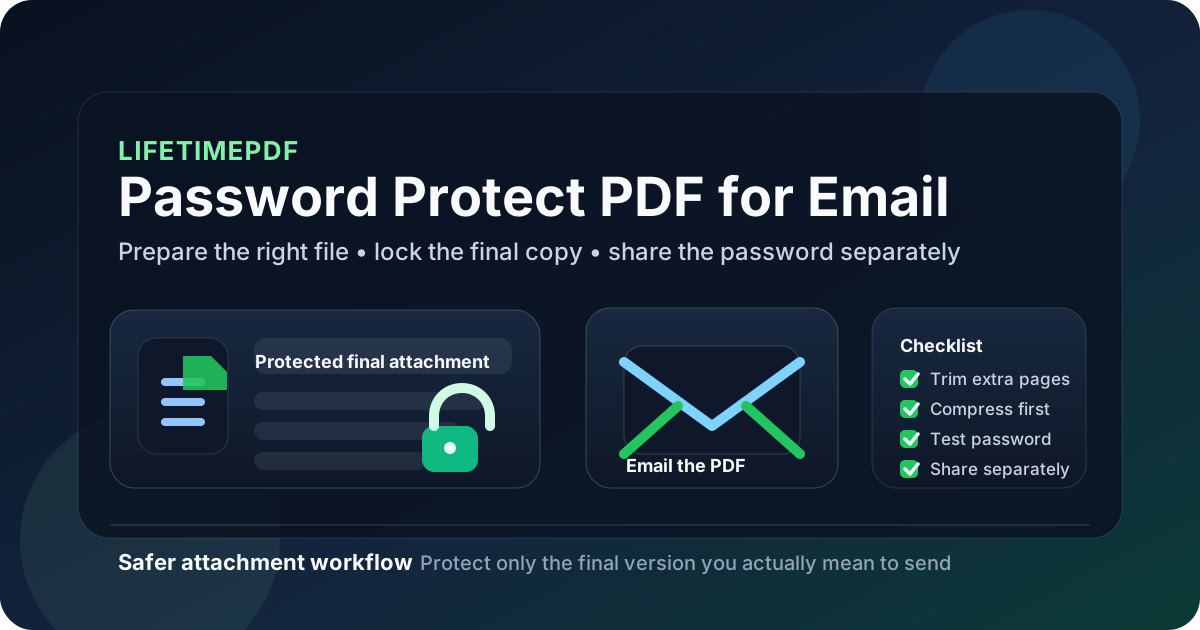
Table of contents
- Quick answer: the cleanest way to protect a PDF for email
- Why this is different from generic PDF protection
- Step-by-step: protect a PDF before you send it
- What to fix before you add the password
- How to share the password without defeating the point
- What password protection can and cannot do
- Best use cases for protected email attachments
- Common mistakes that create email confusion
- Related tools and companion guides
- FAQ
Quick answer: the cleanest way to protect a PDF for email
If the document is almost ready to go, this order is the least messy:
- Make sure the PDF is the final version you actually want to send.
- If it is too large or includes pages the recipient does not need, use Compress PDF or Extract PDF Pages first.
- Open PDF Protect and add the password to that cleaned final copy.
- Download the protected file and test it once so you know the password prompt works.
- Attach the protected PDF in email and share the password through chat, text, or a phone call instead of the same thread.
Why this is different from generic PDF protection
A generic protect PDF search can mean almost anything. Someone may be archiving a document, locking a file before cloud storage, or securing a report before it travels inside a company. But password protect PDF for email is a more practical, time-sensitive task. The file is about to leave your hands.
That changes the real questions:
- Is this the exact version I mean to send?
- Does the recipient really need the whole PDF?
- Will the attachment be too large for mail?
- Am I about to send the password in the same thread and weaken the whole point?
- Did I protect the file before redacting details that should never have stayed inside it?
Email multiplies small mistakes. A wrong attachment can be forwarded. An oversized file can trigger last-minute workarounds. A password shared in the same conversation can turn real protection into theater. That is why the best workflow is less about the lock itself and more about the order in which you prepare, protect, and send the file.
| Situation | What to do before protection | Why it helps |
|---|---|---|
| The PDF is too large for attachment limits | Compress it first | You avoid creating a protected file that still cannot be sent cleanly |
| The recipient only needs a few pages | Extract the relevant pages first | You reduce size and avoid oversharing the rest of the document |
| The PDF contains sensitive text the recipient should never see | Redact before protection | Password protection controls access, but redaction removes the information itself |
| The file is a filled form that may render differently for others | Flatten or finalize the form first | You reduce the risk of broken fields or unexpected edits after sending |
| You have several nearly identical versions in Downloads | Rename the final copy clearly before attaching it | You are less likely to send the wrong draft or an unprotected original |
Step-by-step: protect a PDF before you send it
- Decide whether the current PDF is truly final. If it still needs page cleanup, signatures, or last-minute edits, do those first.
- Trim what the recipient does not need. Use Extract PDF Pages when the real goal is sharing a section, not the whole packet.
- Shrink the file if email delivery is the real problem. Use Compress PDF before protection when attachment limits are likely to get in the way.
- Remove information that should never travel. If the issue is exposure rather than access, use Redact PDF before you add the password.
- Open PDF Protect and add the password. Enter it carefully and download the protected copy.
- Test the file immediately. Open it once, confirm the password prompt appears, and make sure the document itself still looks right.
- Attach only the protected copy. This sounds obvious, but it is where many people accidentally attach the original file still sitting in the same folder.
- Share the password separately. If practical, do it by text, chat, or call instead of the same email thread.
That sequence works because each step answers a different problem. Extraction solves oversharing. Compression solves delivery friction. Redaction solves hidden exposure. Password protection solves access control for the final file that is actually being sent.
Recommended sequence: clean the content, reduce the size, protect the final copy, test it once, then send it.
What to fix before you add the password
Many email problems are easier to solve before protection than after it. Once the PDF is locked, people often end up unlocking it, making a change, then protecting it again. That wastes time and creates extra versions.
Reduce size before the final lock
Attachment limits are one of the most common reasons a protected PDF workflow becomes annoying. If the file is too big, handle that first with Compress PDF. Otherwise you may end up with a protected file that still has to be rebuilt.
Extract only the relevant section
If the recipient only needs pages 3 to 6, sending a 24-page protected file is usually a bad trade. Use Extract PDF Pages first. Smaller attachments are easier to deliver, easier to review, and less likely to expose background material that was never meant to leave the original packet.
Redact before you protect
This is the step people misunderstand most. A password can stop casual opening, but it does not remove information from the document. If there is an account number, salary detail, internal note, address, or legal clause the recipient should never see, use Redact PDF first.
Flatten or finalize forms
Filled forms, onboarding packets, and signed documents often behave better when they are finalized before email. If the PDF depends on active form behavior that may not display the same way for the next person, finish that step before protection so the attachment opens as expected.
How to share the password without defeating the point
Protecting the PDF and then emailing the password in the same thread is better than nothing, but not by much. If the message gets forwarded or an inbox is shared, both pieces travel together.
A better habit is to split the delivery channels:
- send the protected PDF by email
- send the password through chat or text
- or share the password by phone if the document is particularly sensitive
This does not have to become a dramatic security ritual. It is just a cleaner separation. The attachment and the unlock key do not need to take the same route.
Better sharing habits
- share the password after the recipient confirms the email arrived
- use a direct message or text instead of a reply in the same thread
- double-check the recipient before sending either piece
- rename the protected file clearly so the recipient knows which attachment to open
Habits that weaken the workflow
- sending the password in the same email body
- using an extremely obvious password like the invoice number alone
- attaching both the original file and the protected file
- forgetting which version you actually sent
What password protection can and cannot do
Password protection is useful, but it is not magic. It helps limit access to the attachment. It does not replace careful document handling.
What it does well
- adds a barrier before the PDF opens
- reduces casual exposure if an attachment is seen by the wrong person
- works well for contracts, invoices, HR paperwork, financial files, and routine confidential handoffs
What it does not do
- it does not remove information already inside the file
- it does not fix oversized attachments
- it does not stop you from sending the wrong version
- it does not replace redaction when some details should never be shared at all
That is why good preparation matters more than people think. The password is the final gate, not the whole security strategy.
Best use cases for protected email attachments
Some email attachments benefit from password protection far more than others. The best candidates are documents that need to move quickly but still deserve a layer of access control.
- Contracts and proposals: useful when pricing, signatures, or legal terms are involved.
- Invoices and payment documents: helpful for reducing casual exposure of billing details.
- HR and onboarding files: worth protecting when the PDF contains personal data.
- School, tax, or compliance records: often safer as protected attachments than open files.
- Client deliverables with private notes or supporting pages: especially when the packet is moving outside your usual collaboration tools.
For ordinary brochures, public forms, or files that would be fine on a public website, password protection may add friction without much value. Use it when the attachment itself would create a problem if opened too casually.
Common mistakes that create email confusion
Most bad outcomes come from workflow mistakes rather than technical failures.
Protecting the PDF too early
If you still need to compress, split, redact, or extract pages, do not lock the file yet. Early protection creates duplicate versions and makes later cleanup harder.
Attaching the unprotected original by accident
This happens constantly when the original and protected copies sit together with vague names like final.pdf, final-new.pdf, and final-final.pdf. Rename the protected version clearly before you attach it.
Sending the whole packet when only a section matters
If the recipient only needs three pages, sending thirty pages is not a sign of professionalism. It is just more exposure and more clutter.
Using password protection instead of redaction
If a number, clause, or note should never leave the document, remove it with redaction. Do not rely on the password alone.
Sharing the password in the same thread by reflex
It is understandable, but it undercuts the practical value of the protection. Separate channels are usually worth the extra thirty seconds.
Want a cleaner send flow? Make the PDF smaller, safer, or shorter before you lock it. Then protect the version you actually mean to email.
Related tools and companion guides
These are the most useful next steps when you need to send a protected PDF by email without turning the workflow into a mess:
- PDF Protect for adding the password to the final file
- Compress PDF for reducing attachment size before send
- Extract PDF Pages for sending only the needed section
- Redact PDF for removing details that should never travel
- Password Protect PDF for Gmail for Gmail-specific attachment habits
- Password Protect PDF for Outlook for Outlook and desktop-mail workflows
- How to Reduce PDF File Size for Email for attachment-limit troubleshooting
- Flatten Filled PDF Form Before Emailing It for safer form delivery
- Password Protect PDF for Email Online for the browser-first companion angle
FAQ
How do I password protect a PDF for email?
Finalize the PDF first, compress or trim it if needed, add the password to the final copy, test the protected file once, attach that version in email, and share the password separately.
Should I compress a PDF before or after password protecting it for email?
Usually before. If email delivery size is the real problem, shrink the file first so the protected version is already the one you can actually send.
Is it safe to send the PDF password in the same email?
It is better to send the password through a different channel. If the attachment and password travel together in the same thread, the practical protection is much weaker.
Does password protection remove private information inside the PDF?
No. It controls access to the file, but it does not remove information. If the recipient should never see certain details, redact them before protecting the PDF.
What if my protected PDF is still too large to email?
Compress it or extract only the necessary pages before protecting the final copy. If you lock the oversized version first, you usually create extra work for yourself.
Published by LifetimePDF — Pay once. Use forever.