Password Protect PDF for Outlook: Send Safer Attachments Without OneDrive Confusion
To password protect a PDF for Outlook, finish the document first, compress it if attachment size might be a problem, add the password to the final copy, test it once, and then attach that protected file in Outlook.
If the PDF matters, send the password through a different channel instead of the same email thread.
That sounds simple, and it is, but Outlook introduces a few very specific ways people get tripped up: attaching the unprotected version from Downloads, running into Microsoft 365 attachment limits, letting Outlook switch to a OneDrive link without checking which file got uploaded, or protecting a draft before trimming extra pages and removing information that should never leave the company. A cleaner Outlook workflow solves those problems before the email goes out.
Fastest path: finish the PDF, reduce size if needed, protect the final copy, open it once to confirm the password prompt, then attach that file in Outlook.
In a hurry? Jump to Quick start: protect a PDF for Outlook in under 4 minutes.
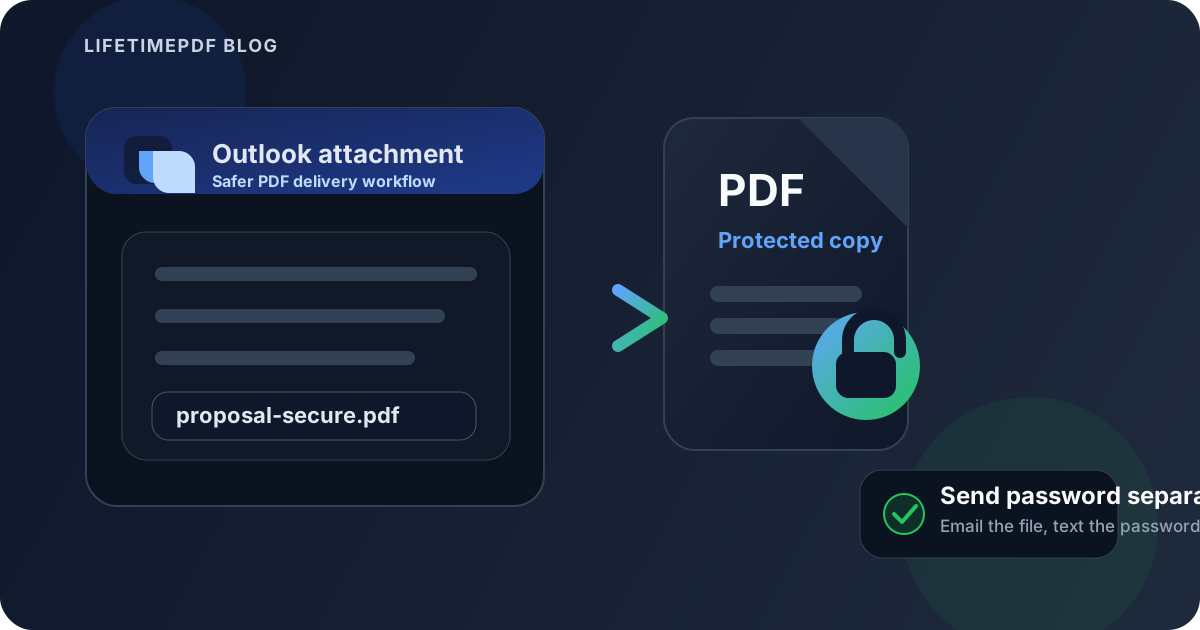
Table of contents
- Quick start: protect a PDF for Outlook in under 4 minutes
- Why Outlook changes the workflow more than people expect
- Step-by-step: how to password protect a PDF for Outlook
- How to handle Outlook and Microsoft 365 attachment limits
- What to remove or finish before you add the password
- How to share the password more safely
- Common Outlook mistakes and quick fixes
- Outlook desktop vs Outlook on the web vs mobile
- Related LifetimePDF tools and guides
- FAQ
Quick start: protect a PDF for Outlook in under 4 minutes
If the document is done and you simply need to send it through Outlook without leaving it wide open, use this order:
- Confirm that the PDF is the final version you actually plan to send.
- If size might be a problem, use Compress PDF or remove unnecessary pages first.
- Open PDF Protect and add the password to that final version.
- Download the protected copy and open it once to confirm the password prompt works.
- Rename it clearly, then attach the protected file in Outlook.
- Send the password separately when practical.
Why Outlook changes the workflow more than people expect
Password protecting a PDF feels like a document task, but Outlook is the moment where the file actually leaves your control. That is where practical mistakes happen: the wrong attachment gets selected, Outlook nudges you toward a OneDrive link, Microsoft 365 limits force a last-minute change, or the password ends up in the same conversation out of convenience.
Outlook itself is not the problem. The problem is that it sits at the handoff point between document prep and external sharing. When people rush that handoff, the protection step becomes much less useful.
| Situation | Best move | Why it helps |
|---|---|---|
| The PDF is final and small enough | Protect it, test it, attach it | Keeps the workflow short and avoids duplicate versions |
| The PDF is near Outlook or Microsoft 365 attachment limits | Compress or trim it before protection | You only create one final protected file instead of repeating the work |
| Outlook wants to upload the file to OneDrive | Verify the file and permissions first | Prevents sharing the wrong or unprotected version through a cloud link |
| The PDF contains content the recipient should never see | Redact first, then protect | A password limits access; it does not erase visible content |
Step-by-step: how to password protect a PDF for Outlook
Here is the clean Outlook workflow in the order that usually creates the fewest problems.
1) Confirm the PDF is actually final
If the file still needs signatures, page cleanup, or last-minute edits, handle that first. The cleanest workflow protects the final version rather than a draft that will later need to be rebuilt.
2) Reduce size first if Outlook limits are likely to matter
If the PDF is large because of scans, photos, or unnecessary pages, deal with that before the protection step. Use Compress PDF, Extract Pages, or Delete Pages so the file you protect is already the file you mean to send.
3) Add the password to the final file
Open PDF Protect, upload the PDF, enter the password carefully, and download the protected copy. Use something strong enough to protect the file but practical enough that you can retrieve it later without drama.
4) Rename the protected copy clearly
This is a small step with a huge payoff. Outlook on desktop, Outlook on the web, and Outlook mobile all make it easy to grab the wrong file if several similar downloads are sitting together. Rename the protected version so it is unmistakable.
5) Test the protected PDF once
Open the downloaded file immediately and confirm that it asks for the password. That quick check catches the common failures: wrong version, mistyped password, or attaching the original instead of the protected copy.
6) Attach the protected copy in Outlook
Compose your Outlook message and attach the renamed protected PDF. If Outlook suggests replacing the attachment with a OneDrive link because of file size or collaboration defaults, pause and confirm you are sharing the right protected version.
7) Send the password separately
When the PDF matters, do not undo your own work by dropping the password into the same email thread. A text message, chat message, or quick call is usually better.
Best Outlook workflow: finalize → shrink if needed → protect → rename → test → attach → send password separately.
How to handle Outlook and Microsoft 365 attachment limits
Outlook often turns a privacy task into a size-management task. Outlook.com generally caps attachments around 20 MB, while Microsoft 365 and Exchange environments vary depending on organization settings. That means many users are really dealing with two problems at once: protect this PDF and make this PDF sendable.
When the file is only slightly too large
Use Compress PDF first. This is usually the cleanest fix for scans, exported slide decks, and image-heavy reports.
When the file includes pages the recipient does not need
Do not send all 60 pages if the recipient only needs 8. Use Extract Pages or Delete Pages first. That reduces size and lowers the chance of oversharing at the same time.
When Outlook wants to use a OneDrive link
That can be perfectly reasonable, but it deserves a careful glance. Make sure the file uploaded to OneDrive is the protected final copy, not the original unprotected draft. Also check the sharing permissions so you are not trading one secure handoff problem for a broader cloud-sharing problem.
What to remove or finish before you add the password
A password is useful, but it is not a substitute for cleaning the document. Before you protect the file, ask whether the recipient should receive everything inside it.
Remove extra pages
Extra pages create two problems at once: larger attachments and more information exposure. If only one section matters, isolate it before protecting the final PDF.
Redact content they should never see
If addresses, IDs, internal notes, pricing details, or other private data should never reach the recipient, remove them permanently with Redact PDF before the password step. A password controls access. It does not make visible information disappear.
Finish signatures and form steps first
If the PDF still needs a signature or a final form fill, do that before you lock it. Password protection works best as the last document-prep step before delivery, not the first step in a longer editing chain.
How to share the password more safely
Most practical protection failures happen because the file and the password travel together. If both live in the same Outlook thread, one forward or inbox compromise can reveal everything at once.
- Best default: send the PDF in Outlook and send the password by text message, chat, or phone call.
- Good business habit: mention in the email that the password will arrive separately so the recipient knows the process is intentional.
- Avoid convenience drift: do not send the password in the next Outlook reply just because it is easy.
- Store it somewhere safe: if you may need the file later, keep the password in a place you can actually retrieve.
This is not about theatrical secrecy. It is about not weakening your own protection step with one lazy follow-up message.
Common Outlook mistakes and quick fixes
I protected the PDF but attached the original
Rename the protected copy immediately and attach from that clearly named file. If the wrong one already went out, create the corrected protected file and resend it with a brief clarification.
Outlook switched me to a OneDrive link and now I am not sure what got shared
Stop and verify the exact file in OneDrive before sending the link. Make sure it is the protected version and that sharing permissions are not broader than intended.
The recipient says the password does not work
This is usually a typing issue, not a mysterious PDF problem. Test the file yourself before sending, and if needed, resend the password carefully with a note about capitalization and spacing.
The PDF is still too large even after compression
Remove unnecessary pages or split the packet into smaller sections. Sending only the relevant portion is often better than forcing one oversized file through Outlook.
The file includes private content the recipient should not have
Go back and redact it properly. Do not assume the password makes overshared content acceptable.
Outlook desktop vs Outlook on the web vs mobile
The core workflow is the same everywhere, but each version of Outlook creates slightly different traps.
Outlook desktop
The biggest risk is selecting the wrong recent file, especially when both the original and protected copy are sitting in the same folder.
Outlook on the web
The biggest risk is switching to OneDrive sharing without confirming which file got uploaded and what the link permissions actually are.
Outlook mobile
The biggest risk is speed. Small screens make it easier to tap the first similar filename you see without previewing the protected copy first.
In all three cases, the fix is the same: rename the protected file clearly, preview it once, and keep the password out of the email thread.
Related LifetimePDF tools and guides
Outlook attachment problems usually sit inside a larger document workflow. These tools and related articles cover the steps that matter most before and after the password is added.
- PDF Protect - add the password to the final PDF before attaching it in Outlook.
- Compress PDF - reduce size when Outlook or Microsoft 365 attachment limits get in the way.
- Extract Pages - send only the pages the recipient actually needs.
- Delete Pages - remove extra pages before you create the protected copy.
- Redact PDF - remove sensitive content before sharing the file externally.
- PDF Unlock - remove the password later when you are authorized and need an editable copy again.
Useful related articles
- Password Protect PDF for Email Online
- Password Protect PDF for Gmail
- Compress PDF for Email: Reduce File Size for Gmail and Outlook
- How to Password Protect a PDF File
- Password Protect PDF Online Free
Protect the right file once, then send it with confidence.
Outlook works better when the PDF is already finished, already the right size, and already the protected version you intend to share.
FAQ
How do I password protect a PDF for Outlook?
Finalize the file, reduce size first if Outlook limits matter, add the password to the final copy, test the protected PDF once, attach that version in Outlook, and send the password separately when possible.
Should I compress the PDF before or after password protecting it for Outlook?
Usually before. If the PDF is already near Outlook or Microsoft 365 attachment limits, shrink it first so you only create one final protected file.
What if Outlook switches me to a OneDrive link instead of a normal attachment?
That can be fine, but make sure the file in OneDrive is the protected final copy and that the sharing permissions are not wider than intended.
Is it a good idea to send the PDF password in the same Outlook thread?
It is better to use a different channel such as text message, chat, or a phone call. If the password and file travel together, the practical value of the protection drops a lot.
Does password protecting a PDF remove private information inside it?
No. Password protection helps control access, but it does not remove visible content. If the recipient should never see certain details, redact them before you protect and send the file.
Published by LifetimePDF — Pay once. Use forever.