PDF Owner Password: What It Is and How to Remove Editing, Printing, or Copy Restrictions
A PDF owner password controls permissions like printing, copying, editing, and signing, while a user password controls whether the file can be opened at all.
If a PDF opens normally but blocks copying text, printing pages, or editing content, you are usually dealing with owner-password restrictions rather than a true file-open password.
This is where a lot of PDF confusion starts. People assume the file is “fully locked,” when the real problem is narrower: the document is readable, but the one action they need is disabled. Once you understand the difference between an owner password and an open password, the fix becomes much clearer. You either unlock the permissions you are authorized to remove, or you ask the sender for a version that matches the work you actually need to do.
Fastest path: if the PDF opens but blocks printing, copying, or editing, use LifetimePDF's unlock tool first, test the blocked action, and then re-protect the final version only if you still need access limits.
In a hurry? Jump to Quick answer: how PDF owner passwords work.
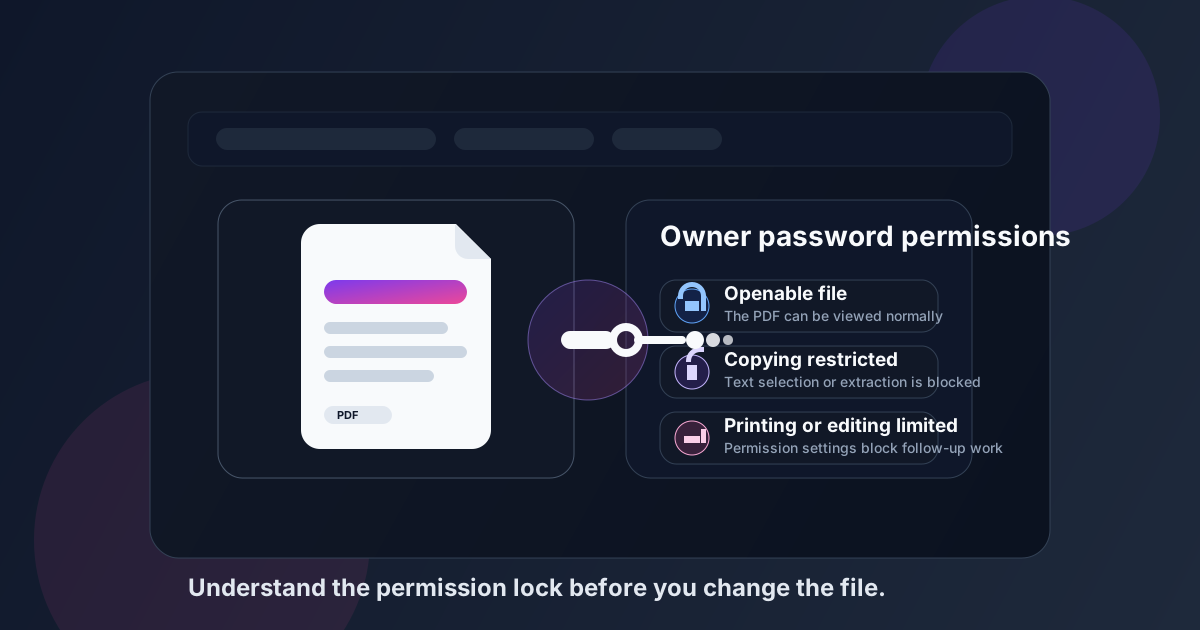
Table of contents
- Quick answer: how PDF owner passwords work
- Owner password vs user password
- What a PDF owner password actually controls
- When it makes sense to remove restrictions
- Step-by-step: remove owner-password restrictions online
- What if the PDF will not open at all?
- What to do after the file is usable again
- Common owner-password mistakes
- Related LifetimePDF tools and internal links
- FAQ (People Also Ask)
Quick answer: how PDF owner passwords work
If you can open the PDF but something specific is blocked, the file is usually protected by permissions, not by a full open-password lock. Those permissions can stop you from copying text into an email, printing a packet for signing, editing a typo, adding comments, or reusing the file in another workflow.
- Open PDF Unlock.
- Upload the file you own or are authorized to modify.
- Enter the current password if the workflow asks for it.
- Download the usable copy.
- Test the exact task you needed: print, copy, edit, sign, or rearrange.
Owner password vs user password
These two password types get mixed together constantly, but they solve different problems. Once you separate them, most PDF permission questions become easier to answer.
| Protection type | What it does | What the user experiences | Typical next step |
|---|---|---|---|
| User password Also called open password |
Blocks access to the file itself | The PDF asks for a password before page one appears | Enter the correct password or request access from the owner |
| Owner password Also called permissions password |
Allows the PDF to open but restricts actions inside it | The PDF opens, but printing, copying, editing, commenting, or signing may be blocked | Remove the restrictions if you are authorized, then complete the blocked task |
In plain English, a user password says you cannot get in. An owner password says you can get in, but you cannot do everything. That is why people often describe a PDF as “locked” even though it still opens fine.
What a PDF owner password actually controls
A PDF owner password is mostly about permissions. The exact limits depend on how the file was created, but the most common restrictions include:
- Printing restrictions: the PDF opens, but you cannot print it or can only print a lower-quality version.
- Copy restrictions: text selection, copying, or extracting content may be blocked.
- Edit restrictions: changing text, rearranging pages, or reusing the file in another editor may be disabled.
- Commenting restrictions: you may be unable to add notes, highlights, or markup.
- Form and signature limitations: some protected files restrict how you fill, sign, or save changes.
This matters because the action you need is often very ordinary. Maybe you are trying to copy one paragraph into a client update. Maybe payroll needs to print a packet. Maybe legal needs to insert one signature page. The file is not “broken.” It is just carrying the wrong permission settings for the next step in the workflow.
Need a clean next step? Unlock the file for the task you need, then use the matching tool right away.
When it makes sense to remove restrictions
Removing owner-password restrictions is usually sensible when the current PDF is getting in the way of legitimate work you are allowed to do. Good examples include:
- you need to print a document that your team owns
- you need to copy text or numbers into another internal report
- you need to sign, annotate, or fill a file that was protected too early
- you need to rearrange or extract pages before sending only the relevant section onward
- you need to rebuild the final version and then protect it again with cleaner settings
Where people get into trouble is assuming that a technical barrier automatically grants them permission to remove it. It does not. If the file belongs to someone else and they intentionally limited what recipients can do, the better workflow is to ask them for the password or for a copy that matches the intended use.
Step-by-step: remove owner-password restrictions online
If the file is yours or you have permission to modify it, the workflow is straightforward. You do not need to overcomplicate this.
- Open PDF Unlock.
- Upload the protected file. Start with the exact PDF you need to work on, not an outdated local copy.
- Enter the current password if asked. Some workflows require the password before the file can be processed legitimately.
- Unlock and download the usable version. Save it with a clear name so you do not confuse it with the original protected file.
- Test the blocked action immediately. Try printing, copying text, editing, or signing before you move on.
- Decide whether the final file should be protected again. If it is leaving your hands, use PDF Protect to add back only the level of control you still need.
That last step matters more than people expect. A lot of document friction comes from removing restrictions, making the change, and then forgetting to secure the outward-facing copy. The right workflow is not merely unlock. It is unlock, complete the task, then choose the right final state.
What if the PDF will not open at all?
If the PDF asks for a password before you can see any pages, you are not dealing with owner-password restrictions alone. That is usually an open password or user password.
In that case, the honest answer is simple: you need the correct password from the owner, or you need an authorized copy that opens without it. If you do not have the password, a permissions-focused workflow will not solve the real problem because the file itself is still gated.
- If the sender intended you to read it, ask them for the password.
- If the file is an internal document, check whether your team stores the password in a password manager or workflow note.
- If you created the file, test whether you are mixing up the old password and the new one after a recent re-save.
What to do after the file is usable again
Most people do not unlock a PDF just for fun. They unlock it so they can finish another task that was blocked. Common next steps include:
- Sign PDF if a signature workflow was blocked by the permissions.
- Extract Pages if you only need part of the document.
- Redact PDF if the document contains sensitive material that should be removed before re-sharing.
- Protect PDF if the outward-facing copy still needs controlled access.
A good document workflow is rarely one isolated tool. It is a sequence. Remove the wrong barrier, finish the work, and send the right final file instead of passing around a messy intermediate version.
Common owner-password mistakes
These are the problems that waste the most time:
- Treating every locked PDF as the same problem: first decide whether the PDF will not open or whether it only blocks certain actions.
- Unlocking the wrong copy: people often work on an older local duplicate and then wonder why the latest version is still restricted.
- Skipping the immediate test: after unlocking, check printing, copying, editing, or signing right away instead of discovering later that the wrong file was used.
- Forgetting to protect the final outward-facing copy: internal work copies and final distribution copies do not always need the same permissions.
- Ignoring ownership and permission: technical possibility is not the same thing as authorization.
Related LifetimePDF tools and internal links
Owner-password questions usually sit in the middle of a bigger document task. These tools and guides fit naturally around that workflow:
- PDF Unlock - remove password protection or permission restrictions from PDFs you are authorized to modify
- PDF Protect - re-secure the final version before sharing
- Sign PDF - add a signature after the file is usable again
- Extract Pages - keep only the pages you need
- Unlock PDF Online - broader guidance on password protection vs restrictions
- Password Protect PDF: Legal & Security Standards - deeper context for sharing secured files responsibly
FAQ (People Also Ask)
What is a PDF owner password?
A PDF owner password controls permissions inside the file rather than basic access to it. It can restrict printing, copying, editing, commenting, signing, or page management even when the PDF still opens normally.
What is the difference between owner password and user password in PDF?
A user password is required to open the file. An owner password controls what actions are allowed after the file is open. If the PDF opens but blocks printing or copying, you are usually dealing with owner-password permissions.
Why can I open a PDF but not print or copy it?
Because the file is probably using permissions restrictions instead of a full open-password lock. The document is readable, but the owner settings limit what you can do with it until those restrictions are removed through an authorized workflow.
Can I remove owner-password restrictions from a PDF online?
Yes, if you own the PDF or are authorized to modify it. Use an unlock workflow, provide the correct password if required, download the usable copy, and test the blocked action before sending the file onward.
Should I protect the PDF again after I finish editing it?
Usually yes if the final file is being shared outside your editing workflow. Many teams remove restrictions temporarily so they can print, copy, edit, or sign a document, then add back the right level of protection before distribution.
Need to fix the restriction and move on?
Best workflow: identify the restriction → unlock only if authorized → finish the task → re-protect the final share copy if needed