Check PDF Encryption: See Whether a PDF Is Encrypted, Password-Protected, or Only Permission-Locked
To check PDF encryption, open the file properties or security summary and confirm whether the document needs a password to open, uses owner-password restrictions, or merely limits actions after opening.
If the protection does not match the real workflow, adjust it before you upload, archive, email, sign, or hand the PDF to someone else.
That is the short answer. The useful answer is that people often call every locked PDF “encrypted” even when the real issue is simpler: a file opens normally but blocks printing, copying, editing, or comments. A quick encryption check helps you tell the difference between a truly access-controlled document and a PDF that only needs a permissions review.
Fastest practical path: inspect the current security state, decide whether the file should block opening or only control actions after opening, then keep, tighten, or remove protection deliberately.
In a hurry? Jump to quick start: check PDF encryption in about 5 minutes.
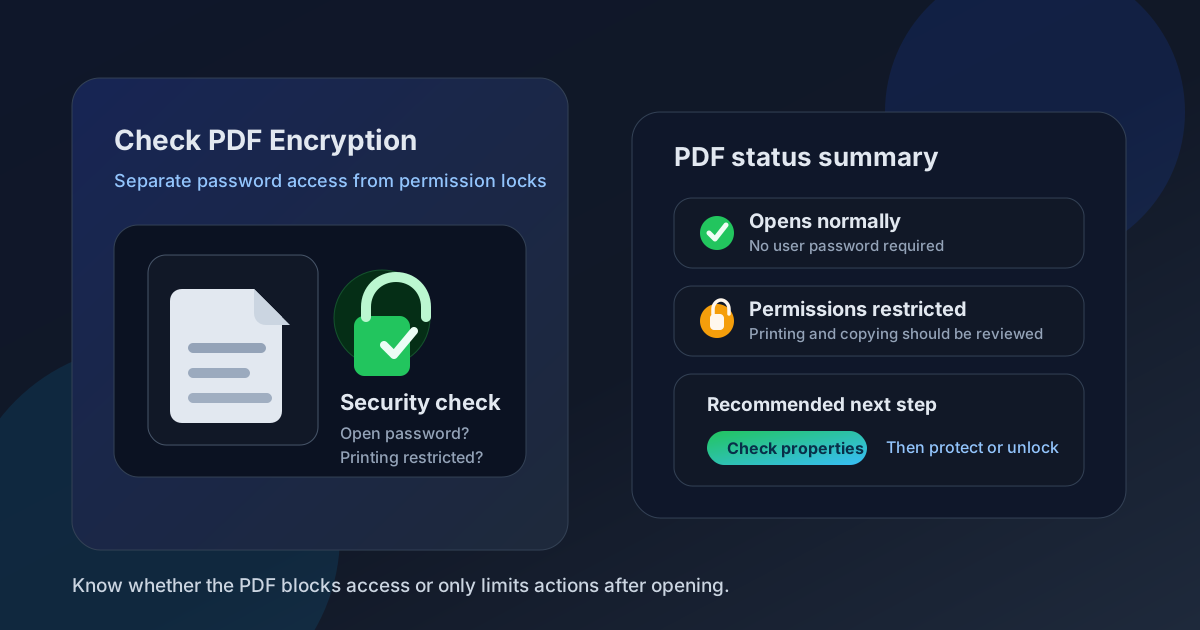
Table of contents
- Quick start: check PDF encryption in about 5 minutes
- What PDF encryption actually means
- Open-password encryption vs permission restrictions
- Step-by-step: practical PDF encryption check workflow
- Why encryption checks matter before sharing or archiving
- When to keep, change, or remove the protection
- Final checklist before the PDF leaves your hands
- Related LifetimePDF tools and guides
- FAQ
Quick start: check PDF encryption in about 5 minutes
If your real goal is simply make sure this PDF will open and behave the way the next person expects, use this order:
- Open the exact copy you plan to share, archive, upload, or send for signature.
- Use View PDF Properties or PDF Metadata Editor to inspect the security summary directly.
- Confirm whether the file requires a password to open or only limits printing, copying, editing, comments, or form actions after it opens.
- If the file is meant for confidential access, decide whether the current protection is strong enough.
- If the file is meant for ordinary collaboration, check whether the protection is blocking legitimate work.
- Use Protect PDF or Unlock PDF to match the document to the actual workflow.
What PDF encryption actually means
PDF encryption usually means the file has a security layer attached to it. That layer may control access to the document itself, or it may control what someone can do with the document after it opens.
This is where confusion starts. Many people say a PDF is encrypted when it really just has permission restrictions. The file opens fine, but printing is blocked, copy-paste is disabled, or editing is limited. That is still a security setting worth checking, but it is not the same user experience as a PDF that refuses to open without a password.
| Protection state | What it means in practice | Why it matters |
|---|---|---|
| Open-password protection | The file requires a password before anyone can view it | Useful for confidential files, but easy to mishandle if recipients or archive systems do not have the password |
| Owner-password restrictions | The file opens, but actions like printing, copying, or editing may be limited | Helpful when you want controlled reuse without completely hiding the content |
| Viewer-specific behavior | One app shows a warning or limitation while another handles the file differently | Prevents you from misdiagnosing a viewer quirk as a security requirement |
Open-password encryption vs permission restrictions
The fastest way to understand a locked-down PDF is to separate two different ideas that often get blurred together.
Open-password encryption
This is the case most people imagine first. The PDF asks for a password before anyone can read the file at all. That is strong and obvious, but it also creates friction. If the password is lost, forgotten, or never shared with the right person, the PDF becomes awkward fast.
Permission restrictions
Here the document opens normally, but actions after opening are limited. That may include blocked printing, disabled copy-paste, restricted edits, or locked comments. In day-to-day office work, this is the more common reason a file feels “encrypted” even though the real issue is workflow friction, not access denial.
Easy mistake to avoid
Do not assume a PDF is safely handled just because it is “encrypted.” A confidential contract with a weakly shared password can be a mess, and a harmless handout with over-tight permissions can be just as frustrating. The right protection is the one that fits the job, not the one that sounds strongest on paper.
If you want the permission side explained in more detail, pair this guide with Check PDF Permissions and PDF owner password.
Step-by-step: practical PDF encryption check workflow
1) Start with the outgoing copy, not a draft
Security settings can change during export, signing, repair, portal download, or last-minute revisions. The only useful file to inspect is the one that will actually leave your hands.
2) Read the security summary directly
Use View PDF Properties or PDF Metadata Editor so you can see whether the PDF requires an open password, carries owner-password restrictions, or simply shows standard metadata without meaningful protection.
3) Ask what the next person needs to do
A public download, a client review copy, a payroll packet, an onboarding form, and a legal archive do not need the same kind of protection. Encryption only makes sense in context.
4) Test the likely action, not just the label
If the file is meant to be opened by a client, confirm it opens cleanly. If the recipient needs to print it, try printing. If they need to fill fields or sign, test that path too. A PDF can look secure in theory and still fail the real workflow.
5) Tighten, simplify, or remove the protection deliberately
Use Protect PDF when access genuinely needs stronger control. Use Unlock PDF when authorized people are being slowed down by old restrictions, inherited settings, or a protection scheme that no longer fits the file.
6) Reopen the final version once
This last check catches a lot of preventable trouble. It confirms the exact copy being sent, uploaded, or archived still has the protection profile you intended.
Reliable sequence: inspect the security summary, separate open-password access from permission restrictions, test the real workflow, then keep or change the protection with intent.
Why encryption checks matter before sharing or archiving
Encryption problems usually show up at the worst possible moment: just before a deadline, during a client handoff, inside a portal upload, or months later when someone needs an archived file and nobody remembers the password policy.
Portal uploads
Some systems reject protected files or handle encrypted attachments badly, so checking first prevents unnecessary upload failures.
Client handoffs
A client who cannot open or print the file does not experience “good security.” They experience friction and delay.
Internal review
Over-tight permissions can quietly block comments, signatures, or form filling even when the PDF appears ready.
Long-term archives
A well-protected file today can become a headache later if nobody documents how access is supposed to work.
This is why the best encryption check is not just technical. It is operational. You are confirming that the protection layer supports the document's real destination instead of sabotaging it.
Common false assumption
People often think “more protection is always better.” In practice, the best setup is the lightest protection that still meets the file's privacy, compliance, or sharing needs without creating useless friction for authorized users.
When to keep, change, or remove the protection
Once you understand the current security state, the next move becomes much easier.
Keep it when the protection matches the risk
Confidential financial documents, HR packets, legal files, and sensitive client materials often benefit from real access control. If the right people can still work with the file, keeping the protection may be the best choice.
Change it when the wrong layer is doing the job
Sometimes the file really needs controlled printing or editing, not an open password. Other times the reverse is true. Matching the protection type to the use case usually solves more problems than simply making the file “more locked.”
Remove it when it is just inherited clutter
PDFs are often copied, exported, repaired, merged, or converted across several tools. Old encryption settings can ride along long after they stop being useful. If the protection no longer serves a real purpose, cleaning it up is often the most responsible move.
Document the decision when the file matters long term
For archived records, recurring reports, board materials, or compliance documents, the most useful step may be a small process habit: record whether the stored copy should be open, password-gated, or permission-restricted so future-you is not guessing months later.
| Situation | Likely best move | Why |
|---|---|---|
| Confidential PDF sent to a limited group | Keep or strengthen open-password protection | Access control matters more than convenience |
| Review copy that should open easily but stay stable | Allow opening, limit edits or comments only as needed | Protects the file without blocking legitimate viewing |
| Form or signature workflow | Test and relax restrictions that block completion | Usability matters more than theoretical strictness |
| Old protected copy with no clear reason for the lock | Review and remove inherited clutter if appropriate | Reduces confusion and support headaches |
Final checklist before the PDF leaves your hands
Before you share, upload, or archive the file, run this short checklist:
- Did you inspect the actual security summary instead of relying on a lock icon or memory?
- Do you know whether the PDF blocks opening, limits actions after opening, or both?
- Can the intended recipient still do the one or two actions that matter most, such as view, print, sign, comment, or fill fields?
- If the file is going into long-term storage, is the protection scheme something your team can realistically manage later?
- Did you compare the encryption state with related controls like permissions, metadata cleanup, and owner-password behavior?
- Did you reopen the final outgoing copy once after making changes?
Most encryption mistakes are not complicated. They usually come down to one of two problems: the file is more locked than it needs to be, or it is less controlled than the situation deserves. A five-minute check solves both.
Ready to confirm the security state? Check the file now, then protect or unlock it so the next person gets a PDF that is both usable and appropriately controlled.
Best workflow for important files: inspect the security summary → separate access control from permissions → test the real recipient action → adjust deliberately → verify the final copy once.
FAQ
How do I check PDF encryption?
Open the file properties or security summary and confirm whether the PDF requires a password to open, uses owner-password restrictions, or only carries ordinary permissions such as blocked printing, copying, or editing.
Is a PDF with permissions always encrypted?
Not in the way most people mean it. Many PDFs that users describe as encrypted simply open normally and apply restrictions after opening. The practical difference is whether the file blocks access, or only controls what someone can do once they are inside it.
What is the difference between a password-protected PDF and a permission-locked PDF?
A password-protected PDF usually requires a password before the file can be viewed. A permission-locked PDF may open normally but still limit printing, copying, editing, signing, or commenting after it opens.
Should I remove PDF encryption before sending a file?
Only when the current protection no longer fits the task. Keep it when the document is confidential or tightly controlled, but remove or relax it when authorized users cannot complete legitimate work because the file is overprotected.
Why check PDF encryption before uploading or archiving a document?
A quick check helps you avoid upload failures, access problems for clients or teammates, and future archive headaches caused by forgotten passwords or unclear restriction settings.
Published by LifetimePDF — Pay once. Use forever.