Check PDF Crop Box: See What Will Stay Visible Before You Print, Share, or Remove Margins
To check PDF crop box settings, inspect the page boxes and compare the crop box with the full page area so you know what the PDF viewer is actually treating as visible.
If the crop box is wrong, fix it before you print, share, or clean up the file so you do not hide useful content or leave extra margins, crop marks, or production junk showing.
This matters because many PDF problems are not really content problems. They are view-box problems. A file can contain the right artwork, the right text, and even the right paper size while still looking wrong because the visible page area is set badly. That is why one PDF shows odd borders, another hides edge content, and a third looks normal on screen but prints in a way that makes you distrust the whole file. Checking the crop box helps you figure out what the document is showing, not just what the document contains.
Fastest practical path: compare the crop box against the full page area, confirm whether the visible problem is really a crop-box issue, then crop, resize, or leave the PDF alone based on what you actually find.
In a hurry? Jump to quick start: check a PDF crop box in about 5 minutes.
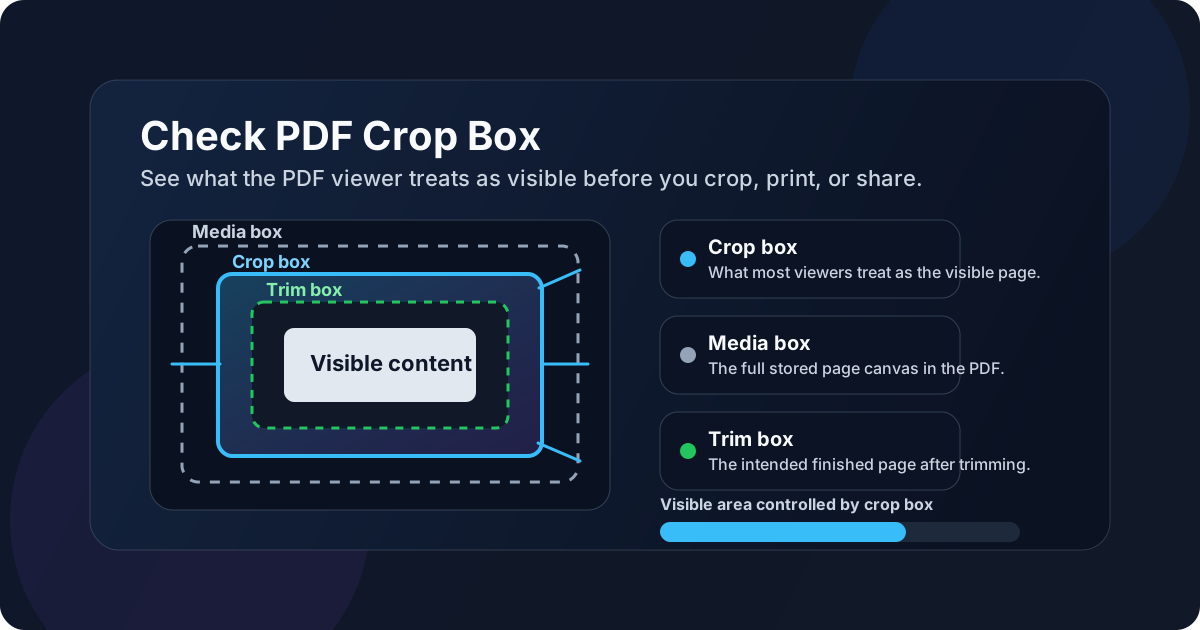
Table of contents
- Quick start: check a PDF crop box in about 5 minutes
- What a PDF crop box actually means
- Crop box vs media box, trim box, and bleed box
- Why checking the crop box matters
- Step-by-step: practical crop-box review workflow
- Common crop-box problems and what they usually mean
- When to crop, resize, re-export, or leave the PDF alone
- Related LifetimePDF tools and guides
- FAQ
Quick start: check a PDF crop box in about 5 minutes
If your real goal is simply work out what area of this PDF is meant to stay visible before I break something, this is the shortest useful workflow:
- Open the exact PDF you plan to print, upload, share, or clean up.
- Review the page boxes and identify the crop box and the full page area.
- Compare what the viewer shows with what the file actually contains around the edges.
- Check whether the problem is extra outer space, hidden edge content, visible crop marks, or the wrong page size entirely.
- If the crop box is the issue, fix the visible area with Crop PDF. If the page size is the issue, review page size instead.
- Reopen or test the saved file once before sending it onward.
What a PDF crop box actually means
The crop box is one of the page boxes stored inside a PDF. In practical terms, it tells many PDF viewers and workflows which rectangle should behave like the visible page. If the crop box is smaller than the full page, some outer content may exist in the file but stay hidden in normal viewing. If it is too large, extra borders, printer marks, or messy outer space may show up when they should not.
That makes the crop box especially important when you are dealing with:
- design exports with crop marks or bleed,
- scanned documents that carry oversized borders,
- mixed-source PDFs where some pages were inserted from a different workflow,
- files that look fine in one viewer but odd in another,
- PDFs that seem to clip edge content after cleanup.
Crop box vs media box, trim box, and bleed box
People often hear “page boxes” and immediately tune out. That is fair. But the boxes become much easier to understand once you tie them to real jobs.
| Page box | What it usually represents | Why you care |
|---|---|---|
| Media box | The full stored page area | Useful when you need to know the complete canvas, including outer space beyond the visible page |
| Crop box | The visible page region many viewers use | Helps explain hidden margins, clipped edges, or why a PDF looks different from what it technically contains |
| Trim box | The intended finished page after trimming | Important in print-production workflows where final cut size matters |
| Bleed box | The area that extends beyond the final trim edge | Important when artwork must run to the edge without white slivers after print trimming |
In everyday business or document-cleanup work, you usually do not need to obsess over every box. But you do need to know whether your visible-page problem comes from the crop box or from something more basic like the wrong paper size.
The easy mistake
A lot of people try to “fix the crop box” when the real problem is simply an A4-vs-Letter mismatch, a bad scanner border, or visible crop marks from a print export. The right diagnosis saves more time than the first attempted fix.
Why checking the crop box matters
A crop-box check matters because the visible page area affects trust. If a PDF looks cropped strangely, shows too much empty space, or hides something near the edge, people stop trusting the file even if the underlying content is correct.
It helps explain hidden or clipped edge content
When a signature line, footer, or chart label seems to vanish, the crop box can reveal whether the content is truly gone or just outside the current visible page area.
It separates border cleanup from true page-size problems
A crop-box issue is not the same thing as a page-size issue. That distinction tells you whether to crop, resize, or rebuild from the source.
It prevents bad cleanup decisions
If you crop blindly, you can hide or clip useful material. Checking the crop box first makes cleanup much safer.
It is especially useful for print-oriented PDFs
Design exports often carry trim, bleed, or production marks that make more sense once you understand which box the file expects the viewer to respect.
Step-by-step: practical crop-box review workflow
1) Start with the exact outgoing file
Crop-box checks only help if you inspect the file that is actually leaving your workflow. If you fix an earlier export but later share a newer one, the cleanup may never make it to the destination that matters.
2) Identify the visible problem first
Before changing anything, describe the problem in plain language. Is the file showing too much border? Hiding a footer? Revealing crop marks? Looking centered badly? Printing with unexpected margins? Clear diagnosis makes the next step much easier.
3) Compare the crop box with the full page area
Use View PDF Properties and your PDF workflow tools to understand whether the visible page is smaller than the full stored page. If the crop box is tighter than expected, useful content may be outside it. If it is looser than expected, extra junk around the page may still be visible.
4) Check whether the file also has a page-size problem
This is the step people skip. A crop box can be perfectly reasonable while the document still uses the wrong page size for your printer, portal, or archive requirement. That is why a quick look at PDF page size is often worth doing alongside crop-box review.
5) Adjust only the thing that is actually wrong
If the visible page area is the problem, use Crop PDF carefully. If the true page dimensions are wrong, fix the size or re-export the source document instead. If the file is a commercial-print export with visible marks, the better guide may be removing crop marks rather than forcing a generic crop.
6) Test once before you trust the result
Reopen the saved PDF, print a sample, or preview it in the destination environment. The goal is not just to make the file look better in one editor. The goal is to make it behave correctly where it will actually be used.
Reliable sequence: identify the visible problem, compare crop box against the full page, confirm the page size, then crop only when the crop box is genuinely the issue.
Common crop-box problems and what they usually mean
Most crop-box issues show up in a handful of repeat patterns. If you can recognize the pattern, you can usually choose the right fix much faster.
| What you see | What it often means | Best next check |
|---|---|---|
| Huge outer borders | The crop box may be too loose, or the page includes scanner padding or production area | Compare crop box with media box and inspect for white-margin or scan cleanup needs |
| Footer, page number, or signature looks clipped | The crop box may be too tight, or the source content was exported too close to the edge | Check whether the missing content still exists outside the visible area |
| Crop marks or print junk still visible | The visible area is larger than the intended reader-facing page | Review crop marks, trim area, and whether the file came from a print-production export |
| Screen preview looks okay but print is strange | The viewer may respect the crop box, but the page size or print settings still conflict | Check real page size and printer scaling, not just the crop box |
One subtle but important detail
Changing what is visible is not always the same thing as permanently deleting what is outside the visible area. If the PDF contains sensitive information beyond the crop box, treat this as a content-governance issue, not only a visual-cleanup issue.
When to crop, resize, re-export, or leave the PDF alone
Not every bad-looking PDF needs the same response. Here is the practical way to decide.
Crop when the visible page area is the real problem
Crop when the page contains too much outer space, visible production clutter, or a badly defined viewing area. This is usually the right answer when the content itself is fine and the file just needs a cleaner frame.
Resize or re-export when the actual page dimensions are wrong
If the file should be Letter but is A4, or should be a normal document page but was exported as a slide ratio, crop-box tweaks alone will not solve the real mismatch. That job needs a correct page-size workflow or a fresh export from the source.
Revisit print-production settings when trim or bleed is involved
If the file came from a professional design workflow, the trim and bleed intent may matter more than a quick visual cleanup. In that case, check whether you are producing a reader-facing PDF or a production-facing PDF before you change anything.
Leave it alone when the page boxes are intentional
Some PDFs are supposed to behave differently. Booklets, proofs, packaging layouts, engineering drawings, and certain scans may use nonstandard page-box behavior on purpose. A custom crop box is not automatically a mistake if it serves the real job of the document.
Related LifetimePDF tools and guides
Crop-box checks are usually one step inside a broader PDF cleanup or print-prep workflow. These LifetimePDF pages pair naturally with this task:
Inspect and diagnose the file
- View PDF Properties to review document details before changing anything
- Check PDF Page Size when the visible-area issue may really be a paper-size issue
- Remove Crop Marks from PDF when the problem comes from a print-oriented export
Fix the page cleanly
- Crop PDF Tool to adjust the visible page area
- Crop PDF Guide for the broader workflow
- Crop PDF to Remove White Margins when the issue is mostly scanner padding or extra blank edges
Ready to clean up the file? Check whether the crop box is really the issue, then use the right fix so the PDF looks intentional in the place where it will actually be used.
Best workflow for dependable results: inspect the page boxes → identify the visible problem → confirm page size → crop only if the crop box is truly the cause → test the output once.
FAQ
1) How do I check a PDF crop box?
Check the PDF page boxes and compare the crop box with the media box and any trim or bleed settings. The crop box usually tells the viewer which part of the page should appear as the visible document area.
2) What is the difference between a crop box and a media box?
The media box is the full stored page area. The crop box is the region many viewers treat as the visible page. A file can still contain outer content beyond the crop box even when that content is not shown by default.
3) Does changing the crop box delete PDF content?
Not always. In many workflows, it changes what is shown rather than permanently deleting the outer content. That is why it is worth testing the saved file and handling sensitive hidden content carefully.
4) Should I crop a PDF or resize it if the page looks wrong?
Crop when the visible page area or margins are wrong but the underlying page size is acceptable. Resize or re-export when the actual page dimensions are wrong for the printer, portal, or document standard you need.
5) Why does my PDF look fine on screen but print strangely?
A viewer may obey the crop box while the printer workflow still exposes page-size mismatches, crop marks, or awkward page-box settings. Checking both the crop box and the real page dimensions usually reveals the real cause.
Published by LifetimePDF — Pay once. Use forever.