Crop PDF: Remove White Margins, Fix Page Framing, and Clean Up Scans Without Rebuilding the File
Yes — the cleanest way to crop PDF files is to trim only the visible page area you do not need, then review the result once to make sure page numbers, headers, signatures, and edge content still look right.
If the file is scanned, rotate it first if needed and crop before OCR or compression so the rest of the workflow starts from a cleaner page.
That is the part people usually care about. They are not trying to become experts in page boxes. They just want the PDF to stop looking sloppy, oversized, or awkward on screen. Sometimes the problem is huge white margins. Sometimes it is scanner shadow, crooked framing, or a document that feels tiny on mobile because half the page is empty space. Cropping is one of the fastest fixes in the PDF world when you use it for the right job.
Fastest practical path: crop the page area once, review the cleaned PDF once, then move to OCR, compression, or sharing only if the next step actually needs it.
In a hurry? Jump to Quick start: crop a PDF in a few minutes.
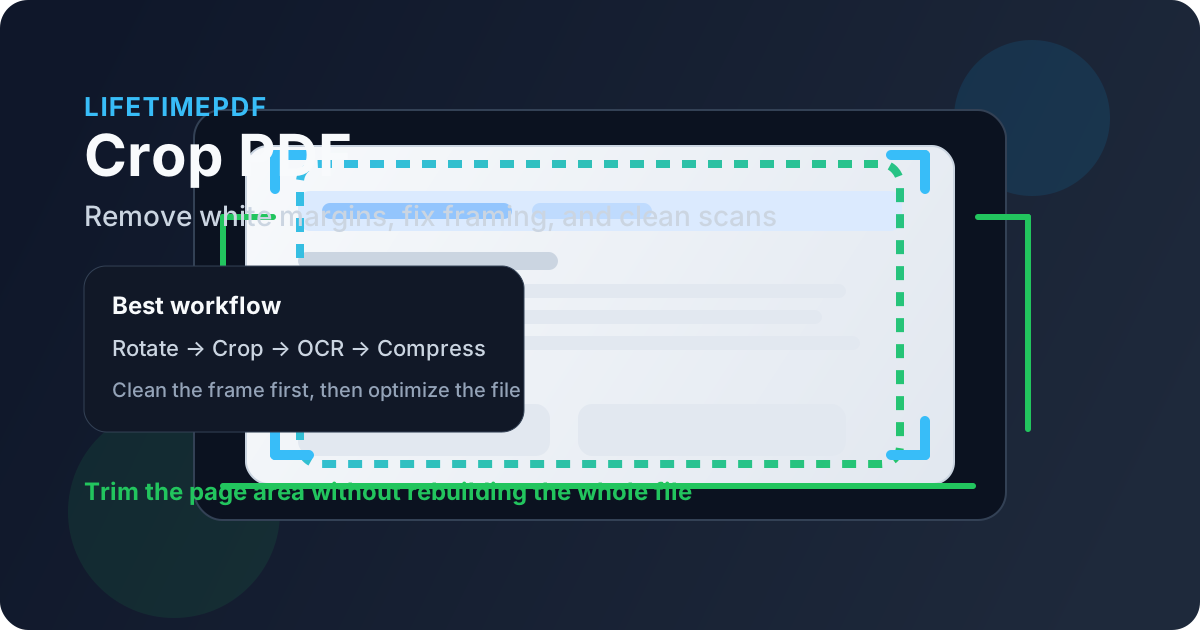
Table of contents
- Quick start: crop a PDF in a few minutes
- When Crop PDF is the right move
- Crop vs compress vs delete pages vs redact
- Step-by-step: how to crop a PDF cleanly
- Scanned PDFs, white margins, and OCR prep
- How much should you crop?
- Common crop-PDF mistakes and how to avoid them
- Related LifetimePDF tools and next steps
- FAQ (People Also Ask)
Quick start: crop a PDF in a few minutes
If you only need the short useful version, this is the workflow:
- Open Crop PDF.
- Upload the PDF with oversized margins, scanner borders, or awkward framing.
- Set the crop area so it removes the wasted outer space without clipping important content.
- Apply the crop to one page, a page range, or the full document.
- Download the result and review page 1, one middle page, and the last page.
- If the file is still too large, use Compress PDF afterward.
When Crop PDF is the right move
Cropping works best when the content itself is fine but the visible page area is wasting space or making the file feel messier than it needs to. That makes it a layout cleanup job, not a content rewrite job.
Common examples include scanned documents with black borders, receipts with huge white edges, reports that look too small on mobile because the text block sits in the middle of a sea of margin, and mixed packets where some pages were scanned while others were created digitally. In each case, the page probably does not need new content. It just needs better framing.
- Use Crop PDF when the outside of the page is the problem.
- Use Delete Pages when entire pages should disappear.
- Use Extract Pages when you only want to keep a section as a separate file.
- Use Redact PDF when information on the page must be permanently removed.
| Situation | Best first move | Why it fits |
|---|---|---|
| Huge white margins around usable content | Crop PDF | The content is fine, but the visible page area is wasteful |
| Blank backs or duplicate scans | Delete Pages | The problem is extra pages, not page framing |
| Only a few pages from a packet matter | Extract Pages | Keeping what matters is cleaner than trimming everything else |
| Private details must be removed | Redact PDF | Privacy needs permanent content removal, not visual trimming |
That distinction matters because people often search for crop PDF when what they really need is one of the other workflows. Choosing the right tool first is what keeps the whole document job simple.
Crop vs compress vs delete pages vs redact
These tools often appear in the same document-cleanup session, but they solve different problems. Mixing them up is how people end up doing extra work.
Crop PDF
Cropping changes the visible page area. Use it when outer white space, scanner borders, or sloppy framing make the document harder to read or less polished than it should be.
Compress PDF
Compression is about file size. If the PDF looks fine but still misses an upload limit after cleanup, send it through Compress PDF once the framing is already correct.
Delete Pages
Deleting pages is for blank backs, duplicates, old covers, or irrelevant sections. If an entire page should go, cropping is the wrong tool.
Redact PDF
Redaction is for privacy. If the page needs to stay but the information on it should not, use Redact PDF. Cropping is not a substitute for removing sensitive content.
Step-by-step: how to crop a PDF cleanly
A good crop workflow is short, but a few decisions make the result much better.
1) Start with the final use in mind
Are you cleaning the file for email, a client upload, mobile reading, OCR, or just a tidier archive copy? That answer tells you how aggressive the crop should be. Most PDFs should feel cleaner after cropping, not cramped.
2) Inspect the page previews before you crop everything
Some files are consistent. Others are mixed. If only a handful of pages have ugly borders or massive margins, applying one crop box to the entire document may create problems on pages that were already fine.
3) Set the crop area conservatively
Remove the wasted outer space, but leave breathing room around the content. Page numbers, footnotes, signatures, stamps, and handwritten notes often live near the edge. The goal is not to crop as tightly as possible. The goal is to crop as cleanly as necessary.
4) Apply the crop to the right pages
Use one page when the problem is isolated. Use a page range when only one section of the document came from a messy scanner batch. Use the full document only when the source pages are uniform enough that one crop really fits all of them.
5) Review the output immediately
Open the result once before you send it anywhere important. Check the first page, one page from the middle, and the end. That review usually catches clipped headers, footers, signatures, and notes before they become someone else's problem.
Best sequence: inspect the pages → crop only what needs it → review once → move to OCR or compression only if the next step calls for it.
Scanned PDFs, white margins, and OCR prep
Scanned documents are one of the most useful crop-PDF cases because they often include the exact kinds of page-edge problems that make a file feel amateur: dark scanner borders, uneven framing, shadow, too much blank space, or pages captured slightly off-center.
Cropping does not magically improve the text itself, but it usually makes the document easier to review and often leaves you with a cleaner file before OCR PDF or compression. It also helps you avoid carrying obvious visual junk through the rest of the workflow.
Best scan-cleaning order
- Rotate first with Rotate PDF if the scan is sideways.
- Crop second to remove white margins, dark borders, and awkward framing.
- Delete blanks or duplicates with Delete Pages if the scan job inserted junk pages.
- Run OCR if you need searchable, selectable text.
- Compress last if the final file still needs to be smaller for sharing or upload limits.
How much should you crop?
Far enough to remove the wasted space. Not so far that the document feels squeezed.
That sounds obvious, but it is the best answer. Overcropping usually fails in small, annoying ways: page numbers disappear, signatures get clipped, footnotes lose context, or the document starts to feel cramped even though the content technically survived. A moderate crop that clearly improves the page is usually better than an aggressive crop that creates new doubts.
- Stop when the page looks intentional.
- Leave space for footers, page numbers, and edge notes.
- If pages differ a lot, crop by section instead of forcing one box everywhere.
- If the real goal is size, crop first and compress second.
| If the PDF looks like this... | Best crop approach | Why |
|---|---|---|
| Uniform scans with the same border problem | Crop the full document | One consistent crop is fast and clean |
| Only one appendix or scan batch looks messy | Crop a page range | It avoids changing pages that already look correct |
| Just one page is poorly framed | Crop a single page | The rest of the document does not need intervention |
Common crop-PDF mistakes and how to avoid them
Most cropping problems are workflow problems, not tool problems. A few checks prevent the usual mistakes.
- Cropping before rotating: if the page is sideways, rotate it first so the crop box is easier to set correctly.
- Applying one crop to inconsistent pages: mixed documents often need section-by-section treatment.
- Cutting too close to the content: leave room for page numbers, signatures, and footers.
- Expecting crop alone to solve file size: cropping helps framing more than size. Use compression afterward if size is the real problem.
- Using crop instead of redaction: privacy issues require redaction, not visual trimming.
None of those mistakes are dramatic, but they are exactly the sort of small errors that make a PDF feel less trustworthy. One quick review at the end is usually all it takes to avoid them.
Related LifetimePDF tools and next steps
Crop PDF is most useful when it sits inside a full cleanup workflow. These are the most natural next tools:
- Crop PDF — remove white margins, black borders, and wasted outer space
- Rotate PDF — fix sideways pages before cropping
- OCR PDF — make cleaned scans searchable
- Compress PDF — reduce file size after the page framing is already correct
- Delete Pages — remove blank backs, duplicate scans, or irrelevant sections
- Extract Pages — isolate only the messy portion of a document before cleanup
- Redact PDF — permanently remove sensitive information when privacy matters
Related blog guides
- Crop PDF Online
- Crop PDF Online Free
- Crop PDF Without Monthly Fees
- Crop PDF to Remove White Margins Online
- Delete Pages from PDF
- Compress PDF
- Browse all LifetimePDF articles
Ready to clean the page edges without rebuilding the whole file?
Best practical workflow: rotate if needed → crop the visible page area → OCR scans → compress only if the final file still needs to be smaller.
FAQ (People Also Ask)
How do I crop a PDF?
Upload the file to a PDF crop tool, set the crop area so it removes the wasted outer space, apply it to the correct pages, and review the result once before you send or upload the file anywhere important.
Does cropping a PDF reduce file size?
Sometimes a little, but cropping mainly improves page framing and readability. If your real goal is getting under an upload limit, crop first and then use Compress PDF.
Should I crop a scanned PDF before OCR?
Usually yes. Cleaning the framing first gives you a tidier document and often makes the next OCR step easier to manage, especially when the scan has big white margins or dark borders.
Can I crop only certain pages in a PDF?
Yes. That is often the safest choice for mixed documents where only one page or one page range has poor framing while the rest of the file is already fine.
Is cropping the same as redaction?
No. Cropping changes the visible page area. Redaction is the right workflow when content must be permanently removed for privacy, legal, or compliance reasons.
Published by LifetimePDF — Pay once. Use forever.