Compress PDF: Reduce File Size Without Wrecking Text, Forms, or Scans
Yes — the smartest way to compress PDF files is to shrink the document once, review readability, and only then decide whether you need extra cleanup like deleting pages or cropping scanner borders.
If the PDF is full of photos, dark scan edges, duplicate pages, or pages you do not even need, content cleanup often works better than squeezing the same file harder.
That is the real difference between a PDF that merely becomes smaller and a PDF that becomes easier to send. Most people are not searching for this because they love file optimization. They are trying to get under an email limit, pass a job portal upload rule, share a document over WhatsApp, or stop a phone scan from eating storage for no good reason. Good compression helps, but good judgment matters just as much.
Fastest practical path: compress once, review once, then remove extra pages or white margins only if the file still misses your target.
In a hurry? Jump to Quick start: compress a PDF in a few minutes.
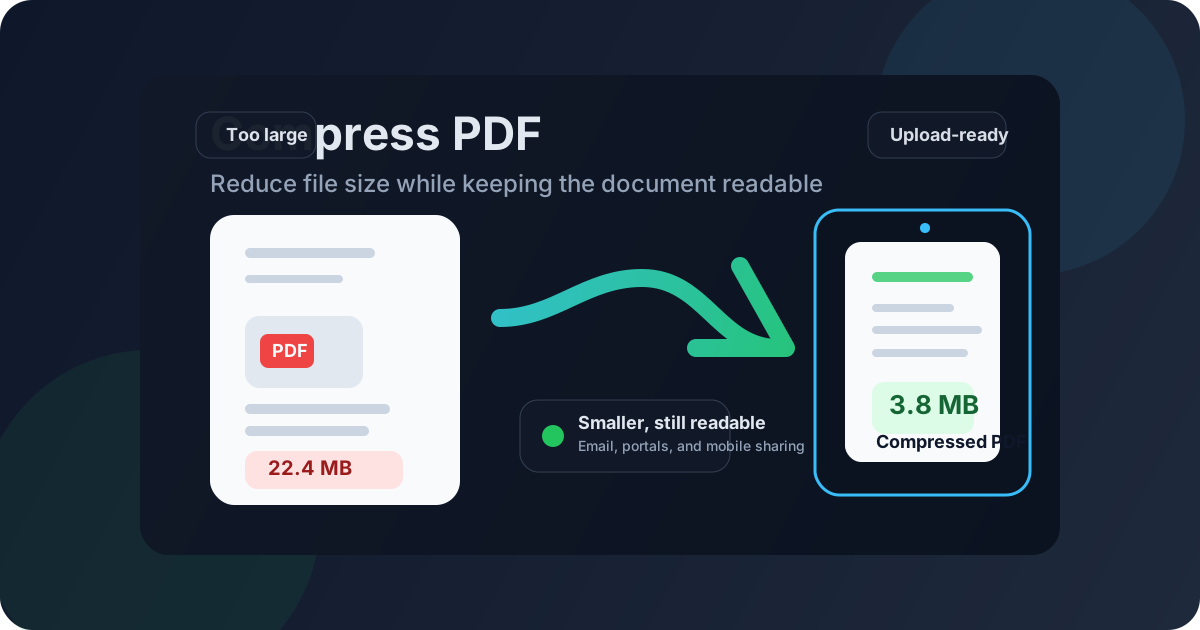
Table of contents
- Quick start: compress a PDF in a few minutes
- When compression is the right first move
- Why PDFs get bigger than expected
- Compress vs delete pages vs crop vs extract
- Step-by-step: how to compress a PDF cleanly
- Best workflows for email, upload portals, and mobile sharing
- Scan-heavy files and image-heavy PDFs
- How far should you compress?
- Privacy and safer document handling
- Related LifetimePDF tools and useful next steps
- FAQ (People Also Ask)
Quick start: compress a PDF in a few minutes
If you just need the shortest reliable workflow, use this order:
- Open Compress PDF.
- Upload the file you need to shrink.
- Run one compression pass and download the result.
- Check whether the new size is now under your limit.
- Open the PDF once and confirm body text, signatures, charts, and forms still look right.
When compression is the right first move
Compression works best when the PDF is already structurally clean. Think digital exports from Word, Google Docs, PowerPoint, contract software, portals, or reporting systems. In those cases, the file may just be a little heavier than you want, not fundamentally messy.
- reports, proposals, invoices, and contracts exported digitally
- slide decks that are only slightly above an upload limit
- application documents that are readable but just too large
- files you need to email, message, or store more efficiently
- duplicate pages or blank backs from scanning
- huge white borders from a scanner bed or phone camera
- appendices you do not actually need to send
- photos or screenshots that dominate the file size
That distinction matters. If the problem is mostly overhead, compression is efficient. If the problem is wasted content, cleanup beats brute force.
Why PDFs get bigger than expected
People often assume a PDF is large because “PDFs are just large.” Usually the real causes are more specific:
- Scanned pages — especially phone scans, color scans, and image-only pages
- Oversized images — brochures, portfolios, reports, and decks with detailed graphics
- Unnecessary pages — covers, duplicates, blank separators, legal boilerplate, or unused appendices
- Big white margins — wasted space around receipts, forms, and scanner captures
- Merged source files — several medium files often become one large packet faster than people expect
If you know which of those is driving the file size, the next move becomes obvious. That is why good compression is really a small document workflow decision, not just a button click.
Compress vs delete pages vs crop vs extract
A lot of frustration comes from using the wrong tool first. Compression is powerful, but it is not the answer to every large-file problem.
| Situation | Best first move | Why it usually works |
|---|---|---|
| Clean digital PDF, slightly over the limit | Compress PDF | You are trimming size, not fixing structure |
| Long packet with pages you do not need | Delete Pages or Extract Pages | Removing waste often cuts more size than recompressing everything |
| Scans with dark borders or excess white space | Crop PDF first | Margins and scanner noise add bulk without adding value |
| Only one section of a big document matters | Extract Pages | Why shrink 80 pages if you only need 6? |
| Final merged packet is too large | Compress after the merge | The actual delivery file is what needs to meet the limit |
Step-by-step: how to compress a PDF cleanly
A clean compression workflow is short, but each step matters:
1. Decide what the file is for
Are you sending it by email, uploading it to a portal, attaching it to a CRM, or sharing it from your phone? Your target matters. “As small as possible” is not a useful goal. “Under 10 MB for the portal” is.
2. Remove obvious waste before compressing again and again
If you can already see blank pages, duplicated scans, unnecessary appendices, or giant scanner borders, fix those first. Deleting three useless pages often helps more than another low-quality compression pass.
3. Compress once
Open LifetimePDF Compress PDF, upload the file, and create the smaller version. One clean pass gives you a real result to judge. Guessing before you see the output is how people end up overdoing it.
4. Review the parts that actually matter
Do not just look at the first page. Check fine print, signatures, receipts, tables, charts, and the smallest text in the document. A compressed file that technically opens but cannot be read is not a successful result.
5. Choose the next move based on what you saw
- If the size is now good and readability is good, stop.
- If readability is good but the file is still too large, remove waste and compress the cleaner file.
- If readability fell apart, go back and reduce the amount of content instead of crushing the whole document harder.
Need a cleaner starting point first?
Best workflows for email, upload portals, and mobile sharing
The same file can need different treatment depending on where it is going.
Email attachments
Email limits are common, but they are not the only problem. Large attachments also take longer to upload, download, preview, and forward. Compression helps most when the document is already final and only needs to move faster.
Application and vendor portals
Portals often reject files on size alone, even when the content is fine. If you are close to the limit, one compression pass may solve it. If you are far over the limit, extract only the required pages instead of sacrificing readability across the whole packet.
Mobile sharing
On mobile, smaller PDFs are easier to upload and preview, especially on unstable connections. This matters for scans, signed forms, receipts, and documents you need to send quickly from a phone.
| Use case | Best target | Smartest fallback |
|---|---|---|
| Emailing a proposal or contract | Readable, lightweight attachment | Delete unnecessary appendices before compressing again |
| Uploading to a job or client portal | Under the stated limit | Extract only required sections or reduce image-heavy pages |
| Sending scans from a phone | Fast upload and clear text | Crop borders and remove blank backs first |
| Archiving a final packet | Smaller storage footprint without losing usability | Compress after the packet is finalized, not during drafting |
Scan-heavy files and image-heavy PDFs
This is where many people get disappointed. Scanned PDFs often look like documents, but under the hood they behave more like bundles of images. That means every page can be expensive in file size.
If you are working with scans, the best sequence is often:
- remove blank or duplicate pages,
- crop extra white or dark border space,
- compress the cleaned file once,
- review the smallest text carefully.
For image-heavy reports, portfolios, and brochures, the same principle applies. If the visual content is the point of the document, do not chase a dramatic size reduction at the cost of readability. A slightly larger file that remains clear is usually more useful than a tiny file that makes charts, signatures, or captions hard to read.
How far should you compress?
Far enough to clear the real-world constraint. Not farther.
That sounds blunt, but it is the best answer. If the portal accepts 8 MB and your file is 7.4 MB after one good pass, you are done. There is no prize for turning it into 2.1 MB if that means softer text, weaker signatures, or less confidence in the final result.
Privacy and safer document handling
File size is not the only issue. Large PDFs often include more content than people realize: blank backs with handwritten notes, extra pages from a scanner feeder, appendices with sensitive information, or old drafts merged into the same file.
Before you upload any PDF for compression, ask two simple questions:
- Do all of these pages actually need to leave my machine?
- Would deleting or extracting pages reduce both size and exposure at the same time?
That is another reason cleanup often beats brute-force compression. Smaller and safer can be the same decision.
Related LifetimePDF tools and useful next steps
Compression usually works best as one part of a larger document-cleanup workflow. These tools are the most useful companions:
- Compress PDF — shrink the final file for email, uploads, and easier sharing
- Delete Pages — remove blank, duplicate, or irrelevant pages before compression
- Extract Pages — keep only the section that actually matters
- Crop PDF — trim wasted white margins and scanner edges
- Split PDF — break a long document into smaller pieces
- Merge PDF — combine files first, then compress the finished packet
- OCR PDF — useful when scanned files also need searchable text
- PDF Protect — add a password before sharing sensitive files
Related blog guides
- Compress PDF Online
- Compress PDF Online Free
- Compress PDF Without Monthly Fees
- Delete Pages from PDF
- Merge PDF
- Browse all LifetimePDF articles
Ready to shrink the file without wrecking the document?
Best practical workflow: remove waste → compress once → review readability → share the smallest version that still feels trustworthy.
FAQ (People Also Ask)
How do I compress a PDF?
Upload the file to a PDF compressor, run one compression pass, download the smaller result, and review readability. If the file is still too large, remove extra pages or crop margins before trying again.
Will compressing a PDF reduce quality?
It can if you push too far, especially with scans. Text-based PDFs usually survive compression better, while scan-heavy files often improve more from deleting waste and trimming borders first.
What if compression alone is not enough?
Delete pages you do not need, extract only the required section, crop scanner borders, or split the file into smaller pieces. Those steps often reduce size more cleanly than another aggressive compression pass.
Should I compress before or after merging PDFs?
Usually after. Clean the source files first, merge them into the final packet, and then compress the finished file if the final delivery size still needs to come down.
How do I compress scanned PDFs without making them unreadable?
Start by removing blank pages and cropping wasted borders, then compress once and check the smallest text, signatures, and receipts carefully. Scan-heavy files usually need cleanup more than brute-force squeezing.
Published by LifetimePDF — Pay once. Use forever.