Delete Pages from PDF: Remove the Pages You Do Not Need Without Rebuilding the Whole File
Yes — the easiest way to delete pages from PDF files is to remove only the pages that do not belong, then review the cleaned file once before you upload, send, print, or merge it into anything else.
If the page numbers are confusing, the file is padded with blank scans, or you actually need to keep only a small section, switch to Extract Pages or Split PDF instead of guessing and deleting half the document by hand.
That distinction saves people a lot of grief. Most bad PDF cleanup jobs are not caused by the delete button itself. They happen because the wrong workflow was chosen, the page numbering inside the document did not match the PDF index, or someone tried to trim a messy packet without deciding what the final file was supposed to do. A good delete-pages workflow is simple, but it is also deliberate.
Fastest practical path: confirm the real PDF page numbers, remove the unwanted pages in one pass, download the cleaned file, and compress or protect it only after the content is correct.
In a hurry? Jump to Quick start: delete PDF pages in a few minutes.
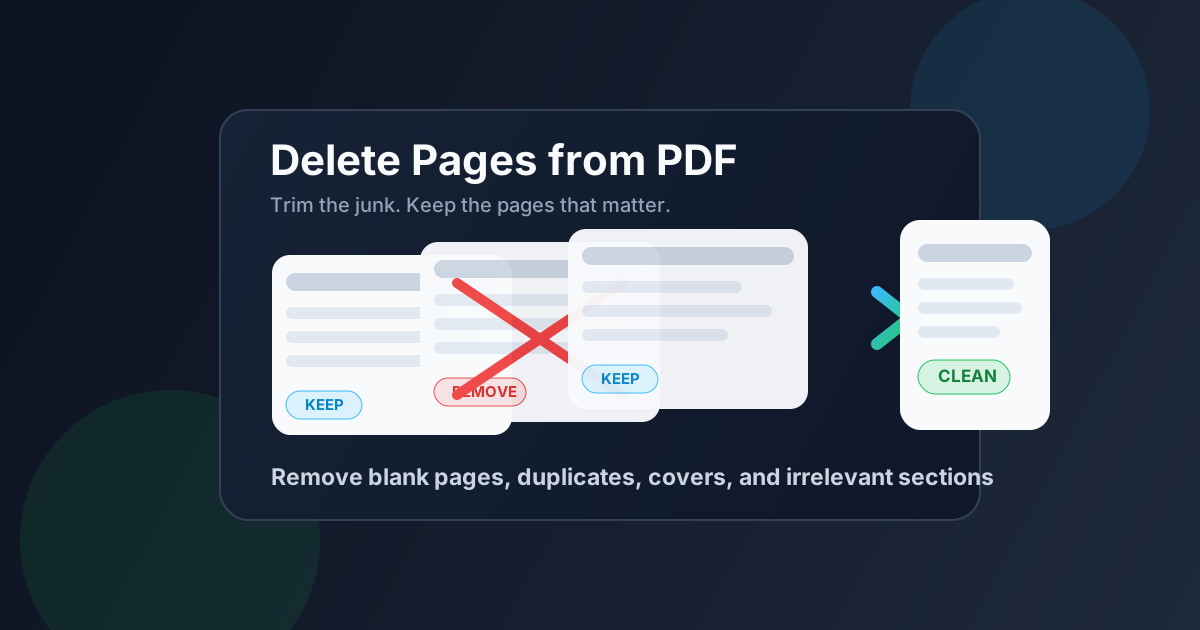
Table of contents
- Quick start: delete PDF pages in a few minutes
- When deleting pages is the right move
- Delete vs extract vs split vs redact
- Step-by-step: how to delete pages from a PDF cleanly
- How to avoid page-number mistakes
- Best use cases for page deletion
- What to do after deleting pages
- Related LifetimePDF tools and useful next steps
- FAQ (People Also Ask)
Quick start: delete PDF pages in a few minutes
If you already know which pages need to go, the short version is straightforward:
- Open Delete Pages.
- Upload the PDF you want to clean up.
- Enter the pages to remove as a single page, a range, or a mixed list such as
2,5-8,11. - Process the file and download the cleaned PDF.
- Open the result once and confirm that the correct pages disappeared.
- If the file is still bulky, use Compress PDF afterward.
When deleting pages is the right move
Deleting pages works best when the document is already mostly correct and you only need to trim what should not be there. That makes it perfect for cleanup, not reconstruction.
Common examples include removing blank scan backs, duplicate pages after a merge, outdated appendix pages, extra routing sheets, repeated cover pages, or a few internal pages that do not belong in the version you plan to share. In all of those cases, the core document is fine. It just needs pruning.
- Use Delete Pages when the PDF is mostly right and you want to remove a handful of specific pages.
- Use Extract Pages when you want to keep only a certain section as a new smaller file.
- Use Split PDF when you need visual page selection or want to break a large packet into chunks.
- Use Redact PDF when the page itself should stay but some details on it should disappear.
Delete vs extract vs split vs redact
A lot of confusion comes from mixing together several different jobs. They can all lead to a smaller or cleaner PDF, but they solve different problems.
| Goal | Best tool | Why |
|---|---|---|
| Remove a few unwanted pages and keep the rest intact | Delete Pages | Fastest when the document is already mostly correct |
| Keep only one section as a new file | Extract Pages | Better than deleting dozens of pages you do not want |
| Visually pick pages when numbering is messy | Split PDF | Safer when counting page numbers feels error-prone |
| Hide sensitive text but keep the page | Redact PDF | Removes the information without removing the whole page |
That table matters because many people search for delete pages from PDF when what they really mean is one of the other three jobs. Choosing the right tool first is what keeps the rest of the workflow clean.
Step-by-step: how to delete pages from a PDF cleanly
The actual process is short. The quality of the result depends on whether you are clear about which pages belong in the final version.
1) Start with the final version in mind
Before you type page numbers, decide what the finished file is meant to do. Is it a client-facing version? A lighter upload packet? A cleaner archive copy? That answer tells you what belongs and what should be removed.
2) Check the actual PDF page index
This is the step people skip most often. The page labeled 1 inside the document is not always PDF page 1. Cover sheets, title pages, scanned inserts, and front matter can shift everything. Verify the real page positions once before you remove anything.
3) Delete the unwanted pages in one pass
Open LifetimePDF Delete Pages, upload the file, and enter a single page, a range, or a mixed list. If you know the exact pages to remove, it is usually faster and cleaner to do the whole job at once.
4) Review the cleaned file immediately
Open the result and check the beginning, one middle section, and the end. That quick review catches wrong numbering, missing appendix pages, or one page you accidentally removed because the PDF index did not match the footer.
5) Finish the workflow only after the content is correct
If you still need a smaller file, compress it afterward. If it is sensitive, protect it afterward. If it will be merged into another packet, merge only the cleaned version. Cleanup should come before the next transformation, not after it.
Best sequence: verify page numbers → delete only what does not belong → review the result → compress, protect, or merge only after the content is right.
How to avoid page-number mistakes
Wrong-page deletion is almost always a numbering problem, not a tool problem. A few practical checks prevent most mistakes.
Printed page numbers and PDF page numbers are not always the same
A report may show page 1 in the footer, but if it has a cover page before that, the PDF may treat it as page 2. If you blindly delete page 1 because the footer says page 1, you may remove the cover instead of the section you meant to cut.
Scan jobs often insert blanks or separators
Scanner workflows frequently create blank backs or separator sheets. Those pages shift the page count and make quick mental counting unreliable. That is another good reason to preview the file before you type anything.
If the numbering feels messy, switch to a visual keep-pages workflow
When the document is long, the page count is inconsistent, or you only trust what you can see, use Split PDF or Extract Pages instead. Clicking the pages you want to keep is often safer than deleting what you think you do not need.
Best use cases for page deletion
Deleting pages is one of those deceptively simple workflows that appears everywhere. Here are the situations where it usually makes the most sense.
Blank scan pages
Multi-page scans often carry extra blank backs or separators. Removing them makes the document shorter, cleaner, and easier to share without changing the pages that matter.
Duplicate pages after a bad merge
If a combined packet contains a repeated signature page, duplicate appendix, or a second copy of a cover, page deletion is faster than rebuilding the full packet from scratch.
Outdated covers, routing sheets, or internal notes
A file prepared for internal review often carries pages that should not travel outside the team. Deleting those pages is cleaner than keeping them and hoping nobody notices.
Upload packets that need to be lighter and more focused
Removing irrelevant pages before using Compress PDF often helps more than compression alone. You end up with a file that is both smaller and easier for the recipient to read.
One-off cleanup before archiving or printing
Sometimes the goal is simply a more sensible record. A file that drops the junk pages is easier to store, review later, and print if needed.
What to do after deleting pages
In many workflows, deleting pages is just the first cleanup step. The follow-up depends on what happens next.
- Need a smaller file? Use Compress PDF after deleting unnecessary pages.
- Need to hide details on the remaining pages? Use Redact PDF.
- Need to send a secure version? Add a password with PDF Protect.
- Need a final submission packet? Merge the cleaned file with other finished documents using Merge PDF.
The core principle stays the same: first make the document correct, then make it smaller, safer, or easier to combine.
Typical clean workflow: delete the junk pages → compress the result if necessary → protect sensitive copies → merge only the final clean version.
Related LifetimePDF tools and useful next steps
Page deletion is more useful when it sits inside a complete PDF workflow. These tools are the most natural companions:
- Delete Pages — remove blank pages, duplicates, and irrelevant sections
- Extract Pages — keep only the pages you want as a new file
- Split PDF — visually pick pages when the numbering is messy
- Compress PDF — reduce the file size after cleanup
- Redact PDF — remove sensitive details while keeping the page
- PDF Protect — secure the final file before you share it
- Merge PDF — combine cleaned PDFs into a final packet
Related blog guides
- Delete Pages From PDF Online
- Delete Pages From PDF Online Free
- Delete Pages From PDF Without Monthly Fees
- Extract Pages From PDF
- Merge PDF
- Browse all LifetimePDF articles
Ready to clean the file instead of rebuilding it?
Best practical workflow: verify the page numbers → delete what does not belong → review once → compress or protect only if needed.
FAQ (People Also Ask)
How do I delete pages from a PDF?
Upload the PDF to a delete-pages tool, remove the page numbers or ranges you do not want, then download the cleaned version and review it once before you send it anywhere important.
Does deleting pages from a PDF reduce quality?
Usually no. The workflow normally removes only the selected pages while leaving the quality and layout of the remaining pages intact.
What if I only want to keep a few pages from the file?
Use Extract Pages or Split PDF instead. Those tools are better when the goal is to keep a small section rather than trim a mostly correct document.
Can I delete blank pages, duplicate scans, or repeated covers?
Yes. Those are some of the most common and most useful delete-pages jobs because they clean the file without forcing you to rebuild everything from scratch.
What should I do if the page numbers in the footer do not match the PDF page count?
Check the real PDF page index first. Cover pages, blank scans, and front matter often shift the numbering, so the printed page 1 may not be the file's actual page 1.
Published by LifetimePDF — Pay once. Use forever.