Extract Pages from PDF: Keep Only the Pages You Need
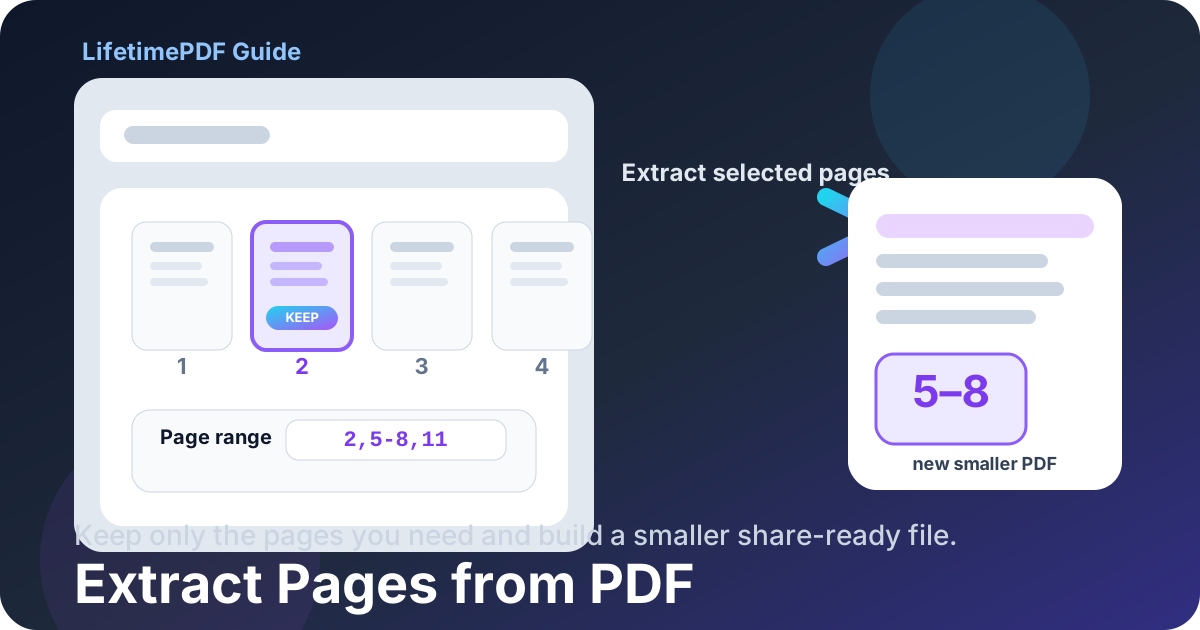
To extract pages from a PDF, upload the file to an extract-pages tool, choose the page numbers or ranges you want to keep, and download a new PDF containing only those pages. It is the fastest way to pull out a contract section, appendix, invoice pages, scanned IDs, or only the pages a portal actually needs.
This matters more than people expect. A lot of PDF work is not about editing the whole document. It is about making the document smaller, cleaner, safer to share, and easier for the next person to understand. If someone only needs pages 6 through 10, sending all 48 pages usually creates friction, confusion, and unnecessary exposure.
Fastest path: Use LifetimePDF's Extract Pages tool to create a new PDF with only the pages you want to keep.
In a hurry? Jump to Quick start: extract PDF pages in under 2 minutes.
Table of contents
- Quick start: extract PDF pages in under 2 minutes
- Why extracting pages is often better than sending the whole PDF
- Step-by-step: how to extract pages from PDF
- Page-range examples that save time
- Extract vs delete vs split: choose the right tool
- Real workflows: contracts, applications, scans, research
- What happens to quality and file size?
- How to extract pages from PDF on mobile
- Privacy and safer sharing habits
- Related LifetimePDF tools for the full workflow
- FAQ (People Also Ask)
Quick start: extract PDF pages in under 2 minutes
If you already know which pages you need, the workflow is simple:
- Open Extract Pages.
- Upload your PDF.
- Enter the pages you want to keep, such as
3-7or1,4,9-12. - Run the extraction.
- Download the new PDF and do a quick check for page order and completeness.
Why extracting pages is often better than sending the whole PDF
A lot of PDF sharing is accidental overkill. Someone asks for one signed page, one appendix, a few transcript pages, or the invoice section, and they get the full packet because editing the file feels annoying. That habit creates bigger uploads, more confusion, and more privacy risk than necessary.
Common reasons people extract pages
- Applications and admissions: keep only the certificate pages, transcript pages, or requested attachments.
- Client work: send only the relevant scope, estimate, approval page, or appendix.
- Scanned paperwork: isolate the good pages and leave out blank scans or duplicates.
- Research and study: pull out one chapter or appendix instead of carrying a huge PDF around.
- Privacy: share exactly what is needed instead of accidentally including extra personal or financial information.
In short, extracting pages is not a niche feature. It is one of the easiest ways to make documents more usable and less messy.
Step-by-step: how to extract pages from PDF
LifetimePDF's Extract Pages tool is built for the practical version of this task: choose the source PDF, define the pages you want, create a new PDF, and move on.
Step 1: Open the Extract Pages tool
Start with Extract Pages. If you already know the page numbers, you can usually finish the job in a minute or two.
Step 2: Upload your PDF
Add the source file from your device. Before you continue, decide whether you want a continuous range, a few scattered pages, or a visual thumbnail-based selection. That choice determines whether the extract tool or the split tool will feel faster.
Step 3: Enter the pages you want to keep
Use page numbers and ranges to define the new PDF. Typical examples include:
4for one page4-9for a continuous range2,5,8for separate pages1,3-6,11for a mixed selection
Step 4: Extract and download
Run the extraction and download the new file. The result should be a smaller PDF containing only the selected pages, in the same order they appeared in the original document.
Ready to make a smaller PDF right now?
Page-range examples that save time
Most extraction errors are not tool failures. They are page-range mistakes. A few concrete examples make the workflow much easier.
| You want to keep | What to enter | What happens |
|---|---|---|
| Only page 7 | 7 |
Creates a new one-page PDF |
| Pages 3 through 10 | 3-10 |
Keeps a continuous section |
| Pages 1, 4, and 9 | 1,4,9 |
Keeps separate non-consecutive pages |
| Pages 2 to 5 plus page 11 | 2-5,11 |
Builds one PDF from mixed selections |
If you do not know the page numbers or the file is visually messy, use Split PDF for thumbnail-based selection instead. It is especially useful when printed page numbers do not match actual PDF positions.
Extract vs delete vs split: choose the right tool
These tasks overlap, but they are not the same. Picking the right tool keeps the workflow short.
| Your goal | Best tool | Why |
|---|---|---|
| I want a new PDF containing only selected pages | Extract Pages | Fastest when you know which pages to keep |
| I want to remove a few unwanted pages and keep everything else | Delete Pages | Better when most of the original should remain |
| I want to select pages visually instead of typing ranges | Split PDF | Ideal for thumbnails, scans, and uncertain page numbering |
A useful shortcut is this: extract means “keep these,” delete means “remove these,” and split means “show me the pages so I can decide visually.”
Real workflows: contracts, applications, scans, research
Contracts and approvals
Extract only the signature page, pricing appendix, or approval section instead of sending the entire document set. If sensitive pages are elsewhere in the file, the smaller extract is often the safer share copy.
Applications and admin portals
Many portals ask for only the relevant pages from a transcript, license packet, or supporting document. Extracting those pages first can make uploads cleaner and reduce file-size headaches.
Phone scans and mixed paperwork
Mobile scans often contain blank pages, duplicates, or pages that were captured just in case. A sensible workflow is often: rotate what is sideways, extract the useful pages, then compress the result for email or messaging.
Research, manuals, and study materials
If you only need one chapter, appendix, or assignment section, extracting that portion gives you a lighter file that is easier to store, annotate, and revisit later.
What happens to quality and file size?
Extracting pages usually does not reduce page quality. In most cases, the selected pages are copied into a smaller PDF rather than recreated as flat low-resolution images.
File size often drops simply because there are fewer pages. But if the selected pages are image-heavy scans, the result can still be larger than expected. When that happens, use Compress PDF after extraction.
How to extract pages from PDF on mobile
This is a common phone task because PDFs arrive through email, cloud storage, scans, or messaging apps. A browser-based workflow is useful here because you do not need to install a large editor just to create a smaller share copy.
- Open Extract Pages in your mobile browser.
- Upload the PDF from Files, Drive, iCloud, Downloads, or local storage.
- Enter the page numbers or use Split PDF if visual selection is easier.
- Download the new file and review it once before sharing.
This is especially handy for receipts, signed forms, school submissions, insurance paperwork, and any PDF where only a few pages actually matter.
Privacy and safer sharing habits
A smaller PDF is often a safer PDF. Extracting only the necessary pages reduces both file size and accidental disclosure. That matters for contracts, invoices, HR records, school files, IDs, and financial paperwork.
- Share the minimum: extract only the pages the other person truly needs.
- Redact before sharing: if a kept page still contains sensitive fields, use Redact PDF.
- Protect the output: add a password using PDF Protect if the extract is sensitive.
- Unlock only when authorized: if the source file is restricted and you have permission, use PDF Unlock first.
- Keep the original master file: the extracted copy is for sharing or filing, not a replacement for the full source document.
Related LifetimePDF tools for the full workflow
Extracting pages works best as part of a broader PDF workflow. These companion tools are the ones most people reach for next:
- Extract Pages - create a new PDF with only the pages you want.
- Split PDF - choose pages visually when ranges are annoying.
- Delete Pages - remove a few unwanted pages while keeping the rest.
- Merge PDF - combine extracted sections into one final packet.
- Compress PDF - shrink the final file for upload portals or email.
- Rotate PDF - fix sideways scans before extracting.
- PDF Protect - add a password before sharing a sensitive extract.
Suggested internal blog links
- Extract Pages from PDF Online Free
- Delete Pages From PDF Without Monthly Fees
- Split PDF Online Free
- Merge PDF
- Browse all LifetimePDF articles
FAQ (People Also Ask)
1) How do I extract pages from a PDF?
Upload the file to an extract-pages tool, choose the page numbers or ranges you want to keep, run the extraction, and download the smaller PDF. A quick option is LifetimePDF Extract Pages.
2) What is the difference between extract pages and delete pages?
Extract pages creates a new PDF with only the selected pages. Delete pages removes unwanted pages while preserving the rest of the original document. If most of the file should remain, delete is often easier. If only a section matters, extract is usually better.
3) Can I extract non-consecutive pages from a PDF?
Yes. Most tools support mixed selections like 1,3,7-10,14, which is useful when you need scattered pages in one output file.
4) Does extracting pages reduce quality?
Usually no. Extraction normally preserves the original page quality because the selected pages are copied into a new PDF rather than remade as low-resolution images.
5) When should I use split PDF instead of extract pages?
Use Split PDF when visual thumbnails are easier than typing ranges, especially for messy scans, uncertain page order, or documents where printed numbers do not match PDF positions.
Ready to keep only the pages that matter?
Best practical workflow: choose the needed pages → review the output → compress if needed → protect before sharing sensitive copies.
Published by LifetimePDF — Pay once. Use forever.