Merge PDF: Combine Files in the Right Order Without Creating a Bloated Final Packet
Yes — the cleanest way to merge PDF files is to upload only the pages that belong together, arrange them in the right order, merge once, and review the finished document before sending it anywhere important.
If the packet includes duplicate pages, sideways scans, or giant image-heavy attachments, fix those issues first so the merged PDF feels intentional instead of stitched together.
That sounds obvious, but most bad merged PDFs are not caused by the merge tool. They come from messy source files, rushed page order, and the assumption that one combined document is automatically better than several separate ones. The real job is not just combining pages. It is building one PDF that reads clearly, uploads smoothly, and makes the next step easier for the person on the other side.
Fastest practical path: clean the source files, merge them in the correct sequence, then compress or protect the final PDF only if the workflow actually needs it.
In a hurry? Jump to Quick start: merge PDF files in a few minutes.
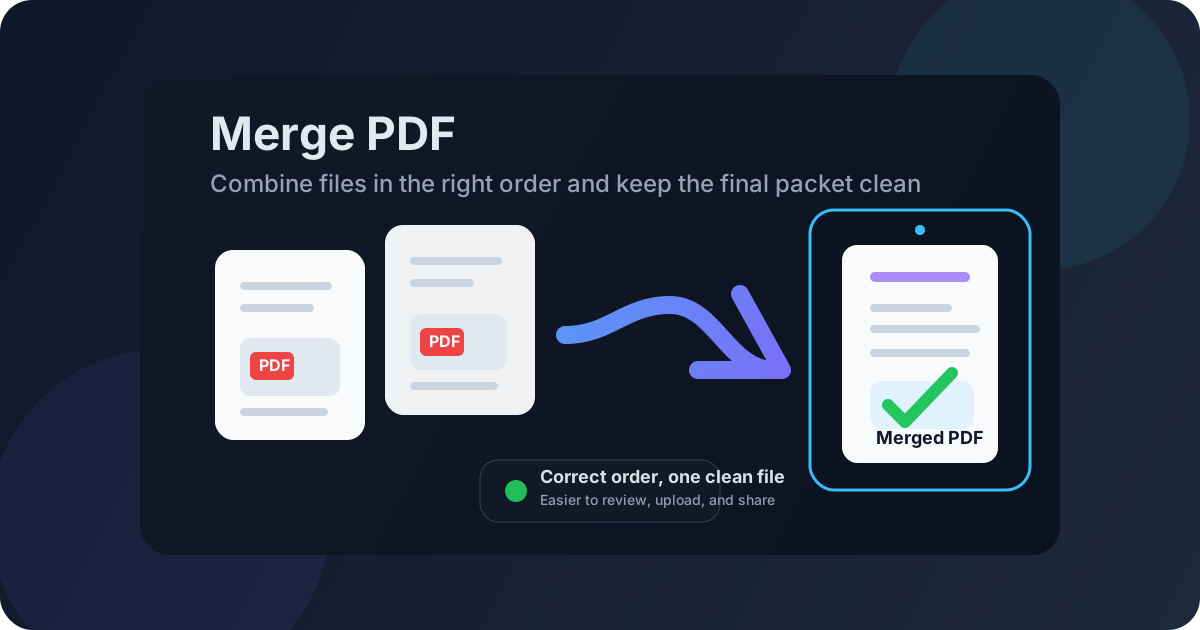
Table of contents
- Quick start: merge PDF files in a few minutes
- Why people merge PDF files in the first place
- Step-by-step: how to merge PDF files cleanly
- What to fix before you merge anything
- How to choose the right order for the final packet
- Scans, screenshots, forms, and mixed document sources
- What merging does to quality and file size
- When to merge, when to split, and when to keep files separate
- Related LifetimePDF tools and useful next steps
- FAQ (People Also Ask)
Quick start: merge PDF files in a few minutes
If the source files are already clean and you just need one combined document, this short workflow is usually enough:
- Open Merge PDF.
- Upload only the files that truly belong in the same final packet.
- Arrange them in the exact order you want the reader to follow.
- Run the merge and download the combined PDF.
- Check the first few pages, one middle section, and the end before sending it anywhere.
- If the final file is too large, use Compress PDF afterward.
Why people merge PDF files in the first place
People rarely search for merge PDF because they love document housekeeping. They search because one clean file is easier than a trail of attachments. One upload-ready packet beats six separate documents when the next step is a portal, a client review, a board meeting, a job application, a contract handoff, or a finance approval workflow.
But one file is only helpful when it makes sense as one file. A strong merge does three things well:
- It gives the reader one clear sequence instead of forcing them to jump between attachments.
- It reduces friction for uploads, reviews, approvals, printing, and archiving.
- It preserves context so supporting pages stay attached to the main document they explain.
Common real-world merge jobs
- Job applications: resume, cover letter, certifications, and a few relevant portfolio pages
- Contract packets: the agreement, exhibits, appendices, and signature sections
- Finance support files: one summary sheet with related receipts or invoices behind it
- Scanned paperwork: separate phone scans turned into one readable packet
- Client reviews: main document first, supporting material after
Step-by-step: how to merge PDF files cleanly
The merge itself is fast. What makes the result feel professional is the order of operations around it.
1) Start with the final use case, not the file list
Before uploading anything, ask what the finished document is supposed to do. Is it one application packet? One contract for review? One archive bundle? That answer tells you what belongs in the file and what should stay out.
2) Upload only what belongs together
This sounds minor, but it saves more trouble than any technical tweak. Old drafts, duplicate exports, blank covers, internal notes, and giant appendices that no one needs right now should usually be removed before the merge. A cleaner packet is easier to review and usually smaller too.
3) Set the order like a human would read it
Put the primary document first. Supporting pages come after. Evidence, exhibits, or appendices follow only when they truly support the core file. A merged PDF should read like one intentional packet, not like a download folder emptied into a blender.
4) Merge once, then inspect the finished packet
Open the result immediately. Do not check only page 1. Scroll the beginning, a middle section, and the last pages. That catches missing pages, sideways inserts, duplicate scans, or sections that landed in the wrong place.
5) Compress, protect, or sign only after the content is right
If the final PDF is too large for email or portal limits, compress it after the merge. If it is sensitive, protect it after the merge. If it needs a signature, sign the final version, not a half-finished one that may change again.
Clean sequence: prepare the source files → set the order → merge once → review → compress or protect if needed.
What to fix before you merge anything
The fastest way to create a bad merged PDF is to preserve every earlier mistake. A little cleanup upstream usually produces a much better final document.
Delete blank or irrelevant pages
If a source file contains duplicated covers, routing sheets, internal notes, or dead pages, use Delete Pages first. Carrying extra pages forward makes the final packet longer and more confusing for no benefit.
Extract only the section you need
A 40-page source file may contain only 5 pages that belong in the final packet. In that case, use Extract Pages before merging. It is easier to build a clean packet from relevant material than to fix a bloated packet afterward.
Fix sideways pages before they join the packet
One crooked scan can make the entire document feel sloppy. Use Rotate PDF on problem pages before merging so the final file reads naturally from start to finish.
Normalize images and screenshots
If part of your packet still exists as phone photos, JPG receipts, or screenshots, convert those into PDF first with Images to PDF. The merge step works best when all sources are already in a stable, readable format.
How to choose the right order for the final packet
Order is where merged PDFs either feel polished or feel careless. The reader should never have to guess why page 12 explains something page 2 has not introduced yet.
A simple order formula that works most of the time
- Main document first — the page or section the reader came for
- Core supporting material second — pages needed to understand the main document
- Reference material last — appendices, receipts, exhibits, or evidence
| Workflow | Best order | Why it works |
|---|---|---|
| Job application | Resume → cover letter → certifications → selected work samples | The primary decision document appears first |
| Contract packet | Agreement → exhibits → appendix → signature pages | The legal core comes before reference material |
| Expense packet | Summary page → receipts in date order | Review starts with context, then evidence |
| Scanned form set | Page 1 → page 2 → page 3, all upright | The packet behaves like a normal document instead of a camera roll |
If you are unsure, imagine the person opening the file for the first time. What page should they see first? That is usually the correct beginning.
Scans, screenshots, forms, and mixed document sources
Many merge jobs are not neat bundles of clean PDFs. They are mixed-source packets: one attachment from email, two phone scans, a few screenshots, maybe a signed page from another app, and one PDF export from a portal. That is normal. It just means the preparation step matters more.
Scans
Scans are often the biggest reason a merged PDF becomes bulky or awkward. They may include dark backgrounds, crooked orientation, oversized images, or blank backs. Clean them before merging so they do not dominate the final file.
Screenshots and image receipts
Screenshots can work fine in a final packet, but they should usually be normalized first. Turning them into PDFs before the merge keeps the workflow more predictable and makes it easier to review page order afterward.
Forms and signed pages
Forms often depend on exact page structure. That makes them good candidates for merging, as long as you check the final order carefully. Signed pages should generally be added only after you are confident the rest of the packet is final.
Working from mixed sources?
What merging does to quality and file size
Merging PDFs usually does not hurt quality by itself. In most cases the tool is combining existing pages rather than re-rendering them from scratch. That means text stays sharp and page layout usually survives intact.
File size is the more common issue. If the source files contain high-resolution scans, large images, duplicate attachments, or too many unnecessary pages, the merged file can become heavier than expected. That does not mean the merge failed. It usually means the inputs needed more cleanup.
| Situation | What usually happens | Best fix |
|---|---|---|
| Mostly text-based PDFs | Quality stays the same and size grows moderately | Usually no extra step needed |
| Image-heavy scans | The final packet can become bulky | Compress after the merge |
| Duplicate or irrelevant pages | Size grows for no good reason | Delete or extract before merging |
| Mixed screenshots and PDFs | The packet works, but can feel inconsistent | Convert images first, then merge once |
When to merge, when to split, and when to keep files separate
One merged PDF is not always the best answer. The smartest workflow is the one that lowers friction for the next step, not the one that creates the biggest single file.
Merge when:
- everything belongs to one submission or one reviewer,
- the pages should be read in sequence,
- one upload is easier than multiple attachments,
- the final packet needs to live together for archiving or approval.
Split when:
- a long source file contains only a few pages you actually need,
- different sections go to different people,
- the packet becomes too large or hard to navigate.
Keep files separate when:
- they have different privacy rules,
- they update on different schedules,
- the recipient may need only one section instead of the whole packet.
The goal is not to merge by habit. The goal is to create the easiest possible handoff for the real workflow in front of you.
Related LifetimePDF tools and useful next steps
A good merge is often one step in a larger document workflow. These tools usually matter most before or after the combine step:
- Merge PDF — combine multiple PDF files into one clean packet
- Delete Pages — remove blanks, duplicates, and pages that should not travel
- Extract Pages — keep only the section you truly need
- Rotate PDF — fix sideways pages before they join the final document
- Images to PDF — normalize screenshots, phone scans, and image receipts
- Compress PDF — shrink the finished file for email and upload portals
- Sign PDF — sign the merged packet after it is final
- PDF Protect — add a password when the packet contains sensitive material
Related blog guides
- Merge PDF Online
- Merge PDF Online Free
- Merge PDF Without Monthly Fees
- How to Merge PDFs Online for Free Without Losing Quality
- Split PDF Online Free
- Browse all LifetimePDF articles
Ready to turn the file pile into one clean packet?
Best practical workflow: clean the source files → merge once → review the packet → compress or protect only if needed.
FAQ (People Also Ask)
How do I merge PDF files?
Upload the files you want to combine, arrange them in the right order, run the merge, and review the final PDF once before sharing it. For better results, remove unnecessary pages and fix rotation before you merge.
Does merging PDFs reduce quality?
Usually no. Most merge workflows combine existing pages rather than rebuilding them, so text and layout usually stay intact. If the finished file becomes too large, compress it afterward.
Why is my merged PDF so large?
The usual causes are image-heavy scans, duplicate pages, oversized screenshots, or unnecessary attachments. Cleaning the source files first often helps more than trying to fix size problems after the packet is already bloated.
Can I merge scans, photos, and PDFs into one file?
Yes. Convert images to PDF first, fix any crooked pages, and then merge everything into one final packet so the result is easier to review and share.
When should I merge PDFs instead of keeping them separate?
Merge when the files belong to one upload, one review, one application, or one packet that should be read in sequence. Keep them separate when different recipients, privacy rules, or update cycles apply.
Published by LifetimePDF — Pay once. Use forever.