Crop PDF Online: Clean Up Margins, Scanner Borders, and Page Framing
Yes — you can crop a PDF online by uploading the file, choosing the part of each page you want to keep, previewing the result, and downloading the cleaned-up PDF.
If the file is a scan, the smartest flow is usually rotate first, crop with a small safety margin, then OCR or compress only if the finished document still needs that extra step.
Most people searching this are not trying to do graphic design on a PDF. They are trying to fix a document that is technically readable but still annoying: giant white margins, black scanner shadows, uneven framing, a page that wastes half the screen on mobile, or a report that looks sloppy right before it gets sent to someone important. Cropping is the fast cleanup move when the content is already right and the page framing is the part getting in the way.
Fastest path: open Crop PDF, trim the page to the content you actually want, then export once and review the result.
In a hurry? Jump to Quick start: crop a PDF online in a few minutes.
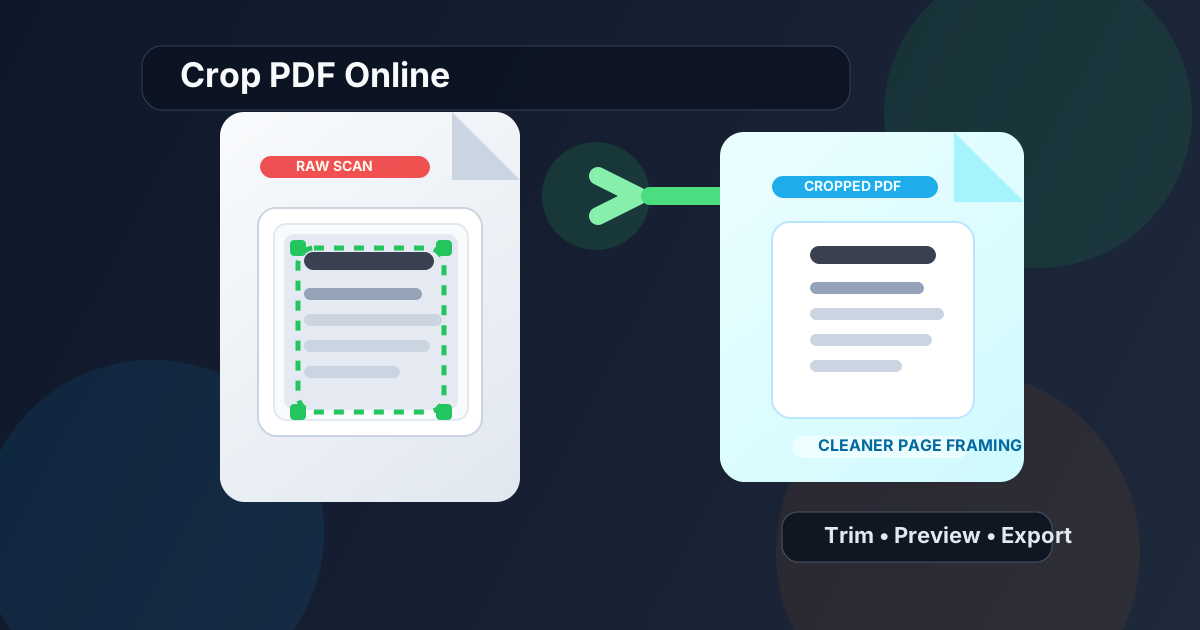
Table of contents
- Quick start: crop a PDF online in a few minutes
- When cropping online is the right fix
- Step-by-step: how to crop a PDF online
- Crop one page or the whole file?
- What cropping solves and what it does not
- Scanned PDFs, phone captures, and uneven borders
- How to avoid clipping important content
- Best workflow after cropping: rotate, OCR, compress
- Related LifetimePDF tools and guides
- FAQ (People Also Ask)
Quick start: crop a PDF online in a few minutes
If your only goal is to remove wasted border space or clean up a messy scan, the shortest useful workflow looks like this:
- Open Crop PDF.
- Upload the PDF you want to clean up.
- Drag the crop boundaries so they keep the content and remove the extra margin or border area.
- Preview the result carefully before exporting.
- Download the finished PDF, then compress or OCR it only if the final file still needs that follow-up work.
When cropping online is the right fix
Cropping is the right move when the content is already correct but the page framing is making the PDF harder to read, share, or present cleanly. That is an important distinction. If the actual words, forms, or images are wrong, cropping will not fix that. But if the page is surrounded by useless space or messy borders, cropping is often the fastest improvement you can make.
| Situation | Why crop helps | Better next step if needed |
|---|---|---|
| Large white margins | Makes the real content fill more of the screen or page | Compress afterward only if file size matters |
| Black scanner edges or shadows | Removes visual noise and makes the file look cleaner | Run OCR after cropping if you want searchable text |
| One awkward page in an otherwise clean PDF | Lets you fix only the messy page without rebuilding the whole file | Rotate first if the page is sideways |
| PDF is hard to read on mobile | Reduces wasted space so text appears larger | Crop first, then test on a phone again |
| Printouts look sloppy or uneven | Creates more consistent page framing | Review the final PDF before printing |
This is why crop PDF online is such a common search. People do not always need full editing. They need a document to stop looking unfinished.
Step-by-step: how to crop a PDF online
A good crop workflow is simple, but it is worth doing in the right order so you do not have to redo the file later.
1) Open the crop tool first
Start with LifetimePDF Crop PDF. If the PDF is sideways, use Rotate PDF before you crop. It is easier to set a precise crop on a page that is already facing the right direction.
2) Upload the PDF and look at the page edges before touching anything
The mistake people make here is rushing straight to the crop box. Take one moment to identify what should disappear and what must stay. Typical things worth trimming include oversized white margins, scanner shadows, crooked page edges, blank header space, and unnecessary background around an image or diagram.
3) Set the crop area to the content, not to perfection
A clean crop is not the tightest crop possible. It is the crop that removes junk while still leaving the document comfortable to read. Leave a little room around body text, page numbers, signatures, stamps, and anything close to the edge. PDFs that look overly trimmed can feel as distracting as PDFs that were never cleaned up at all.
4) Decide whether the crop should apply to one page or many pages
If the whole scanned document has the same ugly border problem, applying one consistent crop across all pages saves time and creates a more professional result. If only one appendix, one receipt, or one page from a phone camera is messy, crop that page only and leave the rest of the file alone.
5) Preview once before export
Preview is where you catch the expensive little mistakes: clipped page numbers, missing footnotes, charts cut too close, signatures touching the edge, or a crop that looked fine on one page but feels too aggressive across the full document. It is worth a few extra seconds.
Need the quick fix right now?
Crop one page or the whole file?
This decision matters more than people expect. A crop that makes one page look better can make a different page feel cramped if you apply it blindly everywhere.
Crop one page when:
- only one page is messy
- a single receipt or appendix came from a phone photo
- one scanned page has a darker border than the rest
- the document mixes page sizes or orientations
Crop multiple pages when:
- the whole scanned file has consistent white margins
- every page has the same black scanner shadow
- you want a more uniform reading experience for print or mobile
- the document was exported with the same extra border on every page
What cropping solves and what it does not
Cropping is powerful because it is fast, but it helps to be realistic about what it actually changes.
What cropping does well
- removes empty white borders
- cleans dark scanner edges and framing noise
- makes content feel larger on phones and tablets
- helps printouts look more intentional
- keeps attention on the useful part of the page
What cropping does not do by itself
- it does not fix sideways pages better than Rotate PDF
- it does not turn image-based text into selectable text without OCR PDF
- it does not permanently hide sensitive information the way Redact PDF does
- it does not always reduce file size enough for uploads without Compress PDF
That is why the best PDF workflows are rarely one-tool workflows. Cropping is often the cleanup step that makes the rest of the document process easier.
Scanned PDFs, phone captures, and uneven borders
Scanned PDFs are where online cropping earns its keep. A scan can contain the right information and still look rough because of feeder drift, black edges, extra desk background, or inconsistent framing from page to page.
Phone captures create a similar problem. A photographed form, receipt, ID copy, or signed page often includes more background than document. Cropping fixes that faster than rebuilding the file or taking a second photo, especially when the document is already inside a PDF and you just need a cleaner final handoff.
This order matters because OCR tends to work better on a page that is already upright and stripped of useless borders. Cleaner framing gives text recognition a simpler job.
How to avoid clipping important content
The most common crop mistake is easy to understand: the page looks better, but something important disappeared at the edge. Sometimes it is obvious. Sometimes it is a footnote, page number, stamp, signature line, or chart label that only becomes noticeable later.
Here are the habits that prevent that problem:
- Leave a safety margin. A small border almost always looks better than a crop that feels cramped.
- Zoom in on edge content. Check corners, page numbers, headers, and signatures before exporting.
- Test one page first. If a document has mixed layouts, preview the crop on a tricky page before applying it widely.
- Watch legal and financial documents carefully. These often have stamps, initials, or reference numbers close to the edge.
- Do not use crop as redaction. If the issue is privacy, use redaction instead of assuming a crop makes hidden information safely disappear.
In other words, the best-looking crop is usually the one that is just slightly more generous than your first instinct.
Best workflow after cropping: rotate, OCR, compress
Cropping often solves the main visual problem, but the file may still need one more practical step before it is truly finished.
Use Rotate PDF when orientation is still wrong
If the file contains sideways pages, fix that with Rotate PDF before or after cropping depending on what is easier to judge visually. Most of the time, rotating first makes the crop more accurate.
Use OCR PDF when the document is still just an image
If you cannot search, select, or copy text after cropping, the file probably still needs OCR PDF. This is especially useful for scanned contracts, reports, invoices, and archive material.
Use Compress PDF when upload limits still get in the way
Cropping can make a PDF feel lighter, but it does not always make it small enough for email or portal uploads. If size is still the blocker, run the file through Compress PDF after the crop is done.
Use Redact PDF when the problem is privacy, not framing
This one matters. Cropping is about presentation. If the PDF contains personal data, internal notes, or hidden information you should not share, use Redact PDF instead of trying to hide it with layout changes.
Clean practical sequence: rotate if needed → crop the page framing → OCR if you need searchable text → compress only if the file is still too large.
Related LifetimePDF tools and guides
Cropping online works best when it is part of a sensible cleanup workflow instead of a random one-off fix. These tools and guides fit naturally with it:
- Crop PDF - trim margins, borders, and extra page space directly in your browser.
- Rotate PDF - fix sideways pages before setting the crop.
- OCR PDF - make cropped scans searchable and selectable.
- Compress PDF - reduce upload size after visual cleanup is finished.
- Redact PDF - remove sensitive information properly when privacy matters.
Related blog guides
- Crop PDF Online Free
- Crop PDF to Remove White Margins Online
- Rotate Scanned PDF Online
- Compress PDF Online
- Extract Pages From PDF Online Free
FAQ (People Also Ask)
1) How do I crop a PDF online?
Upload the file to an online crop tool, adjust the crop box so it keeps the useful content, preview the page once, and export the cleaned-up PDF. The key is trimming empty space without cutting too close to the edges.
2) Can I crop only one page in a PDF?
Yes. That is often the best move when only one receipt, appendix, or scanned page is messy. If every page has the same border problem, applying one crop across the full file usually creates a cleaner result.
3) Does cropping a PDF remove white margins?
Yes. Removing white margins is one of the most common reasons people crop PDFs online. It makes the real content take up more of the screen and usually improves readability on phones, tablets, and smaller previews.
4) Will cropping a PDF reduce the file size?
Sometimes a little, but often not enough to solve upload limits by itself. If size is the real problem, crop first for presentation and then use a compression tool on the finished PDF.
5) What is the best workflow for a scanned PDF before sharing it?
Usually: rotate if the scan is sideways, crop to remove borders and wasted space, OCR it if you want searchable text, and compress it only if the final file is still too large for email or submission portals.
Ready to clean up a PDF without overcomplicating it?
Best practical flow: clean the framing first, then do OCR, compression, or sharing only if the final PDF still needs it.
Published by LifetimePDF — Pay once. Use forever.