Check PDF Page Size: Confirm A4, Letter, Legal, or Custom Dimensions Before You Print or Upload
To check PDF page size, open the file properties or page boxes and read the real dimensions of each page in inches, millimeters, or points.
If the PDF mixes A4, Letter, Legal, or custom sizes, fix that before you print, upload, merge, or archive the file.
This matters because page-size problems often hide until the worst moment. A PDF can look perfectly fine on screen while still printing too small, clipping content, adding odd white borders, or failing a portal that expects one exact paper format. A short check saves reprints, resubmissions, and awkward "why is page three different?" surprises.
Fastest practical path: check the stored page dimensions, confirm whether every page matches, then decide whether the real fix is crop, resize, or no change at all.
In a hurry? Jump to quick start: check PDF page size in about 5 minutes.
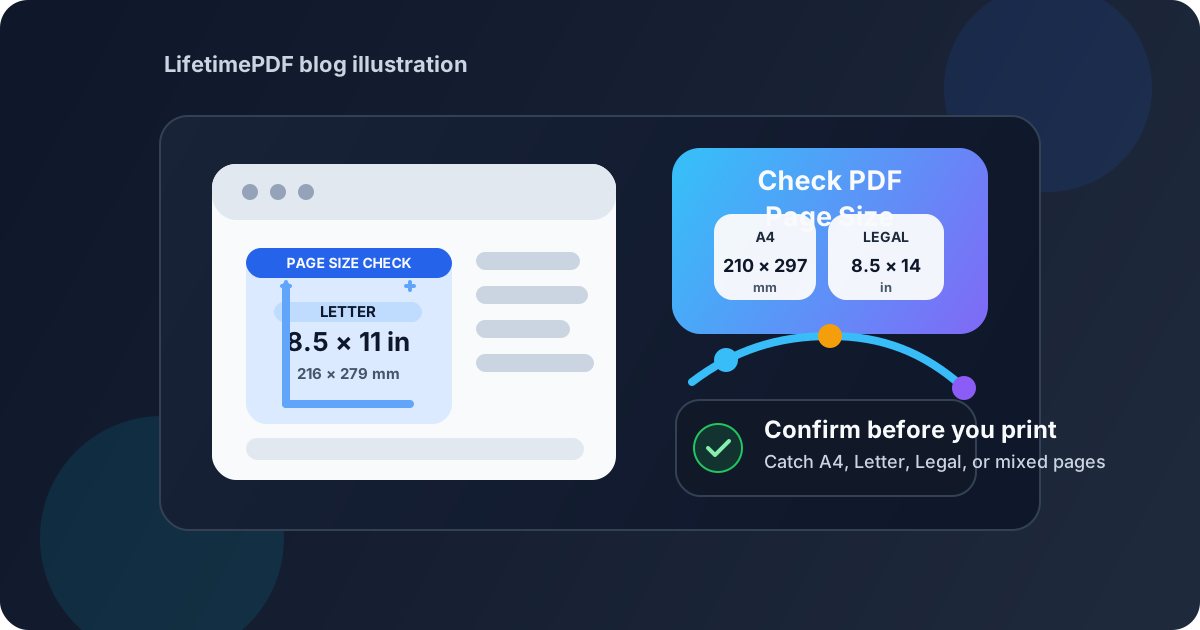
Table of contents
- Quick start: check PDF page size in about 5 minutes
- What PDF page size actually means
- Common page sizes you are likely to find
- Why page-size problems happen so often
- Step-by-step: practical PDF page-size review workflow
- When to crop, resize, or leave the PDF alone
- Final checklist before you print, upload, or share
- Related LifetimePDF tools and guides
- FAQ
Quick start: check PDF page size in about 5 minutes
If your goal is simply make sure this PDF matches the paper size or upload requirement before something breaks, this is the shortest sensible workflow:
- Open the exact PDF you plan to print, upload, email, or merge.
- Read the stored page dimensions in PDF properties or another page-box view instead of trusting the on-screen zoom.
- Check whether every page shares the same size or whether a few outliers are causing the real problem.
- Compare those dimensions with the target format you actually need: Letter, A4, Legal, tabloid, booklet, or a custom portal requirement.
- If the content is correct but the framing is messy, use Crop PDF. If the underlying page size is wrong, resize or re-export the file instead.
- Test one final output so you know the fixed PDF behaves correctly in the real destination.
What PDF page size actually means
PDF page size is the actual physical dimension of a page stored inside the document. Depending on the viewer or tool, you may see that size expressed in inches, millimeters, or points. It is different from zoom, browser scaling, or the current display mode.
In practice, checking page size means answering a few concrete questions: Is this really Letter or A4? Are all pages the same size? Did a scanner add oversized white borders? Did someone export a slide deck at a custom ratio? Is the page box larger than the content, or smaller than the content should be?
| Thing you are looking at | What it tells you | What it does not tell you |
|---|---|---|
| Zoom percentage | How large the page appears on your screen right now | The real stored page dimensions |
| PDF page size | The actual page dimension the file carries into print or upload workflows | Whether the content is visually centered or well cropped |
| Crop marks or white margins | Visual clues about framing and bleed | Whether the underlying page size itself is correct |
| Printer scaling setting | How the output device is trying to fit the page to paper | Whether the PDF was built at the right size in the first place |
Common page sizes you are likely to find
Most page-size checks end up confirming a small set of standards. The problem is not that the dimensions are mysterious. The problem is that one wrong export, one mixed insert, or one regional A4-versus-Letter mismatch is enough to break the workflow.
| Standard size | Dimensions | Where it commonly shows up |
|---|---|---|
| Letter | 8.5 × 11 in / 216 × 279 mm | US office printing, forms, resumes, internal business documents |
| A4 | 210 × 297 mm / 8.27 × 11.69 in | International business documents, government forms, education, reports |
| Legal | 8.5 × 14 in / 216 × 356 mm | Contracts, disclosures, legal paperwork, long tables |
| Tabloid / Ledger | 11 × 17 in / 279 × 432 mm | Plans, spreadsheets, posters, large diagrams |
| Custom page size | Anything outside the standard sets | Slide decks, design proofs, booklets, scanned receipts, stitched exports |
The most common mismatch
The everyday failure case is simple: a PDF created in one region uses A4, the printer or portal expects Letter, and nobody notices until margins shift, pages shrink, or the file gets flagged as the wrong size.
Why page-size problems happen so often
Page-size issues are usually workflow issues, not mysterious technical bugs. A PDF can be technically valid and still be wrong for the real-world task you need it to perform.
Mixed exports and inserted pages
A report may start as Letter, then gain one A4 appendix, one legal exhibit, or one scanner-generated cover page that quietly changes the feel of the whole file.
Scanner borders and crop marks
The content may be correct, but excess white space, trim marks, or dark scanner edges make the page seem oversized or off-center when the real fix is cleaner framing.
Slide decks and design tools
Presentation or layout apps often export custom ratios that look fine digitally but become awkward when someone expects a normal office paper size.
Printer and portal assumptions
Some workflows silently scale to fit, while others reject the file, clip content, or add inconsistent margins because they assume one exact page format.
Step-by-step: practical PDF page-size review workflow
1) Start with the exact outgoing file
Page-size checks only matter on the real file headed to the destination. If you inspect one draft but print or upload a newer export, your measurements may already be obsolete. Always check the final copy that is actually about to leave your workflow.
2) Read the page dimensions directly
Use View PDF Properties or any page-box view that reveals the stored dimensions. If the viewer shows points instead of inches or millimeters, that is fine. The important part is that you are reading the real page definition, not eyeballing it from the screen.
3) Check whether all pages match
Many PDFs fail because only one or two pages differ. A document can look uniform in thumbnails while still containing a stray legal-sized appendix, an A4 scan inserted into a Letter document, or a landscape page exported from another tool. When something prints oddly, a mixed-size file is one of the first things worth checking.
4) Compare the page size with the real destination
The only useful question is whether the current size matches the job. For example:
- Printing on US office paper usually means Letter unless your workflow says otherwise.
- International forms and reports often expect A4.
- Long legal documents may intentionally use Legal.
- Construction plans, spreadsheets, and diagrams may need tabloid or custom sizes.
- Some upload portals silently expect one exact format and preview badly when the file does not match.
5) Decide whether the real fix is crop or resize
This is where people waste the most time. If the page has the right paper size but ugly framing, the fix is usually cropping or removing marks and borders. If the underlying dimensions are wrong, the file may need a proper resize, re-export, or rebuild from the source document.
6) Test one real output before you move on
After the fix, print one sample, generate one portal preview, or reopen the saved PDF and confirm the dimensions now match your target. That final check prevents the classic problem of "I changed it, but the exported copy is still wrong."
Reliable sequence: inspect page dimensions, confirm whether the file is mixed-size, match the result against the destination, then crop or resize only for the actual problem you found.
When to crop, resize, or leave the PDF alone
Not every page-size issue deserves the same fix. The right move depends on whether the problem lives in the stored page dimensions, the visible framing, or the expectations of the final destination.
Crop when the page size is fine but the framing is messy
If the PDF is already the right format but includes white margins, dark scan edges, trim marks, or uneven borders, cropping is usually the cleaner answer. That is especially true when the content itself sits comfortably inside the correct paper standard.
Resize or re-export when the actual paper format is wrong
If the document should be A4 but was exported as Letter, or should be Letter but landed as a custom slide dimension, cropping will not solve the underlying mismatch. In those cases, the better fix is a true resize, a corrected export, or a rebuild from the source.
Leave it alone when the size is intentional
Some PDFs are supposed to be large, long, narrow, landscape, or custom. Architectural drawings, evidence bundles, booklet spreads, and design proofs do not become "wrong" just because they are not standard office paper. The real question is whether the size matches the task.
| Situation | Best move | Why |
|---|---|---|
| Correct paper size, extra borders or crop marks | Crop | The content is already on the right page size, but the framing needs cleanup |
| Wrong paper standard for the destination | Resize or re-export | The underlying dimensions do not match the actual requirement |
| Mixed-size document with one or two outliers | Fix only the mismatched pages | You usually do not need to rebuild the entire file if just a few inserted pages cause the issue |
| Custom format is intentional | Leave it alone | Changing it may damage the layout or make the file less useful for its real purpose |
Easy mistake to avoid
Do not use cropping as a substitute for fixing the wrong paper format. If the PDF truly needs to become Letter or A4, remove borders only after you confirm the actual page-size standard is correct.
Final checklist before you print, upload, or share
Before the PDF leaves your hands, run this quick check:
- Did you inspect the real stored page dimensions instead of trusting zoom or visual appearance?
- Do all pages use the same size, or is one outlier causing the problem?
- Does the PDF match the actual destination requirement: Letter, A4, Legal, tabloid, or custom?
- Is the issue a true size mismatch or just messy borders, crop marks, or scanner padding?
- If you changed the file, did you test one real print or preview afterward?
- Will the recipient experience the document the way you intended on paper, in a portal, or in a shared archive?
You do not need a complicated prepress workflow to get this right. You just need to know whether the PDF is the size you think it is before another tool makes that decision for you.
Ready to clean up the file? Confirm the real page dimensions, remove framing that does not belong, and send a PDF that prints or uploads the way you intended the first time.
Best workflow for dependable output: inspect page dimensions → confirm whether the file is mixed-size → match it against the destination → crop or resize only for the actual issue → test one final output.
Related LifetimePDF tools and guides
Page-size checks are easiest when you pair them with one or two practical cleanup steps. These are the most useful follow-ups:
Inspect the file and fix the framing
- View PDF Properties to confirm the real page dimensions before you touch the file
- Crop PDF Tool to remove extra borders when the content is already the right size
- Crop PDF Guide for a fuller cleanup workflow
Fix print and layout surprises
- Remove Crop Marks From PDF when trim lines or bleed marks make the page feel oversized
- Print PDF Online Complete Guide to avoid scale-to-fit mistakes and paper mismatches
- Remove PDF Background for Printing when the file needs cleaner output after size and framing are settled
FAQ
1) How do I check PDF page size?
Open the PDF properties or page boxes and read the real dimensions of each page in inches, millimeters, or points. That gives you the actual paper size the file carries into print, upload, or archive workflows.
2) Why does my PDF look normal on screen but print at the wrong size?
PDF viewers scale pages for comfortable reading, so visual appearance can hide the real dimensions. Printing exposes mixed page sizes, Letter-versus-A4 mismatches, and fit-to-page settings that the screen did not make obvious.
3) Is page size the same thing as zoom?
No. Zoom controls only how large the page looks on your display. Page size is the real stored dimension of the PDF page itself.
4) Should I crop a PDF or resize it if something feels off?
Crop when the paper size is already correct but the file has extra margins, scanner borders, or crop marks. Resize or re-export when the underlying paper format is wrong for the destination.
5) Can one PDF include several page sizes?
Yes. A single PDF can mix A4, Letter, Legal, tabloid, and custom pages. That is sometimes intentional, but it often creates inconsistent printing or awkward upload previews if nobody checks the file first.
Published by LifetimePDF — Pay once. Use forever.