Check PDF Media Box: See the Full Page Canvas Before You Crop, Print, or Export
To check PDF media box settings, inspect the full stored page canvas and compare the media box with the crop box, trim box, and bleed box so you can see whether the file contains hidden margins, printer marks, or oversized outer space.
If the media box is too large, misleading, or out of sync with the visible page, fix it before you print, crop, export, or upload the PDF so scaling, page size, and edge content behave the way you expect.
That is the practical answer most people need. A PDF can look completely normal in a viewer while still carrying a larger outer canvas underneath. That mismatch is why a file sometimes prints smaller than expected, shows unexplained white space, keeps crop marks you thought were gone, or behaves strangely in another app. Checking the media box helps you understand the real page area the PDF is storing, not just the part a preview happens to show.
Fastest practical path: check the full media box first, compare it with the crop and trim boxes, then decide whether the extra outer page space is intentional, cosmetic, or actually breaking the workflow.
In a hurry? Jump to the 2-minute media-box check.
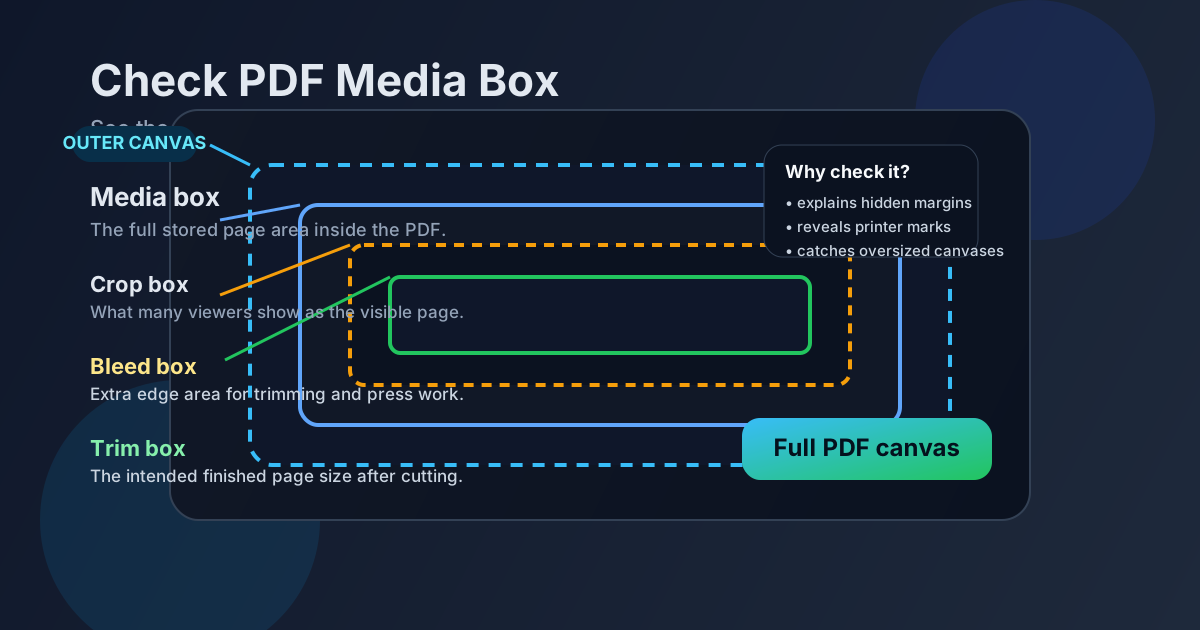
Table of contents
- Quick start: check a PDF media box in 2 minutes
- What a PDF media box actually means
- Media box vs crop box, trim box, bleed box, and art box
- When media-box problems actually matter
- How to check the media box on a real PDF
- What to do if the media box is too large, too small, or confusing
- Related LifetimePDF tools and guides
- FAQ (People Also Ask)
Quick start: check a PDF media box in 2 minutes
If you only need the shortest route from confusion to a confident answer, use this order:
- Open the exact PDF you plan to print, upload, or export.
- Check the media box first so you know the full stored page area inside the file.
- Compare it with the crop box to see whether the visible page is hiding extra outer space.
- Compare it with the trim box and bleed box if the PDF is headed to print or trimming.
- If the outer page area looks wrong, decide whether the fix is a crop cleanup or a cleaner re-export from the source file.
What a PDF media box actually means
A media box defines the largest page area stored inside the PDF. Think of it as the outermost sheet boundary the file knows about. Everything else, including crop, trim, bleed, and art-box decisions, sits somewhere inside or alongside that outer canvas.
That matters because many apps do not show the full story at first glance. A viewer may display only the crop box, while the media box still includes extra white space, printer marks, registration marks, or leftover export space. The result is a file that seems harmless on screen but causes trouble when you print, place it into another document, upload it to a production workflow, or run page-size checks.
Media box is important when
page size, print output, scaling, crop marks, visible margins, or imposition behavior need to match a real production target.
Media box often explains
why a PDF looks fine in one app but imports oddly, prints smaller, shows extra white borders, or keeps hidden outer space in another app.
Media box does not decide
the final cut size by itself. You still need the crop, trim, and bleed boxes to understand what should actually be seen or trimmed.
The reason this topic gets confusing is that most people are not really asking about the media box alone. They are asking why the PDF feels bigger, stranger, or messier than the visible page suggests. Checking the media box is what answers that question.
Media box vs crop box, trim box, bleed box, and art box
A PDF can store several page boxes at once, and each one answers a different question. Mixing them up is how people crop the wrong thing, blame the wrong export step, or misread the final page size.
| PDF box | What it represents | Why it matters here |
|---|---|---|
| Media box | The full stored page canvas inside the PDF | This is the outer boundary you check when the file seems larger, stranger, or more cluttered than expected |
| Crop box | The area many viewers treat as the visible page | A neat crop box can hide a larger media box underneath, which is why the preview can look fine while export or print still acts odd |
| Trim box | The intended finished size after cutting | This tells you the real final page size for print work, not just the outer stored canvas |
| Bleed box | The extra edge area beyond trim meant for safe cutting | Useful when you need to know whether oversized outer space is real bleed or just messy page setup |
| Art box | An optional box used to describe meaningful page artwork | Less common, but it can help explain why design software and print tools interpret the page differently |
The most important comparison is usually this: does the media box simply reflect the full stored sheet, or is it masking a layout problem that should have been fixed before export? That answer changes whether you crop, ignore, or rebuild the file.
When media-box problems actually matter
Not every PDF needs a deep media-box inspection, so it helps to know when this is a real workflow issue and when it is just harmless background detail.
High-risk situations
- Commercial print files with marks or bleed
- PDFs importing into design or layout software at the wrong size
- Files with unexplained white space or scaling problems
- Exports that show crop marks or extra canvas you did not expect
- Documents where final page size must be exact for portals, forms, or print specs
Lower-risk situations
- Screen-only PDFs that never leave a basic viewer
- Simple office documents with normal white margins
- Internal drafts where exact trim and print production do not matter
- Files that already print, scale, and upload correctly
- Documents where the outer page space is intentional and harmless
A useful shortcut is this: if the PDF is entering a workflow that cares about exact size, exact visibility, or exact cut boundaries, the media box matters. If the file only needs to be read casually, it may not.
How to check the media box on a real PDF
The best media-box check is practical, not abstract. You want to know whether the exact outgoing file is carrying page space that helps the job or quietly breaks it.
1) Open the real outgoing file
Do not inspect a proof, a preview screenshot, or an older export if a different PDF is actually being uploaded or printed. Use the exact live file so the page-box review matches reality.
2) Start with View PDF Properties
Open View PDF Properties and identify the media box dimensions first. This gives you the outermost stored page size before you decide whether the visible page is accurate or misleading.
3) Compare the media box with the crop box
This is usually the most revealing step. If the crop box is much tighter than the media box, the PDF may be hiding extra margins, marks, or export debris behind a clean-looking preview. That is often the reason the file behaves differently in another app.
4) Compare the media box with trim and bleed if the file is for print
For production work, a larger media box can be totally normal if it includes press marks, bleed-related space, or other output structure. The key is whether that outer space makes sense for the job instead of being random leftover canvas.
5) Decide whether the outer space is intentional or accidental
Printer marks, registration space, and certain export workflows can justify a larger media box. But if the file only needs a clean finished page, oversized outer canvas space may just create confusion, scaling issues, or messy uploads.
What to do if the media box is too large, too small, or confusing
Once you know how the media box relates to the rest of the PDF, the right fix becomes much easier to choose.
If the media box is large on purpose
Leave it alone if the file is built for a production workflow that expects marks, bleed-related space, or a larger outer sheet definition. In that case, your job is validation, not cleanup.
If the media box includes extra outer junk
If the problem is stray white space, unnecessary marks, or leftover export area, compare the file with Check PDF Crop Box first, then use Crop PDF or the guide for removing crop marks from a PDF if cleanup is truly the goal.
If the finished page size is wrong
Cropping may not be the cleanest answer. If the source file was exported with the wrong page setup, wrong artboard, or wrong sheet size, rebuilding or re-exporting is often safer than patching the PDF after the fact.
If you are not sure whether the PDF is really the wrong size
Cross-check Check PDF Page Size and Check PDF Trim Box. That tells you whether the outer canvas is the issue or whether the final intended page size is wrong too.
Good decision sequence: check the media box, compare it with the visible crop box, confirm the intended trim size, then either crop cosmetic outer clutter or re-export the PDF if the page setup itself is wrong.
Related LifetimePDF tools and guides
View PDF Properties
Start here when you need to inspect the page definitions before changing anything.
Open the guideCheck PDF Crop Box
The closest companion when the visible page looks fine but the file still behaves strangely.
Read the crop-box guideCheck PDF Trim Box
Use this when the question is really about the final cut size, not the outer stored canvas.
Read the trim-box guideCheck PDF Bleed Box
Helpful when a large media box may be related to press-ready edge coverage rather than accidental page clutter.
Read the bleed-box guideCheck PDF Page Size
Use this when you need to confirm whether the PDF is fundamentally the wrong size.
Check the page sizeCrop PDF
Useful for cleanup when the problem is unwanted outer canvas space, not the source layout itself.
Open Crop PDFFAQ (People Also Ask)
How do I check a PDF media box?
Check the PDF page boxes and start with the media box, which is the full stored page canvas. Then compare it with the crop, trim, and bleed boxes so you can tell whether extra margins, printer marks, or hidden outer space are intentional.
What is the difference between a media box and a crop box in a PDF?
The media box is the full page area stored in the PDF. The crop box is the area many viewers treat as the visible page. A file can have a large media box but still appear neat on screen because the crop box hides some of that outer space.
Why does the PDF page look larger than expected when I print or export it?
An oversized media box is a common reason. The file may include hidden outer canvas space, printer marks, or extra margins that do not show clearly in a basic preview but still affect print size, scaling, or downstream processing.
Can I fix a wrong media box by cropping the PDF?
Sometimes. Cropping can help when the problem is extra outer space or visible marks you do not need. But if the PDF was exported with the wrong page setup or the finished trim size is wrong, re-exporting the source file is often the cleaner fix.
Does every PDF need a precise media box review?
No. Media box checks matter most when page size, print output, trimming, hidden margins, crop marks, or production workflows are involved. For many casual screen-only PDFs, the difference is irrelevant.
Ready to inspect the full PDF canvas properly?
Best default workflow: open the real outgoing PDF → inspect the media box → compare it with crop and trim → decide whether the outer space is intentional or accidental → crop only cosmetic clutter and re-export when the page setup itself is wrong
Published by LifetimePDF — Pay once. Use forever.