Check PDF Modification Date: Catch Stale “Last Updated” Signals Before You Share or Archive
To check PDF modification date, open the file properties or a metadata editor and read the hidden Modification Date or ModDate stored inside the PDF.
If the timestamp reflects a quick resave, merge, OCR pass, signature step, or cleanup workflow rather than the version you mean to share, fix it before you upload, archive, publish, or send the file.
This matters because many people treat modification date like a trustworthy “last updated” signal. In reality, the timestamp often describes the PDF container being touched, not a meaningful content revision. A two-minute review helps you decide whether the hidden update history supports the file, creates confusion, or quietly reveals more process detail than the page itself ever does.
Fastest practical path: inspect the stored modification date, compare it with the real version history of the PDF, then keep, correct, or remove the timestamp before the final handoff.
In a hurry? Jump to quick start: check PDF modification date in about 4 minutes.
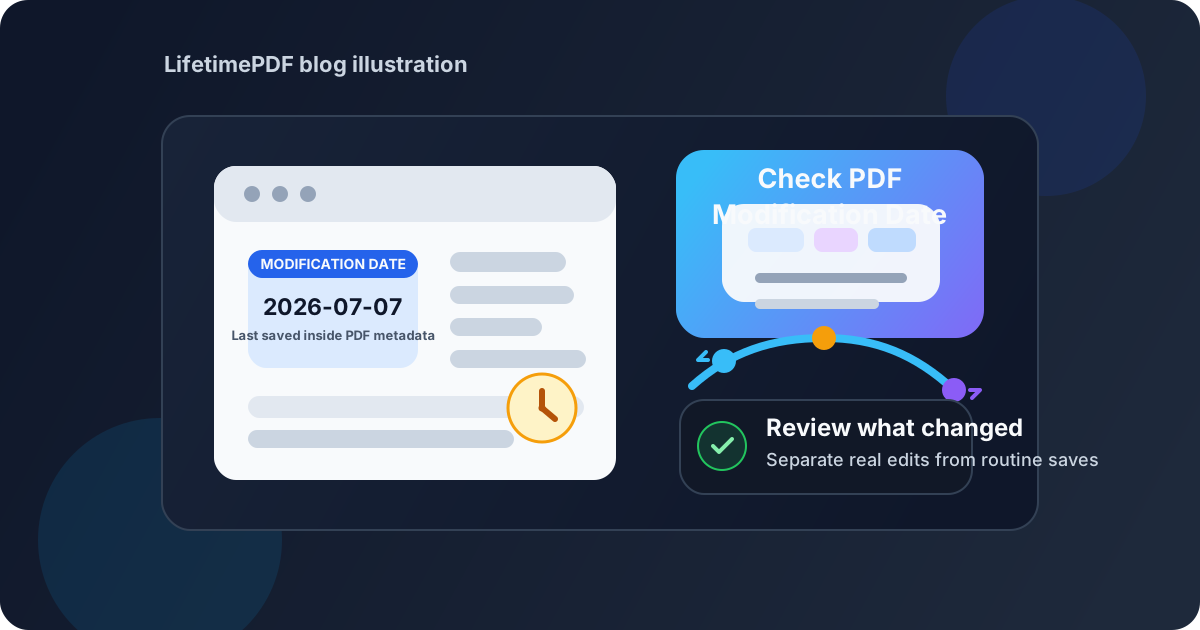
Table of contents
- Quick start: check PDF modification date in about 4 minutes
- What PDF modification date actually means
- Common reasons PDF modification dates become misleading
- Step-by-step: practical PDF modification date review workflow
- When to keep, correct, or remove the modification date
- What a PDF modification date cannot prove by itself
- Final checklist before you share or archive the PDF
- Related LifetimePDF tools and guides
- FAQ
Quick start: check PDF modification date in about 4 minutes
If your real goal is simply make sure this hidden last-updated signal is not misleading before the file leaves my hands, this is the fastest sensible workflow:
- Open the exact PDF you plan to send, upload, archive, or publish.
- Inspect the Modification Date in PDF Metadata Editor or review the broader metadata context through View PDF Properties.
- Ask whether the timestamp reflects a meaningful revision or just a resave, merge, OCR pass, flattening step, signature workflow, or metadata cleanup.
- Compare it with the visible document date, filename, and surrounding metadata so the file does not tell two different “last updated” stories.
- Keep the date if it helps, correct it if it confuses the record, or clear it if the hidden detail should not travel.
- Save the cleaned PDF and reopen it once to verify the updated metadata actually stuck.
What PDF modification date actually means
The PDF modification date is hidden metadata stored inside the document. It usually records the last time the PDF itself was saved or rewritten in a way the file recognized as an update. That is not automatically the same thing as the date a human last edited the source document, approved the content, signed the form, or changed the visible text on the page.
That gap matters because PDFs pass through many tools. A file can be exported, merged, OCR'd, flattened, redacted, repaired, signed, compressed, or metadata-cleaned. Any of those steps may refresh the modification date even if the visible content barely changes. So when you check PDF modification date, you are really checking a clue about the file object's update history, not a guaranteed narrative of what changed in the document itself.
| Date type | What it usually represents | Why people confuse it |
|---|---|---|
| PDF modification date | The hidden timestamp stored inside the PDF metadata for the last recorded update | People assume it proves a meaningful content change even when it only reflects a processing step |
| Visible revised date on the page | A date written into the document content itself | Readers expect it to match the metadata even when teams forget to update one or the other |
| File modified date in your folder | A storage-level timestamp from your operating system, cloud sync, or download history | Copying, syncing, or re-downloading can affect it without changing the embedded PDF metadata |
| Approval or signature date | The date a business, legal, or editorial milestone happened | That is a workflow event, not the same thing as a plain metadata timestamp |
Common reasons PDF modification dates become misleading
Most modification-date problems come from ordinary workflow steps, not anything suspicious. The trouble starts when someone reads a routine file-touch as proof of a meaningful revision.
Quick saves that look bigger than they are
Opening a PDF, updating a property, fixing a bookmark, or re-saving a file can move the modification date forward even when the visible content is basically the same.
OCR, merge, flatten, and repair workflows
Processing tools often rebuild the PDF container, so the modification date ends up describing the cleanup step rather than the content change people assume happened.
Signature and form workflows
A filled field, a digital signature, or a new certification layer can update metadata even though the original body text remains unchanged.
Timeline clues you did not mean to reveal
The hidden modified timestamp can expose internal pacing, late edits, or document handling history that the visible page never shows.
Quick smell test
If someone opened the PDF properties and saw the modification date, would it correctly explain the current version, create confusion about what changed, or reveal internal workflow timing you never intended to share? That answer usually tells you whether the timestamp deserves cleanup.
Step-by-step: practical PDF modification date review workflow
1) Start with the exact PDF you are about to share
Metadata checks only matter on the real outgoing file. If you inspect a draft but upload a fresh export, you may be checking the wrong modification date entirely. Always review the final copy that is actually headed to a portal, archive, inbox, or public page.
2) Read the hidden properties directly
Open PDF Metadata Editor or follow the broader review workflow in View PDF Properties. The goal is to see the stored Modification Date value rather than guessing from your folder view, email thread, or memory of when the file was last touched.
3) Ask what actually triggered the update
A good modification-date review is less about the number itself and more about the event behind it. Ask a few practical questions:
- Did someone make a meaningful content edit, or did a tool simply rewrite the PDF?
- Was the file OCR'd, merged, flattened, compressed, repaired, or signed after the content was already final?
- Would a recipient misunderstand the date if they treated it as a true “last revised” signal?
- Does the timestamp expose more internal process history than the visible document should reveal?
4) Review nearby metadata fields together
Modification date rarely stands alone. Check it alongside the title, author, creation date, and other metadata so the file tells one coherent story. Helpful follow-up reviews include Check PDF Title, Check PDF Author, and Check PDF Creation Date.
5) Decide whether the date should stay, change, or disappear
This is the real decision point. Some PDFs benefit from a precise modification date because version history matters. Others work better with cleaned or removed metadata because the hidden update signal is misleading or unnecessary.
6) Save and verify once
After you edit or remove the timestamp, reopen the properties one more time. A quick final verification catches the classic mistake of assuming the cleanup worked while the final exported PDF still carries the old modification date.
Reliable sequence: inspect the stored modification date, identify the event behind it, clean the metadata, then verify the saved copy once before distribution.
When to keep, correct, or remove the modification date
There is no single perfect answer for every PDF. The right move depends on what the file is for, what kind of update happened, and how people will interpret the hidden timestamp later.
Keep the date when version history truly matters
For active records, controlled internal workflows, or archives where later reviewers benefit from knowing when the PDF itself was last updated, the modification date can be worth keeping. The key is that it should reflect a meaningful version state instead of a random processing step.
Correct the date when the current value tells the wrong story
Sometimes the modification date belongs, but the current one exaggerates what happened. That is common when a final PDF was re-saved only to compress it, fix metadata, or add accessibility cleanup. In those cases, cleaning the timestamp is better than leaving a misleading “last updated” clue in place.
Remove the date when it adds confusion or reveals too much
Public downloads, sanitized external copies, and sensitive files often work better without extra metadata that exposes timing nobody asked for. If recipients only need the visible content, hidden update history may be noise.
| Situation | Best move | Why |
|---|---|---|
| Internal version-controlled workflow | Keep | The timestamp can help reviewers understand when this exact PDF package was last updated |
| File only re-saved during cleanup or conversion | Correct | The date may still be useful, but not in its current misleading form |
| Public or client-facing share copy | Keep or remove depending on context | If the hidden update signal adds nothing or creates doubt, a cleaner metadata profile may be better |
| Sensitive timeline-heavy document | Remove | Hidden timestamps can expose preparation or handling details the visible page should not reveal |
What a PDF modification date cannot prove by itself
The modification date can be useful context, but it is not magic evidence. By itself, it does not prove who edited the file, what changed, whether the visible content changed, when an approval happened, or whether the revision was minor or major.
That is because metadata can change when the file is exported, repaired, signed, flattened, or cleaned. The timestamp may be honest but still incomplete. It may reflect the moment this PDF package was rewritten, not the moment the document meaningfully changed.
- It is not the same as a visible revised date printed on the page.
- It is not the same as a signature or approval timestamp.
- It is not guaranteed proof of who edited the document.
- It does not automatically describe the size or importance of the change.
A better mindset
Treat PDF modification date as a clue about the file's update history, not as a complete audit log. That mindset prevents people from overreading a timestamp that may have been triggered by a routine save.
Final checklist before you share or archive the PDF
Before the document leaves your workflow, run through this short checklist:
- Did you inspect the hidden modification date in the exact file you are about to send or publish?
- Does the timestamp reflect a meaningful revision rather than a simple resave or processing step?
- Did you compare the date with the visible page context, title, author, and creation date?
- Would a recipient misunderstand the timestamp if they saw it in properties or a metadata checker?
- Does the date expose update timing you would rather not share?
- If the file needed cleanup, did you edit or remove the date and verify the saved copy once?
You do not need a giant records-management policy to get this right. You just need the hidden modification date to stop undermining the story the PDF is supposed to tell.
Ready to clean it up? Check the hidden modification date now, keep only the version history that belongs in the file, and share a PDF that feels deliberate all the way through.
Best workflow for share-ready files: inspect properties → identify what triggered the update → keep, correct, or remove the date → verify the saved copy → review the rest of the metadata if needed.
Related LifetimePDF tools and guides
Modification-date checks work best as part of a broader metadata review. These are the most useful next steps:
Inspect and fix metadata
- PDF Metadata Editor to inspect or update the stored modification date directly
- View PDF Properties to review the full metadata story
- Edit PDF Metadata when several hidden fields need cleanup at once
Clean related hidden details
- Remove Metadata From PDF if the hidden update history should not travel at all
- Check PDF Creation Date and Check PDF Title so nearby metadata fields stay aligned
- PDF Metadata Checker for a broader hidden-properties review
FAQ
1) How do I check PDF modification date?
Open the PDF properties or a metadata editor and read the stored Modification Date value inside the file. Then compare that timestamp against the real version of the PDF you are about to share.
2) Is PDF modification date the same as the file modified date on my computer?
Not always. The PDF modification date is metadata inside the document, while the file modified date on your device belongs to the storage system. The two often line up, but they can drift apart after copying, syncing, or downloading.
3) Can a PDF modification date change even if the visible content barely changed?
Yes. A save, OCR pass, merge, signature, flattening step, metadata edit, or repair workflow can update the timestamp even when the page looks almost identical.
4) Should I remove PDF modification date before sharing?
Remove it when the hidden timestamp adds confusion, exposes internal workflow timing, or contradicts the story the final share copy should tell. Keep it when it is accurate and genuinely useful for the recipient.
5) Does PDF modification date prove who edited the document or what changed?
No. It is a metadata clue about when the PDF package was updated, not a full audit trail proving who made the change or how significant the change was.
Published by LifetimePDF — Pay once. Use forever.