Check PDF Author: Catch Old Names, Generic Metadata, and Privacy Leaks Before You Share
To check PDF author, open the file properties or a metadata editor and compare the stored author field against the real person, team, or organization that should be attached to the document.
If it still shows an old employee name, template username, scanner label, or private personal account, update or remove it before you share the PDF.
This is one of those hidden details that feels small until it creates an awkward moment. A PDF can look completely finished on the page while the metadata still points to a former colleague, a random laptop username, or a draft workflow nobody else was supposed to see. A quick author check keeps the invisible side of the file from undermining the polished side.
Fastest practical path: inspect the author field, decide whether the final file should name a person, team, company, or nobody at all, then save one clean share-ready copy.
In a hurry? Jump to quick start: check PDF author in about 4 minutes.
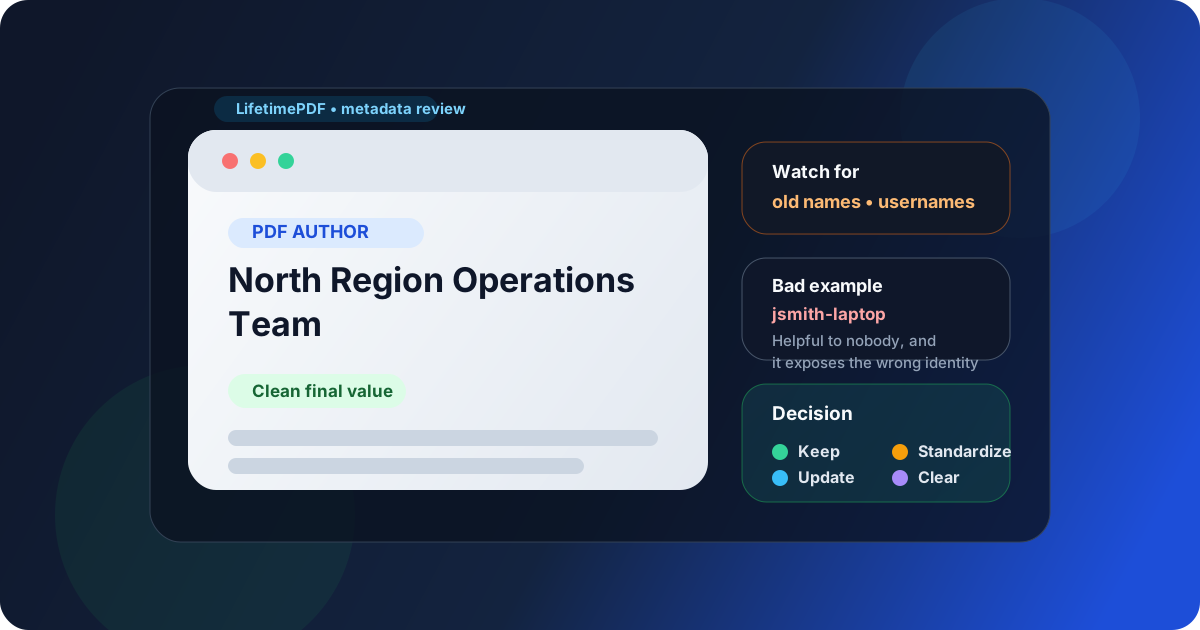
Table of contents
- Quick start: check PDF author in about 4 minutes
- What the PDF author field actually means
- Common PDF author problems
- Step-by-step: practical PDF author review workflow
- Should the author be a person, team, company, or blank?
- When removing the author field is the better move
- Final checklist before you share or publish the PDF
- Related LifetimePDF tools and guides
- FAQ
Quick start: check PDF author in about 4 minutes
If your real goal is simply make sure the hidden author field is not embarrassing, misleading, or overexposed before this file leaves my hands, the fastest sensible workflow is this:
- Open PDF Metadata Editor or review the file through View PDF Properties.
- Read the stored Author value instead of assuming the visible page or filename tells the whole story.
- Ask whether the final copy should identify a specific person, a department, an organization, or nobody at all.
- Replace stale names, personal usernames, old staff accounts, or random export leftovers with the right final value.
- Save the cleaned PDF and reopen the properties once to confirm the updated author actually stuck.
- If the file is sensitive, follow up with Redact PDF or PDF Protect.
What the PDF author field actually means
The PDF author field is metadata inside the file. It is not the same thing as a visible byline on page one, a digital signature certificate, or the file name in your downloads folder. It is simply one hidden document property that many systems can read when the PDF is opened, indexed, archived, or inspected later.
That matters because the field often survives several rounds of editing. A PDF may be converted from Word, merged with appendices, rescanned, passed through another teammate's laptop, and still carry whatever author value happened to stick earliest in the chain. By the time the file looks ready, the metadata can still be quietly wrong.
| Field | What it really represents | Why it matters |
|---|---|---|
| Visible author on the page | Reader-facing content inside the PDF | Part of the document itself |
| PDF author metadata | Hidden file property stored inside the PDF | Can appear in viewers, archives, and metadata checks |
| Digital signature identity | Certificate-based proof used for signing workflows | Different trust layer than standard metadata |
| Filename | The storage name used by your operating system or cloud folder | Helpful, but not a substitute for clean metadata |
Common PDF author problems
Most PDF author issues are not complicated. They usually come from reuse, export defaults, or nobody checking the file after the last conversion step.
Old employee or contractor names
A PDF may still list the person who first created the template instead of the team or company now sending the document. That can be harmless internally and awkward externally.
Personal usernames or laptop accounts
Home-computer usernames, personal email-style names, and local profile labels can leak into metadata without anyone noticing. They rarely add value for the recipient and sometimes create an unnecessary privacy issue.
Generic values from scanners or converters
Some PDFs inherit bland values from software, scanning stations, or batch workflows. That may not be dangerous, but it makes the file look less intentional and can clutter archives.
Conflicting ownership signals
The PDF title may name one company, the visible cover may show another team, and the metadata author may point to a completely different person. Even if nobody complains, the document feels stitched together rather than prepared cleanly.
Metadata that reveals more than the page does
This is the real risk case. The page might be client-ready, but the hidden author still exposes internal staff names, test accounts, or a workflow that was never meant to travel.
Quick smell test
If a stranger opened the PDF properties and saw the author value, would it make the file look more trustworthy, more confusing, or slightly embarrassing? That answer usually tells you whether the field needs attention.
Step-by-step: practical PDF author review workflow
1) Start with the exact file you plan to send
Metadata changes between drafts. Do not inspect last week's version if today's exported copy is the one being uploaded, emailed, or published. The share-ready file is the only file that matters.
2) Inspect the hidden properties, not your assumptions
Open PDF Metadata Editor or follow View PDF Properties so you can read what the file is actually carrying. A nice filename does not guarantee a clean author field.
3) Decide what identity the final file should carry
This is where most people skip straight to editing and create new inconsistency. First decide the role of the PDF. Is it an internal draft, a team handoff, a client deliverable, a public resource, or a compliance record? The right author value depends on the job the file needs to do.
4) Fix obvious stale or risky values first
Replace old names, personal accounts, random scanner defaults, and generic placeholders before you obsess over edge cases. Those are the values most likely to confuse people or expose background workflow noise.
5) Compare author with title and visible document context
If the PDF title, filename, and first-page heading all point to the same company or team, but the author field points somewhere else, the metadata still needs cleanup. Consistency matters more than perfect wording.
6) Save and verify once
After you update or clear the author field, save the PDF and inspect it again. One quick recheck is usually enough to prevent the classic mistake of assuming the cleanup worked when the exported copy still contains the old value.
Reliable sequence: inspect the author field, decide the right ownership label for the final file, fix or clear the value, then verify the saved copy once before sending.
Should the author be a person, team, company, or blank?
There is no universal answer. The right author value depends on how the PDF will be used after it leaves the current workflow.
Use a person when individual authorship matters
Internal working drafts, academic handoffs, and documents where one named expert genuinely owns the content may benefit from a personal author value. But even then, make sure it is intentional and current.
Use a team or department when the work is shared
Many operational PDFs are produced by groups, not lone individuals. A department or team name can be more durable than a single employee name when the document will be revised or reused over time.
Use a company or organization for client-facing or public copies
If the PDF represents the business rather than one employee, the organization name is often the cleanest author value. It reduces churn when staff change and keeps the ownership story aligned with the visible branding.
Leave it blank when the field adds confusion, not value
Some files do not benefit from a named author at all. Public downloads, sanitized evidence bundles, and privacy-sensitive handoffs sometimes work better with a cleared author field than with an overly specific one.
| Situation | Best author choice | Why |
|---|---|---|
| Internal draft owned by one specialist | Specific person | Useful for accountability and revision history |
| Recurring operational document | Team or department | More stable when several people contribute over time |
| Client-facing or public PDF | Organization | Keeps the file aligned with external branding |
| Sensitive or sanitized share copy | Blank or removed | Avoids leaking internal identity when it adds no value |
When removing the author field is the better move
Editing is not always the right answer. Sometimes the author field is better removed than rewritten.
Remove it when the field exposes private names or accounts
If the hidden author comes from a personal device, former employee account, or internal-only profile, clearing the value may be safer than replacing it with a guess.
Remove it when the file should feel neutral
Some PDFs are being shared as evidence, records, forms, or neutral public resources. In those cases, the author field may not help the reader and may only add background noise.
Remove it when metadata cleanup is part of a broader privacy pass
If the handoff already involves redaction or a public-safe copy, clearing the author field can fit naturally into the same workflow. Use Remove Metadata From PDF when the hidden details should not travel at all.
Remove it when nobody can maintain it reliably
A wrong author field is often worse than an empty one. If the workflow constantly changes hands and nobody keeps the field accurate, a neutral or blank author may be the more honest choice.
Final checklist before you share or publish the PDF
Before the file leaves your workflow, run this short checklist:
- Did you inspect the hidden author field instead of assuming the visible page told the whole story?
- Does the author value match the final role of the file: person, team, company, or neutral copy?
- Did you remove old employee names, personal usernames, template leftovers, or scanner defaults?
- Do the author field, title, and visible document context tell the same general story?
- If privacy matters, did you also review the rest of the metadata with Edit PDF Metadata or View PDF Properties?
- If the file is sensitive, did you consider redaction, page extraction, or password protection too?
- Did you verify the saved copy once after editing?
You do not need a perfect metadata philosophy. You just need the hidden author field to stop telling the wrong story about the PDF.
Ready to clean it up? Check the hidden author field now, standardize the value that belongs there, and send a PDF that feels deliberate all the way through.
Best workflow for share-ready files: inspect properties → decide the right ownership label → fix or clear the author field → verify the saved copy → do a broader metadata/privacy pass if needed.
Related LifetimePDF tools and guides
PDF author checks work best as part of a broader metadata cleanup workflow. These are the most useful next steps:
Inspect and fix metadata
- PDF Metadata Editor to inspect and update the hidden author field directly
- View PDF Properties to review the full metadata story
- Edit PDF Metadata when several fields need cleanup at once
Clean or protect the final copy
- Remove Metadata From PDF if hidden details should not travel
- Check PDF Title so title and author stay aligned
- PDF Protect and Redact PDF for sensitive handoffs
FAQ
1) How do I check PDF author?
Open the PDF properties or a metadata editor and read the stored author field inside the file. Then compare it against the person, team, or organization that should actually be attached to the version you plan to share.
2) Is PDF author the same as the visible author name on the page?
No. The visible author name is page content. The PDF author field is hidden metadata stored inside the file, and the two can match or differ.
3) Should the PDF author be a person or a company?
Use the value that best fits the destination of the file. Internal drafts may use a person or team, while public or client-facing PDFs often work better with an organization name or a neutral cleaned value.
4) Can the PDF author field reveal private information?
Yes. It can expose personal names, usernames, old staff accounts, or internal workflow labels that are not visible on the page. That is why it is worth checking before you send the PDF anywhere important.
5) Should I edit the PDF author or remove it?
Edit it when a clean ownership label helps the file make sense. Remove it when the field is misleading, unnecessary, or more revealing than useful for the copy you are sharing.
Published by LifetimePDF — Pay once. Use forever.