Check PDF Creator: See Which App Started the Document and Catch Misleading Source Metadata Before You Share
To check PDF creator, open the file properties or a metadata editor and inspect the hidden Creator field, which usually points to the application that originally created the document content.
If the creator still names an old template app, private workstation, or source workflow that no longer matches the final PDF, clean it up before you share, archive, or validate the file.
This field matters because it tells a different story from the visible page. A PDF can look perfectly polished while the hidden metadata still says it began in the wrong app, came from an old team workflow, or carries source-software clues that no longer belong on the final copy. A quick creator check helps you catch that mismatch before someone else does.
Fastest practical path: inspect the creator field, compare it with producer and visible document context, then keep, update, or remove the value before the PDF leaves your hands.
In a hurry? Jump to quick start: check PDF creator in about 4 minutes.
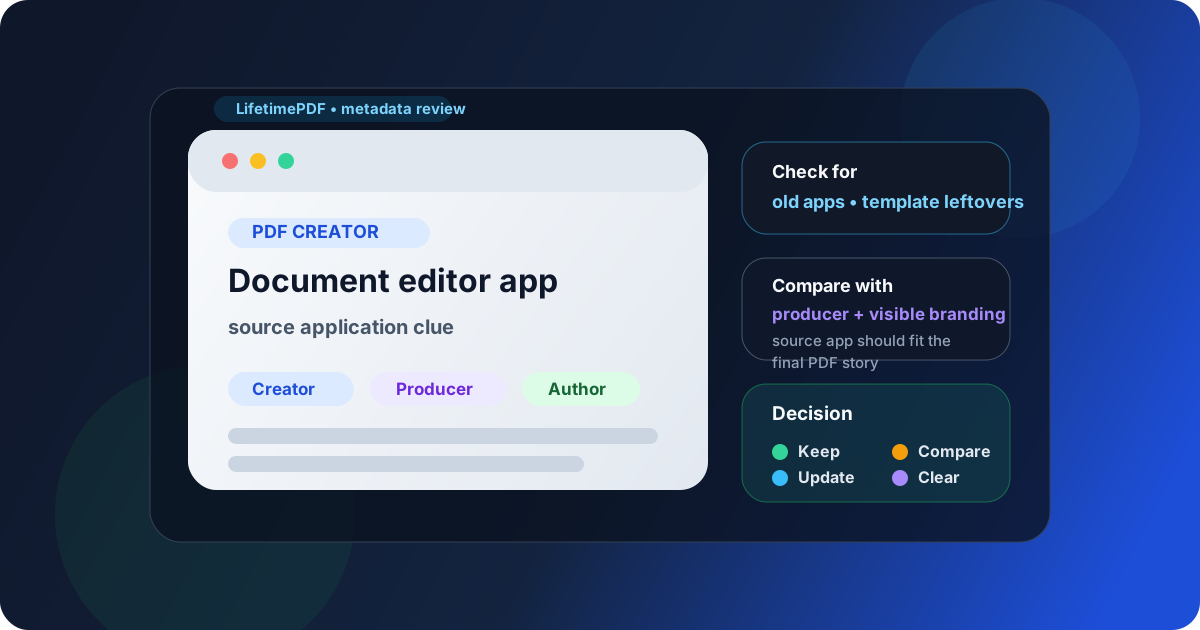
Table of contents
- Quick start: check PDF creator in about 4 minutes
- What the PDF creator field actually means
- PDF creator vs producer vs author
- Common PDF creator problems
- Step-by-step: practical PDF creator review workflow
- When to keep, update, or remove the creator field
- Final checklist before you share or archive the PDF
- Related LifetimePDF tools and guides
- FAQ
Quick start: check PDF creator in about 4 minutes
If your real goal is simply make sure the hidden source-app metadata still makes sense before this PDF goes anywhere important, the fastest sensible workflow is this:
- Open PDF Metadata Editor or review the file through View PDF Properties.
- Read the stored Creator value instead of assuming the filename or first page tells the whole story.
- Compare the creator with the visible document and the producer field so you understand both the source app and the final PDF engine.
- Ask whether that creator still fits the final copy you are about to send, upload, publish, or archive.
- Update or clear the value if it is stale, misleading, over-specific, or irrelevant to the final share-ready version.
- Save the cleaned PDF and run Validate PDF if the file is heading to a strict portal, archive, or compliance workflow.
What the PDF creator field actually means
The PDF creator field is metadata stored inside the file. In many workflows, it points to the application that originally created the document content before it became the final PDF. Think of it as the source-app clue rather than the visible title, filename, or human owner of the document.
That distinction matters because a PDF may pass through several stages. A contract might start in Word, be reviewed in another editor, exported through a PDF engine, merged with exhibits, and finally optimized before delivery. The creator may still reflect where the content began, while the producer may reflect the tool that generated the finished PDF structure. Both can be useful, but they answer different questions.
| Field | What it usually represents | Why it matters |
|---|---|---|
| Creator | Application that created the original document content | Helps you understand where the file began |
| Producer | Software engine or library that generated the final PDF output | Helps explain how the PDF was finally built |
| Author | Person, team, or organization attached to the file | Helps with ownership, branding, and privacy decisions |
| Filename | Name used in your folder, drive, or download list | Helpful for people, but not proof of source or export history |
PDF creator vs producer vs author
These fields are easy to blur together, especially when you only inspect metadata after something looks wrong. The fastest way to read them well is to treat each one as a separate clue.
| Question you are asking | Best field to inspect | Example interpretation |
|---|---|---|
| Where did the document content probably start? | Creator | A writing, layout, spreadsheet, or form-authoring app may have originated the content |
| What likely generated the final PDF output? | Producer | A PDF engine, print path, scanner system, or conversion library likely created the final file container |
| Who does this PDF belong to or represent? | Author | A person, department, or organization may be the right ownership label |
| Why does the metadata story feel inconsistent? | Usually creator plus producer plus author together | A public brochure may show company branding, creator from an old contractor template, and producer from a later automation step |
You do not need perfect forensic certainty. You only need a coherent story. If creator, producer, author, and the visible document all point in broadly sensible directions, the file usually feels easier to trust and easier to troubleshoot.
Simple reading rule
- Creator explains the source application.
- Producer explains the final PDF-making engine.
- Author explains the human or organizational ownership layer.
- If those three tell completely different stories, the file deserves a closer look.
Common PDF creator problems
Most creator-field issues are not dramatic. They usually come from reused templates, multi-step conversions, or nobody checking metadata after the last export.
Old source-app labels that no longer fit the file
The document may have started in one app months ago, but the current share-ready PDF has since been rebuilt, standardized, or handed through several systems. A stale creator value can make the file feel older or messier than it really is.
Private or internal workflow clues
The creator field can sometimes reveal more than you intended: an internal template system, a personal workstation setup, a niche draft tool, or a workflow label that means nothing to the recipient. None of that is visible on the page, which is why it gets missed.
Creator and producer tell a confusing story together
Sometimes that confusion is harmless. Sometimes it explains why the PDF behaves oddly. A creator tied to a source editor and a producer tied to a print path, scan, or converter can help explain flattened forms, accessibility gaps, or unexpected layout quirks.
Metadata conflicts with visible branding or ownership
A polished client-facing PDF might show one company name on the page while the creator still points to an old vendor workflow or private authoring app from an earlier draft stage. Even if nobody ever complains, it is sloppy metadata hygiene.
Quick smell test
If a recipient opened the PDF properties and saw the creator value, would it make the file feel expected, irrelevant, confusing, or oddly revealing? That answer usually tells you whether the field deserves attention.
Step-by-step: practical PDF creator review workflow
1) Start with the exact file you plan to share
Metadata changes across drafts. Inspect the final exported, downloaded, or portal-ready PDF, not the version you assume it came from. The creator field only matters on the copy that will actually travel.
2) Inspect the hidden properties instead of guessing
Open PDF Metadata Editor or review the full hidden properties through View PDF Properties. The visible page design does not tell you which app originally created the content.
3) Compare creator with producer and visible document context
This is where the creator field becomes useful instead of trivia. Ask whether the creator makes sense given the file in front of you. If the document is a polished brochure, an invoice packet, a legal form, or a records copy, does the source-app clue feel normal for that kind of file? If it does not, compare it with producer, author, and title before deciding what to change.
4) Decide whether the creator still helps the final file
In many cases, leaving the creator alone is fine. It can be a harmless historical clue. But if the value creates noise, clashes with the final ownership story, or reveals workflow details you do not want to distribute, cleanup makes sense.
5) Update or clear the field carefully
If you change the creator, do it with intent. A vague replacement can be worse than a truthful original. Standardize the field only when you know what the share-ready file should communicate. If the best answer is that the field adds nothing useful, removing it can be cleaner than guessing.
6) Save and verify once
Reopen the PDF and confirm that the creator field now matches the version you want to keep. If the file is going to a strict portal, an archive, or a public download page, run Validate PDF once after metadata cleanup so you know the final copy still behaves properly.
Reliable sequence: inspect creator, compare it with producer and visible context, decide whether the value still helps the file, then verify the cleaned copy once before sharing.
When to keep, update, or remove the creator field
Not every creator value needs action. Sometimes it is useful provenance. Sometimes it is background clutter. The right choice depends on what the final PDF needs to do.
Keep it when the source-app clue is honest and useful
If the creator reflects a sensible origin for the document and does not expose anything awkward, it may help with troubleshooting, archive context, or long-term workflow clarity.
Update it when the value is stale or misleading
If the creator still points to an outdated template path, a previous team workflow, or a source application that makes the final copy feel inaccurate, it is reasonable to standardize the field.
Remove it when it adds exposure without value
Public downloads, privacy-sensitive handoffs, and sanitized client copies often do not need a source-app label at all. If the creator field is mostly an invisible distraction or a workflow leak, clearing it can be cleaner.
Review related fields before you decide
Creator rarely lives alone. Check nearby fields such as author, producer, subject, and keywords so the metadata story stays coherent instead of half-cleaned.
| Situation | Best move | Why |
|---|---|---|
| Internal working file with a useful source-app trail | Keep | The creator helps future troubleshooting or workflow context |
| Client-facing PDF with stale or confusing source metadata | Update | The file should tell a cleaner and more intentional story |
| Public or privacy-sensitive share copy | Remove | The creator adds more exposure than value |
| Important archive or portal submission | Review, then validate | Metadata should be consistent before long-term storage or strict upload checks |
Good situations for a deeper creator check
- The PDF is being sent outside your team and should feel clean inside and out.
- The file is headed to a court, archive, records system, or compliance portal.
- The source-app clue conflicts with visible branding or ownership.
- The document behaves strangely and you want creator plus producer clues for troubleshooting.
- You are already doing a broader metadata cleanup pass.
Final checklist before you share or archive the PDF
Before the file leaves your workflow, run this short checklist:
- Did you inspect the hidden creator field instead of assuming the filename or page design told the whole story?
- Does the creator still make sense for the final share-ready copy?
- Did you compare creator with producer and author before changing anything?
- If the value was stale or overly specific, did you standardize it intentionally instead of replacing it with another random guess?
- If privacy matters, did you consider a broader metadata cleanup?
- If the destination is strict, did you run Validate PDF after the cleanup?
- Did you reopen the saved copy once to confirm the final metadata actually stuck?
You do not need every PDF to carry a perfect hidden history. You just need the creator field to stop telling the wrong one.
Ready to inspect the source-app clue? Check the creator field now, compare it with the rest of the metadata, and send a PDF that makes sense from the inside out.
Best workflow for important files: inspect creator → compare with producer and author → clean metadata if needed → validate the final copy → share with confidence.
Related LifetimePDF tools and guides
PDF creator checks work best when they connect to a broader metadata review. These are the most useful next steps:
Inspect the hidden metadata story
- PDF Metadata Editor to inspect or update hidden fields directly
- View PDF Properties to review creator, producer, author, dates, and more together
- Edit PDF Metadata when several document properties need cleanup at once
Clean or compare related fields
- Check PDF Producer to understand the final output software path
- Check PDF Author and Check PDF Title so the document identity stays aligned
- Remove Metadata From PDF if the hidden details should not travel at all
FAQ
1) How do I check PDF creator?
Open the PDF properties or a metadata editor and read the stored creator field inside the file. Then compare that app name with the document source and the final PDF workflow you expected.
2) What does the PDF creator field tell me?
It usually tells you which application originally created the document content before the final PDF was generated. That makes it useful when you want to understand where the file began.
3) Is PDF creator the same as producer or author?
No. Creator usually points to the source application, producer usually points to the final PDF-generation engine, and author usually points to a person, team, or organization.
4) Can the creator field expose workflow details I did not mean to share?
Yes. It can reveal stale source-app information, template leftovers, or internal workflow clues that are invisible on the page but still stored inside the PDF.
5) Should I edit the creator field or remove it?
Keep it when it helps the file make sense, edit it when it is stale or misleading, and remove it when the value adds more confusion or exposure than value for the version you are sharing.
Published by LifetimePDF — Pay once. Use forever.