Check PDF Keywords: Spot Stale Tags, Internal Jargon, and Metadata Clutter Before You Share
To check PDF keywords, open the file properties or a metadata checker and read the hidden Keywords field stored inside the PDF.
If it is blank, stuffed, stale, or full of internal labels nobody else should see, clean it before you share, archive, or publish the file.
Keywords are one of those metadata fields that can be genuinely useful when handled well and quietly messy when ignored. A short, deliberate tag set can help with retrieval, records, and internal filing. A bad one can make the document look recycled, over-optimized, or more revealing than the visible pages ever were.
Fastest practical path: inspect the keyword field, decide whether it helps real search or filing, then keep only the tags that still make sense for the final version of the PDF.
In a hurry? Jump to quick start: check PDF keywords in about 4 minutes.
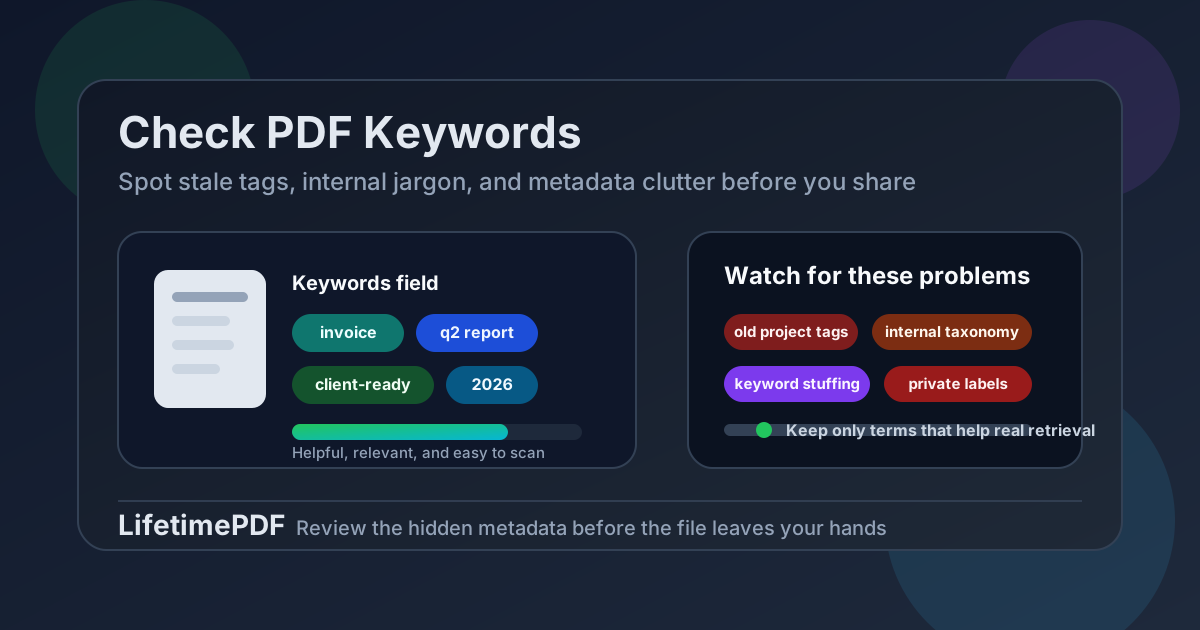
Table of contents
- Quick start: check PDF keywords in about 4 minutes
- What PDF keywords actually do
- Warning signs the keyword field needs cleanup
- Step-by-step: practical PDF keyword review workflow
- When to keep, rewrite, or remove PDF keywords
- Examples of useful versus weak keyword metadata
- Final checklist before you share or archive the PDF
- Related LifetimePDF tools and guides
- FAQ
Quick start: check PDF keywords in about 4 minutes
If your real goal is simply make sure the keyword metadata is still useful and not quietly messy before this file leaves my hands, use this workflow:
- Open the exact PDF you plan to send, upload, archive, or publish.
- Inspect the hidden Keywords field with PDF Metadata Editor or review the broader metadata through PDF Metadata Checker.
- Ask whether the stored tags would help a real person find, sort, or understand the file later.
- Remove duplicated, stale, private, or stuffed terms.
- Keep a short set of specific tags only if they add genuine retrieval value.
- Save the cleaned PDF and reopen it once to confirm the updated metadata actually stuck.
What PDF keywords actually do
The Keywords field is hidden metadata stored inside the PDF. It is not the visible title on page one, not the filename in your downloads folder, and not the search-engine keywords people used to stuff into web pages years ago. It is simply a document property that some viewers, archives, and internal systems can read.
That means the field can be useful in the right environment. In a document archive, a records workflow, or a large internal library, a few clean tags may help people retrieve the right file faster. But on many one-off PDFs, the field adds nothing at all. The problem is not that keyword metadata exists. The problem is letting bad keyword metadata survive by accident.
| Field | What it represents | Why it matters |
|---|---|---|
| Filename | The storage name used by your operating system or cloud folder | Helpful for people browsing files, but not the same as hidden metadata |
| Visible title in the PDF | Reader-facing content on the page | Shapes first impressions, but does not control the keyword field |
| PDF keyword metadata | Hidden tag field stored inside the document | May influence archives, internal indexing, or later metadata reviews |
| Subject or title metadata | Other hidden document properties | Often more useful than keywords, so they should stay aligned |
Warning signs the keyword field needs cleanup
Most PDF keyword problems come from reuse, export defaults, or old internal habits that survived into the final file. These are the patterns worth checking for first.
Stale project labels
The document moved on, but the metadata still carries old client names, prior campaign themes, or last quarter's archive tags.
Internal jargon nobody outside your team understands
Shorthand, department codes, workflow nicknames, and folder logic can make sense internally and still look confusing or revealing externally.
Keyword stuffing
Long comma-heavy lists of loosely related terms rarely help retrieval and often make the file feel machine-generated or overworked.
Private or sensitive labels
Client names, case numbers, internal project codenames, draft status terms, or deal labels may travel with the PDF even when they are not visible on the page.
Quick smell test
If someone opened the PDF properties and read the keywords, would the field help them understand the file, or would it look outdated, cluttered, or oddly revealing? That answer usually tells you whether to keep it, rewrite it, or clear it.
Step-by-step: practical PDF keyword review workflow
1) Start with the exact version you plan to use
Metadata often changes during export, merge, OCR, or conversion steps. If the final share-ready copy is different from your draft, inspect the final file, not the one you edited an hour ago.
2) Read the keyword field directly
Open PDF Metadata Editor or follow the broader review workflow in View PDF Properties. The goal is to see what the document is actually carrying, not what you assume it should carry.
3) Judge usefulness, not effort
A keyword field should earn its place. If the tags help search, filing, retention, or a real archive process, keep them clean. If they only exist because a template has always had them, that is not a strong reason to keep them.
4) Remove obvious noise first
Cut duplicated terms, old project labels, broad filler words, department shorthand, and anything a real user would never search for. The fastest improvement often comes from subtraction, not from adding more tags.
5) Keep the final set short and specific
Good PDF keywords usually describe the document in a way that would still make sense three months from now. They should be recognizable, readable, and limited enough that each one earns its spot.
6) Verify the saved copy
Reopen the cleaned PDF once after editing. Metadata edits are only finished when the final saved copy reflects what you meant to store.
When to keep, rewrite, or remove PDF keywords
There is no single perfect rule for every PDF. The right move depends on where the file is going and how people will actually find it later.
Keep the keywords when they support a real archive or retrieval workflow
If your team uses metadata consistently across a document library, a short keyword set can help with long-term retrieval. Think clear terms such as document type, project family, or a stable topic label that real users recognize.
Rewrite the keywords when the field is useful but messy
Sometimes the field deserves to exist but needs cleanup. That is common when a PDF started from a template, passed through several owners, or inherited old tags from a previous version. Rewrite the list so it matches the final file instead of the document's backstory.
Remove the keywords when the field adds nothing or reveals too much
A blank field is often better than a noisy one. If the PDF is client-facing, public, legal, or sensitive, and the keyword tags do not provide clear value, clearing them can be the cleaner move. That is especially true when the file already has a strong title and a readable filename.
- Keep if the tags help real retrieval.
- Rewrite if the field is relevant but stale, bloated, or inconsistent.
- Remove if the tags are useless, private, or more revealing than helpful.
Examples of useful versus weak keyword metadata
The easiest way to judge PDF keywords is to compare how they would feel in a real filing or review situation.
| Example | Verdict | Why |
|---|---|---|
| invoice, q2 2026, vendor onboarding | Useful | Short, specific, and connected to a real filing workflow |
| report, pdf, document, file, important | Weak | Too generic to help anyone find the right document later |
| client-x, renewal-draft, pricing-review | Conditional | Fine internally, risky if the copy is leaving your organization |
| proposal, proposal, sales, proposal, final-final | Poor | Duplicated and cluttered with workflow noise rather than useful tags |
In other words, useful PDF keywords behave like calm filing labels. Bad keywords behave like a nervous pile of leftovers from old drafts, folders, and export defaults.
Final checklist before you share or archive the PDF
Before the document leaves your hands, run through this quick checklist:
- Did you inspect the keyword field in the final exported copy rather than an older draft?
- Are the keywords short, readable, and still relevant to the actual file?
- Did you remove duplicate, vague, or stuffed terms?
- Did you clear any internal labels, client names, project codes, or workflow shorthand that should not travel?
- Do the keywords still align with the title, subject, and filename instead of contradicting them?
- Did you reopen the saved PDF once after editing to verify the metadata change stuck?
You do not need elaborate metadata theory. You just need the hidden keyword field to stop getting in the way of a clean, trustworthy PDF.
Ready to clean it up? Inspect the keyword field now, keep only the tags that help real retrieval, and send a PDF that feels deliberate all the way through.
Best workflow for share-ready files: inspect the hidden field → decide whether it helps retrieval → rewrite or remove weak tags → save → verify once.
Related LifetimePDF tools and guides
PDF keyword checks work best as part of a broader metadata cleanup workflow. These are the most useful next steps:
Inspect and adjust metadata
- PDF Metadata Editor to inspect or update the stored keyword field
- PDF Metadata Checker to review the full metadata picture
- Edit PDF Keywords Online when the field is worth rewriting
Clean related hidden details
- Remove Metadata From PDF if hidden fields should not travel at all
- View PDF Properties to inspect title, author, subject, and more
- Check PDF Title so your visible and hidden metadata stay aligned
FAQ
1) How do I check PDF keywords?
Open the PDF properties or a metadata tool and read the hidden Keywords field stored inside the file. Then decide whether the tags actually help search, filing, or later retrieval.
2) Should every PDF have keywords?
No. Many PDFs do not need them at all. A blank keyword field is often cleaner than a cluttered one, especially if the title, filename, and subject already do enough work.
3) What makes PDF keywords bad?
Bad keywords are usually stale, duplicated, generic, stuffed, or too private. If the tags would not help a real person find or understand the document later, they are probably weak.
4) Is checking PDF keywords the same as editing them?
Not exactly. Checking is the review step where you inspect what is already stored. Editing comes after you decide whether to keep, rewrite, or remove the current tags.
5) Can PDF keywords leak internal information?
Yes. They can expose internal taxonomy, project codes, draft labels, or client references that are not visible on the page. That is why it is worth reviewing them before sharing the PDF outside your immediate workflow.
Published by LifetimePDF — Pay once. Use forever.