Edit PDF Keywords Online: Add, Remove, and Clean Up Metadata Tags
To edit PDF keywords online, open a metadata editor, review the file's hidden Keywords field, replace stale or private tags with a short accurate set, then save the updated PDF.
PDF keywords live in metadata rather than on the visible page, so changing them will not rewrite the document text people actually read.
This matters more than it sounds. PDF keyword tags can quietly help with archive search, document handoff, and file organization, but they can also leak old campaign names, internal client labels, draft terminology, or keyword stuffing that makes the file look messy and dated. The goal is not to cram every possible term into the metadata. The goal is to keep the tags intentional, useful, and safe to share.
Fastest path: upload the PDF to LifetimePDF's metadata editor, trim the Keywords field down to the few tags that still genuinely describe the file, then save the cleaned copy.
In a hurry? Jump to Quick start: edit PDF keywords in under 3 minutes.
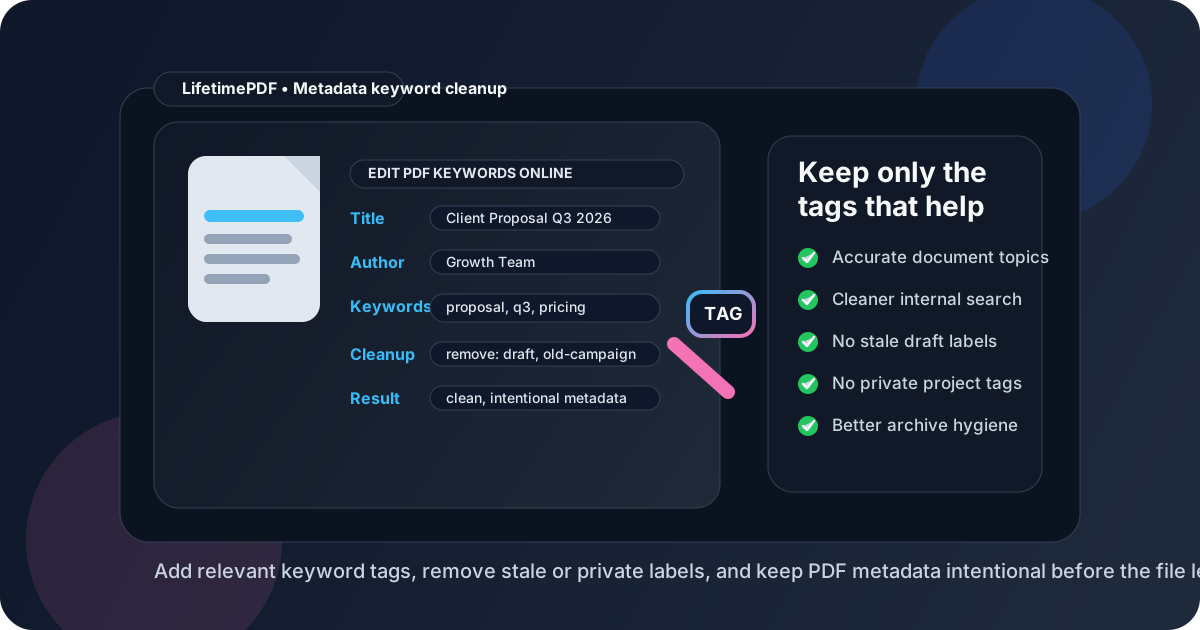
Table of contents
- Quick start: edit PDF keywords in under 3 minutes
- What PDF keywords actually are
- When to add keywords, when to remove them
- Step-by-step: how to edit PDF keywords online
- How many PDF keyword tags should you use?
- Good keyword examples for common workflows
- Common mistakes people make with PDF keywords
- Do PDF metadata keywords help SEO?
- Related LifetimePDF tools and guides
- FAQ
Quick start: edit PDF keywords in under 3 minutes
If your real goal is simply clean up the hidden keyword tags before this PDF gets shared, use this workflow:
- Open PDF Metadata Editor.
- Upload the PDF you want to review.
- Read the current Keywords field before changing anything.
- Remove stale draft terms, old client names, internal codes, and stuffed keyword lists.
- Add only the tags that still accurately describe the document.
- Save the updated PDF and do one quick verification pass.
What PDF keywords actually are
PDF keywords are part of the file's hidden metadata. They are not the words printed on the page. They are short tags stored in the document properties alongside fields like Title, Author, and Subject.
In practical use, these tags can help with document management, internal search, archive consistency, and cleaner handoff between teams. They can also become junk fast when a file has been copied from an old template, exported from the wrong source, or recycled across multiple versions.
| Use case | Helpful keyword example | Unhelpful keyword example |
|---|---|---|
| Internal archive | invoice, march-2026, vendor-name | final, new, latest, document |
| Client delivery | proposal, pricing, q3 | draft-v7, internal-review, do-not-send |
| Team knowledge base | policy, onboarding, benefits | misc, random, team-doc |
| Published download | whitepaper, cybersecurity, compliance | keyword1, keyword2, keyword3, seo-seo-seo |
The pattern is simple: useful PDF keywords describe the file in a way that still makes sense after the document leaves the person who created it.
When to add keywords, when to remove them
Not every PDF needs keyword metadata. Some do. The right move depends on what the file is for and who will touch it next.
Good reasons to add or improve PDF keywords
- Archive hygiene: you want the file to be easier to sort or retrieve later.
- Team consistency: multiple people work from the same naming or classification scheme.
- Client delivery: you want document properties to look intentional instead of inherited from an old draft.
- Publishing workflows: you want clean metadata attached to a whitepaper, guide, brochure, or download.
Good reasons to remove PDF keywords
- Privacy: the tags expose internal project names, case numbers, customer names, or deal stages.
- Accuracy: the file has changed and the old tags no longer fit.
- Clutter: the field is stuffed with repetitive or meaningless terms.
- Template leftovers: the PDF inherited metadata from an unrelated source document.
Step-by-step: how to edit PDF keywords online
Here is the cleanest workflow if you want to update the metadata without changing the visible pages.
- Open LifetimePDF's PDF Metadata Editor.
- Upload the PDF whose keyword tags you want to inspect.
- Review the current metadata, especially the Keywords field but also the Title and Author fields around it.
- Delete tags that are outdated, duplicated, misleading, or too revealing.
- Add a short focused set of terms that still describe the document accurately.
- Save the updated file.
- Optionally open PDF Metadata Checker or the document properties in your viewer to confirm the result.
A practical review order that prevents bad metadata
- Read before editing: do not blindly overwrite the field without seeing what the file already carries.
- Cut obvious junk first: remove template leftovers, old campaign names, file-version clutter, and internal notes.
- Keep the set small: choose only the tags that still matter for archive, search, or handoff.
- Check surrounding metadata: messy keywords often travel with a wrong title or wrong author.
- Verify once: make sure the saved PDF now matches the version you intend to send or store.
How many PDF keyword tags should you use?
In most cases, fewer is better. A short accurate set is easier to maintain than a long bag of almost-related terms.
For many business PDFs, three to eight keywords is plenty. A contract packet might only need the client name, document type, and year. A report might need the topic, department, and reporting period. A public guide might need the subject area and audience.
| Document type | Good range | Why |
|---|---|---|
| Invoices / receipts | 2-5 tags | These usually need compact indexing, not a large topic cloud. |
| Reports / proposals | 3-8 tags | Enough room for topic, period, audience, and project context. |
| Public downloads | 3-6 tags | Keep metadata clear without turning it into stuffing. |
| Internal policy libraries | 4-8 tags | Useful when categories and departments matter for retrieval. |
The exact number matters less than the discipline. If every tag earns its place, the field is probably healthy. If it starts looking like a desperate search list, it has gone too far.
Good keyword examples for common workflows
The best tags depend on what the document does. Here are patterns that usually hold up well.
Client-facing proposal
- Better: proposal, q3-2026, pricing, onboarding
- Worse: draft, maybe-send, internal, sales-v9, urgent
Legal or compliance packet
- Better: compliance, audit, policy, 2026
- Worse: secret-client, red-flag, investigation-notes
Public downloadable guide
- Better: accessibility, pdf, compliance, guide
- Worse: best-pdf-tool, top-ranking-keyword, traffic-hack
Internal handbook or SOP
- Better: onboarding, support, workflow, handbook
- Worse: current-final-final, use-this-one, misc
Common mistakes people make with PDF keywords
Most PDF keyword problems are not technical. They are housekeeping problems.
- Leaving template metadata untouched: the finished document still carries keywords from a previous file.
- Stuffing every possible synonym: this makes the metadata noisy and harder to trust.
- Keeping internal labels on external files: useful inside the company does not always belong outside it.
- Ignoring related metadata fields: a cleaned Keywords field looks incomplete if the Title or Author still points to the wrong source.
- Confusing metadata cleanup with redaction: removing a keyword does not erase private content from the visible page.
A good metadata workflow is boring on purpose. Small review, small cleanup, save the file, move on.
Do PDF metadata keywords help SEO?
They can help a little with document organization and make your file properties cleaner, but they are not a magic SEO switch. If your goal is ranking or discoverability on the open web, visible document quality matters more: a useful title, a strong filename, readable text, good structure, and content that genuinely answers the user's question.
That means PDF keywords are best treated as supporting metadata, not as a place to stuff ranking terms. Good metadata can reinforce clarity. It cannot rescue a weak document.
Related LifetimePDF tools and guides
- PDF Metadata Editor — change keyword tags and other document properties.
- PDF Metadata Checker — inspect title, author, keywords, and hidden properties before sharing.
- PDF Metadata Editor Online — broader guide to editing document properties in your browser.
- How to Remove PII from PDF Metadata — reduce privacy leaks before a file leaves your workflow.
- Redact PDF — remove visible sensitive information from the page itself.
FAQ
How do I edit PDF keywords online?
Upload the file to a PDF metadata editor, open the Keywords field, remove stale or irrelevant tags, add the few terms that still accurately describe the document, then save the updated PDF.
Do PDF keywords change the visible page content?
No. Keywords are hidden metadata. Changing them affects document properties, not the text, images, or layout shown on the page.
What kind of PDF keywords should I avoid?
Avoid stale draft names, internal-only client labels, repetitive stuffing, vague words like “final” or “latest,” and anything private that should not leave your team or organization.
Should I leave the Keywords field blank?
Sometimes yes. If the document does not benefit from metadata tags or the only available tags would add clutter or risk, leaving the field blank can be the cleaner choice.
What else should I review besides PDF keywords?
Check the Title, Author, Subject, Creator, Producer, and any visible sensitive content on the page. Clean metadata helps, but good document hygiene is broader than one field.