Check PDF Subject: Catch Vague, Stale, or Overexposed Document Context Before You Share
To check PDF subject, open the file properties or a metadata editor and read the hidden Subject field next to the title and author.
If the subject is blank, vague, outdated, or exposing internal context that should not travel, rewrite it or clear it before you share the PDF.
This is a small field that causes surprisingly big confusion when nobody looks at it. A polished report, form, contract, or client deliverable can still carry a subject like draft review set, Q1 working notes, or some generic export label that makes the file feel sloppier than it really is. A quick subject check helps the invisible side of the PDF support the visible side instead of quietly undermining it.
Fastest practical path: inspect the subject field, decide whether it adds useful context, then keep, rewrite, or clear it before the file goes to clients, portals, archives, or coworkers.
In a hurry? Jump to quick start: check PDF subject in about 4 minutes.
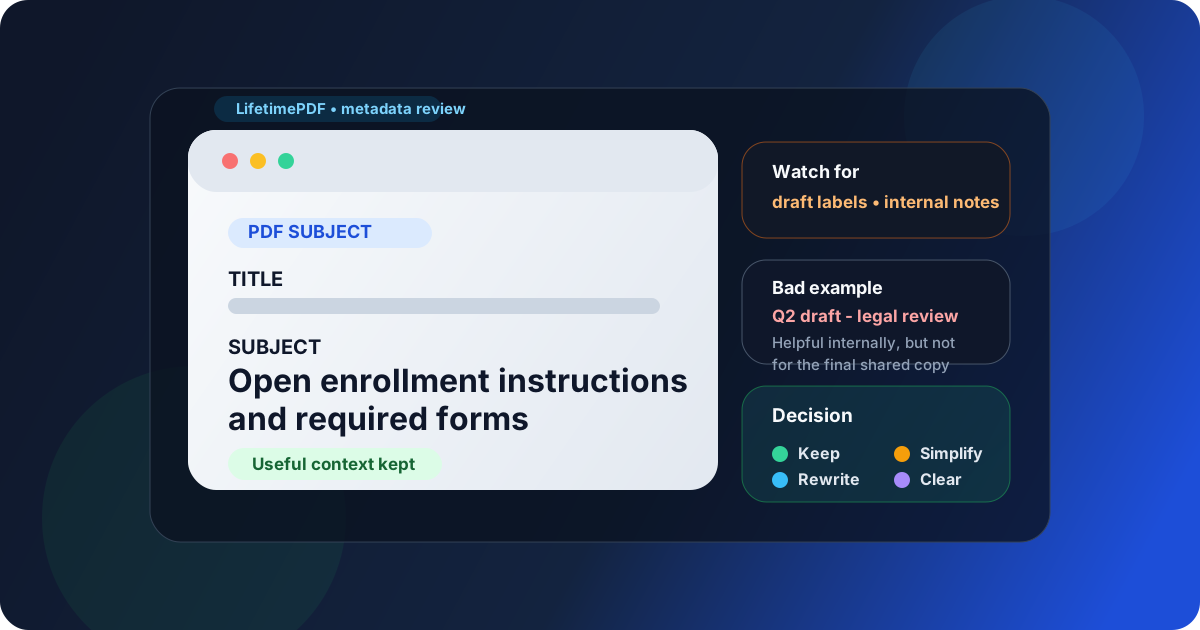
Table of contents
- Quick start: check PDF subject in about 4 minutes
- What the PDF subject field actually means
- Common PDF subject problems
- Step-by-step: practical PDF subject review workflow
- PDF title vs subject vs keywords
- When to keep the subject and when to clear it
- Final checklist before you share or archive the file
- Related LifetimePDF tools and guides
- FAQ
Quick start: check PDF subject in about 4 minutes
If your real goal is simply make sure the hidden subject field is helping instead of hurting before this PDF leaves my hands, use this short workflow:
- Open PDF Metadata Editor or inspect the file through View PDF Properties.
- Read the stored Subject value instead of assuming the title or filename tells the whole story.
- Ask whether the subject helps someone understand the file in a folder, search result, archive, portal, or handoff.
- Replace vague, stale, or overly revealing subject text with something cleaner, or clear the field if it adds no value.
- Save the updated PDF and reopen the properties once to confirm the share-ready copy now carries the right metadata.
What the PDF subject field actually means
The PDF subject field is metadata inside the file. It is not the visible heading on page one, and it is not the same thing as the filename sitting in your downloads folder. Think of it as a supporting context line for the document: a short clue about what the PDF covers, why it exists, or where it belongs in a larger workflow.
When the subject field is intentional, it can help filing, search, and internal organization. When it is sloppy, it can create the opposite effect by making a clean document look half-finished or by revealing internal project language that never needed to leave your team.
| Field | What it does | What can go wrong |
|---|---|---|
| Title | Main reader-facing document name | Can be blank, generic, or inherited from an old template |
| Subject | Gives supporting context about what the file covers | Can expose internal labels, stale descriptions, or vague filler text |
| Keywords | Adds search-oriented tags or filing hints | Often gets stuffed with unnecessary or messy terms |
| Filename | Storage name used by the operating system or cloud folder | May look clean even when the hidden metadata is still wrong |
Common PDF subject problems
Most subject-field problems are not dramatic. They usually come from templates, inherited metadata, old exports, or nobody checking the file after the final conversion.
Too vague
Values like Report, General, or Document add almost no useful context.
Too old
The file content changed, but the subject still names last quarter's project, client, or workflow.
Too internal
The subject reveals department shorthand, case nicknames, or internal review status that should not travel.
Too repetitive
The subject just duplicates the title word-for-word and adds no extra context at all.
A weak subject field does not always break the PDF, but it often makes the file feel less deliberate. That matters when the document is being sent to a client, uploaded to a compliance portal, archived for later retrieval, or passed between teams who did not create it.
Quick smell test
If someone opened the PDF properties and saw the subject value, would it help them understand the file, make them slightly confused, or reveal something you never meant to share? That answer usually tells you whether the field should stay, change, or disappear.
Step-by-step: practical PDF subject review workflow
1) Start with the exact PDF you plan to share
Metadata can drift between drafts, merged versions, and exported copies. Inspect the final file that is actually being emailed, uploaded, archived, or published. Otherwise you risk cleaning the wrong copy and leaving the live one messy.
2) Read the subject field directly
Open PDF Metadata Editor or use View PDF Properties so you can see what the PDF is actually carrying. A strong filename does not guarantee a strong subject field.
3) Compare the subject to the real job of the document
Ask where the PDF is going next. Is it a board packet, invoice, onboarding packet, benefits form, policy update, signed contract, or research handoff? The subject should support that real-world use instead of echoing a random draft stage from earlier in the workflow.
4) Check whether the field helps more than it harms
Good subject fields give useful context in a short phrase. Bad ones create clutter, repeat the title, or expose internal workflow details. If the field is not helping search, filing, trust, or clarity, it deserves scrutiny.
5) Keep, rewrite, or clear the value
If the subject is already useful, leave it alone. If it is close but sloppy, rewrite it. If it is unnecessary or revealing, clear it and let the title carry the main labeling job. This is usually better than leaving a misleading field in place just because it exists.
6) Save and verify once
After the update, reopen the file properties and confirm the new subject actually stuck to the final share-ready copy. That one extra check prevents the classic mistake of editing metadata in one version while sending another.
Reliable sequence: inspect the subject, compare it to the real document purpose, keep or rewrite only what helps, then verify the saved copy once before sending it out.
PDF title vs subject vs keywords
These fields often get blurred together, which is how PDF metadata ends up repetitive or messy. Each field does a different job when it is used well.
- Title should identify the document clearly for readers, tabs, previews, and accessibility tools.
- Subject should add a short layer of context that helps someone understand the file's purpose or category.
- Keywords should support search or organization, but only when they are restrained and genuinely useful.
A common failure is stuffing the same phrase into all three places. Another is leaving the title decent while the subject whispers something old, private, or irrelevant. The best metadata sets feel coordinated without sounding copy-pasted.
| Field | Best question to ask | Healthy example |
|---|---|---|
| Title | Can a stranger identify the file immediately? | Employee Benefits Enrollment Guide 2026 |
| Subject | Does this add useful context without oversharing? | Open enrollment instructions and required forms |
| Keywords | Will these help the file be found later? | benefits, enrollment, hr, 2026 |
When to keep the subject and when to clear it
The right choice depends on whether the field improves the final file or just drags extra workflow noise along for the ride.
Keep the subject when it adds real clarity
Some PDFs genuinely benefit from one extra line of context. This is common with recurring reporting packs, policy handbooks, onboarding bundles, compliance submissions, or archived records where the title alone does not tell the full story.
Rewrite the subject when the idea is useful but the wording is sloppy
A field like monthly figures for final review maybe send later contains context, but not clean context. Rewrite it in a reader-facing way if the file will circulate beyond the original creator.
Clear the subject when it exposes too much or helps too little
If the subject only reveals internal review status, project shorthand, test labels, or unnecessary background, clearing it is often safer and cleaner. Public downloads, client deliverables, and sanitized share copies frequently work better with a strong title and a minimal metadata footprint.
If the PDF is part of a broader privacy cleanup, continue with Remove Metadata From PDF. If the whole metadata set needs attention, use Edit PDF Metadata rather than fixing only one field in isolation.
Final checklist before you share or archive the file
Before the PDF leaves your workflow, run this short checklist:
- Did you inspect the hidden subject field instead of assuming the title or filename was enough?
- Does the subject help someone understand the file in its real destination?
- Did you remove vague labels, old project names, or internal notes that should not travel?
- Do the title, subject, and visible document context tell the same general story?
- If the file is sensitive, did you review the rest of the metadata too?
- Did you verify the saved copy once after updating the field?
You do not need a complicated metadata philosophy here. You just need the hidden subject field to stop making the file less clear, less polished, or less private than it should be.
Ready to clean it up? Check the hidden subject field now, keep only the context that helps, and send a PDF that feels intentional all the way through.
Best workflow for share-ready files: inspect properties → compare the subject to the real document purpose → keep, rewrite, or clear the field → verify the saved copy → do a broader metadata cleanup if needed.
Related LifetimePDF tools and guides
PDF subject checks work best as part of a broader metadata review. These are the most useful next steps:
Inspect and fix metadata
- PDF Metadata Editor to inspect and update the subject field directly
- View PDF Properties to review the full metadata story
- Edit PDF Metadata when several fields need cleanup at once
Keep the file aligned
- Check PDF Title so the main document label stays clear
- Check PDF Author so ownership metadata tells the right story
- Remove Metadata From PDF if hidden details should not travel at all
FAQ
1) How do I check PDF subject?
Open the PDF properties or a metadata editor and read the hidden Subject field stored inside the file. Then compare it against the real purpose of the document before you share, archive, or publish the PDF.
2) What is the PDF subject field for?
It gives supporting context about what the file covers. When used well, it helps with organization, search, and document handling. When used badly, it just adds clutter or exposes internal context.
3) Is PDF subject the same as the PDF title?
No. The title is usually the main document name, while the subject adds a second layer of context. They should support each other, but they do not need to duplicate each other word for word.
4) Should I keep the subject field or remove it?
Keep it when it makes the file easier to understand or organize. Remove or rewrite it when it is generic, outdated, misleading, repetitive, or more revealing than useful.
5) Can the PDF subject field expose private information?
Yes. It can reveal draft status, internal project names, department shorthand, case references, or other context that is not visible on the page but still travels with the document.
Published by LifetimePDF — Pay once. Use forever.