Check PDF Producer: Find Software Fingerprints, Conversion Clues, and Hidden Workflow Leaks Before You Share
To check PDF producer, open the file properties or a metadata editor and inspect the hidden Producer field that identifies the software or engine behind the final PDF output.
If the producer reveals a surprising print-to-PDF step, scanner workflow, conversion tool, or stale automation layer, decide whether to keep it, standardize it, or remove it before you share the file.
This matters more than it sounds. The visible pages may look perfect while the metadata quietly reveals that the file was rebuilt by a different tool than you expected, flattened through a print path, or pushed through software that tends to cause form, accessibility, or compatibility headaches. A quick producer check helps you understand what happened to the PDF behind the scenes.
Fastest practical path: inspect the producer field, compare it with the workflow you expected, then keep, clean, or remove the value before the PDF leaves your hands.
In a hurry? Jump to quick start: check PDF producer in about 4 minutes.
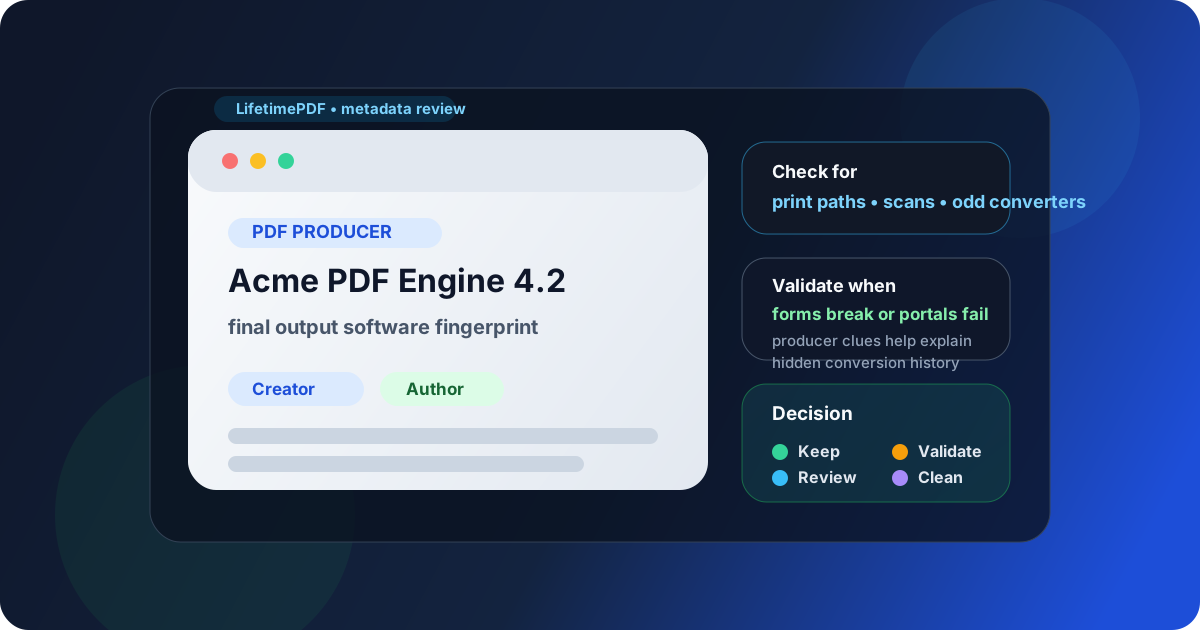
Table of contents
- Quick start: check PDF producer in about 4 minutes
- What the PDF producer field actually means
- Why checking PDF producer can be useful
- Step-by-step: practical PDF producer review workflow
- PDF producer vs creator vs author
- When to keep, edit, or ignore the producer field
- Final checklist before you share, validate, or archive the PDF
- Related LifetimePDF tools and guides
- FAQ
Quick start: check PDF producer in about 4 minutes
If your real goal is simply make sure this PDF was generated the way I think it was, and make sure the hidden software fingerprint is not misleading or risky before I send it, the fastest sensible workflow is this:
- Open PDF Metadata Editor or review the file through View PDF Properties.
- Read the stored Producer value instead of assuming the visible page tells you how the PDF was created.
- Ask whether that producer matches the workflow you expected, such as Word export, browser print, scanner output, form software, or an automated conversion pipeline.
- If the producer looks surprising, compare it with the file's behavior: broken forms, flattened annotations, odd fonts, accessibility problems, or portal rejection often make more sense once you know the software chain.
- Keep the producer if it is harmless and useful, or clean the metadata if it is misleading, noisy, or more revealing than necessary.
- Save the final PDF and, if the file matters, run Validate PDF once before you upload or share it.
What the PDF producer field actually means
The PDF producer field is metadata inside the file. It usually points to the software engine, library, or output system that produced the final PDF structure. In plain English, it is often the software fingerprint of the final packaging step.
That is not quite the same thing as the app where the document content started. A report might be written in Word, exported through a print dialog, merged with other pages, run through an automation script, and then optimized by a second tool. By the time you receive the PDF, the producer may describe the last major engine in that chain rather than the original writing app.
| Field | What it usually represents | Why it matters |
|---|---|---|
| Author | Person, team, or organization attached to the file | Ownership, professionalism, and privacy |
| Creator | Source application that created the content | Helpful for understanding where the document started |
| Producer | Software engine or library that generated the final PDF output | Helpful for troubleshooting conversion chains and hidden workflow clues |
| Filename | Storage name in your folder or cloud drive | Useful for people, but not proof of how the PDF was built |
Why checking PDF producer can be useful
Many PDFs work fine without anyone ever looking at producer metadata. But when a document behaves strangely, fails validation, looks overly flattened, or needs a privacy review, the producer field can become surprisingly informative.
It can explain weird document behavior
If interactive fields suddenly stopped working, bookmarks disappeared, or comments became static, the producer may reveal that the file was printed to PDF or rebuilt by software that stripped richer document features.
It can reveal an unexpected conversion chain
Sometimes the visible document suggests one workflow while the metadata points to another. That does not automatically mean something is wrong, but it often explains why the PDF behaves differently from the source file or why the formatting shifted.
It can help with compliance and archive quality
In regulated, legal, publishing, or records-heavy workflows, knowing whether a file came from a scanner, a browser print, an office export, or a conversion engine can help you decide whether the PDF is reliable enough to keep, validate, or replace.
It can reveal more workflow detail than you intended
This is the privacy angle. The producer field may expose internal software stacks, old desktop tools, test automation, or branded systems that the reader never needed to know about. That is not always sensitive, but it is worth reviewing before public sharing.
Quick smell test
If a recipient or portal operator inspected the PDF properties and saw the producer value, would it make the file feel expected, harmless, confusing, or oddly revealing? That answer usually tells you whether the field deserves attention.
Step-by-step: practical PDF producer review workflow
1) Start with the exact file you plan to send or upload
Metadata can change between drafts, exports, and repaired copies. Inspect the final share-ready PDF, not the version you think it came from.
2) Inspect the hidden properties, not your assumptions
Open PDF Metadata Editor or follow View PDF Properties so you can read what the file is actually carrying. A polished visible page does not tell you which engine produced the final PDF container.
3) Compare the producer against the workflow you expected
Ask practical questions. Did this PDF come straight from the source document, from a print dialog, from a scanner, from an online converter, or from an automation pipeline? The producer should usually make sense in that story even if it does not match the exact brand name you expected.
4) Check whether the file's behavior matches the software clue
If the producer suggests a print-style path, flattened output makes sense. If it suggests a scanning chain, weak text search or OCR dependence makes more sense. If it suggests a conversion tool, odd heading structure, broken links, or strange page sizes may stop feeling random.
5) Decide whether the producer should stay as-is
In many cases, the answer is yes. Producer metadata is often harmless and sometimes useful. Change it only when it is clearly misleading, excessively noisy, or discloses workflow details you do not want attached to the distributed copy.
6) Validate the final file once if it matters
After reviewing or cleaning the metadata, reopen the PDF and run Validate PDF if the document is headed to a court filing, portal, archive, or other important destination. A producer check is not a substitute for validation, but it often tells you whether validation problems are likely.
Reliable sequence: inspect the producer field, compare it with the expected workflow, decide whether the value is acceptable, then validate the final PDF if the destination is important.
PDF producer vs creator vs author
These fields are easy to blur together, but they answer different questions. If you read them separately, the hidden history of the document becomes much easier to understand.
| Question you are asking | Best field to inspect | Example interpretation |
|---|---|---|
| Who is this PDF associated with? | Author | A person, team, or company name attached to the document |
| Where was the content originally made? | Creator | Word, InDesign, LibreOffice, a form tool, or another source app |
| What likely generated the final PDF structure? | Producer | A PDF library, printer driver, scanner system, or conversion engine |
| Why is the file behaving oddly? | Often producer plus validation results | A print path may flatten forms, a scan path may require OCR, and a weak converter may create layout quirks |
You do not need to obsess over perfect forensic certainty. The goal is usually simpler: understand whether the metadata story feels normal for the file you are about to trust, archive, or share.
When to keep, edit, or ignore the producer field
Not every producer value needs action. Sometimes it is just a harmless software label. Sometimes it is a clue. Sometimes it is clutter.
Keep it when it helps explain the file honestly
If the producer reflects a normal export or conversion path and you are not worried about disclosing the software used, there may be no reason to touch it.
Review it more carefully when the PDF is failing or acting strange
Validation errors, broken signatures, dead forms, inaccessible structure, and portal incompatibilities are all good reasons to inspect the producer field more deliberately.
Clean or remove it when it creates noise or reveals too much
If the producer advertises internal systems, test stacks, or a messy chain of unofficial tools, you may prefer a cleaner share copy with broader metadata cleanup. Use Edit PDF Metadata or Remove Metadata From PDF when the hidden details do not belong in the distributed version.
Ignore it when it adds no decision-making value
If the PDF opens, validates, behaves correctly, and the producer does not expose anything problematic, you do not need to invent a problem just because the field exists.
Good situations for a deeper producer check
- The PDF was supposed to stay fillable, but the fields are now dead or flattened.
- The file looks fine visually but fails a validation or upload test.
- Accessibility or text extraction is much worse than expected.
- You suspect the PDF was printed, rescanned, or rebuilt by a different tool than the team intended.
- You are preparing a privacy-clean share copy and want the metadata story to be deliberate.
Final checklist before you share, validate, or archive the PDF
Before the file leaves your workflow, run this short checklist:
- Did you inspect the hidden producer field instead of guessing how the PDF was generated?
- Does the producer make sense for the workflow you expected?
- If the file behaves strangely, did you compare that behavior against the producer clue?
- Did you decide whether the producer should stay, be cleaned up, or be removed with the rest of the metadata?
- Did you review related metadata too, especially author, title, and creation date?
- If the destination is strict, did you run Validate PDF before uploading or archiving?
- If privacy matters, did you consider a broader metadata cleanup first?
You do not need to turn every PDF into a software investigation. You just need enough awareness to catch the cases where the hidden producer field explains a problem, exposes unnecessary workflow detail, or tells a different story than the one you meant to share.
Ready to review the software fingerprint? Check the producer field now, compare it with the path you expected, and send a PDF that makes sense inside and out.
Best workflow for important files: inspect properties → compare producer with expected workflow → clean metadata if needed → validate the final copy → share with confidence.
Related LifetimePDF tools and guides
PDF producer checks work best when you connect them to a broader metadata and quality review. These are the most useful next steps:
Inspect the metadata story
- PDF Metadata Editor to inspect or update hidden fields directly
- View PDF Properties to review producer, creator, author, dates, and more together
- Check PDF Author and Check PDF Title so the file's hidden identity stays coherent
Validate and clean the final copy
- Validate PDF before court, portal, or archive submission
- Remove Metadata From PDF if the hidden workflow details should not travel
- Repair Corrupted PDF when the file itself feels unstable or damaged
FAQ
1) How do I check PDF producer?
Open the PDF properties or a metadata editor and read the stored producer field inside the file. Then compare that value against the software path you expected before you share, upload, or archive the PDF.
2) What does the PDF producer field tell me?
It usually tells you which software engine or library generated the final PDF output. That can help explain why the document behaves the way it does, especially when a file has been printed, scanned, converted, or rebuilt.
3) Is PDF producer the same as creator or author?
No. Author is about people or organizations, creator is often about the source application, and producer is usually about the final PDF-generation engine.
4) Should I remove the producer field before sharing a PDF?
Only when it is misleading, cluttered, or more revealing than useful. If the value is harmless and the file behaves correctly, there may be no reason to change it.
5) Can the producer field help troubleshoot validation or compatibility issues?
Yes. It can hint at whether the file came from a print driver, scan path, or conversion engine that may have flattened forms, weakened structure, or produced a PDF that strict systems dislike.
Published by LifetimePDF — Pay once. Use forever.