Repair Corrupted PDF: Recover Damaged Files Before You Rebuild Them From Scratch
To repair a corrupted PDF, first confirm the file is truly damaged and not just locked, then re-download it if possible, recover readable pages with PDF to Image or surviving text with PDF to Text, rebuild a clean copy, and use OCR only if the recovered PDF still needs search and copy-paste.
If the file matters, stop repeatedly resaving the broken copy; preserve the original, salvage the part that still works, and rebuild once from the most stable output you can get.
That is the short answer. The useful part is knowing which PDF problems are actually corruption, which ones are just viewer glitches or password prompts, and when it is smarter to rescue the content than to keep fighting the original file structure. In real workflows, a readable rebuilt PDF is usually far more valuable than a “pure” original that nobody can open.
Fastest path: recover what still works first, then rebuild one stable PDF and only add OCR if the final copy still needs a searchable text layer.
In a hurry? Jump to Quick start: rescue a damaged PDF in a few minutes.
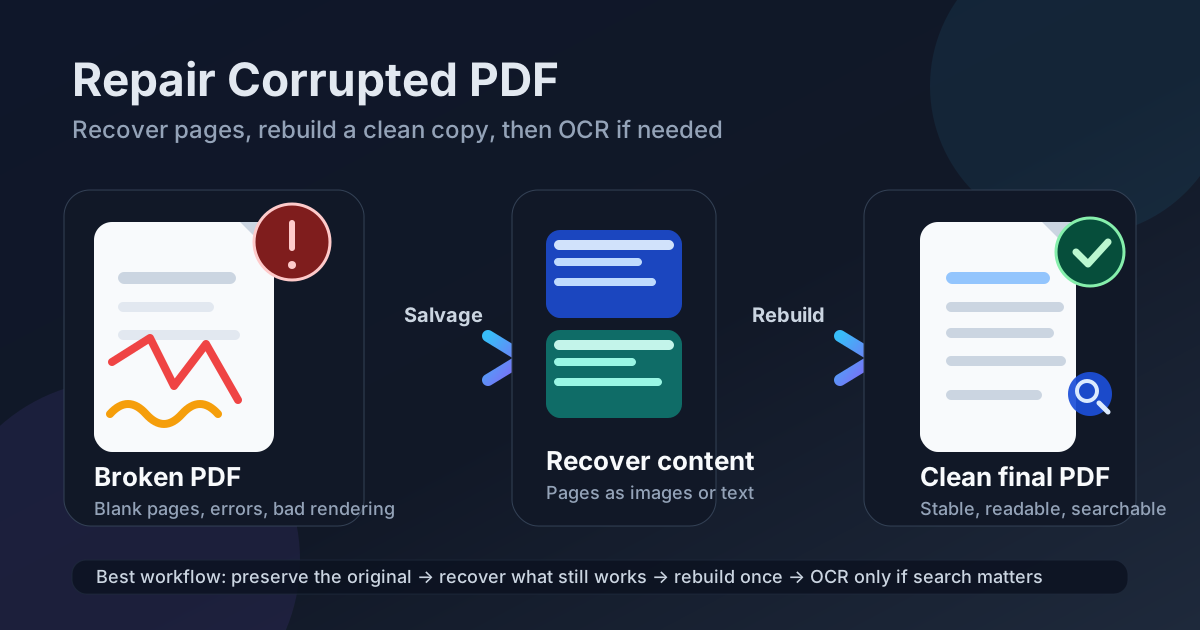
Table of contents
- Quick start: rescue a damaged PDF in a few minutes
- What counts as a corrupted PDF and what does not
- Step-by-step triage before you overwrite anything
- Best recovery paths for common failure patterns
- How to rebuild a clean PDF people can actually use
- Common mistakes that make damaged PDFs harder to save
- When to stop repairing and ask for a fresh export
- Related LifetimePDF tools and guides
- FAQ (People Also Ask)
Quick start: rescue a damaged PDF in a few minutes
If the document is urgent and you need the shortest sensible workflow, use this order:
- Try opening the PDF in another viewer or browser tab before assuming the file is dead.
- If it asks for a password, use PDF Unlock instead of repair steps.
- If the pages still display, save them immediately with PDF to Image.
- If any text still extracts cleanly, save that too with PDF to Text.
- Rebuild a stable document from recovered pages with Images to PDF.
- If the rebuilt copy is readable but image-only, run OCR PDF.
What counts as a corrupted PDF and what does not
“Corrupted PDF” gets used for several different problems, and the fix depends on which problem you actually have.
| What you are seeing | What it usually means | Best first move |
|---|---|---|
| The file asks for a password or blocks copy/print actions | Locked PDF, not corrupted | Use PDF Unlock if you are authorized |
| The file shows blank pages, open errors, or broken rendering | Corrupted or incomplete PDF | Try another viewer, then salvage content |
| The file opens, but you cannot search or select text | Scanned or image-only PDF | Run OCR after you confirm the file is otherwise stable |
| The file fails only in one browser or one app | Viewer compatibility problem | Open it elsewhere before you treat it like damage |
The distinction matters because the wrong fix wastes time. A locked PDF does not need repair. A scanned PDF may not be damaged at all. A viewer-specific glitch may disappear the moment you open the file somewhere else. Real repair work starts only after you know the file itself is unstable.
Step-by-step triage before you overwrite anything
The biggest mistake people make is thrashing the same damaged file through too many apps, saves, exports, and uploads without preserving the original. Do the calm version instead.
1) Preserve the original copy
If the PDF matters, set the current file aside before you keep experimenting. A second recovery attempt is much easier when you still have the untouched original and not just three increasingly messy versions created during guesswork.
2) Re-download or re-copy the file if you can
A surprising number of damaged PDFs are really incomplete downloads, email attachment glitches, or interrupted file transfers. If the file came from a portal, cloud folder, or sender, grab a fresh copy before you do anything clever.
3) Try another reader
Browser viewers, Preview, Adobe Reader, and other PDF engines do not fail the same way. A file that looks broken in one app may still display enough content elsewhere for you to recover it cleanly.
4) Decide whether page visuals or text matter more
If this is a signed form, invoice, statement, certificate, or scan, the page appearance may be the most valuable part. If it is a report, contract, or research file, the wording itself may matter more than exact layout. That choice tells you whether to prioritize page-image recovery, text extraction, or both.
5) Stop once you have one stable recovery path
If page visuals are recoverable, do that first and move on to rebuilding. If text extraction works, save the text immediately. Endless experimentation usually helps less than one successful salvage pass followed by a clean rebuild.
Recommended sequence: preserve the original, replace the copy if possible, test another viewer, recover what still works, then rebuild once.
Best recovery paths for common failure patterns
Different kinds of PDF failure call for slightly different recovery moves.
The pages render, but the file keeps erroring or exporting badly
This is one of the best cases for recovery. If the pages still display, use PDF to Image immediately. Once the visible pages are safely out of the damaged container, you can rebuild a stable replacement without caring whether the old file structure ever behaves again.
The PDF opens, but the text layer is broken or unreliable
If search works badly, highlighting is inconsistent, or copied text turns into junk, the structure may still be unstable even though the pages look fine. Save the visuals, then test PDF to Text to see whether the underlying text still has value. If not, rebuild from page images and OCR afterward.
Only some pages are broken
Mixed PDFs are common. A packet may combine normal exports, scanned inserts, signatures, and damaged pages from different systems. Recover the readable pages first. If the missing pages are essential and still refuse to render, ask the sender for a fresh export of just those pages instead of waiting until the end.
The file is really a scan that people are calling “corrupted”
Sometimes the PDF is not damaged; it is just a picture of paper with no text layer. In that case, you do not need a repair workflow as much as an OCR workflow. Once you confirm the pages display correctly, run OCR PDF so the document becomes searchable and easier to reuse.
| Failure pattern | Best first recovery step | Best next move |
|---|---|---|
| Pages display, but saving or exporting is unstable | Recover pages with PDF to Image | Rebuild with Images to PDF |
| Text is partly readable, but layout is messy | Save text with PDF to Text | Keep the text for reference and rebuild if visuals matter too |
| Recovered PDF is readable but image-only | Keep the rebuilt copy | Run OCR PDF if search and copy-paste matter |
| File is really restricted, not broken | Use PDF Unlock | Return to the normal workflow |
The pattern underneath all of these cases is the same: keep the part that still behaves, then replace the broken container with one clean output.
How to rebuild a clean PDF people can actually use
Rebuilding is what turns recovery into a usable document instead of a folder full of half-saved fragments.
Rebuild from recovered page images
- Recover readable pages with PDF to Image.
- Check the page order and remove obvious duplicates or broken outputs.
- Turn the page images back into one document with Images to PDF.
- Open the rebuilt file and confirm it is stable in the viewer you actually use.
- If the rebuilt file is image-only and you need search, highlighting, or copy-paste, run OCR PDF.
Rebuild from text when wording matters more than layout
If the real priority is the wording inside a report, contract, paper, or memo, text recovery can be more valuable than preserving the original appearance. In that case, save the output from PDF to Text, clean it up, and use that content as the foundation for a new stable document.
Do the cleanup after the rebuild, not before
Once the new PDF is stable, then decide whether it still needs compression, protection, or OCR. That order matters because cleanup tools work better on one good file than on a broken one.
- Need smaller uploads? Use Compress PDF.
- Need a searchable result? Use OCR PDF.
- Need restricted access? Use PDF Protect.
- Need to remove the password issue first? Use PDF Unlock if you are authorized.
Common mistakes that make damaged PDFs harder to save
Repair work goes wrong less because the file is impossible and more because the workflow gets sloppy.
1) Re-saving the same bad file over and over
Each extra experiment can create another version to track and another chance to lose the original. Preserve the damaged source and work from copies.
2) Treating a password prompt like file corruption
If the file is simply restricted, you are solving the wrong problem. Check for locked-vs-corrupted early so you do not waste time on repair steps that cannot help.
3) OCRing too early
OCR is valuable after you have a stable readable copy. It is not the first move when the PDF container itself is broken.
4) Ignoring page order during recovery
When you rebuild from images, take a moment to confirm the sequence. A stable but scrambled PDF is still a problem.
5) Forgetting the final review
Open the rebuilt file once before you send it. Check signatures, totals, small print, and the last page. The whole point of recovery is confidence.
When to stop repairing and ask for a fresh export
Not every PDF deserves a heroic rescue. Sometimes the smarter move is to ask for a new copy.
- The sender still has the source file and can export a clean PDF in seconds.
- Too many pages are missing or unreadable for recovery to be trustworthy.
- The document is legally or financially sensitive and you do not want to rely on a partly reconstructed copy.
- The recovered version changes layout in a risky way around signatures, totals, clauses, or form fields.
A fresh export is not defeat. It is often the fastest professional answer, especially when the original source document is still available.
Best fallback: recover what you can now, then compare it with a fresh export later if a clean source copy becomes available.
FAQ (People Also Ask)
How do I repair a corrupted PDF?
Confirm the file is actually damaged and not just password protected, replace the copy if you can, recover visible pages or surviving text, rebuild one clean PDF, and use OCR only if the final copy still needs a text layer for search and copy-paste.
Can a corrupted PDF still be recovered if it will not open properly?
Often yes. Many damaged PDFs still contain recoverable page visuals or extractable text even when the original container is unstable. The practical goal is to salvage that content quickly and rebuild a clean copy.
What is the difference between a locked PDF and a corrupted PDF?
A locked PDF is intact but restricted by a password or permissions. A corrupted PDF is structurally damaged and may throw errors, show blank pages, or crash a viewer. Locked files need unlocking. Damaged files need recovery or rebuild steps.
Should I OCR a corrupted PDF right away?
Usually no. OCR is most helpful after you already have a stable readable copy. If the original PDF structure is broken, recover the visuals or text first, rebuild the file, and then OCR only if you still need search and copy-paste.
What is the fastest way to save content from a damaged PDF?
If the pages still display, convert the PDF to images immediately so the visible content is preserved. If text extraction still works, save that too. Once you have one stable recovery path, rebuild a clean PDF and review it once before sharing.
Ready to rescue the file?
Good default workflow: save the original → recover what still works → rebuild once → OCR only if search matters → review before sending
Published by LifetimePDF — Pay once. Use forever.