Validate PDF: Check Errors, Compatibility, and Submission Readiness Before You Share or File It
To validate a PDF, make sure the file opens cleanly, visible text can be searched or selected, every page renders properly, and links, forms, metadata, and upload behavior still hold together in the real place the document will be used.
If the file is scanned, image-based, or inconsistent across viewers, run OCR or repair steps first, then validate again before you share, file, archive, or publish it.
That practical part matters more than the phrase itself. Most people searching validate PDF are not looking for theory. They want to know whether this document is safe to send to a client, acceptable to a court portal, readable by a teammate, stable in a browser, or clean enough to archive without nasty surprises later. A useful validation workflow gives you that answer before the file becomes somebody else’s problem.
Fastest path: check the text layer, run Validate PDF, review the pages and metadata, then test the actual upload or sharing destination once before you call the file done.
Need the short version? Jump to Quick start: validate a PDF in about 8 minutes.
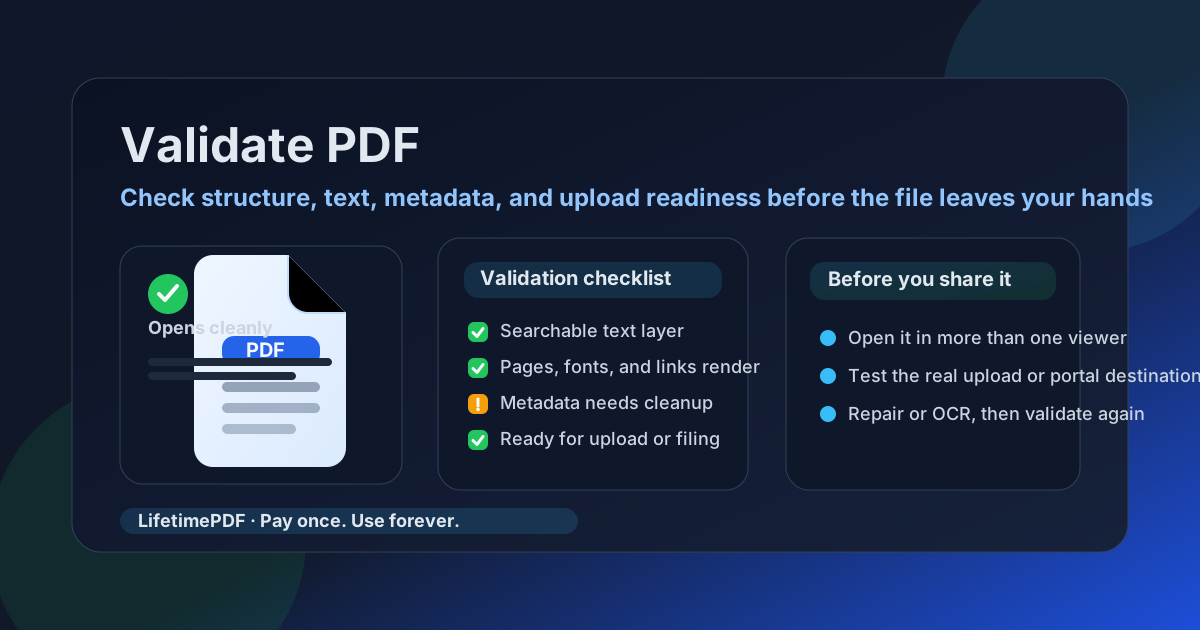
Table of contents
- Quick start: validate a PDF in about 8 minutes
- What “validate PDF” should actually cover
- Step-by-step: how to validate a PDF properly
- What to check before the file leaves your hands
- Scanned PDFs, OCR, and weak text layers
- Common reasons a PDF fails later
- When to repair the PDF versus rebuild the source
- Related LifetimePDF tools and guides
- FAQ (People Also Ask)
Quick start: validate a PDF in about 8 minutes
If your goal is simply make sure this PDF is ready before I send or upload it, this order is usually enough:
- Open the PDF and confirm it actually loads without errors.
- Try selecting or searching visible text. If the file behaves like an image, run OCR PDF first.
- Run Validate PDF as the first structured check.
- Scroll the whole file once and inspect the places that usually break: page order, links, forms, signatures, metadata, and any appendix pages.
- If the PDF is going to a portal, filing system, LMS, or browser link, test the actual destination once instead of trusting only the local preview.
- If anything is off, fix the real issue, then validate again before final delivery.
What “validate PDF” should actually cover
In real life, PDF validation is not just one green checkmark. It is a practical pre-flight review that answers a few important questions: Does the file open? Does the content still behave like real content? Will it survive the exact handoff or submission step it is about to go through?
| Validation area | What you are checking | Why it matters |
|---|---|---|
| File opens reliably | No corruption errors, blank pages, broken fonts, or missing sections | A PDF that opens only on your machine is not ready |
| Usable text layer | You can search, select, or extract visible text when appropriate | Weak text layers cause trouble in accessibility, review, archive, and portal workflows |
| Pages and structure | Correct order, rotation, page count, and no accidental duplicates | Submission systems and reviewers both punish messy page flow |
| Links, forms, and signatures | Interactive elements still work and still make sense | Broken actions often surface only after the file is already in motion |
| Metadata and packaging | Title, author, naming, and visible presentation fit the document purpose | Sloppy metadata can confuse archives, reviewers, and recipients |
| Destination readiness | The file behaves correctly in the actual portal, browser, email, or filing workflow | This is where many “works for me” PDFs fail |
That broader view is why validation is useful. It catches the ugly little problems before they turn into resubmissions, embarrassed follow-up emails, or a confused reader wondering whether the file is broken.
Step-by-step: how to validate a PDF properly
1) Start by opening the file like a normal reader would
Before you run any specialized tool, open the PDF and watch what happens. Does it load quickly? Do all pages appear? Are fonts stable? Do thumbnails match the actual page count? This first pass sounds basic, but it catches a surprising number of broken exports and half-finished downloads.
2) Confirm the text layer is believable
Try searching a word you can clearly see. Try selecting a sentence. If the file behaves like a photograph of text instead of a document with real text underneath, validation should pause there. Run OCR PDF first, because almost every later check becomes more useful once the file has a trustworthy text layer.
3) Run Validate PDF as the first structured checkpoint
Open Validate PDF and use it as the fast diagnostic pass. This is where you want the obvious red flags early: file-health issues, compatibility trouble, weak structure, or signals that the document needs repair before anyone depends on it.
4) Inspect the parts that humans and portals punish most
A PDF can pass a quick tool check and still fail its actual job. Review the parts that commonly break under pressure: page order, sideways scans, clickable links, fillable forms, signature blocks, court exhibits, client appendices, and the first page title or branding that tells someone they opened the right document.
5) Test the real destination once
If the PDF is going to an e-filing portal, a browser link, a document management system, a course platform, or a client upload form, test that real environment once. Some systems are stricter than desktop readers. They may reject security settings, choke on malformed structure, flatten forms badly, or handle huge page images poorly.
6) Fix the cause, not just the symptom
If the result shows a scan problem, use OCR. If it shows packaging issues, use PDF Metadata Editor. If the file is bloated and web delivery is part of the issue, combine Compress PDF or Linearize PDF where appropriate. Then run validation again on the corrected file, not the original.
Good sequence: open the file → confirm real text → validate → inspect risky details → test the real destination → repair the actual cause → validate once more.
What to check before the file leaves your hands
A practical validation pass is often easier when you think in terms of risks instead of features. What could go wrong for the next person if you send this file right now?
- Text risk: can the recipient search, quote, copy, or review the text when they need to?
- Page risk: are there duplicates, missing pages, wrong rotations, or the wrong order?
- Portal risk: will the upload system accept the file as-is?
- Reader risk: does the document open clearly in more than one viewer?
- Trust risk: does the file title, metadata, and visible first-page framing match what you say the file is?
- Workflow risk: are you sending a heavy, fragile, or overly complex PDF when a cleaner export would be safer?
| If you see this problem | Usually try this first | Why |
|---|---|---|
| Scan behaves like an image | Run OCR PDF | Validation becomes much more meaningful after text exists |
| Title or author fields are wrong | Use PDF Metadata Editor | Fixes packaging and archive clarity quickly |
| File feels too heavy for sharing | Use Compress PDF | Reduces upload friction and transfer delays |
| Only some pages matter | Use Extract Pages | A smaller, cleaner document is easier to validate and submit |
| Browser view is still clumsy | Use Linearize PDF | Improves web-facing delivery order after the file itself is healthy |
Scanned PDFs, OCR, and weak text layers
This is where a lot of validation work either gets smarter or goes sideways. A scanned PDF can look visually fine and still behave badly in every workflow that depends on text, structure, extraction, or accessibility. If the document came from paper, a phone camera, or a flattened export, OCR is often the gatekeeper step.
- Run OCR first when text cannot be searched or selected.
- Review the OCR output instead of assuming it is perfect, especially for tables, legal references, exhibits, and low-quality scans.
- Do not confuse OCR with full validation; it creates text, but it does not automatically solve page order, metadata, portal compatibility, or broken links.
- Prefer the editable source if it still exists. A clean re-export from Word, Excel, PowerPoint, or HTML is often safer than rescuing a bad scan forever.
Common reasons a PDF fails later
Many PDFs do not fail when they are created. They fail later, when somebody else opens them differently or a submission system pushes on a part of the file that nobody tested.
1) The PDF only looked fine in one viewer
Browser previews, desktop readers, and portals do not always behave the same way. A PDF that seems healthy in Chrome can still expose font, form, or structure issues somewhere stricter.
2) The file is a scan dressed up as a document
Image-only PDFs often pass visual inspection but fall apart for search, extraction, accessibility, and structured workflows.
3) Metadata and naming were treated as an afterthought
An empty title, wrong author field, or misleading first-page label can create confusion later, especially in archives, client handoffs, or formal review chains.
4) The document was never tested where it would actually be used
Portal uploads, e-filing systems, LMS previews, and web viewers all expose different weaknesses. Local success is not the same thing as submission success.
5) The source file was already messy
If the source had weak structure, odd page composition, fake headings, pasted screenshots, or multi-step exports, the PDF may need a rebuild more than a patch.
When to repair the PDF versus rebuild the source
Not every problem deserves the same response. Some PDFs only need small cleanup. Others are warning you that the source workflow itself was weak.
Repair the PDF when:
- the pages are right but the metadata is sloppy,
- the file is healthy but too large,
- only a few pages need extraction, deletion, or rotation,
- the PDF basically works and just needs final polish.
Rebuild the source when:
- the text layer is unreliable and OCR is not producing trustworthy results,
- the reading order is chaotic throughout the document,
- the file mixes too many screenshots, scans, and exports into one fragile packet,
- multiple problems appear together and each quick fix feels temporary.
If you need the rebuild path, a useful chain is often PDF to Word to recover editable content, cleanup in the source, and then a fresh export back to PDF before one final validation pass.
Best approach for difficult files: recover the source or run OCR, fix the real structure problem, export a cleaner PDF, then validate that final version again.
Related LifetimePDF tools and guides
Validate PDF works best inside a small workflow, not as an isolated click. These are the most useful related tools and articles:
- Validate PDF - first-pass check for file health and readiness.
- OCR PDF - turn image-based scans into searchable PDFs before deeper validation.
- PDF Metadata Editor - clean title, author, and packaging details.
- Compress PDF - shrink bulky files before upload or sharing.
- Linearize PDF - improve browser-based opening after the file itself is healthy.
- PDF Accessibility Checker - useful when the document also needs a clearer text and reading-order review.
For deeper reading on adjacent cases, these guides fit naturally: Validate PDF Online & Check for Errors, Validate PDF Without Monthly Fees, Validate PDF Before Court Filing, Repair Corrupted PDF Online, and PDF Accessibility Checker.
Ready to check your file before it turns into a problem?
Best workflow: Open the file - Check text - Validate - Test the real destination - Repair only what is actually broken.
FAQ (People Also Ask)
How do I validate a PDF?
Open the file, confirm that pages render cleanly, make sure visible text can be searched or selected when appropriate, run a validation pass, and then review links, forms, metadata, and the real upload or sharing destination before the PDF goes out.
What should validate PDF actually check?
A practical validation workflow should check whether the file opens reliably, contains a usable text layer, shows all pages correctly, keeps interactive elements working, and behaves well in the exact place where it will be uploaded, shared, filed, or archived.
Is validating a PDF the same as repairing it?
No. Validation tells you where the risk is. Repair changes the file. The better sequence is validate first, fix the real issue second, and then validate the corrected file one more time.
Should I run OCR before validating a scanned PDF?
Yes, when the file behaves like an image. OCR creates a searchable text layer, which makes later validation, review, and accessibility checks much more useful.
Why would a PDF work in one viewer but fail somewhere else?
Different viewers and systems stress different parts of the file. Fonts, forms, metadata, security settings, page structure, and upload rules can all behave differently, which is why testing the real destination matters.
Published by LifetimePDF - Pay once. Use forever.