How to Check PDF Tables on Windows: Acrobat, Edge, and Column Order Before You Share
To check PDF tables on Windows, open the final file, confirm the table has selectable text, and test whether the headers, rows, and columns still make sense when you search, copy, or extract the content.
If column order breaks, merged cells detach labels, or totals lose context, the cleanest fix is usually to repair the source file and export a better PDF before you share it.
That is the short answer. The useful Windows answer is that Acrobat, Edge preview, and a neat-looking screen can hide weak table logic surprisingly well. A pricing sheet, invoice summary, grade report, or dashboard export can look perfectly orderly while still collapsing the moment someone copies the data, reads it line by line, or opens it in an accessibility workflow.
Fastest practical path: open the real Windows copy, confirm the text layer, test one header row in extraction, check a dense table near the end of the file, and fix the source if the relationships only work inside the visual grid.
In a hurry? Jump to quick start: check PDF tables on Windows in about 8 minutes.
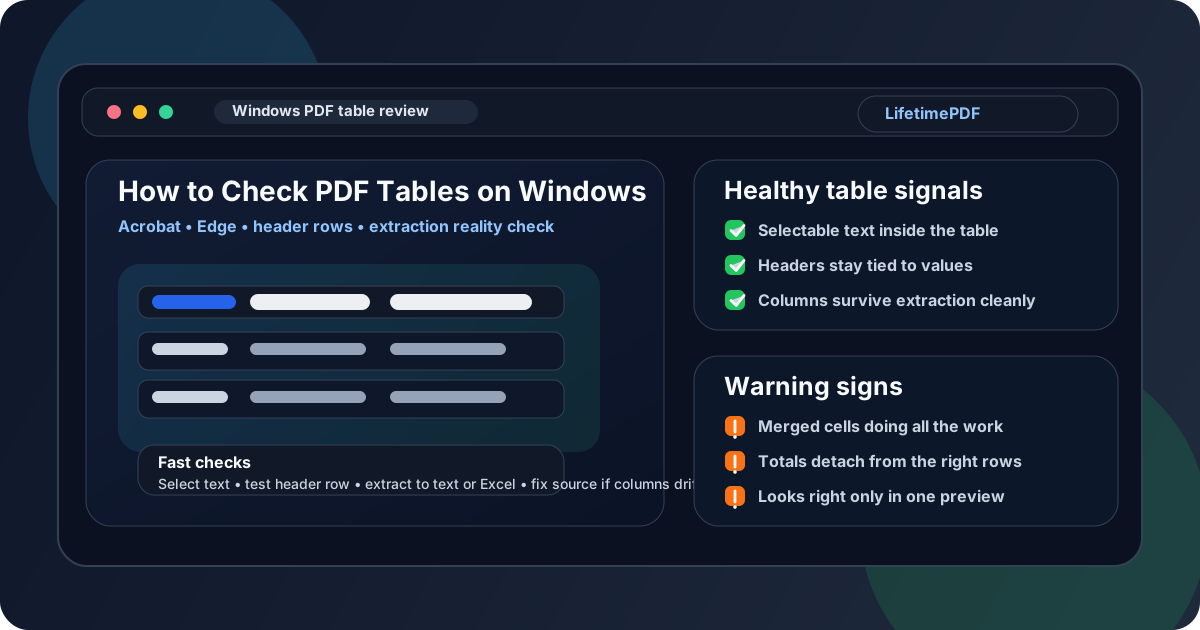
Table of contents
- Quick start: check PDF tables on Windows in about 8 minutes
- What you are really checking when you inspect PDF tables
- Where Windows users get misled
- Step-by-step: how to check PDF tables on Windows
- Warning signs that the table only looks reliable
- When to fix the source versus patch the PDF
- Related LifetimePDF tools and guides
- FAQ
Quick start: check PDF tables on Windows in about 8 minutes
If your real goal is simply tell me whether this Windows PDF table is trustworthy before I send it, use this order:
- Open the exact PDF you plan to submit, email, upload, archive, or publish from Downloads, OneDrive, Outlook, Teams, or a shared folder.
- Confirm you can select a few cells, search for a visible value, and copy a header row. If not, the file may be a scan or weak OCR job and your table review is starting from a broken foundation.
- Look for a clear header row or stub column and ask whether the relationships would still make sense if the visual grid disappeared.
- Compare the visual impression with PDF to Text or PDF to Excel. If the rows and columns scramble, the table is weaker than it looked.
- Spot-check totals, merged cells, repeated headers, and notes at the bottom of a table or on later pages.
- Run a broader PDF accessibility check and compare what it surfaces with what you noticed manually.
- If the relationships are clearly weak, repair the source document and export a cleaner PDF instead of trusting the current Windows preview.
What you are really checking when you inspect PDF tables
Checking PDF tables on Windows is not just asking whether the lines are straight or the numbers line up on screen. The more useful question is whether the table preserves relationships: which header belongs to which value, which subtotal belongs to which group, and whether notes or qualifiers stay attached to the right data.
That matters for accessibility, but it also matters for ordinary work. People turn PDFs into Excel sheets, paste them into emails, hand them to AI tools, archive them for audits, and read them on small screens every day. If the table falls apart outside its original layout, the PDF becomes less trustworthy even if it looked polished in Acrobat.
| What a healthy Windows PDF table does | What a weak table does instead | Why it matters |
|---|---|---|
| Keeps headers tied to the right cells | Headers float away, repeat badly, or disappear when copied or extracted | Readers lose context and values turn into guesswork |
| Preserves row and column order | Extraction jumps between columns or stitches unrelated cells together | The table stops behaving like usable data |
| Handles totals and notes clearly | Grand totals, footnotes, or qualifiers drift away from the lines they explain | Important business or compliance meaning gets lost |
| Survives reuse outside the page layout | It only makes sense when you see the exact visual grid on one screen | Exports, accessibility review, and mobile reading all suffer |
In plain English: the question is not merely can I see the table? The real question is does the table still communicate the same meaning when the layout becomes secondary?
Where Windows users get misled
Windows gives you several ways to preview a PDF quickly, but quick previews create false confidence. File Explorer, Edge, Acrobat, and even a screenshot pasted into Teams can make a table look more dependable than it really is.
Edge preview can hide structural problems
Edge is fine for a fast visual pass, but it does not prove that header relationships or column order survive once the content is copied, searched, or extracted.
Acrobat can make broken exports look polished
A sharp rendering engine does not guarantee the table underneath is clean. A dashboard export can look professional while still scrambling in text or Excel output.
One table may behave differently from another
The first page can look perfect while a later table breaks because of repeated headers, page breaks, merged cells, or a different export pattern.
That is why a good Windows table check always includes at least one extraction test. If you never force the content outside the page design, you can easily miss the exact failures that matter in real use.
Step-by-step: how to check PDF tables on Windows
1. Open the exact final Windows copy first
Start with the PDF that will actually leave your machine. Do not inspect an earlier export in a project folder if the real file came through Outlook, OneDrive, SharePoint, Teams, or a client upload portal. Tiny version differences are where bad table exports often hide.
2. Confirm the table is not only a picture
Try selecting text inside the table, searching for a visible amount, or copying a header row. If nothing behaves like real text, run OCR PDF first. OCR is not a guarantee of clean structure, but it turns a picture of data into something you can actually inspect.
3. Check whether the headers still do real work
Look at the top row, first column, section labels, and any repeated headers on later pages. Ask whether a person reading the content line by line would still know what each value belongs to. If the answer depends entirely on seeing the original grid, the table is too visually dependent.
4. Test extraction instead of trusting the design
Use PDF to Text to see how the table reads when the layout polish disappears. Then try PDF to Excel when you want a stronger reality check on whether columns, dates, totals, and labels still stay aligned. If the extracted output turns into clutter, the PDF table likely needs upstream repair.
5. Watch merged cells, subtotals, and footnotes closely
These are the places where many Windows-reviewed PDFs start lying to people. A merged heading may visually cover six columns while extraction treats it like one lonely label. A subtotal can slip away from the rows it summarizes. A footnote can end up reading like data instead of context. If those elements become ambiguous, the table is not safe just because it looks tidy on screen.
6. Run an accessibility review as a triage layer
PDF Accessibility Checker helps surface broader structure problems quickly. Use it as triage, then make a human judgment about the tables that matter most. A quote sheet, invoice packet, student grade report, product matrix, or compliance schedule deserves more than a casual glance.
7. Repair the source and export again if the table logic is weak
If the PDF came from Excel, Google Sheets, Word, a BI dashboard, or semantic HTML, the cleanest fix is usually upstream. Simplify confusing merges, clarify headers, reduce decorative layout tricks, and export again. That is almost always cleaner than trying to rescue a structurally weak final PDF one symptom at a time.
Reliable sequence: confirm real text, test extraction, review headers and totals, run an accessibility check, then repair the source before the final export.
Warning signs that the table only looks reliable
Table problems repeat themselves. Once you know the usual failure patterns, you can spot them much faster during a Windows review.
| Warning sign | What goes wrong | Better move |
|---|---|---|
| Visual-only headers | A bold top row looks important, but extraction does not preserve the relationships properly. | Rebuild the header logic in the source file and export again. |
| Columns read in the wrong order | Values jump across the page or combine with unrelated cells. | Check text order and fix the export path upstream. |
| Merged-cell confusion | Category labels drift away from the values they describe. | Reduce decorative merges and make grouping clearer in the source. |
| Totals detached from details | Subtotals and grand totals lose context when the grid collapses. | Rework placement and test extraction before publishing. |
| Scan cleanup mistaken for structure repair | OCR restores text, but the table still behaves like a fragile image-derived layout. | Use OCR as recovery, then decide whether the source needs a true rebuild. |
One simple smell test: if you had to explain the table aloud without showing the page, would the relationships still be obvious? If not, the structure is probably leaning too hard on visual placement.
Where people get fooled
The grid lines are crisp, the columns look aligned, and the totals seem easy to see. That visual neatness creates false confidence. A real table review asks whether the relationships survive extraction, accessibility review, and downstream reuse—not just whether the page design looks professional.
When to fix the source versus patch the PDF
Source-first repair usually wins when the table problem is broad rather than local. If headers are inconsistent, merged cells are carrying too much meaning, or several pages break during extraction, editing the final PDF is rarely the best long-term move.
Repair the source when:
- multiple tables in the same file behave differently,
- merged cells are doing more organizational work than they should,
- the PDF came from Excel, Sheets, Word, HTML, or a report builder you still control,
- table problems appear alongside reading-order, heading, or tagging issues,
- the document will be revised or reused again later.
If the file is part of a broader accessibility review, pair this table check with accessibility, reading order, headings, and alt text. Tables do not live in isolation. Weak structure in one area often travels with weak structure elsewhere.
Related LifetimePDF tools and guides
Useful tools
Need a cleaner review workflow for tables, extraction, and accessibility checks? LifetimePDF combines OCR, extraction, structure checks, and export tools in one pay-once toolkit.
FAQ
How do I check PDF tables on Windows quickly?
Confirm the file has real text, inspect whether headers and cells stay in a sensible order, then test extraction so the rows and columns do not collapse when the layout disappears.
Can a PDF table look organized in Acrobat and still be weak?
Yes. Many tables look polished in Acrobat or Edge while still having weak headers, broken column order, or ambiguous merged cells underneath.
Is PDF to Excel useful for checking table quality?
Usually yes. It is a fast way to see whether the table behaves like structured data or collapses into messy values during extraction.
Should I OCR a scanned PDF before checking tables on Windows?
Usually yes. OCR restores a text layer so you can evaluate whether the table behaves like real content instead of a picture of a table.
Should I fix PDF tables in the final PDF or in the source file?
If you still control the source, fix it there first. A cleaned-up spreadsheet, report template, Word document, or HTML table usually exports a better PDF than after-the-fact patching.
Published by LifetimePDF — Pay once. Use forever.