How to Check PDF Creator on Windows: File Explorer, Acrobat, and Source-App Clues Before You Share
To check PDF creator on Windows, save the real file locally, open a metadata-friendly view in Acrobat Reader or a PDF metadata editor, and inspect the hidden Creator field to see which app likely started the document.
If the creator still points to an old template, scanner workflow, or the wrong source application, standardize or clear it before the PDF leaves your Windows workflow.
This matters because Windows makes a PDF feel finished long before the metadata is actually clean. The file opens in File Explorer, previews fine in Edge, attaches cleanly in Outlook, and looks normal in OneDrive or Teams. Meanwhile the hidden creator field can still say the document began in the wrong app, an abandoned template, a private desktop workflow, or a conversion path that no longer matches the final file. A proper creator check is not about proving the PDF opens. It is about making sure the invisible source-app clue still supports the story the finished file should tell.
Fastest practical path: save the exact Windows copy, inspect the Creator field once, compare it with producer and author metadata, then keep, standardize, or clear the value before you send the PDF onward.
In a hurry? Jump to quick start: check PDF creator on Windows in about 5 minutes.
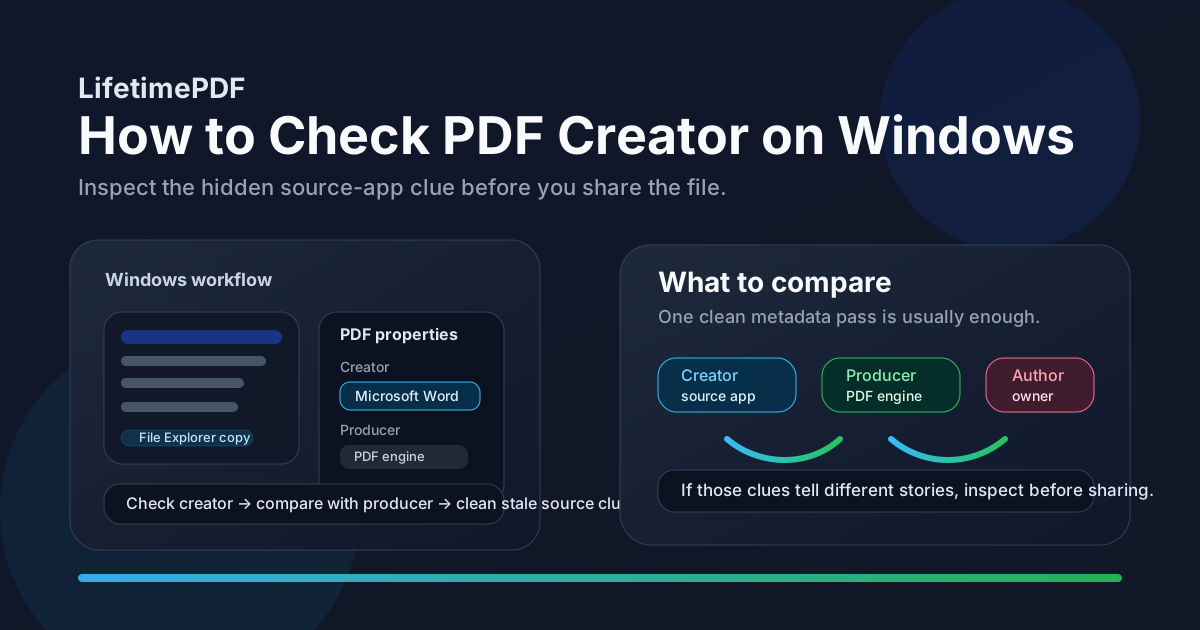
Table of contents
- Quick start: check PDF creator on Windows in about 5 minutes
- What you are really checking when you review PDF creator on Windows
- Creator vs producer vs author on Windows
- Where Windows users get misled
- Step-by-step: how to check PDF creator on Windows
- Warning signs that the creator field needs cleanup
- When to keep, standardize, or clear the creator field
- Related LifetimePDF tools and guides
- FAQ
Quick start: check PDF creator on Windows in about 5 minutes
If your real question is does this Windows PDF still carry the right source-app clue before I email, upload, archive, or publish it?, use this order:
- Save the exact PDF you plan to share into a local Windows folder instead of trusting a preview in Outlook, Edge, Teams, SharePoint, or OneDrive.
- Inspect the stored Creator value through PDF Metadata Editor, View PDF Properties, or Acrobat Reader.
- Compare creator with producer, author, and the visible document so you understand both where the content likely started and how the final PDF was built.
- Replace stale template apps, misleading source labels, or overly specific internal workflow clues with something more intentional, or clear the field when it adds no value.
- Save the cleaned file and reopen it once so you confirm the corrected creator really stuck to the copy you are about to share.
- If the file is sensitive or headed to a strict workflow, continue with Remove Metadata From PDF or Validate PDF.
What you are really checking when you review PDF creator on Windows
The PDF creator field is hidden metadata stored inside the file. It usually points to the application that created the document content before the final PDF output was generated. It is not the same as the filename in File Explorer, not the same as the visible title on page one, and not automatically the same as the software that produced the final PDF container.
On Windows that difference matters because one PDF often travels through several hands and apps. A file might begin in Word, Excel, PowerPoint, or an internal report tool, then get printed to PDF, merged, optimized, signed, emailed, uploaded to SharePoint, and archived. By the time you see the finished PDF, the visible pages can look completely normal while the creator still names a draft system, a private workstation, or an older template path. That mismatch is exactly what a creator check is supposed to catch.
| Field | What it usually represents | Common Windows problem |
|---|---|---|
| Creator | The application that likely started the document content | Still points to an old template app, legacy system, or private workstation workflow. |
| Producer | The engine or software path that generated the final PDF output | Differs from creator in a way that can explain why the file changed during export or conversion. |
| Author | The person, team, or organization attached to the PDF | Ownership looks fine while the creator still reveals a messy source trail. |
| Filename | The storage name shown by Windows | Looks clean enough to hide the fact that the hidden source-app clue is stale. |
Creator vs producer vs author on Windows
Windows users often see these fields only when something feels off, so it helps to give each one a clear job. Treat them like different clues instead of interchangeable labels.
| Question you are asking | Best field to inspect | What it tells you |
|---|---|---|
| Where did the document content probably begin? | Creator | Usually points to the authoring app or source system that started the file before the final PDF stage. |
| What software generated the finished PDF container? | Producer | Often reveals the print path, PDF engine, converter, or optimization step that produced the final file you have now. |
| Who does the PDF belong to or represent? | Author | Shows the person, team, or organization the file identifies with. |
| Why does the metadata story feel inconsistent? | Creator + producer + author together | Seeing all three side by side often explains whether the PDF was sensibly exported or is carrying stale metadata from several stages. |
You do not need perfect forensic certainty. You just need a coherent story. If creator, producer, author, and the visible document all point in broadly sensible directions, the file usually feels easier to trust and easier to troubleshoot.
Creator
Best for understanding the source app that likely started the content before it became the final PDF.
Producer
Best for understanding the PDF engine, print path, or converter that built the file you are holding now.
Author
Best for understanding the ownership or branding layer that should match the final destination of the file.
Where Windows users get misled
Windows gives you many quick ways to glance at a PDF. The trap is that a polished preview feels like proof. It is not. A file can open perfectly while the hidden creator field still tells the wrong source story.
| Windows path | What it is good for | What it cannot safely prove |
|---|---|---|
| File Explorer | Confirming the filename, folder, and which copy you are about to send. | That the hidden Creator field still matches the real origin story of the final PDF. |
| Edge preview or browser attachment tab | Showing that the pages render correctly and the file looks familiar. | Whether the embedded creator still points to the right source application. |
| Outlook, Teams, OneDrive, or SharePoint preview | Helping you review a handoff quickly before downloading or forwarding. | That the saved copy is not still carrying stale source-app metadata underneath. |
| Acrobat Reader or a metadata editor | Giving you a dependable view of the hidden Creator field itself. | You still have to decide whether that source-app clue helps or only leaks workflow noise. |
That last point matters most. Windows tools can surface the stored Creator value. They cannot decide for you whether it still makes sense for the finished file that is about to leave your machine.
Step-by-step: how to check PDF creator on Windows
This workflow is quick enough for everyday use and strong enough to catch the source-app mistakes that matter most.
Step 1: Start with the exact Windows copy you plan to share
Save the PDF locally first. If it is still sitting in Outlook preview, Edge, Teams, OneDrive, SharePoint, or a browser download strip, download the real copy you are about to send. Checking one version and sharing another is one of the easiest ways to miss stale creator metadata.
Step 2: Inspect the Creator field directly
Use PDF Metadata Editor, Acrobat Reader, or a practical properties workflow like View PDF Properties. Do not assume the visible document already tells the same story as the hidden source-app clue. On Windows, those details drift apart constantly after repeated exports, print-to-PDF steps, shared templates, and conversion workflows.
Step 3: Compare creator with producer, author, and visible context
This is where the creator field becomes useful instead of trivia. Ask whether the source app makes sense for the finished file. If the PDF is a proposal, invoice pack, legal packet, policy update, board deck, or public download, does the creator feel like a normal origin for that document? If it does not, compare it with producer, author, and title before deciding what to change.
Step 4: Fix stale or risky values first
Replace old template apps, internal test exports, legacy reporting systems, print-to-PDF leftovers, and private workstation hints before worrying about edge cases. Those are the values most likely to make the PDF feel sloppy or expose more workflow detail than the recipient needs. If the field belongs with a broader cleanup, continue with Edit PDF Metadata or Remove Metadata From PDF.
Step 5: Save and verify once
Reopen the finished PDF and confirm the corrected creator really stuck to the final file. This catches the classic Windows mistakes: editing the wrong copy, saving into a different folder than the one you actually send from, or checking a local version while you upload an older synced file.
Reliable sequence: inspect creator, compare it with producer and author, decide whether the source-app clue still helps the final file, then verify the saved copy once before sharing.
Warning signs that the creator field needs cleanup
These patterns show up constantly in Windows workflows that involve shared folders, Microsoft Office exports, print-to-PDF paths, portal downloads, and recycled templates.
| What you notice | What it usually means | Best next move |
|---|---|---|
| The creator still names an old template app or internal system | The PDF inherited metadata from a reused source file or reporting workflow. | Standardize or clear the field so the hidden source clue matches the finished document. |
| The creator feels more personal than the file should | A private workstation, niche authoring tool, or internal setup detail leaked into the metadata. | Rewrite or remove the field before the file leaves your workflow. |
| Creator and producer tell completely different stories | The document may have passed through several conversions, merges, or print paths. | Review both fields together so you understand whether the mismatch is normal or misleading. |
| The PDF looks polished in Windows, but the creator feels random | The visible document was cleaned up, but the hidden source-app clue was never reviewed. | Do one deliberate creator check before sending the file out. |
| The creator exposes more history than the recipient needs | The metadata may be leaking internal workflow details that add no value to the final PDF. | Clear the field or run a broader metadata cleanup pass. |
Healthy default
If the hidden creator value would make a recipient wonder why this file began in that app or system, the PDF probably deserves one more metadata pass before it leaves Windows.
When to keep, standardize, or clear the creator field
Not every Windows PDF needs the same answer. The useful question is whether the creator field improves the finished file or just drags old workflow details along for the ride.
Keep it
Best when the source-app clue is honest, harmless, and genuinely helpful for troubleshooting, provenance, or archive context.
Standardize it
Best when the original creator is technically true but no longer the clearest description of how the share-ready file should present itself.
Clear it
Best when the source-app clue adds no value, exposes too much workflow detail, or makes a public-facing PDF feel messier than it should.
In practice, the best answer is the smallest amount of source metadata that still helps the document make sense. Internal working files may benefit from a useful creator trail. Public downloads, sanitized evidence bundles, and privacy-sensitive handoffs often work better with a neutral or empty creator field than with an over-specific source-app history.
- Keep the field when the creator helps explain how the document began.
- Standardize the field when the current source-app clue is stale, confusing, or half-true.
- Clear the field when it only exposes internal workflow trivia or distracts from the finished file.
- Review nearby fields too so creator, producer, author, title, and subject stop telling five different stories at once.
FAQ
How do I check PDF creator on Windows quickly?
Save the final PDF locally, open a metadata-aware view such as Acrobat Reader or a PDF metadata editor, inspect the hidden Creator field, and compare it with the file you are actually about to share.
Is PDF creator the same as producer on Windows?
No. Creator usually points to the app that started the document content, while producer usually points to the engine or software path that generated the final PDF output.
Can File Explorer show the PDF creator field on Windows?
File Explorer can help you confirm the correct copy and folder, but a fuller document-properties or metadata workflow is more reliable when you need to inspect the embedded Creator field with confidence.
Should I keep or remove the creator field from a Windows PDF?
Keep it when the source-app clue is honest and useful. Rewrite or clear it when the value is stale, confusing, or more revealing than helpful for the final file.
Why does the creator field matter if the PDF pages already look correct?
Because hidden metadata still travels with the file. A polished page layout does not stop an old creator value from revealing template history, a legacy workflow, or a source application that no longer belongs in the final PDF.
Check the hidden creator before the PDF leaves Windows.
A clean Windows workflow is simple: inspect the Creator field, compare it with producer and author, keep only the source-app details that help the file make sense, and verify the final copy once before you send it.
Published by LifetimePDF — Pay once. Use forever.