How to Merge PDFs on Mac: Combine Finder Files, Mail Attachments, and Scans Without Losing Order
To merge PDFs on Mac, open a browser-based Merge PDF tool in Safari or Chrome, choose the files from Finder, Mail, Downloads, or iCloud Drive, arrange them in the right order, then save the combined PDF back to your Mac.
If one source is still a scan, photo, or screenshot instead of a PDF, convert it first so the final packet behaves like one document instead of a mix of file types.
That is the short answer. The useful part is knowing how to gather files from a few common Mac places without merging the wrong version, how to keep the document order sensible, and when to merge first versus when to compress, OCR, rotate, or trim pages after the packet is already correct.
Fastest path: gather the PDFs in one place if they are scattered across Finder, Mail, or Downloads, open LifetimePDF's Merge PDF tool in Safari or Chrome, set the reading order carefully, merge once, then clean up the finished packet only if it still needs size, rotation, or OCR work.
In a hurry? Jump to Quick start: merge PDFs on Mac in a few minutes.
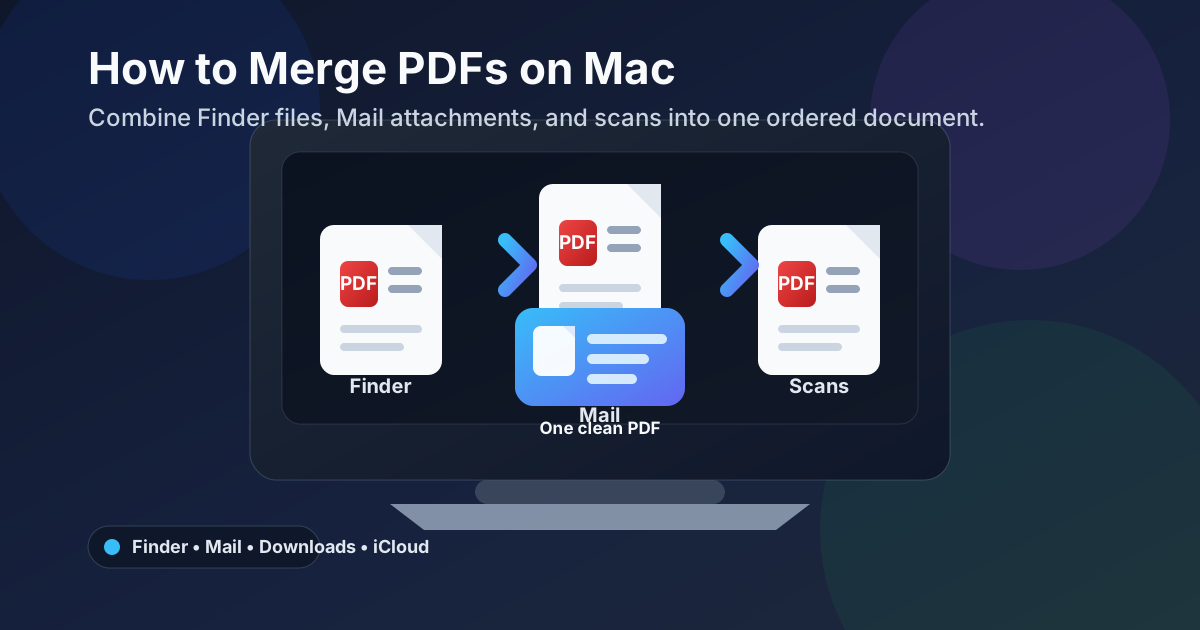
Table of contents
- Quick start: merge PDFs on Mac in a few minutes
- The easiest Mac workflow for combining PDFs
- Step-by-step: merge PDFs from Finder, Mail, Downloads, or iCloud Drive
- Preview vs a browser-based merge tool on Mac
- How to handle Finder files, Mail attachments, scans, and cloud documents
- How to keep the page order right on Mac
- What to do if the merged PDF is too large or still needs cleanup
- Related LifetimePDF tools and Mac guides
- FAQ (People Also Ask)
Quick start: merge PDFs on Mac in a few minutes
If the files are already PDFs and you just need one clean combined document, this is the Mac workflow most people actually want:
- Open Merge PDF in Safari or Chrome on your Mac.
- Choose the source files from Finder, Downloads, a saved Mail attachment, Desktop, Documents, or iCloud Drive.
- Arrange the documents in the exact order another person should read them.
- Run the merge and download the combined PDF.
- Open the finished file once in Preview or your browser and check the first pages, one middle section, and the end.
The easiest Mac workflow for combining PDFs
On Mac, the merge itself is not usually the hard part. The hard part is the handoff between where the files currently live and where the finished packet needs to go next. One PDF may be in Finder. Another may still be attached to an email. A third may have just landed in Downloads after a client portal export. Another may be in iCloud Drive because you also need it on iPhone or iPad later.
A browser-based merge workflow works well because it keeps the job focused on the result you actually care about: one readable PDF in the right order. You are not trying to improvise across several preview windows. You are choosing the right files, arranging them intentionally, merging them, and saving one final version that is easier to archive, send, and trust.
| Method | Best for | Where it struggles |
|---|---|---|
| Preview only | Checking files and reviewing the final result | Not the cleanest way to combine several files from different Mac locations into one packet |
| Finder organization first | Gathering and naming the right files before the merge | You still need a clear merge workflow to create the final document |
| LifetimePDF Merge PDF in Safari or Chrome | Combining files, controlling order, and exporting one clean final PDF | You still need one quick review pass before you email or upload it |
In plain language: Finder helps you gather and name the inputs, Preview helps you double-check them, and the merge tool does the actual packet-building job. Once you think about the workflow that way, PDF merging on Mac gets much less messy.
Step-by-step: merge PDFs from Finder, Mail, Downloads, or iCloud Drive
Here is the practical sequence that works well on most Macs.
Step 1: Decide which files truly belong together
Do not merge every nearby PDF just because it is convenient. Decide what the final packet is supposed to be. A school submission, legal packet, invoice bundle, travel packet, or client handoff all have a natural reading flow. That flow should decide which files belong in the merge.
Step 2: Open Merge PDF in Safari or Chrome
Go to Merge PDF on your Mac. A browser-based workflow is usually simpler than bouncing between several separate preview windows, especially if the files came from a few different sources.
Step 3: Upload the PDFs from the place they already live
Choose the PDFs from Finder folders, Downloads, Desktop, Documents, or a saved Mail attachment. If the files are still buried in a thread or scattered across a few folders, gather them into one clear Finder location first. That extra minute often makes the rest of the job much faster because everything is easy to recognize.
Step 4: Put the files in human reading order
The first file should be the one another person should see first. If there is a cover page, summary, signed form, or main report, that usually leads. Receipts, exhibits, appendices, evidence, and backup pages usually belong later. This matters more than the order the files arrived in your inbox or Downloads folder.
Step 5: Merge once, then inspect the result
Download the finished PDF and open it once in Preview. Check the beginning, one middle section, and the end. That quick review catches most real problems: one wrong file, one old version, one sideways page, or one attachment that should never have been in the packet in the first place.
Shortest reliable route: gather the PDFs, set the order carefully, merge once, and review before you upload or send.
Preview vs a browser-based merge tool on Mac
Mac users often wonder whether they should stay inside Preview or use a browser-based PDF tool. The honest answer is that both are useful, but they are useful for different parts of the job.
When Preview is enough
- You only need to inspect the source files quickly.
- You want to confirm that a file is the right version before you merge it.
- You want a fast check after the merged PDF is finished.
When a browser-based merge workflow is usually easier
- You are combining several PDFs from Finder, Mail, Downloads, and iCloud Drive.
- You want tighter control over the final order.
- You know the packet may need cleanup right after merging, such as OCR, compression, or page reordering.
- You want one simple workflow instead of juggling several open document windows on your Mac.
In practice, Preview is great for checking files and reviewing the final output. A browser-based merge tool usually wins when the real job is to build one polished packet from several scattered documents.
How to handle Finder files, Mail attachments, scans, and cloud documents
Most Mac merge jobs do not begin with perfectly organized source files. They begin with a few PDFs living in different places. Here is how to keep that from turning into a mess.
If the PDF is already in Finder
You are in the easiest situation. Upload the file directly, then save the finished packet back to the same project folder or another clearly named folder. If the merge matters, rename vague files before you start so you can recognize the right version immediately.
If the PDF came from Mail
Save the attachment first if the thread is cluttered or if you also need to combine it with local files. Mail is good for receiving documents, but it is not the best place to manage a multi-file packet. Saving the file into Finder makes it much less likely that you will merge the wrong version or forget which attachment was the corrected one.
If the PDF is in Downloads
Downloads often holds portal exports, school forms, vendor invoices, legal packets, and one-off reports. These are good candidates for a browser-based merge because they are already in a temporary working state. Just make sure the filename clearly identifies which file is the final version if a site downloaded it twice.
If the file is in iCloud Drive
iCloud Drive is useful when the document needs to stay available across your Mac, iPhone, and iPad. If the finished packet matters, save the merged PDF back to a clear iCloud folder with a sensible name so you do not leave one combined version on Mac and a confusing older set of separate files on mobile.
If one source is a scan, photo, or screenshot
Not every Mac merge starts with clean PDFs. Sometimes one source is a scanned page, one is a screenshot, and another is a normal PDF. That can still work, but it is usually cleaner to turn the image-based pages into PDF first using Images to PDF, then merge that result with the rest.
That helps because the final packet behaves like one document instead of a mixed bag of file types. If the image-based pages are scans and you need searchable text later, run OCR PDF after the merge.
How to keep the page order right on Mac
On Mac, the merge itself is usually easy. The real quality difference comes from whether the final packet reads like it was assembled deliberately.
Think in reading sequence, not folder sequence
The file that appears first in Finder or arrived first in Mail is not always the file that belongs first in the packet. Put the main document first, then the supporting files after it.
Check similar filenames before you trust them
Mac folders often fill up with near-duplicate names such as contract.pdf, contract-2.pdf, and contract-final.pdf. If two files look similar, open them once before merging so you do not discover too late that an old version slipped into the final packet.
Review the finished PDF once after download
This is what separates a smooth handoff from an annoying redo. Open the merged file and make sure the first pages make sense, the middle stays intact, and the ending belongs there. That single review catches most real mistakes without turning the task into a full audit.
| Use case | Best order | Why it works |
|---|---|---|
| Application or school packet | Main form or resume → supporting pages | The reviewer sees the core document immediately |
| Expense or receipt packet | Summary page → receipts in date order | The reader gets context before the proof pages |
| Client or legal handoff | Main document → appendix → evidence | Supporting material stays attached without taking over the opening pages |
| Travel or identity packet | Main form → ID pages → confirmations | Important information stays easy to find |
What to do if the merged PDF is too large or still needs cleanup
The best time to solve most cleanup problems is after the merge is correct. Do not start optimizing every source file before you even know whether the final packet is right.
If the final file is too large to upload or email
Use Compress PDF after the merge. That is cleaner than trying to shrink every source file in advance without knowing which one is actually causing the size problem.
If extra pages slipped in or the order still feels wrong
Use Organize PDF or Delete Pages on the finished packet to remove blanks, duplicates, or filler pages that never should have been there.
If the merged document includes scans and still is not searchable
Run OCR PDF after the merge so you can search, highlight, and copy text from the final file.
If a page is sideways
Use Rotate PDF on the finished packet or on the source file that caused the issue. One sideways page can make the whole document feel rougher than it really is.
Good cleanup order: merge → review → reorder or trim if needed → OCR if it is scan-based → compress only if size still matters.
Related LifetimePDF tools and Mac guides
Merging is often only one step in a bigger Mac document job. These tools and guides pair well with it:
- Merge PDF for combining separate PDF files into one packet.
- Images to PDF for turning screenshots, scans, and photos into PDF before the merge.
- Organize PDF for reordering or cleaning the final packet.
- Compress PDF when the finished file is too large for email or upload limits.
- OCR PDF when the merged packet includes scans that need searchable text.
Related blog guides
- Merge PDF
- How to Merge PDFs Online for Free Without Losing Quality
- How to Merge PDFs on iPhone
- How to Merge PDFs on iPad
- How to Merge PDFs on Android
- How to Rotate a PDF on Mac
- How to OCR a PDF on Mac
- How to Extract Pages from PDF on Mac
- How to Sign a PDF on Mac
- How to Password Protect a PDF on Mac
Ready to combine PDFs on Mac without sending a pile of separate attachments?
Open the files in Safari or Chrome, set the order deliberately, merge once, and save one clean packet that is easier to upload, archive, or share.
FAQ (People Also Ask)
How do I merge PDFs on Mac without Adobe Acrobat?
Open a browser-based Merge PDF tool in Safari or Chrome on your Mac, upload the files from Finder, Mail, Downloads, or iCloud Drive, arrange them in the right order, merge them, and save the finished PDF back to your Mac.
Can I merge Mail attachments and Finder PDFs together on Mac?
Yes. Save the Mail attachment if needed, then combine it with PDFs from Finder, Downloads, Desktop, or iCloud Drive in one merge workflow after you confirm they belong in the same final packet.
Should I use Preview or a browser tool to merge PDFs on Mac?
Preview is fine for checking source files and reviewing the final result. A browser-based merge tool is usually smoother when you need to combine several PDFs from different places and keep the final order under control.
What if one of my Mac files is a scan, photo, or screenshot instead of a PDF?
Turn those image-based pages into PDF first, then merge that cleaner file with your other PDFs. That usually makes the final packet easier to read, archive, and share.
What should I do if the merged PDF is too large to email or upload from my Mac?
Merge the files first, then use Compress PDF on the finished file if the destination rejects it because of size.