How to Rotate a PDF on Mac: Fix Sideways Scans, Finder Files, and Mail Attachments Fast
To rotate a PDF on Mac, open LifetimePDF's Rotate PDF tool in Safari or Chrome, choose the file from Finder, Mail, Downloads, or iCloud Drive, rotate the affected page or the whole document, and save the corrected PDF back to your Mac.
If Preview is enough for a quick page turn, use it; if the file came from a scanner, portal, or mixed bundle, a browser-based workflow is usually easier to finish cleanly.
That is the short answer. The useful part is knowing when the problem is just one sideways page, when the whole PDF needs to turn, how to avoid saving the wrong version from Finder or Mail, and what to do next if the file still needs OCR, signing, or compression. A good Mac workflow fixes orientation fast without creating three duplicate copies and one more avoidable upload mistake.
Fastest path: open Rotate PDF on your Mac, fix the sideways or upside-down pages, then move straight into OCR, signing, or compression only if the file still needs cleanup.
In a hurry? Jump to Quick start: rotate a PDF on Mac in 3 minutes.
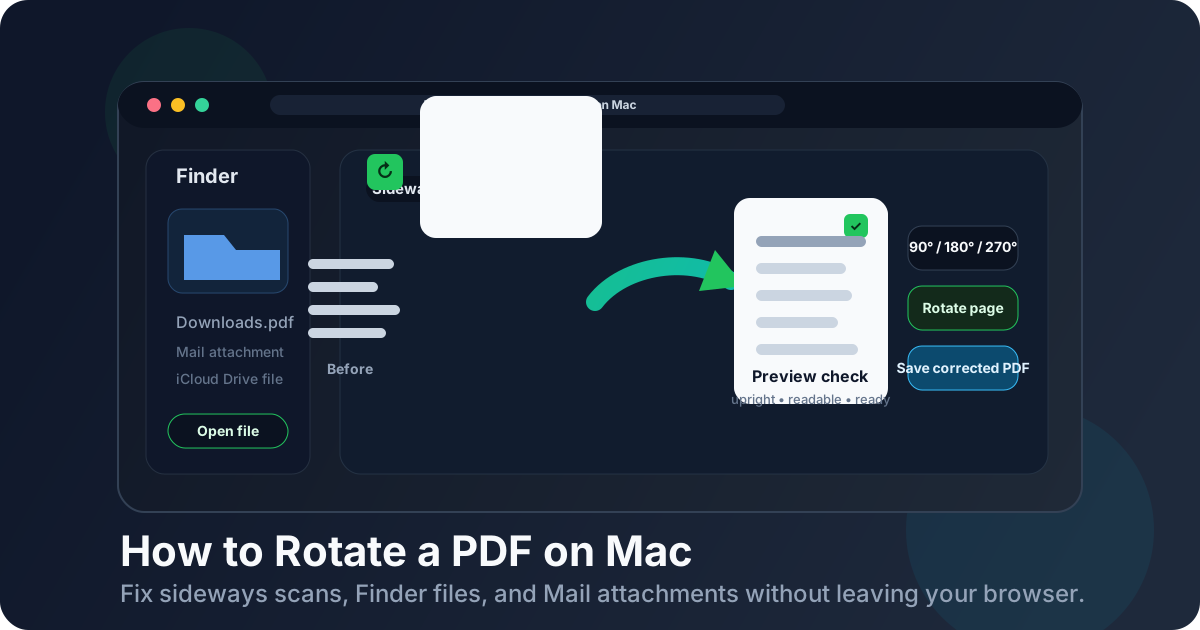
Table of contents
- Quick start: rotate a PDF on Mac in 3 minutes
- The easiest Mac workflow for rotating PDFs
- Step-by-step: rotate a PDF from Finder, Mail, Downloads, or iCloud Drive
- Preview vs a browser-based rotation tool on Mac
- Rotate one page vs the whole PDF on Mac
- Common Mac PDF sources and what to do with each
- Common Mac problems and quick fixes
- What to do after the PDF is upright again
- Related LifetimePDF tools and guides
- FAQ (People Also Ask)
Quick start: rotate a PDF on Mac in 3 minutes
If you just need the file to stop opening sideways and you do not want to overthink it, use this workflow:
- Open Rotate PDF in Safari or Chrome on your Mac.
- Choose the file from Finder, Downloads, Desktop, Documents, a saved Mail attachment, or iCloud Drive.
- Rotate the wrong page or pages by 90°, 180°, or 270°.
- If the whole document is wrong, rotate the full file. If only one page is wrong, rotate only that page.
- Download the corrected PDF back to your Mac.
- Open it once in Preview and make sure the reading direction now looks right from beginning to end.
The easiest Mac workflow for rotating PDFs
On Mac, the hardest part is usually not the rotation itself. It is the handoff between where the PDF currently lives and where you need it next. The file might be in Finder, attached to a Mail thread, sitting in Downloads after a browser save, waiting in iCloud Drive, or exported from a scanner app. Once you can choose the file cleanly, the orientation fix is usually fast.
A browser-based workflow works well because it keeps the sequence short: open the file, rotate it correctly, save the corrected copy, then move on. That is often cleaner than bouncing between temporary previews, opening the wrong duplicate, or realizing too late that you rotated the page but kept the original filename in the wrong folder.
| Situation | Best move | Why it helps |
|---|---|---|
| Only one receipt, scan, or signature page is sideways | Rotate one page | Keeps the rest of the document untouched |
| The entire scan bundle opens the wrong way | Rotate the whole document | Faster than fixing every page individually |
| The PDF came from Mail, Downloads, or a portal | Use a browser-based tool | Easy file handoff without installation friction |
| You want a quick visual confirmation afterward | Preview the finished file once | Catches orientation mistakes before you send it |
| The file still needs search, signing, or shrinking | Rotate first, then finish the workflow | Later steps go more smoothly on an upright file |
That last point matters more than people expect. Rotation is often the first cleanup step, not the last one. If the PDF still needs OCR, a signature, page extraction, or compression, it is easier to do those things after the pages are facing the right direction.
Step-by-step: rotate a PDF from Finder, Mail, Downloads, or iCloud Drive
1) Open Rotate PDF in Safari or Chrome
Start with LifetimePDF Rotate PDF in Safari or Chrome on your Mac. If the document is already stored locally, either browser will do the job well. The real advantage is that you can move straight from open file to corrected file without installing more software just to turn a page upright.
2) Choose the PDF from the place it already lives
On Mac, that is usually one of a few common locations:
- Finder: for files already saved in Documents, Desktop, or a project folder.
- Downloads: for PDFs you just pulled from a website or client portal.
- Mail: save the attachment first if needed, then upload the local copy so you know exactly which version you are editing.
- iCloud Drive: useful when the file needs to stay available across your Mac, iPhone, and iPad.
If you are working from email, a good habit is to save the attachment with a clean filename before rotating it. That makes it much less likely that you will rotate one copy and accidentally send the older sideways one later.
3) Decide whether one page or the whole document is wrong
This is where people save the most time. If the PDF contains just one awkward page, such as a landscape receipt or one scanner mistake, rotate only that page. If every page is wrong because the document was exported sideways, rotate the full file once and move on.
4) Apply the right angle: 90°, 180°, or 270°
Most Mac rotation jobs are simple 90-degree turns, but upside-down pages sometimes need 180 degrees, and pages facing the opposite side need 270 degrees. The best rule is practical rather than technical: rotate it until normal reading feels natural, then check another page before you save.
5) Download the corrected PDF and review it once
Save the corrected file back to a clear Mac location and open it once in Preview. You are not looking for tiny perfection. You are just confirming that the pages open in the right direction, the file still looks complete, and you did not rotate the wrong page range.
Preview vs a browser-based rotation tool on Mac
Mac users often wonder whether they should use Preview or a browser-based PDF tool. The honest answer is that both can be useful. The right choice depends on how simple or messy the file is.
When Preview is enough
- You already have the PDF saved locally.
- You only need a quick orientation fix.
- The document is straightforward and you are not chaining several PDF tasks together.
When a browser-based workflow is often easier
- The PDF came from a portal download, Mail thread, or shared folder.
- You want to rotate one page and then continue into OCR, signing, compression, or page extraction.
- You are working across devices and want a simple upload-and-finish flow.
- You do not want to hunt through duplicate local copies to remember which one is corrected.
In practice, Preview is great for quick viewing and a final check. A browser-based workflow often wins when the file is part of a larger real-world job rather than a one-off local edit.
Rotate one page vs the whole PDF on Mac
The right choice depends on how the PDF became wrong in the first place.
Rotate one page when:
- one receipt page was scanned sideways,
- a signature page came in landscape while the rest stayed portrait,
- a mixed document bundle has one awkward insert page, or
- a phone capture slipped into the PDF at the wrong angle.
Rotate the whole document when:
- every page opens sideways,
- the scanner exported the full bundle in the wrong orientation,
- the entire report is upside down, or
- you already know the issue is consistent from page 1 to the end.
This sounds obvious, but it matters because rotating the whole file when only one page is wrong creates extra cleanup. Rotating only one page when every page is wrong creates even more cleanup. Spending five seconds on that decision usually saves five minutes later.
Common Mac PDF sources and what to do with each
Finder files
If the file is already in Finder, the workflow is easy: upload it, rotate it, save the corrected copy, and keep the new version in the same project folder or another clearly named location.
Mail attachments
Mail attachments are where mistakes happen most often. Save the attachment first, rotate the saved copy, then reply with the corrected file. That is much safer than opening an attachment preview, rotating a different copy, and later forgetting which file you actually fixed.
Downloads folder PDFs
Portal exports, court filings, school packets, insurance forms, and vendor documents often land here. These are good candidates for a quick browser-based rotation because they are already in a temporary workflow stage.
iCloud Drive documents
If you will need the file again on iPhone or iPad, save the corrected version back to iCloud Drive once you are done. That way you do not keep a sideways copy on one device and an upright copy on another without realizing it.
Scanner or phone-capture exports
These are the files most likely to need rotation first and OCR second. Once the pages are upright, run OCR PDF if the file still behaves like an image instead of searchable text.
Common Mac problems and quick fixes
The page is still not facing the right way
Try a different angle. A lot of people assume every problem is a 90-degree turn, but upside-down pages usually need 180 degrees and right-facing pages often need 270 degrees.
I rotated the wrong copy
This is the classic Mac duplication mistake. Rename the corrected file or save it to a clearly different folder immediately so you do not upload the original by accident.
The PDF is upright now, but I still cannot search or copy text
Rotation fixes orientation, not searchability. If the PDF came from a scanner or camera, use OCR PDF next so the document gains a searchable text layer.
The file is too large to send after rotation
Use Compress PDF after the orientation fix. It is usually better to rotate first, then reduce the size on the finished version you actually plan to send.
I only needed one page from a long rotated bundle
Extract the relevant pages with Extract Pages after rotation. That keeps later uploads, signatures, and email attachments much cleaner.
What to do after the PDF is upright again
Once the pages are facing the right direction, the rest of the workflow gets much easier. Depending on the document, your next step is usually one of these:
- Run OCR if the PDF is a scan and you need search or copy.
- Sign it if the file is a contract, approval form, or return packet.
- Compress it if email or upload size matters.
- Protect it if the corrected file contains sensitive information.
- Extract pages if only part of the document still matters.
That is why rotation is such a useful early cleanup step. An upright PDF is easier to review, easier to OCR, easier to sign neatly, and easier to share with confidence.
Related LifetimePDF tools and guides
If your Mac PDF job does not end with rotation, these tools and guides usually pair well with it:
- Rotate PDF — correct sideways or upside-down pages.
- OCR PDF — make scanned PDFs searchable after rotation.
- Sign PDF — add a signature once the page direction is fixed.
- Compress PDF — shrink large rotated files before sharing.
- Extract Pages — keep only the pages you actually need.
- How to OCR a PDF on Mac — ideal after fixing a scanned file's direction.
- How to Sign a PDF on Mac — helpful when the corrected file needs approval or a signature.
- How to Password Protect a PDF on Mac — useful for sensitive documents after cleanup.
Good Mac sequence: rotate first, OCR if needed, sign or protect second, then compress only the final version you are actually going to send.
FAQ (People Also Ask)
How do I rotate a PDF on Mac without Adobe Acrobat?
Open a browser-based Rotate PDF tool in Safari or Chrome on your Mac, choose the file from Finder, Mail, Downloads, or iCloud Drive, rotate the affected page or the whole document, then save the corrected copy back to your Mac. For most people, that is the fastest no-install workflow.
Can I rotate only one page in a PDF on Mac?
Yes. If only one page is sideways, rotate that page only. That keeps the rest of the document untouched and is especially useful for mixed scan bundles, forms, receipts, and signature pages.
Should I use Preview or a browser tool to rotate a PDF on Mac?
Preview is fine for a simple local file and a quick orientation fix. A browser-based workflow is often smoother when the PDF came from Mail, a scanner app, a portal download, or when you want to continue into OCR, signing, or compression right afterward.
Should I rotate a scanned PDF before OCR on Mac?
Yes. Rotating first usually gives OCR a cleaner starting point because the text is already facing the correct direction before you try to make the document searchable.
Where should I save the rotated PDF on Mac?
Save the corrected file to a clear Finder location such as Downloads, Desktop, Documents, or a project folder, and give it a name that makes it easy to distinguish from the original. That small step helps prevent accidental uploads or replies with the still-sideways version.