How to Extract Pages from PDF on Mac: Use Preview or Safari to Save Only What You Need
To extract pages from PDF on Mac, open the file in Preview, show the page thumbnails, select the pages you want, then drag them into a new window or export them as a separate PDF.
If you prefer a faster page-range workflow, open a browser-based Extract Pages tool in Safari, keep only the pages you need, and save a smaller cleaner copy in minutes.
That is the short answer. The useful part is knowing when Preview is enough, when a browser tool is faster, and how to finish with one neat PDF instead of five confusing duplicates like final, final-v2, and really-final-pages-only.
Fastest path: if you already know the pages you want, use Preview for a native Mac workflow or open LifetimePDF's Extract Pages tool in Safari to save one smaller PDF without rearranging the whole document.
In a hurry? Jump to Quick start: extract PDF pages on Mac in 3 minutes.
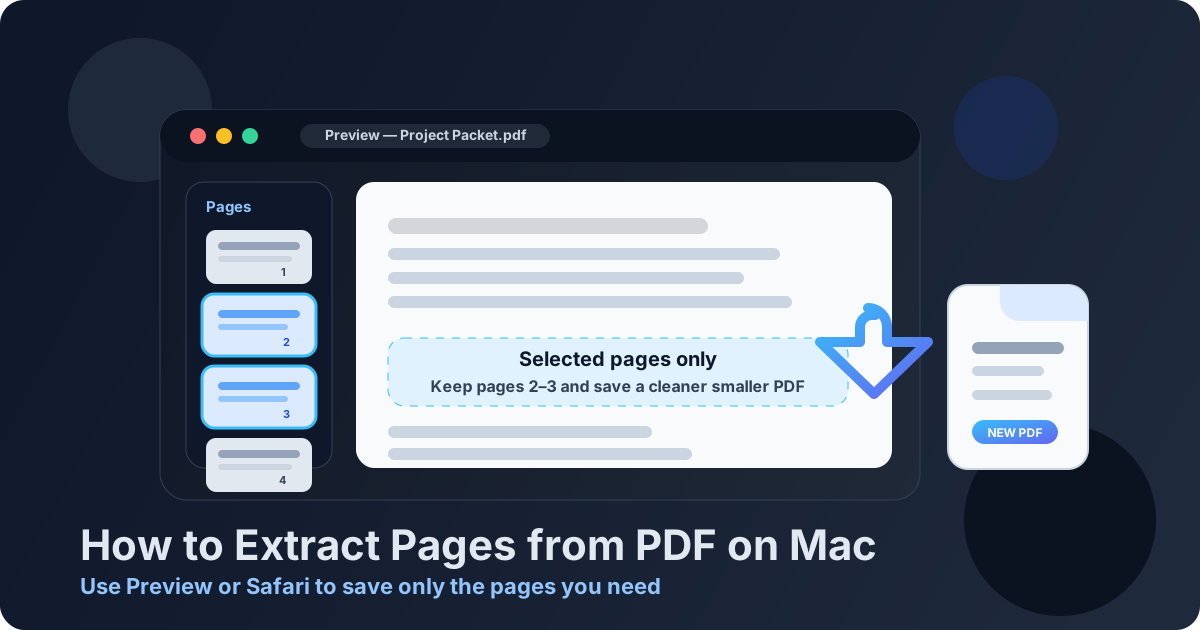
Table of contents
- Quick start: extract PDF pages on Mac in 3 minutes
- Best ways to extract pages from PDF on Mac
- Step-by-step: use Preview on Mac
- Step-by-step: use Safari with LifetimePDF
- Extract pages vs split PDF vs delete pages
- When extracting pages is the smartest move
- Common Mac problems and quick fixes
- Privacy, quality, and file-handling tips
- Related LifetimePDF tools and guides
- FAQ (People Also Ask)
Quick start: extract PDF pages on Mac in 3 minutes
If you already know which pages matter, this is the fastest reliable workflow:
- Open the PDF in Preview on your Mac.
- Turn on View > Thumbnails so you can see the page list.
- Select the pages you want to keep using Shift-click for a range or Command-click for scattered pages.
- Drag the selected thumbnails into a new Preview window, or use a browser-based tool if page ranges are easier for you.
- Save the new smaller PDF with a clear name and open it once before sharing it.
Best ways to extract pages from PDF on Mac
Mac users usually have two good options. The first is Preview, which is built in and works well for straightforward jobs. The second is a browser workflow in Safari, which is often faster when you already know the page numbers you want to keep.
| Method | Best for | Why people choose it |
|---|---|---|
| Preview on Mac | Quick native jobs, visual page selection, short documents | No extra app, already installed, easy for drag-and-drop page extraction |
| Safari + Extract Pages | Exact page ranges, non-consecutive selections, cleaner repeatable workflow | Fast when you know the page numbers and want a dedicated output file |
| Safari + Split PDF | Visual page picking, larger packets, multiple output files | Helpful when thumbnails are easier than typing ranges |
The right choice depends on the shape of the job. If you are keeping pages 4 through 7 from a normal report, Preview is usually enough. If you need pages 1, 3, 8-10 from a large packet, a browser-based extraction tool often feels cleaner. If you need several separate mini-files, split PDF may be the better fit.
Step-by-step: use Preview on Mac
Preview is the native answer most Mac users want first, and for good reason. It is quick, familiar, and usually sitting in your Dock already.
- Open the PDF in Preview.
- Go to View > Thumbnails if the page strip is hidden.
- Select the pages you want to keep.
- Use Shift-click for one continuous page range.
- Use Command-click for separate pages.
- Drag the selected thumbnails onto your desktop or into a new Preview window.
- Save the new file with a useful name, such as
client-contract-signature-pages.pdforreport-pages-12-18.pdf. - Open the smaller file once to confirm the order and page count.
Preview works especially well when you can see the pages you want. For example, if you only need the signature page from a contract, the appendix from a report, or the receipt pages from a month-end packet, visual selection is usually faster than typing page ranges from memory.
The main limitation is that Preview can feel clumsy when the document is long, the pages you need are scattered, or you are doing the same kind of extraction repeatedly. That is where the browser method becomes attractive.
Step-by-step: use Safari with LifetimePDF
If you already know the exact pages you want, a browser workflow can be faster than dragging thumbnails around. It is also helpful when you want a more repeatable process that behaves the same way across different Macs.
- Open Extract Pages in Safari.
- Choose the original PDF from your Mac.
- Enter the pages you want to keep, such as
2-5or1,4,9-11. - Run the extraction and download the smaller PDF.
- Save it to a clear folder, rename it if needed, and open it once before sending it anywhere.
This method is often better when you are working from instructions. If someone told you, “Please send pages 3, 6, and 12-14 only,” typing the ranges is usually calmer than dragging page thumbnails and double-checking each selection visually.
It also helps when you are juggling several versions of a document. Instead of editing the original and hoping you do not overwrite it, you create one fresh output file that contains only the pages you intended to share.
Extract pages vs split PDF vs delete pages
These jobs sound similar, but they solve slightly different problems.
- Extract pages creates one new PDF that contains only the pages you choose.
- Split PDF creates multiple outputs or helps you break a larger document into smaller parts.
- Delete pages edits the document by removing what you do not want.
In real life, extract pages is usually the smartest choice when the final file should contain only a small selected section from a much larger PDF. It is cleaner than deleting thirty unwanted pages from a forty-page packet.
Split PDF is better when you need several outputs, such as one PDF per chapter, one invoice per customer, or one document per exhibit. Delete pages makes sense when you want to keep most of the original document and remove just a few mistakes or blank pages.
Need a different workflow? Use the tool that matches the job instead of forcing one method onto everything.
When extracting pages is the smartest move
Mac users usually search for this when the document in front of them is larger than what they actually need to send. Common examples include:
- Contracts: keep only the signature page or signature block section.
- School or research PDFs: save just the chapter or appendix you need.
- Finance packets: keep only the invoice, statement, or receipt pages that matter.
- Legal or admin files: create a smaller subset before upload or review.
- Application paperwork: submit only the pages an HR, visa, or housing portal requested.
In all of these cases, a smaller extracted PDF is easier to review, easier to upload, and less likely to expose unrelated information. It also makes life easier for the person receiving it because they do not have to hunt through a much larger document to find the pages that actually matter.
Common Mac problems and quick fixes
The pages came out in the wrong order
This usually happens when the selection was made too quickly or when scattered pages were dragged without a final check. Open the smaller PDF immediately and confirm the page order before sending it.
I accidentally changed the original PDF
Work from a copy when the original file matters. A good habit is to keep the source document untouched and save the extracted version under a new filename every time.
The file is still too large
Extraction reduces page count, but it does not always shrink image-heavy documents enough. If the smaller PDF is still bulky, run it through Compress PDF before uploading or emailing it.
I need multiple outputs, not one smaller PDF
That is a split job, not an extract job. Use Split PDF instead.
I kept the wrong pages
This is more common than people admit. The fix is simple: reopen the original PDF, make the selection again more slowly, and review the finished file before sharing it.
Privacy, quality, and file-handling tips
Extracting pages is not just about convenience. It is often the cleaner privacy move. If the original document contains unrelated personal data, old attachments, internal notes, or extra pages that a recipient does not need, sending the full file creates unnecessary risk.
- Keep the original untouched so you always have a clean source.
- Name extracted copies clearly so you do not confuse them later.
- Open the final file once to check page order and content.
- Compress only if needed so you do not add an extra step to every job.
- Protect the file if the extracted pages still contain sensitive information.
The good news is that extracting pages usually does not reduce quality. In most cases, you are simply copying selected pages into a new PDF. That means the smaller file stays crisp while becoming easier to share.
Related LifetimePDF tools and guides
Extracting pages is often just one step in a larger PDF workflow. These tools and guides pair well with it:
- Extract Pages for one clean smaller PDF.
- Split PDF when you need multiple outputs.
- Delete Pages if you are removing a few pages but keeping most of the file.
- Compress PDF if the extracted file is still too large.
- How to Extract Pages from PDF on iPad if you move between Mac and iPad workflows.
- How to Extract Pages from PDF on iPhone for smaller-screen page extraction.
- Scan to PDF on Mac if your workflow starts with paper pages.
FAQ
How do I extract pages from PDF on Mac without Adobe Acrobat?
Use Preview on your Mac. Turn on page thumbnails, select the pages you want, then drag them into a new window or export them as a new PDF. If you prefer a browser-based workflow with page ranges, LifetimePDF's Extract Pages tool is another fast option.
Can I extract non-consecutive PDF pages on Mac?
Yes. In Preview, use Command-click to choose separate page thumbnails. In a browser-based tool, enter page lists such as 1,3,7-9 to keep scattered pages in one smaller PDF.
What is the difference between extract pages and split PDF on Mac?
Extract pages creates one new PDF containing only the pages you choose. Split PDF is better when you want several output files or a more visual multi-part workflow.
Will extracting pages reduce PDF quality on Mac?
Usually no. Extraction normally preserves the original page quality because the pages are copied into a new PDF rather than turned into screenshots or reprinted.
Why should I extract pages instead of deleting pages one by one?
If you only need a small section from a larger PDF, extraction is usually faster and safer. It helps you keep only what matters and reduces the chance of accidentally leaving extra pages in the file.