How to Extract Pages from PDF on iPad: Use Safari, Files & Save a Cleaner Copy
To extract pages from PDF on iPad, open a browser-based Extract Pages tool in Safari, choose the PDF from Files or another app, enter the page numbers you want to keep, then save the new smaller PDF back to Files.
If you only need a signature page, class handout section, invoice range, or a few report pages, that is usually faster than trying to delete everything else on a tablet.
The short answer is simple. The part that actually saves time is knowing how to use Safari and Files together, when the bigger iPad screen makes Split PDF a smarter choice, and how to finish with one clean selected-page copy instead of a pile of almost-identical files.
Fastest path: open LifetimePDF's Extract Pages tool in Safari, keep only the pages you need, save the result to Files with a clear name, and open it once before you send it anywhere.
In a hurry? Jump to Quick start: extract PDF pages on iPad in 3 minutes.
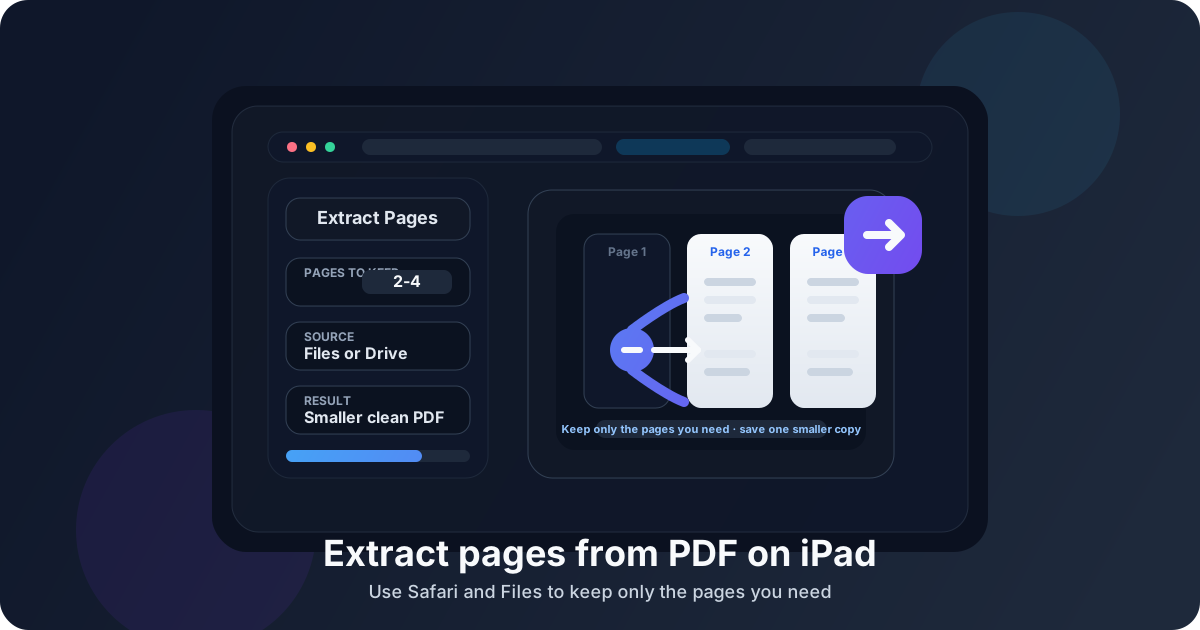
Table of contents
- Quick start: extract PDF pages on iPad in 3 minutes
- The easiest iPad workflow for extracting pages
- Step-by-step: keep only the pages you need
- Extract pages vs split PDF vs delete pages on iPad
- Best iPad use cases for selected-page PDFs
- Common iPad problems and quick fixes
- Quality, privacy, and file-handling tips
- Related LifetimePDF tools for tablet PDF work
- FAQ (People Also Ask)
Quick start: extract PDF pages on iPad in 3 minutes
If you already know which pages matter, this is the fastest practical workflow:
- Open Extract Pages in Safari on your iPad.
- Choose the PDF from Files, Mail, Messages, Google Drive, or another app through the file picker.
- Enter the page numbers or ranges you want to keep, such as
2-4or1,3,8-10. - Run the extraction and download the new smaller PDF.
- Save it back to Files with a clear name and open it once to confirm the correct pages were kept.
The easiest iPad workflow for extracting pages
iPad sits in a useful middle ground. It is more comfortable than a phone because the screen is large enough to preview pages properly, but it still rewards a simple browser workflow instead of a desktop-style multi-window editing session.
- Files is where you keep the source PDF and save the finished smaller copy.
- Safari is usually the quickest place to create the selected-page PDF.
- Mail, Messages, Classroom, Drive, or another app is often where the document first arrived.
That is why people searching for how to extract pages from PDF on iPad often get stuck. They expect a built-in one-tap option inside preview mode, but the better answer is usually a short workflow that turns the job into open, keep, save, check, send.
iPad also gives you one advantage over phone workflows: if you need to look at the original document while entering page ranges, the larger screen makes that much less annoying. You can review the packet, note the page numbers that matter, and finish the extraction without feeling like you are balancing a file task on a keyhole-sized screen.
Step-by-step: keep only the pages you need
Here is the full iPad workflow in a practical order.
1) Decide whether you want to keep pages or remove pages
Start with one simple question: do I only need a small section, or do I need almost the whole file? If you only need pages 3 through 6, extraction is usually the best route. If you need nearly everything except a few unwanted pages, a delete-pages workflow may feel more natural.
2) Save the source PDF to Files if it came from another app
If the PDF arrived through email, messages, a portal download, Google Drive, or a classroom app, save it to Files first when possible. That keeps the source easy to find and reduces the chance that you edit one copy and accidentally send a different one later.
3) Open Extract Pages in Safari
Go to LifetimePDF Extract Pages in Safari. On iPad, the browser route is usually faster than hunting through app-store options, improvising with screenshots, or trying to force a document task into a markup workflow that was never designed for page extraction.
4) Choose the PDF and enter the pages to keep
Pick the file, then enter the pages you want in the new PDF. Common patterns include:
5for a single page2-7for a continuous range1,4,9for separate pages1,3-5,11for a mixed selection
If you do not know the page numbers yet and would rather choose visually, this is one place where Split PDF can be the easier tablet option. The bigger iPad screen makes thumbnail-based decisions feel much more natural than they do on a phone.
5) Extract, save, and rename the result clearly
Download the new PDF and save it back to Files with a name that makes sense later, such as lease-signature-pages.pdf, report-pages-8-11.pdf, or assignment-section-a.pdf. Good naming matters because iPad users often move between app previews, cloud folders, and recents lists where vague names become confusing fast.
6) Open the smaller PDF once before sharing it
Do one quick review in Files. Make sure the correct pages were kept, the order still makes sense, and nothing from the rest of the original packet slipped into the new copy.
Ready to keep only the pages that matter?
Extract pages vs split PDF vs delete pages on iPad
These tasks sound similar, but they solve different problems. Choosing the right one keeps your tablet workflow cleaner.
| Goal | Best tool | Why it fits well on iPad |
|---|---|---|
| Keep only a few pages | Extract Pages | Fast when you already know the page numbers and want one smaller PDF. |
| Choose pages visually or create multiple outputs | Split PDF | The larger iPad display makes thumbnail-based selection more comfortable than it is on a phone. |
| Remove a few unwanted pages but keep most of the file | Delete Pages | Better when you want to trim the original document instead of building a smaller subset. |
In plain English: if you already know the exact pages you want, extraction is usually the fastest answer. If you need thumbnails or several output chunks, split the file. If you are mostly keeping the original and just removing a little, delete pages instead.
Best iPad use cases for selected-page PDFs
Extracting pages on iPad becomes especially useful whenever the full document is bigger, messier, or more private than the recipient really needs.
School and study packets
- Keep only the chapter, worksheet, or assignment pages that matter for class.
- Pull the rubric, reading section, or appendix from a large course packet.
- Share one required section without uploading the entire document to a school portal.
Contracts and approvals
- Send only the signature pages from a long agreement.
- Keep the scope, pricing, or approval appendix instead of the full contract bundle.
- Build a smaller review packet for a client or teammate who does not need every page.
Scanned paperwork and admin tasks
- Separate useful pages from blank scans, duplicates, or upside-down inserts.
- Create one clean PDF from a mixed scan bundle before you run OCR.
- Trim a long report or record set before uploading it from a tablet.
Travel, forms, and mobile handoff
- Keep only the itinerary, ticket, or booking confirmation pages you need on the move.
- Share a single claim section, form section, or supporting page set while away from your desk.
- Prepare a smaller attachment before sending it through email or cloud storage from iPad.
Common iPad problems and quick fixes
I cannot tell which copy is the original
Save the source PDF to Files first and rename the new extracted copy clearly. A name like budget-pages-4-6.pdf beats document-final-new.pdf every time.
I kept the wrong pages
This is usually a page-range mistake, not a tool failure. Recheck whether the PDF uses cover pages, inserted scans, or internal numbering that does not match the actual page count in the viewer.
I need to choose pages visually, not by number
Switch to Split PDF if page thumbnails make the job easier. On iPad, the larger screen makes that route more practical than it is on a phone.
The PDF is still too large after extraction
If the new file is smaller but still awkward for email or upload, run it through Compress PDF after confirming that the right pages were kept.
I need to hide information, not just remove extra pages
Extraction only controls which pages remain. If one kept page still contains information that should not be visible, use Redact PDF on that page before sharing the final copy.
Quality, privacy, and file-handling tips
Most people worry that extracting pages on iPad will make the PDF look worse. In normal workflows, it should not. Extraction usually keeps the original page quality because the selected pages are copied into a new PDF instead of being turned into screenshots or flattened images.
The bigger risk on a tablet is not quality. It is version confusion. Good habits make a huge difference:
- Save the source and finished copies with different names.
- Open the smaller PDF once before sharing it.
- Make sure the extracted copy truly excludes anything the recipient should not see.
- If the file remains sensitive, add a password afterward with PDF Protect.
Related LifetimePDF tools for tablet PDF work
Extracting pages usually sits in the middle of a larger workflow. These tools pair with it well:
- Extract Pages — create one new PDF that keeps only the pages you want.
- Split PDF — choose pages visually or break one file into multiple smaller PDFs.
- Delete Pages — remove a few unwanted pages while keeping the rest of the original.
- Compress PDF — shrink the extracted file for uploads, email, and cloud sharing.
- PDF Protect — add a password after the selected-page version is final.
Best order for most iPad users: decide which pages matter, extract them into a smaller PDF, review the result, then compress or protect the finished copy only if the handoff still needs it.
FAQ: How to extract pages from PDF on iPad
How do I extract pages from PDF on iPad without installing an app?
Open a browser-based Extract Pages tool in Safari, choose the PDF from Files or another app, enter the pages you want to keep, download the new smaller PDF, and save it back to Files. That is usually the quickest no-app workflow on iPad.
Can I extract non-consecutive pages from a PDF on iPad?
Yes. If the tool supports page ranges, you can usually keep scattered pages such as 1,4,7-9 in one smaller PDF. That is useful when only a few pages from a larger packet matter.
What is the difference between extract pages and split PDF on iPad?
Extract pages creates one new PDF containing only the pages you choose. Split PDF is better when you want multiple outputs or when thumbnail-based page picking is easier than typing ranges.
Will extracting pages reduce PDF quality on iPad?
Usually no. Extraction normally preserves the original page quality because the selected pages are copied into a new PDF instead of being turned into screenshots.
Can I extract pages from a PDF that came from Google Drive, Mail, or Files?
Yes. The cleanest route is usually to choose the file through the iPad file picker, save the finished smaller copy back to Files, and then share that edited version onward.