How to Crop a PDF on iPhone: Remove White Margins, Scanner Borders, and Crop Marks Cleanly
To crop a PDF on iPhone, open LifetimePDF's Crop PDF tool in Safari or Chrome, choose the file from Files, Mail, Safari downloads, or Google Drive, adjust the crop area so only the content you want remains, then save the cleaned PDF back to your iPhone.
If the document has huge white margins, dark scanner borders, or visible crop marks, that is usually the fastest no-install fix on iPhone.
That is the short answer. The useful part is knowing when to crop just one page, how not to clip signatures or page numbers on a small screen, and when cropping should happen before OCR, compression, or sharing. On iPhone, the crop itself is straightforward. The mistake people make is trimming too tightly or saving the wrong copy back into Files and then sending the original by accident.
Fastest path: open Crop PDF on your iPhone, trim only the margins or borders you actually want gone, save the result with a clear filename, then move on to OCR, compression, or sharing only if the document still needs more work.
In a hurry? Jump to Quick start: crop a PDF on iPhone in 4 minutes.
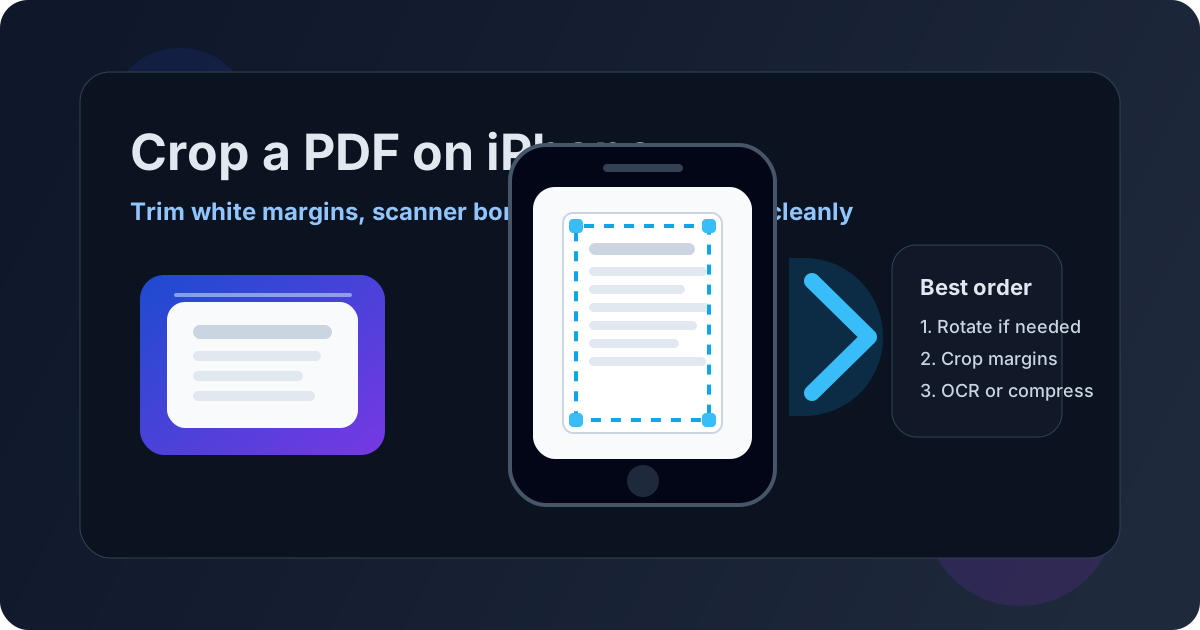
Table of contents
- Quick start: crop a PDF on iPhone in 4 minutes
- The easiest iPhone workflow for cropping PDFs
- Step-by-step: crop a PDF from Files, Mail, Safari downloads, or Drive
- What cropping actually fixes on iPhone
- Crop one page vs the whole PDF on iPhone
- When to rotate, OCR, or compress after cropping
- Common iPhone problems and quick fixes
- Related LifetimePDF tools and guides
- FAQ (People Also Ask)
Quick start: crop a PDF on iPhone in 4 minutes
If you just want the file to stop looking sloppy and you do not want to overcomplicate it, use this workflow:
- Open Crop PDF in Safari or Chrome on your iPhone.
- Choose the file from Files, a saved Mail attachment, Safari downloads, or Google Drive.
- Decide whether you need to crop one page or apply the same crop across several similar pages.
- Trim away the white margins, dark scanner edges, or crop marks without touching the real content.
- Download the cleaned PDF back to your iPhone.
- Open it once and make sure page numbers, signatures, tables, and footer text are still intact.
The easiest iPhone workflow for cropping PDFs
On iPhone, the friction is usually not the crop button. It is where the PDF lives and whether you can save the cleaned version clearly. The file might be in Files, sitting in Safari downloads, attached in Mail, synced through Drive, or created from a Notes scan you exported earlier. Once you know where the source file is and where the corrected copy should go, cropping becomes quick and low-drama.
A browser-based crop workflow works well on iPhone because it keeps the sequence short: choose the file, trim the outer mess, save the result, and move on. That is usually calmer than bouncing between previews, share sheets, and duplicate filenames that give you no clue which copy is actually fixed.
| If the PDF problem is... | Best move on iPhone | Why |
|---|---|---|
| Huge white margins around every page | Crop the pages evenly | It makes the content feel larger, cleaner, and easier to read on a phone without changing the real document content. |
| Dark scanner edges or camera shadows | Crop after checking orientation | You want to remove the noisy outer frame while keeping the real page area intact. |
| Only one page or appendix page looks wrong | Crop just that page | There is no reason to force the same crop onto pages that already look fine. |
| Sideways pages plus messy margins | Rotate first, then crop | It is easier to judge the crop box when the document is already upright. |
| Clean page layout but oversized file | Crop first, then compress if needed | Readability and page structure should be fixed before file-size optimization. |
Step-by-step: crop a PDF from Files, Mail, Safari downloads, or Drive
The steps are simple, but iPhone users benefit from treating the source location seriously. If you skip that part, it becomes easy to clean one copy and accidentally upload another.
1) Start from the right file
If the PDF came from Mail, a portal download, Google Drive, or a Notes export, save it somewhere obvious before you crop it. A named folder in Files is usually better than leaving everything mixed in the default downloads stack.
2) Open Crop PDF in Safari or Chrome
Go to LifetimePDF Crop PDF on your iPhone. Safari fits naturally into Files and the iPhone share sheet, while Chrome is fine too if that is already your normal browser. The important part is using the browser you are most likely to finish the workflow in.
3) Choose the PDF from the iPhone location that makes sense
Pick the file from the place you actually plan to keep working from: Files, a saved Mail attachment, a Safari download, or Google Drive. If the document still exists as separate photos instead of a real PDF, build the PDF first with Images to PDF and crop it after that.
4) Decide what the crop is supposed to remove
Do not drag the crop box blindly. Identify the actual problem first:
- White margins: trim the empty border so the content sits more cleanly on the page.
- Dark scanner edges: remove the noisy outer frame without cutting off stamps, signatures, or page numbers.
- Crop marks or print marks: trim the production marks but keep the intended page content.
- One oversized page in a packet: crop only the page that looks wrong so the rest stay untouched.
5) Apply the crop to the correct page scope
If every page has the same problem, a consistent crop across the document usually looks cleaner. If only one page is messy, crop only that page. Mixed documents are where people overcorrect, so slow down for a second before you apply the crop broadly.
6) Download and verify the corrected copy
Save the result with a filename that tells you what changed, such as contract-cropped.pdf or scan-cleaned.pdf. Then open it once on your iPhone and check the edges of a few pages. If you can still see the important content and the page feels calmer, you are done.
What cropping actually fixes on iPhone
Cropping is not the same as editing text, redacting content, or reorganizing pages. It is mainly about cleaning up the visible page area so the document feels intentional instead of awkward.
Oversized white margins
These often come from scans, exported handouts, or documents that were converted with too much empty space around the content. Cropping makes the text block feel larger and easier to read, especially on smaller iPhone screens.
Dark scanner borders and camera shadows
Flatbed scans and phone-captured pages often bring along shadowy edges, uneven dark frames, or accidental background noise. Cropping removes those distractions and makes the final file look much more deliberate.
Crop marks, trim marks, and print leftovers
Some PDFs were created for print and still show marks around the outside edge. If the recipient only needs the finished page content, cropping those marks away is often the cleanest iPhone-friendly fix.
One page that does not match the rest of the packet
This is common in merged PDFs where most pages are normal but one appendix, screenshot, or inserted scan carries a different amount of empty space. Cropping just that page can make the full packet feel much more polished.
Crop one page vs the whole PDF on iPhone
This is one of the most important decisions in the workflow. Cropping every page is not automatically better. It is only better when the document actually has the same border problem across the whole file.
Crop one page when:
- only one scan page has dark edges
- the cover page has print marks but the rest does not
- one inserted screenshot or form has awkward extra space
- you are fixing a single appendix page in a merged packet
Crop the whole PDF when:
- every page came from the same scanner and has the same outer border problem
- all pages have oversized empty margins that make the file harder to read on mobile
- the PDF was exported with a consistently oversized page area
If you are unsure, start with one page. It is safer to test your crop on a representative page first than to apply the same trim everywhere and discover too late that tables, page numbers, or signatures sit closer to the edge on other pages.
When to rotate, OCR, or compress after cropping
Once the document looks right, the next step depends on what the file is for. iPhone users often try to solve every problem at once, but a calmer order works better.
- Need the page upright? Rotate before you crop.
- Need searchable text? Run OCR after cropping.
- Need a smaller file? Compress the cleaned copy after the page area looks right.
- Need to share or submit the file? Open the corrected copy once before attaching it so you do not send the wrong version.
Doing things in this order keeps the workflow calm. Clean the page area first, then optimize, search, sign, or reorder. It is much easier to make good decisions once the PDF no longer looks cluttered around the edges.
Practical rule: crop first, verify once, then move on to OCR, compression, rotation, or sharing only if the document still needs more work.
Common iPhone problems and quick fixes
I cropped the PDF, but I reopened the wrong version
This is one of the most common iPhone mistakes. Save the cleaned file with a distinct filename and open that exact file once before you send it anywhere.
I removed the margins, but now page numbers or signatures are cut off
That usually means the crop box was set too tight. Go back and leave a little breathing room around the real content. PDFs do not need to be trimmed to the millimeter to look cleaner.
Only one page was messy, but I cropped every page
That usually happens when a document packet contains mixed page types. Restore the original if needed and reapply the crop only to the page or section that actually needs it.
The margins are gone, but the document is still sideways
That is a rotation issue, not a crop issue. Use Rotate PDF so the page opens upright. If the file needs both fixes, rotate first and crop second.
The PDF looks cleaner, but the text is still not searchable
Cropping changes the visible page area. It does not make a scan searchable. If the file is still just an image, run it through OCR PDF next so you can search, highlight, and copy the text.
The PDF looks good now, but it is still too large to upload
Once the page area is fixed, use Compress PDF if the file is still too heavy for email, school portals, court filing systems, or another upload limit. Structure and presentation first, file size second.
Related LifetimePDF tools and guides
- Crop PDF for trimming away white margins, scanner borders, and crop marks
- Rotate PDF for fixing sideways pages before you crop
- OCR PDF for making a cleaned scan searchable
- Compress PDF for reducing file size after cropping
- Images to PDF if your pages are still separate iPhone photos instead of one PDF
- Crop PDF for the broader guide
- Crop PDF Online for the browser-focused version
- Scan to PDF on iPhone if the file started as a phone scan
- How to Rotate a PDF on iPhone if the page direction is wrong before you crop
- How to OCR a PDF on iPhone if the scan still behaves like an image
- Remove Crop Marks from PDF if the outer print marks are the main issue
FAQ
How do I crop a PDF on iPhone without Adobe Acrobat?
Open a browser-based Crop PDF tool in Safari or Chrome on your iPhone, choose the file from Files, Mail, Safari downloads, or Drive, adjust the crop area to remove margins or borders, apply it to the correct page or pages, then save the cleaned PDF back to Files. For most people, that is the fastest no-install workflow.
Can I crop just one page in a PDF on iPhone?
Yes. If only one page has awkward margins, dark scanner edges, or crop marks, crop just that page. That keeps the rest of the document untouched and is especially useful for mixed scan bundles, cover sheets, and appendix pages.
What is the difference between cropping and rotating a PDF on iPhone?
Cropping removes unwanted outer areas such as white margins, scanner borders, or crop marks. Rotating changes the page direction when the PDF opens sideways or upside down. Some files need both, but they solve different problems.
Will cropping remove white margins and dark scanner borders from a PDF?
Usually yes. Cropping is one of the cleanest ways to trim oversized white margins, camera shadows, and print marks while keeping the useful content centered and easier to read.
Should I crop a scanned PDF before OCR on iPhone?
Usually yes. If the page has distracting borders or too much empty space, cropping first can give OCR a cleaner page area to work with. If the page is sideways, rotate first, then crop, then run OCR.