Scan to PDF on iPhone: Best Ways to Turn Notes Scans, Camera Pages, and Files Attachments into One Clean PDF
To scan to PDF on iPhone, use the Notes scanner, Files scanner, or your camera to capture the pages, then save the result as a PDF or combine the images into one PDF with LifetimePDF.
If the file still needs search, copy, or easier sharing, run OCR or compression before you send the final version anywhere important.
That is the short answer, but the useful part is knowing which iPhone route fits the document in front of you. A one-page form, a pile of receipts, a few HEIC photos in your camera roll, and a multi-page Notes scan all reach the same destination in slightly different ways. The goal is not just to create a PDF. The goal is to end up with a PDF that is readable, correctly ordered, searchable when needed, and small enough to share without friction.
Fastest path: scan or capture the pages on iPhone, build one clean PDF, then use OCR or compression only if the finished file actually needs it.
In a hurry? Jump to Quick start: scan to PDF on iPhone in 5 minutes.
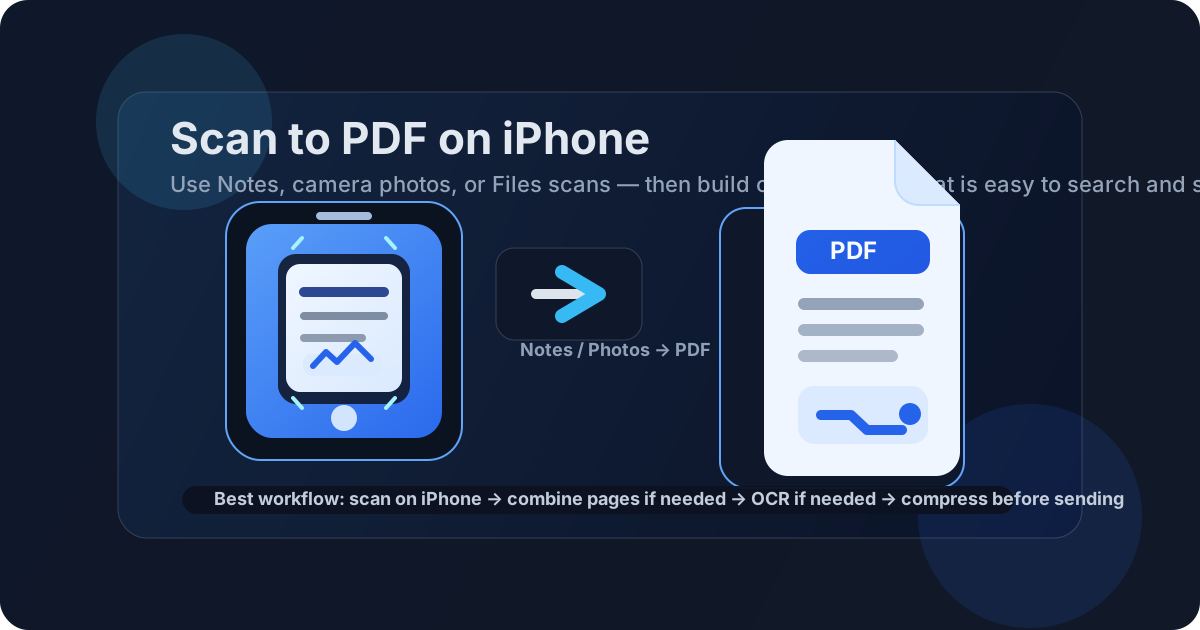
Table of contents
- Quick start: scan to PDF on iPhone in 5 minutes
- Best ways to scan to PDF on iPhone
- Step-by-step: Notes or Files scan to PDF
- Step-by-step: camera photos to PDF on iPhone
- Combine, reorder, rotate, and clean up pages
- How to make an iPhone PDF searchable
- Best iPhone capture tips for clear results
- Common problems and how to fix them
- Compressing, protecting, and sharing the final PDF
- Related LifetimePDF tools and guides
- FAQ (People Also Ask)
Quick start: scan to PDF on iPhone in 5 minutes
If you want the simplest dependable workflow, use this:
- Capture the pages with the iPhone Notes scanner, Files scanner, or your camera.
- If the output is already a clean multi-page PDF, review it and keep going.
- If the output is a set of HEIC, JPG, or PNG files, open Images to PDF and combine them in the correct order.
- If you cannot search or select text inside the finished document, run it through OCR PDF.
- If the file is too large for email, school portals, job applications, or messaging apps, shrink it with Compress PDF.
Best ways to scan to PDF on iPhone
iPhone users usually reach the final PDF through one of three routes:
| Method | Best for | What to do next |
|---|---|---|
| Notes or Files scanner | Forms, letters, invoices, homework, and everyday paper documents | Review the PDF, then OCR or compress if needed |
| Camera photos | Receipts, quick one-off pages, anything you captured in a hurry | Combine the images into one PDF and check page order |
| Existing files in Photos or Files | HEIC images, screenshots, saved scans, or pages shared from another app | Build one clean PDF, remove mistakes, and optimize it for sharing |
My practical take: use whatever capture method is already in your hand. If Notes gives you a good scan, great. If the document lives as photos in your camera roll, that is also fine. The important part is not the first tap. The important part is whether the finished PDF is clean, correctly ordered, searchable when necessary, and small enough to move through the real world without annoyance.
Step-by-step: Notes or Files scan to PDF
If you are starting with the built-in scanner on iPhone, this is usually the fastest route for paper documents. In the Notes app and some Files workflows, Apple already handles edge detection and perspective correction surprisingly well. That means you can start with a decent PDF and focus on whether it is actually ready to send.
- Open the Notes app or the relevant Files workflow and use the document scanner to capture each page.
- Review the pages immediately for cut edges, glare, or pages that slipped out of order.
- If the scan is already a clean PDF, keep it and move to the next step only if the file still needs improvement.
- If the pages need rotation, cleanup, or reordering, use Organize PDF.
- If the file is image-only and you need search or copy to work, run OCR PDF.
This route is often best for contracts, signed forms, letters, expense paperwork, school handouts, and anything else where you want your iPhone to act like a small document scanner instead of a casual camera.
Step-by-step: camera photos to PDF on iPhone
A lot of people searching for scan to PDF on iPhone are not really scanning in the formal sense. They are just taking photos because the paper is in front of them right now and they need a PDF before a deadline. That is completely normal. The trick is finishing the workflow properly instead of leaving the pages trapped as separate images.
- Place the document on a flat surface with even light and as little glare as possible.
- Keep the iPhone parallel to the page so the edges stay square and text stays easier to read.
- Capture each page clearly and confirm that the small text is still readable before moving on.
- If the images are saved as HEIC, JPG, or PNG, upload them to Images to PDF.
- Arrange the pages in order and download one proper PDF instead of sending a pile of separate photos.
This route is especially useful for receipts, ID copies, forms, handwritten notes, travel documents, and the random page someone suddenly asks you to upload. The capture can be casual. The finished PDF should not feel casual.
Combine, reorder, rotate, and clean up pages
Scanning is only the first half of the job. Cleanup is what turns a rough iPhone capture into something that looks deliberate.
- Wrong order: rebuild or reorder the pages before you share the file.
- Sideways pages: rotate them instead of expecting the recipient to tolerate them.
- Blank or duplicate pages: remove them before upload.
- Mixed image formats: combine everything into one consistent PDF instead of sending a messy bundle from Photos and Files.
If you need more control after combining images, use Organize PDF to reorder pages or remove mistakes. This is often the difference between a document that merely exists and one that is actually ready to submit.
If your source pages started as HEIC photos, the workflow is still fine. What matters is the finished PDF, not whether the original images came from Live Photos, a Notes scan, or a regular camera capture.
How to make an iPhone PDF searchable
A lot of iPhone scan workflows stop too early. The file opens, so people assume the job is done. Then they try to search for a name, copy an address, or pull a value into another app and nothing works.
That happens because most iPhone scans are image-only by default. They look like documents, but to software they behave like photographs. OCR fixes that by recognizing the text on each page and adding a real text layer to the PDF.
- Open OCR PDF.
- Upload the iPhone PDF you created.
- Run OCR and download the searchable result.
- Test it with text selection or search before you archive or send it.
If this is a regular mobile workflow for you, the deeper guide at How to OCR a PDF on iPhone is a good companion read.
Best iPhone capture tips for clear results
Better capture habits save time later because you do less cleanup and less rescanning.
- Use good light: bright, even light beats harsh shadows and shiny glare.
- Keep the phone parallel: tilted captures create distorted edges and weaker OCR results.
- Fill the frame without cutting the page: get close enough for readable text but keep all corners visible.
- Stay consistent on multi-page jobs: similar angle and brightness make the final PDF feel much cleaner.
- Prefer readable over oversized: giant image files do not help if the real goal is an easy upload or a clear archive copy.
Higher quality is not the same as better workflow. A huge iPhone PDF full of needlessly heavy page images is harder to email, slower to preview, and more likely to hit upload limits. Aim for clear and practical.
Common problems and how to fix them
The PDF is too large
This usually comes from color-heavy captures, large image pages, or too many pages bundled together. Run the finished file through Compress PDF after scanning.
The text looks readable but search does not work
That is the classic sign that OCR has not been applied yet. Run the document through OCR and test again.
Some pages are sideways or upside down
Fix the orientation before you share the file. It sounds small, but it changes how finished the document feels.
The page order is wrong
Reorder the PDF before sending it anywhere important. A multi-page upload feels messy fast when page 4 lands before page 2.
The iPhone photos look uneven
Retake the worst page in flatter light, keep the phone parallel to the paper, and avoid glossy reflections. Good capture still matters even if you plan to clean the file up afterward.
Compressing, protecting, and sharing the final PDF
Once the iPhone scan is readable and in the right order, think about where it is going next. A PDF for your own archive is one thing. A PDF going to HR, a client, a school portal, a visa system, or a messaging app usually needs one more pass.
- For email or upload portals: compress the file first so it passes size limits.
- For sensitive information: protect the document with PDF Protect.
- For long-term storage: OCR the file so it stays searchable months later.
- For messaging apps: smaller files open faster and are much less annoying for the recipient.
If you mainly share mobile PDFs through chat apps, the guide Compress PDF for WhatsApp is a helpful companion. And if you need to secure the finished file before sending it onward, see how to password protect a PDF on iPhone.
Related LifetimePDF tools and guides
A good iPhone scan workflow usually uses two or three tools, not ten. These are the ones that matter most:
- Images to PDF — best when your iPhone gave you separate page images.
- OCR PDF — best when the PDF needs searchable text.
- Organize PDF — best for fixing order, rotation, or stray pages.
- Compress PDF — best when the scanned file is too large to send.
- PDF Protect — best when the file contains private information.
Related guides that fit the same workflow:
- Scan to PDF on iPhone Without Monthly Fees
- Scan to PDF on iPad Without Monthly Fees
- Scan to PDF on Android
- Scan to PDF on Mac
- How to OCR a PDF on iPhone
Best simple stack: scan on iPhone → build one PDF → OCR if needed → compress if needed.
FAQ (People Also Ask)
How do I scan to PDF on iPhone?
Use the iPhone Notes scanner, Files scanner, or camera to capture the pages. If you end up with separate images, combine them into one PDF, then OCR or compress the result only when the file actually needs extra cleanup.
Can I turn iPhone photos into one PDF?
Yes. Upload the photos in the correct order to an image-to-PDF workflow and download one combined PDF instead of keeping the pages as scattered pictures.
Why is my iPhone PDF not searchable?
Because it is probably image-only. OCR adds a text layer so search, copy, and text selection work like they should.
Can I scan to PDF on iPhone without Adobe Acrobat?
Yes. iPhone can handle the capture stage with Notes, Files, or the camera, and browser-based PDF tools can finish the job with image-to-PDF conversion, OCR, organization, and compression.
How do I make an iPhone PDF smaller for email or WhatsApp?
Compress the final PDF after scanning, especially if it contains large color images or many pages. You can also remove extra pages before sharing it.
Published by LifetimePDF — Pay once. Use forever.