How to Rotate a PDF on iPhone: Fix Sideways Scans, Forms & Receipts in Minutes
To rotate a PDF on iPhone, open LifetimePDF's Rotate PDF tool in Safari or Chrome, upload the file from Files or a saved attachment, choose the page or pages that need correction, and download the fixed copy.
If only one page is sideways, rotate that page only; if the whole file opens the wrong way, rotate the full document and save the corrected PDF back to Files.
That is the short answer. The useful part is knowing what to do when the PDF came from Mail, Notes, Files, or a scan app; when the problem is just one receipt page instead of the whole file; and how to save a clean corrected copy on iPhone without turning a simple orientation fix into an annoying editing session.
Fastest path: open Rotate PDF on your iPhone, fix the sideways or upside-down pages, then crop, OCR, or compress only if the file still needs cleanup.
In a hurry? Jump to Quick start: rotate a PDF on iPhone in 3 minutes.
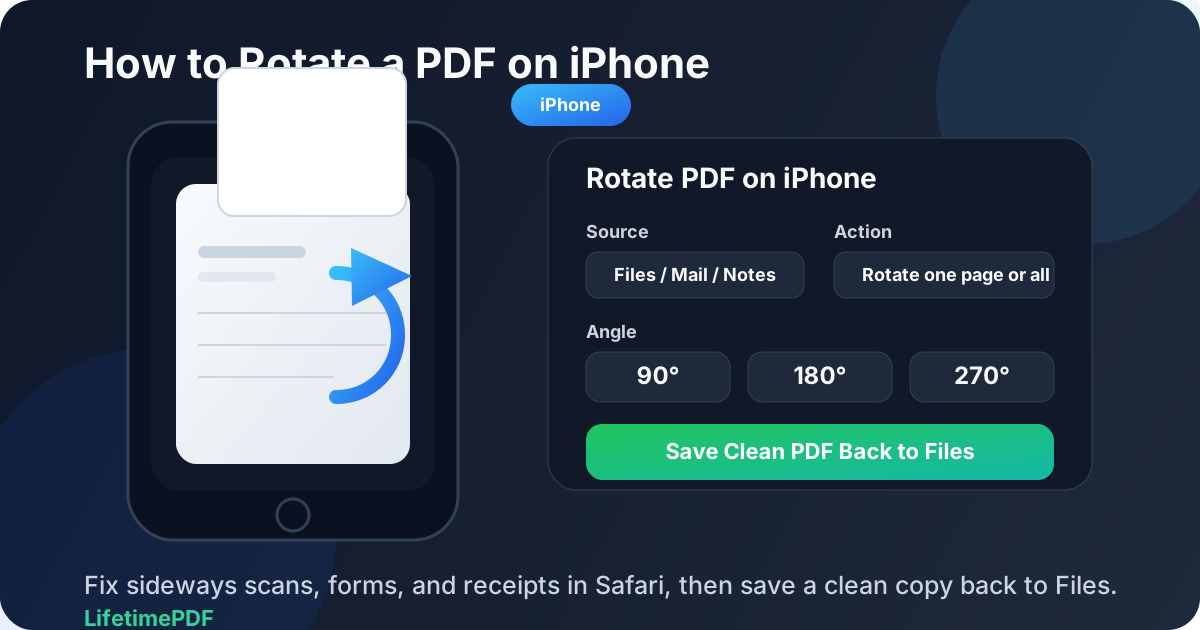
Table of contents
- Quick start: rotate a PDF on iPhone in 3 minutes
- The easiest iPhone workflow for rotating PDFs
- Step-by-step: rotate a PDF from Files, Mail, or Notes
- Rotate one page vs the whole PDF on iPhone
- Common iPhone PDF sources and what to do with each
- Common iPhone problems and quick fixes
- What to do after the PDF is rotated
- Related LifetimePDF tools and guides
- FAQ (People Also Ask)
Quick start: rotate a PDF on iPhone in 3 minutes
If you already have the PDF on your phone and just need to make it readable again, this is the workflow most people want:
- Open Rotate PDF in Safari or Chrome on your iPhone.
- Choose the file from Files, a saved Mail attachment, or a PDF scan you already exported from Notes.
- Rotate the wrong page or pages by 90°, 180°, or 270°.
- If the whole document is wrong, rotate the whole file. If only one page is wrong, rotate only that page.
- Download the corrected PDF back to Files.
- Open it once on your iPhone and make sure the reading direction looks right from beginning to end.
The easiest iPhone workflow for rotating PDFs
On iPhone, the biggest challenge is usually not the rotation itself. It is file handling. The PDF might be sitting in Files, attached in Mail, saved from Safari, scanned in Notes, or exported from another app. Once you have the file in a place you can upload cleanly, rotating it is usually fast.
A browser-based workflow is often the cleanest option because it lets you handle the actual fix directly. You open the file, apply the right rotation, save the corrected copy, and move on. That is usually simpler than bouncing between preview views, temporary attachments, and half-finished versions of the same document.
| Situation | Best move | Why it works |
|---|---|---|
| A single receipt or signature page is sideways | Rotate one page | Keeps the rest of the PDF untouched |
| The entire scan bundle opens the wrong way | Rotate the whole document | Faster than correcting page by page |
| A Notes scan has mixed page directions | Rotate selected pages | Lets each problem page get the right angle |
| You need the file for upload, signing, or sharing right away | Use Safari or Chrome with Rotate PDF | Simple iPhone workflow with a clean corrected output |
In plain English: get the PDF into a clean upload flow, rotate the pages that are facing the wrong direction, then save the finished copy somewhere obvious in Files so you do not accidentally send the original again.
Step-by-step: rotate a PDF from Files, Mail, or Notes
Here is the practical iPhone workflow most people actually need.
1) Start with the file you really plan to use
Before you rotate anything, make sure you are working with the correct PDF. If the document came from Mail, save the attachment first. If it came from Notes, export or share the scan as a PDF you can access in Files. That small habit prevents version confusion later.
2) Open Rotate PDF in Safari or Chrome
Go to LifetimePDF Rotate PDF on your iPhone. A browser workflow is convenient on iPhone because it gives you one clean place to correct orientation and export the finished file.
3) Upload the PDF from Files or another saved source
Choose the PDF from Files, Downloads, iCloud Drive, On My iPhone, or another saved location. If the file is still trapped inside an email or note, saving it first usually makes the rest of the process smoother.
4) Decide whether the problem is one page or the full document
This matters. A lot of PDFs from iPhone scans are mixed. One page is portrait, one is landscape, and one turned upside down when the paper was captured at an awkward angle. Do not rotate the whole document unless the whole document needs it.
5) Apply 90°, 180°, or 270° rotation
Use the option that makes the page upright and comfortable to read on your phone screen:
- 90° for a page that is sideways one way
- 180° for a page that is fully upside down
- 270° for a page that is sideways the other way
6) Save the corrected PDF back to Files
After rotation, download the fixed copy and save it somewhere obvious such as Downloads, a client folder, a travel folder, or a school folder. Give it a clear filename if the original and corrected versions could be confused.
7) Open the new PDF once before sending it
Review the first corrected page, one page in the middle if the file is long, and the last page. That quick check catches most mistakes immediately, including an upside-down page that was rotated the wrong way or one stray page you forgot to fix.
Need a quick correction on your phone? Rotate the PDF first, then only use extra tools if the file still needs cleanup.
Rotate one page vs the whole PDF on iPhone
This is the decision that makes the difference between a clean fix and a frustrating one. Many iPhone PDF problems are page-specific, not document-wide.
Rotate one page when only one page is wrong
This is common with receipts, signatures, medical forms, application pages, and one-page inserts that were scanned or saved at a different angle from the rest of the packet.
Rotate the whole document when every page is wrong
If the PDF opens sideways from the first page to the last page, whole-document rotation is faster and cleaner. This often happens when an entire batch of pages was exported or scanned the wrong way.
Rotate selected pages when the file is mixed
This is the most realistic mobile scan problem. A few pages look normal, a few pages are sideways, and one page is upside down. Selected-page control is what keeps you from over-correcting everything else.
Common iPhone PDF sources and what to do with each
iPhone PDFs usually come from a few recurring places. The source changes the best workflow slightly.
Mail attachments
Save the PDF attachment to Files before rotating it. That gives you a stable working copy and makes it much less likely that you will accidentally send the original uncorrected version later.
Notes scans
Notes is convenient for quick document capture, but multi-page scans can still end up with one or two awkward pages. Share or save the scan as a PDF, rotate the problem pages, then keep the corrected copy in Files where you can reuse it.
Files app documents
If the PDF is already in Files, you are in the easiest situation. Open Rotate PDF, choose the file, correct the orientation, and save the fixed version back to the same folder or a clearly named final folder.
Safari downloads or portal exports
Forms, tickets, school packets, claim documents, and bank or insurance exports often download straight to your phone. If they open sideways, rotate them before you upload, sign, or forward them so the recipient sees a clean file instead of a messy mobile export.
Camera or scan app PDFs
These often create mixed orientation because the phone angle changes slightly between pages. That is why page-by-page rotation matters so much on iPhone.
Common iPhone problems and quick fixes
The PDF looks fine until one page turns sideways
Rotate only that page. This is one of the most common issues with receipts, ID pages, and scanned inserts.
The whole file is upside down
Use a full-document 180° rotation. That is usually the fastest fix when every page was captured or exported in the same wrong direction.
I keep opening the original instead of the corrected copy
Save the rotated PDF with a clear name and put it in a location you can recognize quickly in Files. Good filenames solve a surprising amount of iPhone document confusion.
The PDF is a scan and still hard to search or copy from
Rotate it first, then run it through OCR PDF. Upright pages are usually easier to make searchable than sideways ones.
The pages are upright now, but the scan still looks messy
Use Crop PDF for oversized borders or Compress PDF if the file is too large after the orientation fix.
The PDF is locked
If you are authorized to edit it, unlock the file first with PDF Unlock, rotate the pages you need, then protect the final copy again if necessary.
What to do after the PDF is rotated
Once the orientation is correct, decide whether the document actually needs anything else. A lot of files are finished the moment rotation is done. Others benefit from one extra step.
- Use Crop PDF if the scan has too much border or dead white space.
- Use OCR PDF if the file is scan-based and you want searchable text.
- Use Compress PDF if you need the file to fit an upload limit or send more easily.
- Use Sign PDF after rotation if the real job is getting the form signed and sent back from your iPhone.
The best order for most iPhone users is simple: rotate first, then crop or OCR if needed, then compress only if the final file is still too big.
Good mobile cleanup order: Rotate → Crop → OCR → Compress.
Related LifetimePDF tools and guides
Rotating a PDF on iPhone is often part of a bigger mobile document workflow. These tools pair well with it:
- Rotate PDF — fix sideways and upside-down pages directly in the browser.
- Crop PDF — remove scanner borders or wasted white space after rotation.
- OCR PDF — make rotated scans searchable and selectable.
- Compress PDF — reduce file size for forms, portals, and email attachments.
- Sign PDF — useful when the next step is approval, consent, or a returned form.
Related reading on LifetimePDF: Rotate PDF Online, How to OCR a PDF on iPhone, Scan to PDF on iPhone, and How to Sign a PDF on iPhone.
FAQ: How to rotate a PDF on iPhone
How do I rotate a PDF on iPhone?
Open a browser-based Rotate PDF tool in Safari or Chrome, upload the PDF from Files or a saved attachment, rotate the page or pages that are facing the wrong direction, then download the corrected file back to your iPhone.
Can I rotate only one page in a PDF on iPhone?
Yes. If only one page is sideways, rotate that page only. This is common with receipts, scanned inserts, and one awkward signature page inside an otherwise normal PDF.
What should I do if my Notes scan is sideways?
Save or share the scan as a PDF first, then upload it into Rotate PDF, fix the page orientation, and save the corrected version back to Files so you can use or share the clean copy.
Will rotating a PDF on iPhone reduce quality?
Normally no. Rotation is for orientation correction, not quality reduction. It is still worth checking small text, stamps, signatures, and chart labels once before sending the final PDF onward.
Should I rotate a scanned PDF before OCR on iPhone?
Yes. Rotating first usually gives OCR a cleaner starting point because the text is already facing the correct direction before the searchability step happens.