Rotate PDF Online: Fix Sideways, Upside-Down, and Mixed-Orientation Pages Fast
To rotate a PDF online, upload the file to LifetimePDF's Rotate PDF tool, choose the affected pages, apply 90°, 180°, or 270° rotation, and download the corrected copy.
That is the quickest way to fix sideways scans, upside-down forms, and mixed-orientation documents without reinstalling software, reprinting pages, or rebuilding the PDF from scratch.
Rotation sounds tiny until you hit a file that is annoying on every page turn. One scan is sideways, one appendix is upside down, one receipt is landscape, and suddenly a perfectly normal PDF becomes miserable to review, print, sign, or upload. The good news is that this is usually one of the fastest PDF fixes you can make. When you rotate the right pages first, the rest of the workflow gets cleaner too.
Fastest path: open LifetimePDF's Rotate PDF tool, fix the pages that are facing the wrong direction, then crop, OCR, or compress only if the file still needs cleanup.
Need the short version? Jump to Quick start: rotate a PDF in under 2 minutes.
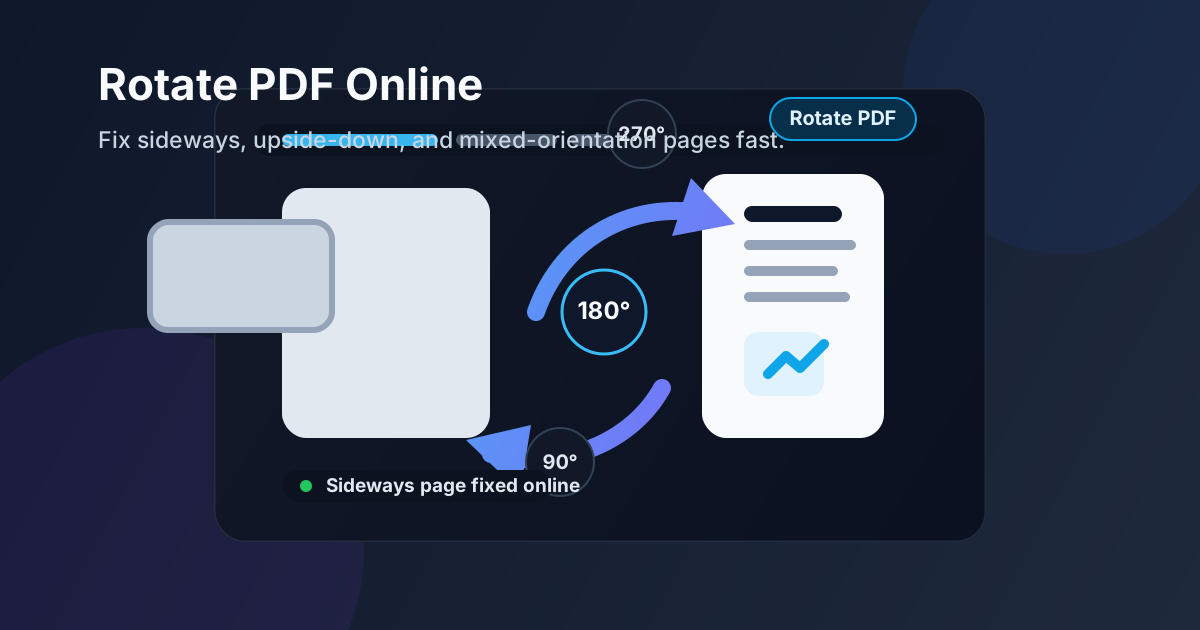
Table of contents
- Quick start: rotate a PDF in under 2 minutes
- When rotating a PDF online is the right fix
- Rotate one page vs the whole document
- Step-by-step: how to rotate a PDF with LifetimePDF
- What 90°, 180°, and 270° actually fix
- Scanned PDFs, phone scans, and mobile workflows
- Will rotating affect quality, text, or file size?
- Best cleanup workflow after rotation
- Related LifetimePDF tools and guides
- FAQ (People Also Ask)
Quick start: rotate a PDF in under 2 minutes
If your goal is simply make this file readable again, this is the workflow most people need:
- Open Rotate PDF.
- Upload the PDF that contains sideways or upside-down pages.
- Select the page, page range, or full document that needs correction.
- Apply 90°, 180°, or 270° rotation.
- Preview the result once so the page order and orientation feel natural.
- Download the corrected PDF.
When rotating a PDF online is the right fix
Rotating is the right move when the document content itself is fine, but the reading direction is wrong. That is extremely common with scans, merged packets, exported reports, and camera-based document captures.
Common situations where rotation helps immediately
- Scanned paperwork: one or two pages fed into the scanner sideways.
- Phone scans: receipts, notes, IDs, or forms were photographed in the wrong orientation.
- Merged PDFs: pages from different sources ended up facing different directions.
- Slide or dashboard exports: wide pages look awkward or upside down when inserted into a portrait document.
- Signatures and forms: a page is readable, but painful to review, fill out, or sign until it is turned correctly.
If the page is merely zoomed badly, cropped poorly, or too small to read, rotation alone may not solve everything. But when the file is literally facing the wrong way, rotating first is usually the cleanest fix.
Rotate one page vs the whole document
This decision matters more than people think. A lot of PDF frustration comes from applying a whole-document fix to a page-specific problem.
| Situation | Better choice | Why |
|---|---|---|
| One signature page is sideways | Rotate one page | Keeps the rest of the packet untouched |
| Every page opens upside down | Rotate the whole document | The problem is consistent across the file |
| Scanned bundle with mixed orientations | Rotate selected pages | Lets each problem page get the right angle |
| Landscape appendix inside a portrait report | Rotate only the appendix pages | Preserves normal reading flow for the main report |
If you are not sure, scan the page thumbnails first. When you see a repeating pattern such as every page is 90° left, full-document rotation makes sense. If the problem appears only on scattered pages, page-by-page control is safer.
Step-by-step: how to rotate a PDF with LifetimePDF
1) Open the tool
Go to LifetimePDF Rotate PDF. It runs in the browser, so you can fix orientation problems without desktop software or a long install cycle.
2) Upload the PDF you actually need to use
Start with the final or near-final file rather than an older draft. That avoids repeating the same cleanup later on the version you actually plan to print, upload, or send.
3) Find the pages that are wrong
Look for pages that force you to tilt your head, rotate your laptop, or zoom awkwardly. Common offenders are signature pages, receipts, appendices, wide charts, and pages inserted from scans or phone photos.
4) Apply the right rotation
Use the smallest correction that makes the page feel natural. For most files, that means one of these three moves:
- 90°: for a page that is lying on its side
- 180°: for a page that is completely upside down
- 270°: for the opposite sideways direction when 90° turns it the wrong way
5) Preview once before downloading
Scroll through the corrected result briefly. You are checking for two things: the page now reads naturally, and the transition into the next page still feels sensible.
6) Finish the cleanup only if needed
Some PDFs are fixed the moment rotation is done. Others improve even more after a quick crop, OCR pass, or compression step. The key is not to add extra work unless the file still feels messy.
Want the fastest correction? Rotate first, then decide if the PDF actually needs anything else.
What 90°, 180°, and 270° actually fix
The numbers sound technical, but in practice they are simple once you match them to the visual problem.
Use 90° when the page is sideways one way
This is common when a page was scanned in landscape or inserted from another document. If 90° makes it worse, try 270° instead.
Use 180° when the page is upside down
This is the easiest case. The top of the page is at the bottom, so a full flip usually solves it immediately.
Use 270° when the page is sideways the opposite way
Think of 270° as the other sideways correction. If a 90° turn makes the page face the wrong edge, 270° is usually what you meant.
Scanned PDFs, phone scans, and mobile workflows
Rotation is especially useful with scan-heavy files because orientation problems tend to cluster there. A printer scanner, a phone camera, and a coworker who merged files in a hurry can all create the same result: a PDF that technically opens, but feels clumsy on every page.
Scanned documents
Contracts, school records, receipts, onboarding packets, invoices, and paper archives often contain a few pages that went through the feeder the wrong way. Fix the reading direction first, then decide whether you also need OCR PDF to make the file searchable.
Phone-based scans
Phone captures are convenient, but they frequently mix portrait and landscape pages in the same PDF. That is why page-by-page rotation matters. You do not want to force one angle onto the entire file when each image came from a slightly different camera position.
Working on mobile
A browser-based tool is often enough for quick fixes on a phone or tablet. If you are traveling or away from your desktop, you can upload the file, correct the orientation, and download the cleaned copy without installing a dedicated app.
Will rotating affect quality, text, or file size?
In normal use, rotating a PDF does not exist to reduce quality. The point is orientation correction, not compression. Text should still read sharply, and images should remain clear after the page is turned the right way.
What usually stays the same
- Readability: often improves because the page is finally facing the right direction
- Text sharpness: should remain stable in normal workflows
- Charts and signatures: usually become easier to inspect, not worse
- File purpose: you are correcting layout, not changing the content itself
What you should still check
- tiny footnotes or labels,
- signature blocks,
- tables with many columns,
- and print preview if the document will be printed or filed.
If the file is huge or scan-heavy, rotation may be only the first step. After that, you may want Compress PDF for easier sharing or Crop PDF to remove dead space.
Best cleanup workflow after rotation
Rotation is often the first move in a better overall PDF workflow. Once the page is upright, it becomes much easier to judge what the document still needs.
- Rotate PDF to fix orientation.
- Crop PDF if the page still has oversized margins, scanner borders, or wasted white space.
- OCR PDF if the file is scan-based and you want searchable or selectable text.
- Compress PDF if the cleaned file is still too large for email, portals, or upload limits.
That order works well because each step makes the next one easier. An upright page is easier to crop correctly, easier to recognize with OCR, and easier to review before you compress anything.
Good default chain: Rotate → Crop → OCR → Compress.
Related LifetimePDF tools and guides
If you are fixing document orientation regularly, these tools usually pair well with Rotate PDF:
- Rotate PDF for the orientation fix itself
- Crop PDF for oversized scan borders and blank margins
- OCR PDF for searchable text after scan cleanup
- Compress PDF for easier emailing and uploads
- Extract Pages if you only need the corrected section
Related reading on LifetimePDF: Rotate PDF Pages Online, Rotate Scanned PDF Online, Rotate PDF 90 Degrees Online, Rotate PDF 180 Degrees Online, and Rotate Portrait PDF to Landscape Online.
Published by LifetimePDF — Pay once. Use forever.
FAQ (People Also Ask)
How do I rotate a PDF online?
Upload the PDF to an online rotation tool, choose the page or pages that need to change, apply 90°, 180°, or 270° rotation, then download the corrected file.
Can I rotate only one page in a PDF?
Yes. That is one of the most useful parts of a good Rotate PDF tool. It lets you fix a single page, a selected range, or the whole document without over-correcting the rest of the file.
Will rotating a PDF reduce quality?
Normally no. Rotation is meant to correct orientation, not lower resolution. It is still worth checking small text, signatures, tables, and print preview before you send the final file onward.
What rotation should I use for an upside-down PDF?
Usually 180°. If the page is sideways rather than upside down, 90° or 270° will usually be the correct move instead.
Should I rotate a scanned PDF before OCR?
Yes. Rotating first usually helps OCR and later cleanup because the text is facing the right direction before you try to make it searchable.