Rotate Portrait PDF to Landscape Online: Give Wide Tables, Plans & Slides Room to Breathe
Yes — you can rotate a portrait PDF to landscape online by selecting the pages that need more horizontal space, applying a 90° or 270° turn, and downloading the corrected file in minutes.
The important part is rotating only the pages that become easier to use when wide, such as tables, plans, labels, and slide-style layouts, instead of turning every normal portrait page sideways just for visual consistency.
This task usually appears when a PDF is technically readable but practically awkward. A shipping label feels cramped, a spreadsheet export wraps badly, a floor plan needs width, or a slide deck was saved as tall pages that never should have stayed that way. The fix is simple when you separate pages that are merely narrow from pages that genuinely work better in landscape.
Fastest path: Use LifetimePDF's Rotate PDF tool to widen the affected pages, then crop, OCR, or compress the file if it still needs cleanup.
In a hurry? Jump to Quick start: rotate portrait pages to landscape in under a minute.
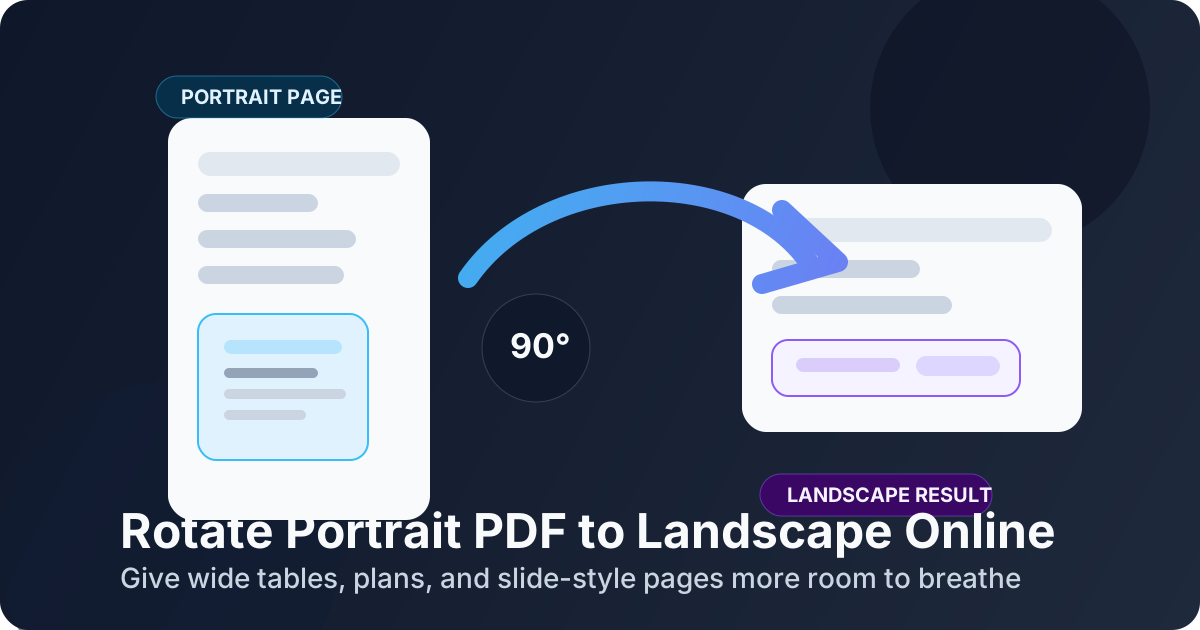
Table of contents
- Quick start: rotate portrait pages to landscape in under a minute
- Portrait page or cramped layout: what problem are you actually solving?
- When rotating to landscape is the right move
- When you should keep the page portrait
- Step-by-step: rotate a portrait PDF to landscape online
- How to fix mixed-orientation PDFs without breaking the good pages
- Best use cases: tables, labels, plans, reports, and slide exports
- How to keep the rotated PDF readable on screen and on paper
- Best workflow after rotation: crop, OCR, compress, extract
- FAQ (People Also Ask)
Quick start: rotate portrait pages to landscape in under a minute
If you already know which pages need more width, the workflow is straightforward:
- Open Rotate PDF.
- Upload the file.
- Identify the pages that should become landscape.
- Rotate only those pages 90° or 270° until the content reads naturally left to right on a wide page.
- Download the corrected PDF and preview it once at normal zoom.
Portrait page or cramped layout: what problem are you actually solving?
A lot of people search for this because the PDF "looks wrong," but there are two very different situations hiding inside that feeling. Sometimes the page is simply facing the wrong direction. Other times the page is upright, but the content feels compressed because it really needs a landscape layout.
| What you see | What it usually means | Best action |
|---|---|---|
| Normal text already reads fine | The page is probably meant to stay portrait | Leave it alone |
| Columns, labels, or charts feel squeezed | The content may need more horizontal space | Rotate to landscape and preview |
| A spreadsheet export is wrapping badly | The page was likely saved too tall | Rotate to landscape |
| A wide page is already readable as intended | The layout may already be correct | Keep landscape or keep current orientation |
The real goal is not uniformity. It is usability. If landscape makes the page easier to scan, easier to print, or easier to review, then it is the right move. If it only makes the file look more "consistent" while harming readability, skip it.
When rotating to landscape is the right move
Landscape is most helpful when the page contains information that depends on width more than height. Common examples include:
- Wide tables and spreadsheet exports that become easier to read when columns have room.
- Shipping labels, packing slips, or barcode layouts that were exported too narrowly.
- Floor plans, seating charts, or diagrams that need horizontal space to stay legible.
- Slide-style pages and presentation exports where landscape matches the intended viewing format.
- Report appendices with side-by-side comparisons, schedules, or matrices.
When you should keep the page portrait
Rotating to landscape is not automatically an upgrade. Many pages are already right as they are, and forcing them wide only makes them awkward.
- Letters, agreements, and standard forms usually belong in portrait.
- Signature pages often print and review more naturally upright.
- Text-heavy pages can become visually strange when widened with no real benefit.
- Documents meant for phone reading may become harder to scroll if a normal page is turned sideways without a strong reason.
The easiest mistake is rotating pages just because one section of the PDF is wide. Mixed files are normal. One appendix can be landscape while the rest of the document stays portrait, and that is often exactly what readers need.
Step-by-step: rotate a portrait PDF to landscape online
Step 1: Open the Rotate PDF tool
Start with LifetimePDF Rotate PDF. Because it runs in the browser, you can use it from desktop or mobile without installing a full PDF editor for a quick orientation fix.
Step 2: Upload the PDF and scan the thumbnails
Before rotating anything, inspect the file. Check whether the issue affects one page, a recurring section, or a set of appendices. This matters because most real-world PDFs are mixed documents, not single-layout files.
Step 3: Decide which pages truly need width
Ask a blunt question: will this page be easier to use in landscape? If the answer is yes because the content is wide, rotate it. If the answer is no because the page already reads naturally, leave it portrait.
Step 4: Rotate the affected pages
Use the rotate controls until the page becomes a comfortable landscape view. In most cases:
- 90° fixes the page one way
- 270° fixes it the other way
- 180° is useful only if the page is upside down, not if it simply needs width
Step 5: Preview before downloading
Zoom in on table headers, labels, legends, footnotes, and anything near the page edges. A page can be technically landscape and still be a bad decision if the content now prints oddly or looks cramped after rotation.
Step 6: Download the corrected file
Save the PDF once the page is easier to read. If the file still has black borders, odd margins, or scan noise, use cleanup tools next rather than starting over.
Need the fix right now?
How to fix mixed-orientation PDFs without breaking the good pages
Most people do not need to rotate an entire PDF. They need to repair a mixed file containing portrait text pages, landscape appendices, charts, labels, or slide exports. That is where page-level control matters most.
- Rotate only the obvious problem pages: do not widen the whole file just because one section needs it.
- Keep standard pages upright: normal reading pages should stay easy to review and print.
- Review the transitions: scroll through the final PDF once so it feels natural from page to page.
- Group related cleanup tasks: rotate first, then crop, OCR, or compress as needed.
This is usually much cleaner than rebuilding the PDF from source files, taking screenshots, or printing and rescanning wide pages just to force a different orientation.
Best use cases: tables, labels, plans, reports, and slide exports
Landscape rotation is most useful when the page was always trying to be wide, but the PDF does not reflect that well.
Wide tables and schedules
Reports with many columns often feel cramped in portrait. If column names wrap awkwardly or line items become hard to compare, landscape usually improves usability fast.
Labels, slips, and barcode pages
A shipping label or packing slip can look oddly squeezed when saved in a tall layout. Rotating to landscape often better matches the physical document shape.
Plans, maps, and diagrams
These pages usually need room for left-to-right detail. Landscape can make annotations, legends, and layout relationships much easier to scan.
Presentation slides and exported dashboards
Slides are naturally wide. If a deck or dashboard export ended up as tall pages, rotating to landscape often restores the intended reading experience.
Appendices inside a mostly portrait report
This is one of the most common real-world cases. Keep the narrative pages in portrait, widen only the comparison charts or schedules, and let the document use both orientations where each one helps.
How to keep the rotated PDF readable on screen and on paper
Rotation does not usually hurt image quality, but readability can still suffer if the page was not a good landscape candidate or if later printing is ignored.
- Check normal zoom first: if the page only works at 175% zoom, it may still need cleanup.
- Preview for printing: make sure margins, headers, and scale still behave sensibly on paper.
- Crop dead space: use Crop PDF if borders or blank margins waste the width you just gained.
- Run OCR after rotation: upright content is easier to recognize if the file is scan-based.
- Keep the human test in mind: if someone else can open the page and understand it immediately, the rotation did its job.
| Situation | Recommended workflow |
|---|---|
| Cramped report table | Rotate to landscape → preview headers → crop if needed |
| Plan or diagram page | Rotate to landscape → check detail at normal zoom → compress if large |
| Wide scanned appendix | Rotate to landscape → crop → OCR |
| Slide export | Rotate to landscape → review page flow → extract only needed pages if sharing |
Best workflow after rotation: crop, OCR, compress, extract
Rotation is often the first cleanup step, not the last. Once the page is facing the right way and using width properly, the next task becomes much clearer.
- Crop PDF — remove oversized margins or scan borders after widening the page.
- OCR PDF — make scan-based wide pages searchable once the orientation is correct.
- Compress PDF — shrink a heavy report or plan set for email and upload portals.
- Extract Pages — send only the wide appendix or diagram pages someone actually needs.
Related reading on LifetimePDF: Rotate Landscape PDF to Portrait Online, Rotate PDF 90 Degrees Online, Rotate PDF 270 Degrees Online, and Rotate PDF Online Free.
Need to make a cramped PDF easier to read fast?
Best cleanup chain for wide scan-heavy pages: Rotate → Crop → OCR → Compress.
Published by LifetimePDF — Pay once. Use forever.
FAQ (People Also Ask)
How do I rotate a portrait PDF to landscape online?
Upload the PDF to an online rotator, choose the pages that should become landscape, apply a 90° or 270° turn, preview the result, and download the corrected file.
When should I rotate a portrait page to landscape?
Rotate to landscape when the page contains wide content that benefits from extra horizontal space, such as tables, plans, labels, schedules, or slide-style layouts. Keep ordinary text pages in portrait when they are already easy to read.
Can I rotate only certain pages instead of the whole PDF?
Yes. That is usually the safest choice for mixed documents because it widens only the pages that need it while leaving normal portrait pages unchanged.
Will rotating a PDF to landscape reduce quality?
Normally no. Rotation changes orientation rather than intentionally lowering resolution, but you should still preview tiny text, table headers, and print layout before sharing the final PDF.
Should I rotate before OCR or compression?
Yes. It usually helps to rotate first, then crop if needed, then run OCR or compression afterward. Orientation fixes early in the workflow make later cleanup much easier.