How to Check PDF Tab Order on Mac: Preview, Acrobat, and Keyboard Flow Before You Share
To check PDF tab order on Mac, open the final form in Preview, Acrobat, or the same viewer your users will actually use, click into the first field, and move through the form with Tab and Shift + Tab so you can catch jumps into the wrong box, signature block, or page before you share it.
If focus skips ahead, loops strangely, or only makes sense when you stop using the keyboard and start clicking manually, the form needs cleanup before it reaches a real user.
That is the short Mac answer. The useful answer is that tab-order problems usually hide in ordinary-looking forms: onboarding packets, approvals, contracts, patient intake files, volunteer applications, quote requests, and signature workflows that feel calm in Preview while the keyboard path underneath is quietly chaotic. On Mac, that often shows up when a PDF looks fine in Mail preview or Finder Quick Look, the first few fields behave, and then the cursor suddenly jumps into a footer, a second signer section, or page three for no sensible reason.
Fastest practical path: save the real Mac copy, test the first field with Tab, spot-check signatures and page transitions with Shift + Tab, repair the messy section, then retest the final file before anyone else touches it.
In a hurry? Jump to quick start: check PDF tab order on Mac in about 6 minutes.
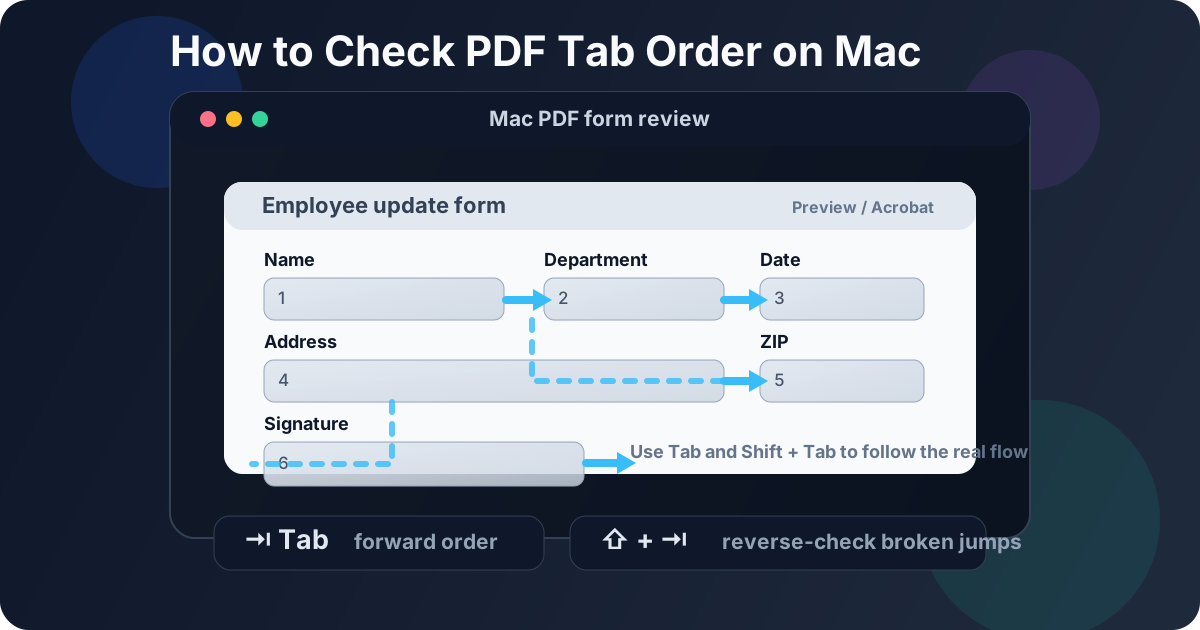
Table of contents
- Quick start: check PDF tab order on Mac in about 6 minutes
- What you are really checking on Mac
- Where Mac users get misled
- Step-by-step: how to check PDF tab order on Mac
- Fast signs that the form flow is broken
- Tab order versus reading order
- When to rebuild the form instead of patching it
- Related LifetimePDF tools and guides
- FAQ
Quick start: check PDF tab order on Mac in about 6 minutes
If your real goal is simply tell me whether this Mac form will behave properly for keyboard users, use this order:
- Open the exact PDF you plan to email, sign, submit, upload, or archive, not only the temporary preview inside Mail, Safari, Finder Quick Look, or an iCloud Drive panel.
- Click into the first field a normal user should complete.
- Press Tab through the page and confirm focus follows the visible order of names, dates, checkboxes, dropdowns, initials, and signatures.
- Press Shift + Tab through a few key sections too, especially around side-by-side fields, signatures, and page breaks.
- If focus jumps into the wrong section, use PDF Field Editor to repair the messy fields instead of telling users to click around the problem manually.
- Run one more keyboard-only pass before you share the repaired file.
What you are really checking on Mac
Checking PDF tab order on Mac is not just asking whether the form fields exist. The more useful question is whether keyboard focus moves through those fields in a sequence that matches how a real person would complete the document.
In practice, that means paying attention to three things:
- Logical forward flow: Tab moves through the fields in the order the form visually suggests.
- Sane reverse flow: Shift + Tab can move backward without suddenly jumping into an unrelated section.
- Role-aware sequencing: names, dates, approvals, acknowledgments, and signatures appear when they should, not two sections too early.
Good outcome
The cursor follows the same path a calm human would use, and the form feels almost invisible because the keyboard flow makes sense.
Warning outcome
The form looks tidy in Preview or Acrobat, but Tab jumps into a footer, another column, a signature block, or the next page before the current section is done.
Typical root cause
The template was copied, fields were inserted out of sequence, pages were rearranged later, or a partly rebuilt form kept old field order underneath a newer layout.
Where Mac users get misled
Mac gives you several fast ways to open a PDF, but quick access creates false confidence. A form can look organized in Preview, Acrobat Reader, Mail preview, Finder Quick Look, or a file opened from iCloud Drive and still have an irritating keyboard path underneath.
| Mac viewing path | What it is good for | What it cannot safely prove |
|---|---|---|
| Preview or another browser preview | Confirming the form opens, loads, and broadly looks right on a Mac. | That the keyboard path still follows a sensible field sequence after the first few boxes. |
| Acrobat Reader visual review | A stronger second opinion when you want to inspect a denser form packet more carefully. | You still need actual Tab and Shift + Tab testing to prove the field flow works for real users. |
| Mail, Quick Look, Safari, or iCloud preview | Useful for a fast first pass and confirming you are opening the right attachment. | Those previews can hide whether the final downloaded copy still has a healthy focus order. |
| Keyboard-only form test | Revealing whether the actual focus path survives outside the prettiest visual view. | It will not explain every structural cause, but it tells you quickly whether the form is safe to share. |
Step-by-step: how to check PDF tab order on Mac
This workflow gives you a dependable answer without turning a quick Mac check into a giant rebuild project.
Step 1: Start with the final Mac copy
Review the exact file you plan to send onward. If the PDF is still living inside Mail preview, Safari preview, Quick Look, Messages, or an iCloud browser tab, save the real copy first. A tab-order review only matters when you inspect the same file that will actually leave your machine.
Step 2: Click the first real field and let the keyboard take over
Do not guess from the layout. Click the first field a person should complete, then stop using the mouse for a moment. Press Tab and watch where focus goes next. Good Mac forms make the cursor feel boring. Broken ones make the cursor feel opinionated.
Step 3: Spot-check the sections that usually fail first
On Mac, these are the places where tab order most often reveals itself as messy:
- side-by-side name and address columns,
- date fields that sit beside checkboxes or dropdowns,
- approvals and signature sections,
- multi-page packets where the next field should continue naturally on the next page,
- forms that were adapted from older templates or imported from another system,
- documents with one signer section, then a second signer or witness section later.
Step 4: Reverse the path with Shift + Tab
Backward navigation matters more than many teams realize. Users go backward to fix a date, change a checkbox, correct a typo, or revisit a signature field. A form can look acceptable when moving forward and still feel chaotic in reverse. Shift + Tab is where many subtle Mac tab-order failures finally show themselves.
Step 5: Separate field existence from field sequence
A PDF can have real fillable fields and still have bad tab order. If you are not sure whether the problem is missing fields or a broken sequence, pair this workflow with How to Check if a PDF Has Fillable Fields on Mac. That guide answers a different question: whether the form is interactive at all. This guide answers whether the interaction path is sensible once those fields exist.
Step 6: Repair the field order instead of explaining it away
If focus jumps into the wrong section, use PDF Field Editor to repair the field sequence or rebuild the affected area. Avoid instructions like just click the signature box manually when the cursor goes weird. That is not a workflow. It is an apology disguised as a workaround.
Reliable sequence: final Mac copy → Tab through the real fields → reverse key sections with Shift + Tab → repair the broken area → retest the finished file before sharing.
Fast signs that the form flow is broken
These patterns matter in real Mac form work, not only in theory.
| What you notice | What it usually means | Best next move |
|---|---|---|
| Tab jumps to a signature too early | Fields were probably created or copied in the wrong sequence. | Reorder that section before the file reaches signers. |
| The cursor lands in another column before this one is finished | The field order does not match the visual layout. | Repair the column sequence and retest the page. |
| Shift + Tab feels stranger than Tab | The reverse path is exposing hidden sequence problems. | Do not ignore it just because forward movement looked mostly fine. |
| The form behaves on page one, then breaks later | Later pages were likely edited, inserted, or rebuilt differently. | Test middle and last sections, not only the opening page. |
| Everyone ends up clicking manually after a few fields | The form is forcing workarounds instead of providing a clean keyboard path. | Treat the problem as real and fix the field order upstream. |
Healthy default
If a Mac form only feels usable once people abandon the keyboard and start hunting with the mouse, the tab order is not healthy enough yet.
Tab order versus reading order
These problems are related, but they are not the same thing. Mixing them up wastes time.
| Question | Tab order | Reading order |
|---|---|---|
| What does it control? | Keyboard focus through interactive fields | How text content is read, copied, or extracted |
| Typical failure | The cursor jumps to the wrong field, column, signature area, or page | Paragraphs, columns, tables, or sidebars come out in the wrong sequence |
| Best first test | Tab and Shift + Tab through the actual form | Inspect copied or extracted text outside the layout |
| Useful LifetimePDF companion | Check PDF Tab Order | How to Check PDF Reading Order on Mac |
If your problem is about forms, signers, and field completion, tab order is the right lens. If your problem is about columns, paragraphs, sidebars, or copied text, you are closer to reading order instead.
When to rebuild the form instead of patching it
Not every Mac tab-order problem deserves the same response. The useful question is whether the form is close enough to healthy that a small repair makes sense, or whether the structure is messy enough that a rebuild is cheaper and calmer.
Patch lightly when
- one small section jumps out of sequence but the rest of the form behaves normally,
- the issue is local to one date field, one checkbox row, or one signature area,
- you can repair the order quickly and then retest the same final Mac copy.
Rebuild when
- multiple pages feel chaotic,
- forward and reverse navigation both break in different places,
- the template has clearly been copied, flattened, revived, or rearranged several times,
- the form is external-facing and will be reused by applicants, staff, customers, or signers repeatedly.
My practical opinion: if the file matters to more than one person or more than one workflow, one clean rebuild is usually cheaper than a year of tiny excuses.
FAQ
How do I check PDF tab order on Mac?
Open the final PDF on Mac, click into the first field, and press Tab through the whole form. If focus follows the same sequence a person would naturally use to complete the document, the tab order is healthy.
Can Preview or Acrobat show a form that still has bad tab order?
Yes. A form can look polished in Preview or Acrobat while the keyboard path underneath still jumps to the wrong field, signature block, or page.
What is the fastest sign of bad tab order on Mac?
The fastest sign is when Tab lands in a footer, another column, a signature area, or the next page before the current section is finished, or when Shift + Tab behaves nothing like the visible layout.
What is the difference between tab order and reading order?
Tab order is about keyboard focus through interactive fields. Reading order is about how text content is read or extracted. A PDF can handle one reasonably well and still fail the other.
Should I flatten the PDF before testing tab order on Mac?
No. Keep the file interactive while you test and repair it. Flatten only after the form is complete if you need a final locked record and no longer need keyboard navigation.
Published by LifetimePDF — Pay once. Use forever.