How to Check if a PDF Has Fillable Fields on Mac: Spot Interactive Forms Before You Start Typing
To check if a PDF has fillable fields on Mac, open the file in Preview or a browser, click inside likely boxes, press Tab, and try typing one short test value.
If the cursor never appears, boxes do not accept focus, or the whole page behaves like a flat image, the PDF is probably scanned, flattened, or only pretending to be an interactive form.
That is the short answer. The time-saving part is knowing how to test the exact file you received in Mail, Downloads, or iCloud Drive, how Preview can mislead you by showing a neat layout that is not actually editable, and which next step makes sense when the form turns out to be static. On Mac, those details matter because people often assume a polished preview means the fields will work everywhere, then lose time wrestling with a file that was never built to accept typing in the first place.
Fastest practical path: save one local copy in Finder, click a likely field, press Tab, test one value, then switch to the right fix if the file turns out to be scanned, flattened, or locked.
In a hurry? Jump to quick start: tell if a PDF is fillable on Mac in under 3 minutes.
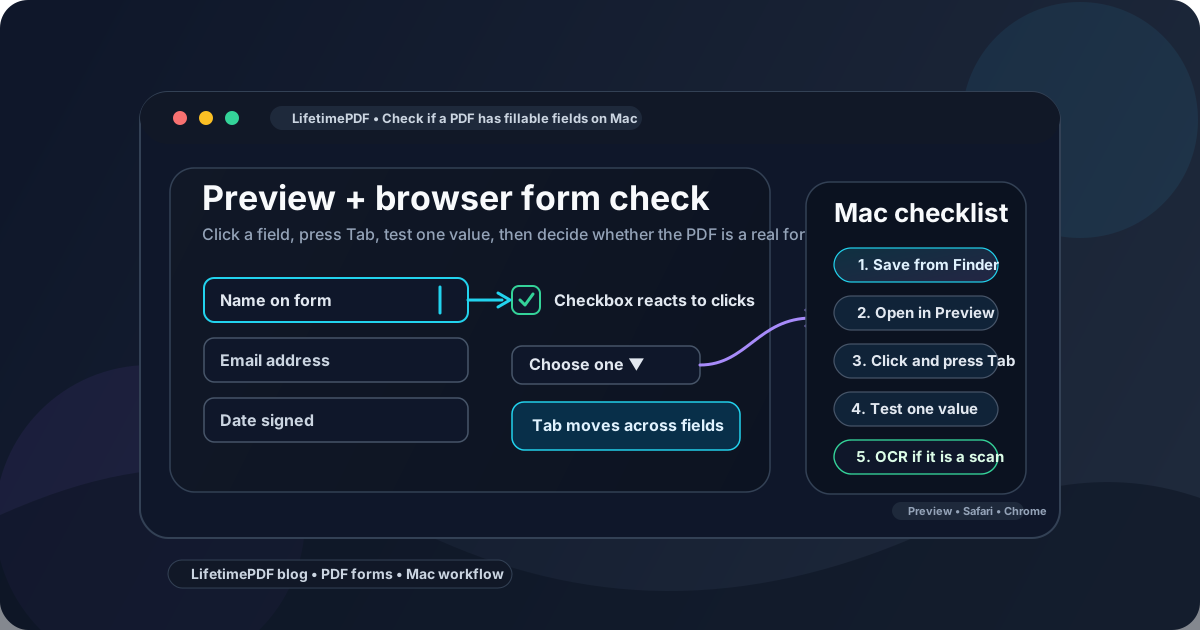
Table of contents
- Quick start: tell if a PDF is fillable on Mac in under 3 minutes
- What counts as a real fillable field on Mac
- Step-by-step: check a PDF for fillable fields on Mac
- Preview vs Safari or Chrome for Mac form checks
- Mac signals that tell you what kind of PDF you have
- Signs the PDF is not really fillable
- What to do if the file is scanned, flattened, or locked
- Related LifetimePDF tools for smoother Mac form work
- FAQ
Quick start: tell if a PDF is fillable on Mac in under 3 minutes
If you want the shortest route to a dependable answer, use this sequence:
- Save the PDF from Mail, Messages, Safari, or Downloads into one clear folder in Finder.
- Open the file on your Mac in Preview or a browser and click inside a place that should obviously be a field.
- Press Tab to see whether focus jumps to the next input.
- Type one short value, check one box, or open one dropdown if the document allows it.
- If nothing responds, switch to PDF Form Filler or OCR PDF instead of wasting time fighting the file.
What counts as a real fillable field on Mac
On Mac, it is easy to mistake a beautiful layout for a working form. A real fillable PDF usually reveals itself in a few concrete ways:
- A text cursor appears when you click inside a text field.
- Tab moves focus from one field to another instead of doing nothing useful.
- Checkboxes react to clicks instead of behaving like printed artwork.
- Dropdowns open or at least show a clear focused state.
- The value stays inside the field rather than floating like free text markup.
- The file can be saved and reopened with the test value still sitting in the right place.
A PDF can still be useful even if it is not truly fillable. It just needs a different workflow. The goal here is not to judge the document. The goal is to identify what kind of file you actually have before you commit to filling it, signing it, or sending it back.
Interactive PDF form
Text boxes, checkboxes, dropdowns, and signature areas accept focus and behave like real controls.
Flattened PDF form
The layout still looks like a form, but the controls are dead. You may need to place text manually.
Scanned PDF form
The page behaves like an image. OCR may help with readability, but it does not magically create working form fields by itself.
Step-by-step: check a PDF for fillable fields on Mac
Here is the workflow that works best when you want a reliable answer instead of guesswork.
Step 1: Save the exact file you plan to use
On Mac, PDFs often open from a Mail preview, a Safari tab, an iCloud quick look, or a Downloads copy you forgot about. That makes people test one version, edit another, and submit a third. Save the form into a clearly named Finder folder first so you know the file you are checking is the same one you plan to complete.
Step 2: Click the spots that should obviously be interactive
Start with the easiest targets: name fields, date boxes, yes or no checkboxes, initials areas, and signature zones. If the PDF is truly fillable, at least some of those places should accept focus immediately. If every click feels like clicking on a poster instead of a form, that is an early warning sign.
Step 3: Press Tab and watch what your Mac does
The Tab key is one of the cleanest tests because it exposes whether the PDF contains an actual field sequence. In a good fillable form, focus moves through the fields in a sensible order. In a weak or static PDF, nothing happens, or the viewer leaves the form flow completely.
Step 4: Type one short value on purpose
Use a harmless sample like Test, 123, or a single checkbox click. You are not completing the document yet. You are checking whether the input behaves like part of the form. A true fillable field keeps the text aligned inside the box instead of treating it like loose annotation.
Step 5: Save, close, and reopen if the document matters
If the form is important, do one extra pass: save the PDF, close it, then reopen it in Preview. This confirms whether the value remains attached properly. Some awkward workflows let you type on-screen but fail after save or reopen, which is exactly the kind of problem you want to catch before someone else sees the file.
Best next move after the test: if the form works, fill it normally. If it does not, move straight to the right repair path instead of retrying the same dead file.
Preview vs Safari or Chrome for Mac form checks
Preview is the natural first stop on Mac because it opens quickly and feels built into the workflow. It is great for reading a PDF, reviewing the finished copy, and spotting obvious field behavior. But Preview is not the whole story. A file can look tidy there and still fail as a form in real use.
| Mac option | Best for | Where it can mislead you |
|---|---|---|
| Preview | Quick click tests, reading the file, and reviewing the final saved copy | A clean page can still be static, flattened, or scan-like underneath |
| Safari or Chrome | Cross-checking whether form behavior survives in a browser workflow | Some viewers expose different quirks, so one good preview does not guarantee a great workflow everywhere |
| LifetimePDF PDF Form Filler | Testing and completing PDFs that are weak, static, or only partly interactive | You still want to reopen the finished copy once before sending it |
The useful rule is simple: use Preview for the first reality check, then use a browser-based tool when the document looks like a form but does not behave like one. That saves Mac users from the classic mistake of trusting the interface instead of the workflow.
Do not confuse a printed line with a real field
A line that says Signature or a neat box that says Date is only design until the PDF actually responds to clicks and focus. On Mac, Preview makes static forms look polished, which is helpful for reading but dangerous if you assume visual polish means genuine interactivity.
Mac signals that tell you what kind of PDF you have
This table is the quickest way to interpret what your Mac is showing you.
| What you see on Mac | What it usually means | Best next step |
|---|---|---|
| You click a field and get a text cursor | The PDF probably contains a real text field | Type one short test value and keep going |
| Tab moves through boxes in order | The document likely has an interactive field structure | Fill the form normally and review it before sending |
| The page looks clean, but nothing accepts focus | The PDF is probably static or flattened | Use PDF Form Filler to place text manually |
| The whole page behaves like an image | The file is likely scanned | Run OCR PDF and retest |
| You can see fields, but values disappear after save | The workflow or viewer may be unreliable | Switch to a dedicated browser-based form tool and reopen the saved copy |
| Checkboxes are only printed squares | The form layout is visual only | Manually place marks or rebuild the form fields if you own the document |
The big idea is simple: a Mac PDF preview is not the same thing as a Mac PDF form workflow. You are looking for signs of interactivity, not just signs of readability.
Signs the PDF is not really fillable
Most failed Mac form sessions come from the same handful of clues. If you notice several of these at once, stop trying to type directly into the file:
- The page looks slightly fuzzy, like a scanned printout.
- Clicking blank boxes never creates a cursor.
- Pressing Tab moves nowhere useful.
- The whole page selects like one large image.
- Checkboxes, date slots, and signature lines are only part of the artwork.
- Text placement floats awkwardly instead of staying inside boundaries.
- The PDF opens fine, but Preview or your browser does not save the test value the way a real form should.
None of those signs mean the document is hopeless. They only mean you need a different workflow than ordinary field typing.
What to do if the file is scanned, flattened, or locked
Once your Mac test shows the form is not truly fillable, the right move depends on why it failed.
If the PDF is scanned
Run OCR PDF first so the document has searchable text. OCR helps you read and work with the file more cleanly, but it does not automatically create proper fillable fields. It makes the page smarter. It does not magically turn a scan into a well-built form.
If the PDF is flattened
Use PDF Form Filler to place text, checkmarks, or initials exactly where they belong. This is usually the fastest way to complete a static form on Mac without printing, handwriting, and rescanning it.
If you own the document and need real fields
Open PDF Field Editor and add or repair the controls properly. That is the better route when you are the one distributing the form and want other people to have a clean interactive experience rather than a workaround.
If permissions or workflow restrictions get in the way
Some PDFs are technically interactive but still awkward because of save restrictions, editing limits, or fragile field behavior. In those cases, it helps to try Unlock PDF if you are authorized to edit the file, then complete a short save-and-reopen check before you send the final copy.
Related LifetimePDF tools for smoother Mac form work
These are the most useful next steps after you identify what kind of PDF you are dealing with:
If your next step is actual completion rather than diagnosis, the companion guide How to Fill Out a PDF Form on Mac picks up exactly where this article leaves off.
FAQ
How do I check if a PDF has fillable fields on Mac?
Open the PDF, click inside likely fields, press Tab, and type one short test value. If your Mac shows a cursor, focus moves between controls, and the value stays in place, the PDF probably has real fillable fields.
Why can't I type into a PDF form on Mac even though it looks like a form?
Because many PDFs are only visual layouts. They may be scanned pages, flattened forms, or static exports with printed lines and boxes that never behave like interactive controls.
What is the fastest Mac test for a fillable PDF?
Click a likely field, press Tab, and try typing one short value. That quick test usually tells you much more than staring at the layout and guessing.
Can Preview open a PDF that is not really fillable?
Yes. Preview can display a PDF cleanly even when the file underneath is only a scan or a static design. A nice preview is not proof of interactivity.
What should I do if the PDF is scanned or flattened?
Use OCR if the document behaves like an image, then use a PDF form filler to place answers manually. If you control the document, repair or rebuild the form with a field editor so future users get real interactive fields.
Bottom line: on Mac, do not trust the appearance of a PDF form. Trust what happens when you click, tab, type, save, and reopen.