How to Check PDF Producer on Linux: File Manager, Okular, and Export-Path Clues Before You Share
To check PDF producer on Linux, save the real file from Firefox, Chromium, Thunderbird, or your file manager, inspect the hidden Producer field in Okular, a document properties panel, or a metadata editor, and compare that software fingerprint with the export path you expected.
If the producer still points to a print dialog, scanner workflow, command-line converter, or stale automation layer, clean it up before the document leaves your machine.
Linux workflows feel transparent, but PDF metadata can lag behind the visible document. A file may open perfectly in Okular, render cleanly in Firefox, and sit in a tidy project folder while the hidden producer still names a browser print path, cups-pdf export, OCR chain, or old conversion tool that no longer explains the final share-ready copy. The useful goal is not just opening the PDF. It is confirming that the software fingerprint inside the file still matches the story you want the document to tell when someone else downloads it.
Fastest practical path: save the final Linux copy, inspect the Producer field once, compare it with creator and author metadata, then keep, standardize, or clear the value before you share the PDF.
In a hurry? Jump to quick start: check PDF producer on Linux in about 5 minutes.
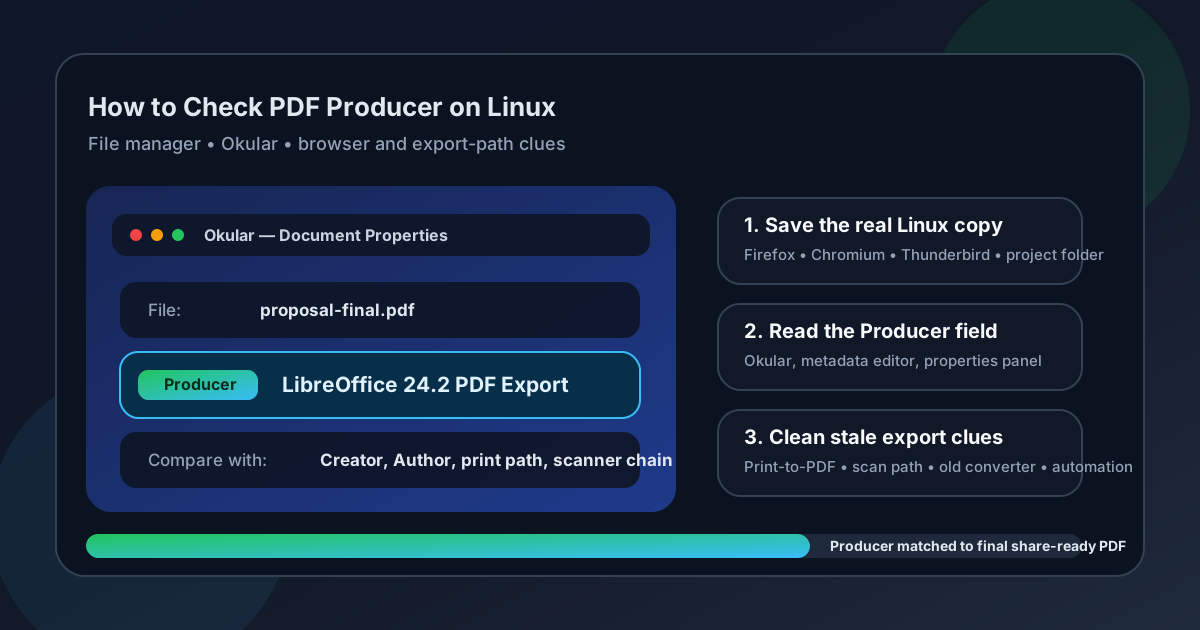
Table of contents
- Quick start: check PDF producer on Linux in about 5 minutes
- What you are really checking when you review PDF producer on Linux
- Producer vs creator vs author on Linux
- Where Linux users get misled
- Step-by-step: how to check PDF producer on Linux
- Warning signs that the producer field needs attention
- When to keep, standardize, or clear the producer field
- Related LifetimePDF tools and guides
- FAQ
Quick start: check PDF producer on Linux in about 5 minutes
If your real question is what actually generated this Linux PDF, and does that software clue still belong on the file I am about to send?, use this order:
- Save the exact PDF you plan to email, upload, archive, publish, or attach from Firefox, Chromium, Thunderbird, a cloud-sync folder, or your real project directory.
- Inspect the stored Producer value using PDF Metadata Editor, View PDF Properties, Okular, or another metadata-aware Linux workflow.
- Compare the producer with what you expected: LibreOffice export, browser print, scan workflow, cups-pdf, OCR cleanup, merge tool, optimizer, or another conversion step.
- Check nearby fields too, especially creator and author, so the hidden story stays coherent.
- Keep the field if it is harmless and useful, or clean it up if it is misleading, noisy, or more revealing than the recipient needs.
- Save the final copy and reopen it once so you confirm the Producer value really belongs to the file that will leave your Linux workflow.
What you are really checking when you review PDF producer on Linux
The PDF producer field is hidden metadata stored inside the file. It usually points to the software engine or output path that generated the final PDF structure. That makes it different from the filename you see in your Linux file manager and different from the visible document content. It is also different from the creator field, which often points to the application where the document content started.
That distinction matters on Linux because one PDF often travels through several layers. A document may begin in LibreOffice, OnlyOffice, Google Docs, LaTeX, Inkscape, a browser form, or a scan workflow. Then it gets printed to PDF, converted through a command-line tool, flattened, optimized, merged, downloaded from a portal, or reopened in another viewer. By the time you inspect the finished file, the pages can look perfectly normal while the hidden producer still reveals a last-minute conversion step that explains why the PDF behaves the way it does.
| Field | What it usually represents | Common Linux misunderstanding |
|---|---|---|
| Filename | The storage name shown by your file manager, browser downloads panel, or email save path. | Looks tidy enough that people assume the hidden metadata must also be tidy. |
| Creator | The application that likely started the document content. | People confuse the source app with the final PDF-making engine. |
| Author | The person, team, or organization attached to the file. | Ownership can look fine while the software fingerprint still tells a messy story. |
| Producer | The engine or software path that generated the final PDF output. | Gets ignored even when it explains flattened forms, weak text search, or an unexpected conversion chain. |
Producer vs creator vs author on Linux
When these three fields are read together, Linux PDF metadata becomes much easier to interpret. You do not need forensic certainty. You just need the hidden story to make sense.
| Question you are asking | Best field to inspect | What it usually tells you |
|---|---|---|
| Where did the document content probably begin? | Creator | The authoring app or source system that likely started the content before final PDF generation. |
| What software likely produced the final PDF container? | Producer | The final engine, print path, converter, optimizer, OCR layer, or PDF library behind the file you have now. |
| Who does the PDF identify with? | Author | The person, department, company, or organization attached to the document. |
| Why does the metadata story feel inconsistent? | All three together | Comparing creator, producer, and author often reveals whether the file followed a normal Linux export path or inherited stale clues from several stages. |
Example: a report may show Creator: LibreOffice Writer, Producer: LibreOffice 24.2 PDF Export, and Author: Operations Team. That is a coherent story. A different file might show Creator: Google Docs, Producer: cups-pdf, and Author: Personal Laptop even though the visible pages look like a polished client deliverable. That does not always mean the file is broken, but it does mean the hidden story probably deserves a quick cleanup.
Creator
Best for understanding the original authoring app or content source before later PDF steps happened.
Producer
Best for understanding the final export engine, print path, scan workflow, or conversion layer that shaped the share-ready PDF.
Author
Best for understanding the human or organizational identity the file carries after it leaves your Linux machine.
Where Linux users get misled
Linux makes it easy to trust a PDF too quickly. Browser previews, file-manager thumbnails, Okular tabs, and fast local opens all create a smooth reading experience. The trap is that a smooth reading experience is not proof that the metadata underneath is telling the right story.
| Linux path | What it is good for | What it cannot safely prove |
|---|---|---|
| File manager preview or thumbnail | Confirming you picked the right file and that the visible pages still look correct. | That the hidden Producer field still matches the most sensible export path for the final PDF. |
| Okular or another desktop viewer | Opening the real Linux copy and doing a first document-info review. | Whether the producer is helpful, stale, or too revealing unless you compare it with creator and author. |
| Firefox, Chromium, or a portal preview | Showing how the PDF appears in a common browser path. | That the hidden software fingerprint still belongs on the downloadable share copy. |
| Thunderbird attachment or synced folder handoff | Reflecting the copy that actually leaves your machine in day-to-day work. | That an inherited print or conversion clue was not carried forward from an older export step. |
| Metadata editor or full properties view | Giving you the clearest look at the embedded Producer field itself. | You still have to judge whether the value helps the PDF or only carries background workflow noise. |
That last part matters most. Tools can reveal the producer value. They cannot decide for you whether the final Linux PDF should keep that software fingerprint, standardize it, or drop it altogether.
Step-by-step: how to check PDF producer on Linux
This workflow is fast enough for everyday Linux use and strong enough to catch the export-path mismatches that quietly travel with shared PDFs.
Step 1: Start with the exact Linux copy you plan to share
Open the real file from the place that matters: your project folder, Downloads, a mail-attachment save path, a synced workspace, or the directory you will actually use. If the PDF has been exported more than once or reopened through several apps, make sure you inspect the final share-ready copy instead of a convenient earlier draft.
Step 2: Inspect the Producer field directly
Use PDF Metadata Editor, View PDF Properties, Okular, or another reliable metadata-aware workflow. Do not assume the visible document or the filename already answers the same question. On Linux, it is common for a polished PDF to keep an older producer value from a print path, batch converter, browser save, or OCR pipeline that no longer explains the final file well.
Step 3: Compare producer with creator, author, and file behavior
Producer is most useful when you read it alongside the other nearby clues. Compare the software fingerprint with the creator, the author, and the visible document itself. If all of them tell broadly compatible stories, the file usually feels coherent. If producer points to a print-to-PDF route while form fields are dead, or to a scan chain while text search is weak, the metadata is giving you a useful warning.
Step 4: Fix stale or risky software clues first
Start with the producer values that are most likely to create confusion: old print drivers, internal automation labels, scanner defaults, command-line tool names, and oddly specific converters that no longer explain the finished file. If the producer belongs with a wider cleanup, continue with Edit PDF Metadata or Remove Metadata From PDF.
Step 5: Save and verify once
Reopen the final PDF and confirm the corrected producer really stuck to the same file you are about to send. This catches the classic Linux mistakes: cleaning one copy while sharing another, trusting a browser cache, or fixing the metadata in a draft that never leaves your machine.
Reliable sequence: save the final Linux copy, inspect the producer field, compare it with creator and author, keep only the software clue that still helps the file make sense, then verify the finished PDF once before you share it.
Warning signs that the producer field needs attention
These patterns show up constantly in Linux workflows built around browser downloads, office exports, scans, shared folders, and repeated handoffs.
| What you notice | What it usually means | Best next move |
|---|---|---|
| The producer looks like a print driver instead of the export path you expected | The file may have been printed to PDF, which can flatten forms, links, tags, or richer structure. | Check whether the file behavior matches that print path and decide if a cleaner export is better. |
| The producer points to scanner or OCR software on a file that should be fully digital | The PDF may have been rebuilt from images or paper, which can weaken text search and structure. | Review OCR quality, accessibility, and nearby metadata before sharing. |
| The producer feels overly specific or internal | The metadata may be exposing workflow details that add no value for the recipient. | Standardize or clear the field during metadata cleanup. |
| Creator and producer tell completely different stories | The file probably passed through more than one export or conversion layer. | Review creator, producer, author, and file behavior together so the mismatch stops being a mystery. |
| The PDF looks polished in Linux, but portals or recipients still complain | The producer may hint at a weak conversion chain, unsupported PDF engine, or flattened export path. | Validate the file and consider rebuilding it from a cleaner source path. |
Healthy default
If the hidden producer value would make a recipient wonder how this PDF was really generated, the file probably deserves one more metadata pass before you send it.
When to keep, standardize, or clear the producer field
Not every Linux PDF needs the same answer. The useful question is whether the producer field improves the finished file or only drags extra workflow noise along for the ride.
Keep it
Best when the software fingerprint is honest, harmless, and useful for archive context, troubleshooting, or document provenance.
Standardize it
Best when the current producer is technically true but the wording or path feels messy, overly specific, or inconsistent with the file's finished role.
Clear it
Best when the producer adds no real value, leaks internal details, or makes a public-facing PDF feel sloppier than it should.
In practice, the strongest choice is usually the smallest amount of hidden software history that still helps the document make sense. Internal working files may benefit from a truthful producer trail. Public downloads, privacy-sensitive handoffs, and sanitized client copies often do not. If you are already cleaning the file, review nearby fields such as title, author, and full metadata on Linux so the story stays coherent from the inside out.
- Keep the producer when it truthfully explains the final export path and does not expose anything awkward.
- Standardize it when an older software clue would make the PDF feel sloppy or inconsistent.
- Clear it when the value adds exposure without adding useful context.
- Verify related metadata when the PDF matters to archives, portals, external clients, or public downloads.
FAQ
How do I check PDF producer on Linux quickly?
Save the final PDF locally, inspect the hidden Producer field in Okular, a document-properties view, or a metadata editor, compare it with the export path you expected, and fix it if the value is stale, private, or misleading.
Is PDF producer the same as creator on Linux?
No. Creator usually points to the app that started the content, while producer usually points to the engine or path that generated the final PDF output.
Can Okular prove the producer field is correct?
Not by itself. Okular is useful for opening the right file and checking document information, but you still need to judge whether the embedded producer value actually makes sense for the finished PDF.
Should I remove the producer field before sharing from Linux?
Remove or clear it when the software clue is stale, confusing, or too revealing. Keep it when it still helps explain the file or supports archive and troubleshooting context.
Why does producer matter if the PDF already looks fine in Okular or a browser?
Because hidden metadata still travels with the file. A polished PDF can still expose a print-to-PDF route, a scan workflow, or a converter name that no longer belongs in the final share-ready copy.
Check the hidden producer before the PDF leaves Linux.
A clean Linux workflow is simple: inspect the Producer field, compare it with the rest of the metadata story, keep only the software clue that still helps the file make sense, and verify the final copy once before you send it.
Published by LifetimePDF — Pay once. Use forever.