How to Check PDF Metadata on Linux: Okular, pdfinfo, and Privacy-Safe Cleanup
To check PDF metadata on Linux, save the file locally, open it in a metadata-friendly workflow like Okular or pdfinfo, and review the title, author, subject, keywords, creator, producer, and date fields before you share the PDF.
If the hidden details are outdated, private, or misleading, clean them first so the invisible side of the file matches the polished document people actually receive.
That is the short answer. The useful Linux answer is that browser preview, webmail preview, and even a quick glance in Nautilus, Dolphin, or Thunar may only show part of the story. A PDF can look completely finished while still carrying an old draft title, the wrong author name, internal keywords, or software fingerprints from LibreOffice, a scanner, or a print-to-PDF workflow that you never intended to send outside your environment.
Fastest practical path: save the exact Linux copy, review the high-signal metadata fields once, fix or remove anything that should not travel with the file, then verify the cleaned version before you send it onward.
In a hurry? Jump to quick start: check PDF metadata on Linux in about 5 minutes.
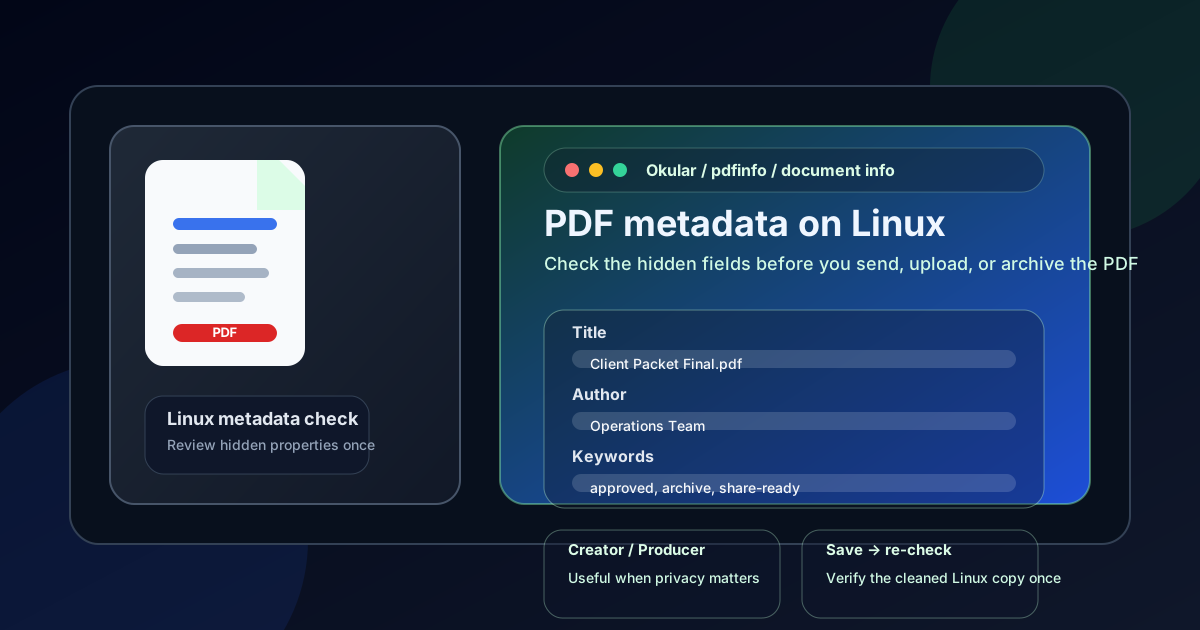
Table of contents
Quick start: check PDF metadata on Linux in about 5 minutes
If your real goal is simply make sure this Linux PDF does not carry the wrong hidden details before I send it, use this order:
- Save the exact PDF you plan to email, upload, archive, or publish into a local Linux folder.
- Do not rely on browser preview, chat preview, or a cloud attachment tab as your only check.
- Use Okular, another metadata-friendly document info view, or a quick pdfinfo check when you need the full title, author, subject, keywords, creator, producer, and date picture.
- Check the high-signal fields first: Title, Author, Keywords, Creator, Producer, Creation Date, and Modification Date.
- Decide whether each field helps the final file, adds confusion, or exposes private workflow details.
- Save the cleaned PDF and reopen it once to confirm the corrected metadata actually stuck.
What counts as PDF metadata on Linux
PDF metadata is the hidden document-property layer attached to the file itself. It is separate from the visible page text, signatures, or layout. On Linux, the fields most worth checking usually include the title, author, subject, keywords, creator, producer, and the file's created or modified timestamps.
| Field | What it usually tells you | Why it matters on Linux |
|---|---|---|
| Title | The intended document name inside the PDF | Can surface in viewers, tabs, and document libraries even when the filename looks clean |
| Author | The person, team, or organization attached to the file | Often where a local profile, old staff name, or template default quietly remains |
| Subject and keywords | Short description and search-oriented tags | Easy place for internal project names, client shorthand, or archive labels to leak |
| Creator and producer | The software or workflow that made the PDF | Can reveal a Linux toolchain such as LibreOffice, Ghostscript, a scan app, or print-to-PDF steps you do not need to expose |
| Creation and modification dates | When the file was made or changed | Can reveal drafting history, reused templates, or a timeline that no longer fits the final version |
The important distinction is that a Linux PDF can look polished on the page while the metadata still tells an older, messier story underneath. That is why this check belongs in the final review step rather than as an afterthought.
Where Linux users get misled
Linux gives you several fast ways to glance at a PDF, but not every path proves the hidden properties are clean. A quick preview answers whether the file opens. It does not always answer whether the metadata is accurate, intentional, or safe to send.
| Opening path | What it is good for | What it cannot safely prove |
|---|---|---|
| File manager preview or properties glance | Confirming you saved the right file and doing a quick first-pass check. | That every important PDF metadata field is present, clean, and appropriate for the copy you plan to share. |
| Firefox, Chrome, webmail, or cloud preview | Checking that the PDF opens and looks familiar. | That the hidden title, author, keywords, producer, and dates are accurate or that the downloaded final copy behaves the same way everywhere else. |
| Okular, Evince, or another fuller PDF viewer | Reviewing document info more deliberately and comparing the file against your intended final version. | You still have to judge as a human whether the values are useful, misleading, or overly revealing. |
| pdfinfo or a dedicated metadata workflow | Checking title, author, subject, keywords, creator, producer, and dates in one place before cleanup. | It does not fix the visible page content. If the PDF also has on-page privacy issues, you still need redaction or other cleanup. |
Step-by-step: how to review PDF metadata on Linux
This workflow gives you a dependable answer without turning a simple metadata check into a giant desktop chore.
Step 1: Save the exact Linux copy first
If the PDF is still inside webmail, chat preview, a browser download bar, Nextcloud preview, or another cloud viewer, save it first. The metadata check should apply to the exact file you are about to send, upload, archive, print, or publish. That small habit prevents you from cleaning the wrong version and then wondering why the shared copy still looks messy later.
Step 2: Start with the high-signal fields, not every possible detail
You do not need a deep forensic pass before you know whether the PDF is basically safe to share. On Linux, start with the fields that most often cause problems: title, author, keywords, creator, producer, and the key dates. Those are the values most likely to expose draft history, stale names, internal naming habits, or software fingerprints.
- Title that still looks like a draft filename or internal export name.
- Author that names the wrong person, the wrong organization, or a local account.
- Keywords or subject fields that expose internal project names or client shorthand.
- Creator and producer fields that add workflow detail you do not want to carry forward unnecessarily.
- Dates that make the file feel older, reused, or inconsistent with the version being sent.
Step 3: Use a Linux viewer-first check, then a deeper confirmation if needed
A healthy Linux metadata check is not only about whether the fields are filled in. It is about whether the hidden story matches the visible story. If the cover says one thing, the filename says another, and the metadata says something else again, the PDF still needs cleanup even if no field looks obviously broken.
For many people, a good sequence is Okular first, then an optional pdfinfo confirmation when they want a fast field-by-field readout. That second step is especially useful when a browser preview looks fine but you want a more dependable answer before the file leaves your Linux workflow.
Step 4: Decide whether each field should stay, change, or disappear
Not every field needs to be removed. A clean title and a sensible organization name can help archives, document libraries, and professional presentation. The better question is whether the field still earns its place in the final copy. If it helps the recipient trust, file, or identify the PDF, keep it accurate. If it only adds confusion or exposure, clear it.
Step 5: Save the cleaned copy and verify once
This is the step people skip when they are in a hurry. After you clean the metadata, reopen the saved Linux PDF and check it once more. One last verification pass is usually enough to catch the classic failure where the original file was corrected but the outgoing copy was not.
Need a faster cleanup flow? Use the metadata tool for the full hidden-property review, then pair it with the related LifetimePDF guides if the author, title, or privacy layer still needs work.
Common signs the metadata needs cleanup
These patterns come up repeatedly when a Linux PDF looks ready on the page but still carries the wrong hidden identity.
| What you notice | What it usually means | Best next move |
|---|---|---|
| The title still looks like a draft export name | The visible document was polished, but the hidden title was never updated | Rename the metadata title so the file feels deliberate in viewers and archives |
| The author names the wrong person or account | The PDF inherited a local profile, old employee, or template default | Replace it with the right person, team, organization, or remove it |
| Keywords expose internal project labels | The metadata still carries internal workflow context the recipient does not need | Clear or standardize the keywords before the PDF leaves Linux |
| Creator or producer fields feel surprisingly revealing | The file is exposing more about the software chain than you expected | Decide whether the technical detail is harmless, useful, or better removed |
| The dates tell an awkward timeline story | The PDF may have been reused from an older template or finalized later than the metadata suggests | Review whether the dates are acceptable for the destination or whether a cleaner final copy is better |
Healthy default
If the metadata would make a recipient ask “why does this hidden information not match the file I am looking at?”, the PDF probably deserves one more cleanup pass.
When to edit metadata vs remove it
A lot of people assume the safest Linux workflow is to wipe every metadata field. Sometimes that is right. Sometimes it just makes the file harder to manage later. The better question is whether the metadata should be useful, neutral, or absent for the PDF's next destination.
Edit the metadata when
- the title should match the actual finished document,
- the author should represent a team or company cleanly,
- the subject or keywords help archiving and search,
- the file is part of an organized document library,
- the hidden fields add professionalism rather than noise.
Remove or minimize the metadata when
- the file contains sensitive HR, legal, financial, health, or investigative material,
- the author or keywords expose personal or internal identities,
- the creator or producer details reveal more workflow context than you want to send,
- the PDF is a public-facing or neutral share copy that does not benefit from extra hidden details.
For many Linux workflows, the best answer is not empty metadata. It is intentional metadata. Keep what makes the file easier to trust and manage. Remove what only creates confusion, clutter, or privacy risk.
FAQ
How do I check PDF metadata on Linux?
Save the PDF locally, inspect it in Okular, another metadata or document-properties workflow, or a quick pdfinfo check, and review the title, author, subject, keywords, creator, producer, and dates before the file leaves your Linux system.
Can Linux file managers or browser preview show all PDF metadata?
Not always. File manager properties and browser preview can help with a quick first look, but a dedicated PDF metadata workflow is better when you need the full hidden-property story and want to clean the file confidently.
Do I need pdfinfo to check PDF metadata on Linux?
No, but it is a useful extra check. Many people start in Okular or another fuller viewer, then use pdfinfo when they want a quick field-by-field confirmation before sharing.
What PDF metadata fields should I check first?
Start with title, author, subject, keywords, creator, producer, creation date, and modification date. Those fields carry most of the professionalism and privacy risk in everyday Linux workflows.
Should I remove PDF metadata completely?
Not always. Keep metadata that helps the file make sense, archive cleanly, or present professionally. Remove metadata when it is misleading, noisy, or more revealing than useful for the copy you are sharing.
Published by LifetimePDF — Pay once. Use forever.