How to Check PDF Page Boxes on Windows: Acrobat, Edge, and Full-Page Geometry Checks Before You Print, Place, or Share
To check PDF page boxes on Windows, save the real PDF in File Explorer, open a page-box-aware properties workflow, and compare the media box, crop box, trim box, bleed box, and art box in that order.
If those boxes disagree, decide whether the file needs cropping, cleanup, or a fresh export before you print, place, upload, or share the PDF so the outgoing Windows copy behaves like the document you intended.
On Windows, page-box trouble often hides behind a perfectly normal-looking preview. The PDF opens in Edge, sits in Downloads looking finished, and may even print once without obvious drama. Then a portal scales it oddly, a layout app imports extra white space, or a print workflow reveals the finished size was never what you thought it was. A quick page-box check turns that vague frustration into a concrete answer you can actually act on.
Fastest practical path: save the exact Windows copy, read the media box first, compare crop and trim next, look at bleed or art only if the workflow needs them, then choose crop, cleanup, re-export, or no change deliberately.
In a hurry? Jump to quick start: check PDF page boxes on Windows in about 5 minutes.
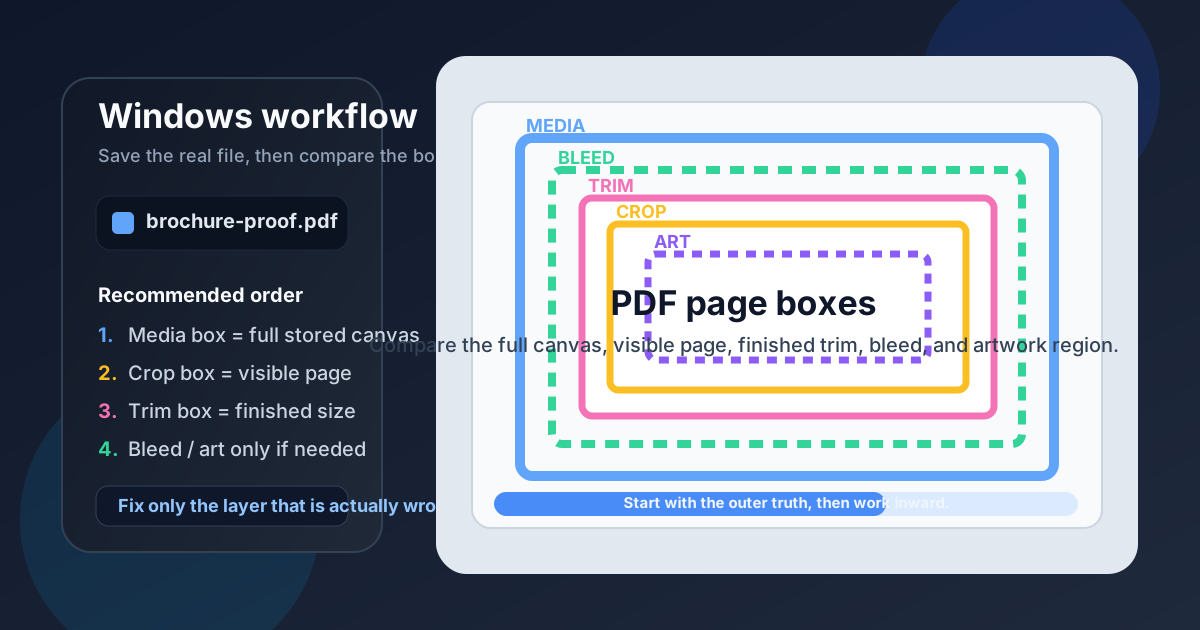
Table of contents
- Quick start: check PDF page boxes on Windows in about 5 minutes
- What PDF page boxes really mean on Windows
- Why Windows previews can hide page-box problems
- Step-by-step: how to review PDF page boxes on Windows
- Which page box matters most in common Windows jobs
- What to do when the page boxes disagree
- Related LifetimePDF tools and guides
- FAQ
Quick start: check PDF page boxes on Windows in about 5 minutes
If your real goal is simply work out why this Windows PDF behaves differently across preview, print, upload, or layout workflows, use this order:
- Save the exact PDF you plan to print, upload, place, or share into a normal local Windows folder.
- Do not assume the preview in Edge, Acrobat, Outlook, Teams, or a browser tab proves the file's page geometry is correct.
- Open a page-box-aware workflow such as View PDF Properties so you can read the media box first.
- Compare the media box with the crop box and trim box before you worry about more specialized fields.
- Check the bleed box only if the PDF is headed to print, and check the art box only if a design or placement workflow may care about it.
- If the outer canvas is the issue, crop or clean it. If the source layout or finished-size intent is wrong, re-exporting is usually cleaner than guessing your way through downstream fixes.
What PDF page boxes really mean on Windows
PDF page boxes are geometry definitions stored inside the file. They do not all describe the same thing. One box can define the full page canvas, another can define the visible page many viewers honor, another can define the intended finished size, and others can describe edge coverage or a meaningful artwork region.
That matters on Windows because the same PDF may move through File Explorer, Edge, Acrobat, browser previews, print dialogs, upload portals, and layout apps that do not all treat the page the same way. A file can feel perfectly normal in one place and still carry page geometry that causes odd scaling, extra margins, clipped output, or layout misalignment somewhere else. Checking page boxes gives you one shared reference point before the document leaves your PC.
| Page box | What it usually means | Why a Windows user should care |
|---|---|---|
| Media box | The full stored page canvas inside the PDF | Start here when the file seems larger, stranger, or more padded than expected. |
| Crop box | The visible page area many viewers respect | Useful when Edge or Acrobat looks tidy but another workflow exposes extra space or different framing. |
| Trim box | The intended finished page after cutting | Important when the real question is final size, exact print dimensions, or whether the page should end sooner. |
| Bleed box | Extra edge area beyond trim for print production | Relevant mainly when edge-to-edge artwork must survive trimming without leaving white slivers. |
| Art box | An optional region describing the meaningful artwork area | Helpful in some placement and design workflows, but not something every everyday Windows PDF needs. |
Why Windows previews can hide page-box problems
Windows gives you many fast ways to open a PDF, but most of them answer only one question: does the file open and look roughly normal? They do not automatically answer whether the stored page canvas is too large, whether the trim size is wrong, or whether a viewer is masking a geometry mismatch that another tool will reveal later.
| Windows path | What it is good for | What it cannot safely prove |
|---|---|---|
| File Explorer and Downloads | Confirming you saved the real outgoing file instead of still looking at a temporary preview. | Whether the page boxes describe the document correctly for print, upload, or placement. |
| Edge or Acrobat preview | Quickly spotting obvious content problems and confirming the file opens. | Whether the visible page, stored canvas, finished trim, and print-only edge area all agree. |
| Print preview | Showing whether scaling already looks suspicious before paper is wasted. | Whether the deeper cause is media-box clutter, crop behavior, wrong trim intent, or a source-layout mistake. |
| Layout or placement app | Revealing when another workflow cares more about geometry than a casual preview did. | You should not wait until this stage to discover that the PDF's boxes tell a conflicting story. |
| Properties-aware page-box review | Giving you the clearest answer before the PDF leaves Windows. | It will not choose crop versus re-export for you, but it does show which layer is actually wrong. |
The easy mistake
People often assume the PDF must be fine because the preview looks calm in Edge. In reality, the preview may be obeying the crop box while the print path still sees the media box, or a layout app may care about trim or art in a way the screen view never revealed.
Step-by-step: how to review PDF page boxes on Windows
This workflow is short enough for everyday Windows use and strong enough for real print, portal, archive, and layout decisions.
1) Save the exact Windows copy first
Do not judge only an Outlook preview, Teams attachment, or browser tab if another saved file is the one truly headed to print, upload, or another person.
2) Open a page-box-aware properties view
Use View PDF Properties or an equivalent workflow that exposes media, crop, trim, bleed, and art clearly.
3) Read the media box before anything else
This tells you the full stored page canvas so you know whether the file is already carrying extra outer space, marks, scan padding, or oversized export area.
4) Compare crop and trim next
These are the fastest high-value comparisons because they explain what the viewer is showing and what the final page is actually meant to be.
5) Check bleed or art only when the job needs them
Bleed matters for print edge coverage. Art matters for some design and placement workflows. Do not let specialized fields distract you from a simpler page-size or visible-area issue.
6) Fix the right layer once
Crop when the outer canvas is the problem, clean up when clutter is the issue, re-export when the source geometry is wrong, and leave the PDF alone when the current structure already fits the real job.
Reliable sequence: save the real Windows copy → read media first → compare crop and trim → review bleed or art only if needed → decide whether the job calls for crop, cleanup, re-export, or no change.
Which page box matters most in common Windows jobs
The most important box changes with the real task. That is why a page-box mismatch can be irrelevant in one workflow and a genuine problem in another.
Screen-only reading or email sharing
Crop and apparent page size usually matter most because the reader mainly cares about what is visible and easy to read.
Best move: confirm the visible page and stop editing if the file already behaves correctly everywhere it is used.
Office printing or portal uploads
Media, trim, and real page size matter more because hidden outer canvas or the wrong finished dimensions can trigger scaling or rejection.
Best move: compare page boxes with page size on Windows before changing anything.
Commercial print or layout placement
Trim, bleed, and sometimes art become more important because another app may use them to decide finished edges, edge coverage, or framing.
Best move: inspect the whole box stack instead of assuming the visible preview tells the full story.
| What you notice | What it usually means | Best next move |
|---|---|---|
| The PDF looks fine on screen but prints smaller or oddly positioned | The crop box may look calm while the media box or finished page size still tells a different story. | Review media, crop, trim, and page size together before cropping anything. |
| The file imports into another app with extra white space | The media box may still include outer canvas even though the viewer was masking it nicely. | Compare media and crop first, then crop or clean the PDF only if the extra outer space is not intentional. |
| The print job needs edge-to-edge artwork | Bleed and trim now matter, not just the visible page. | Check bleed and trim before sending the file onward. |
| A layout workflow frames the page strangely | The art box or crop box may be influencing placement differently than the visible preview suggested. | Review the full page-box set so you can fix the real geometry instead of guessing from a screenshot. |
| The boxes look unusual but the workflow is behaving correctly | The PDF may be intentionally structured for its real destination. | Leave it alone and document the reason instead of normalizing a file that is already right for the job. |
What to do when the page boxes disagree
A page-box mismatch is not automatically a disaster. The real question is whether the mismatch changes what the next workflow does with the PDF.
Best decision rule
If the mismatch changes print output, upload behavior, layout placement, or final size, fix it. If the boxes look unusual but still match the intended workflow on purpose, stop editing and move on.
Outer canvas is wrong
Media is carrying extra space, marks, or scan padding.
Crop or clean the file if that outer area serves no real purpose.
Visible page is misleading
Crop makes the preview look fine, but the stored canvas or final trim still disagrees.
Check crop, media, and page size together before trusting the viewer.
Finished size is wrong
Trim or the source page setup does not match the real output goal.
A fresh export is usually safer than forcing a cosmetic downstream fix.
Specialized boxes are confusing
Bleed or art looks odd, but the job may not even depend on them.
Ignore them unless the print or design workflow actually needs them.
If you need one dependable default, use this: inspect the real outgoing file, decide whether the issue is stored canvas, visible page, finished size, or print-only structure, then fix only that layer. That keeps Windows PDF troubleshooting practical instead of turning it into endless guesswork.
FAQ
How do I check PDF page boxes on Windows?
Save the PDF locally, open a page-box-aware properties workflow, read the media box first, then compare crop, trim, bleed, and art so you can see which page area is stored, visible, finished, or optional before you share the file.
Which PDF page box should I look at first on Windows?
Start with the media box because it tells you the full stored page canvas. After that, compare crop for visible-page behavior and trim for finished-size intent.
Why can a PDF look fine in Edge but still have wrong page boxes?
Because Edge may be obeying the crop box while another workflow pays attention to the media box, trim box, or other geometry fields that change the result later.
Should I crop the PDF if the page boxes disagree?
Only when the outer canvas or visible framing is the actual problem. If the deeper source layout or finished-page setup is wrong, re-exporting is usually cleaner.
Do I always need to check bleed and art on Windows?
No. Bleed matters mainly for print jobs and art matters mainly for some design or placement workflows. Many everyday PDFs can be judged well with media, crop, trim, and page size alone.
Check the full page-geometry story before another Windows workflow guesses for you.
On Windows, the cleanest page-box workflow is simple: inspect the real outgoing file, read the outer canvas first, compare the visible and finished page next, and fix only the layer that is truly causing the problem.
Published by LifetimePDF — Pay once. Use forever.