Check PDF Art Box: Inspect the Meaningful Artwork Area Before You Crop or Print
To check PDF art box settings, inspect the art box and compare it with the crop box, trim box, bleed box, and media box so you can see which part of the page the file treats as meaningful artwork.
If the art box is missing, oversized, or inconsistent with the visible page, decide whether it is harmless metadata or a real layout problem before you crop, export, place, or print the PDF.
That is the practical answer most people need. The art box is more specialized than the crop box or media box, but it can still explain why one app centers on the “real” design area while another seems to care about a larger or different page region. When you check it alongside the other page boxes, the file stops feeling mysterious and starts making sense.
Fastest practical path: inspect the art box, compare it with crop and media first, then confirm whether the artwork area also makes sense against trim and bleed for the real output target.
In a hurry? Jump to the 2-minute art-box check.
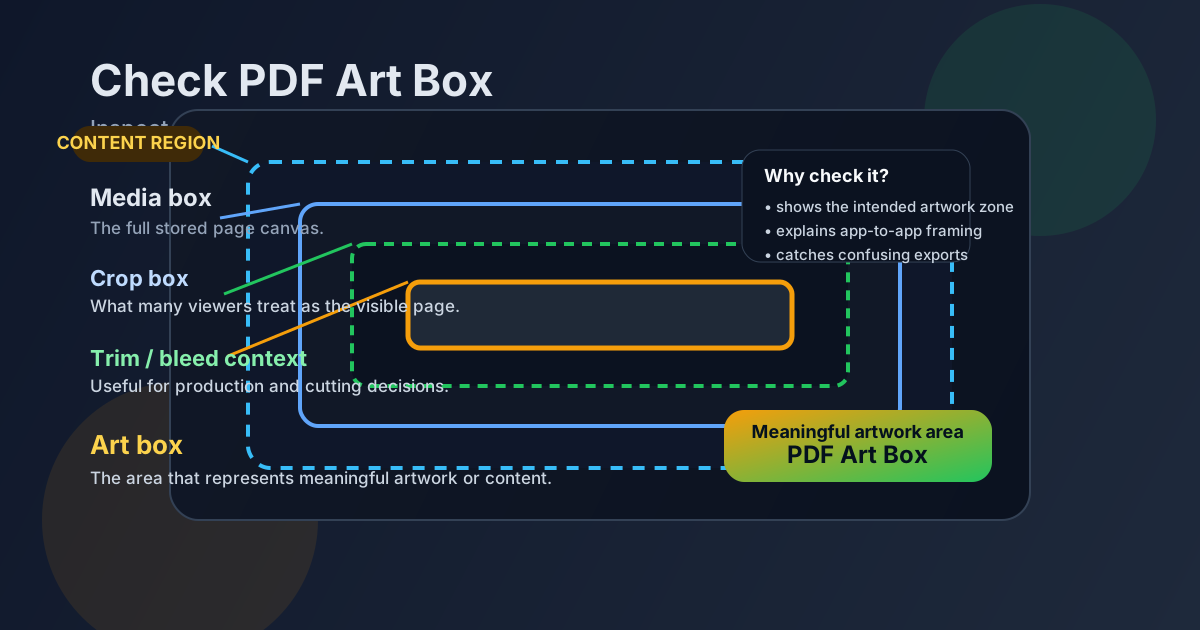
Table of contents
- Quick start: check a PDF art box in 2 minutes
- What a PDF art box actually means
- Art box vs crop box, trim box, bleed box, and media box
- When art-box problems actually matter
- How to check the art box on a real PDF
- What to do if the art box is missing, wrong, or confusing
- Related LifetimePDF tools and guides
- FAQ (People Also Ask)
Quick start: check a PDF art box in 2 minutes
If you only need the shortest route from confusion to a confident answer, use this order:
- Open the exact PDF you plan to place, print, crop, or export.
- Check whether the file defines an art box at all.
- Compare the art box with the crop box to see whether the intended artwork area matches the visible page.
- Compare it with the media box so you can tell whether the file stores a larger canvas around the meaningful content.
- For production work, compare it with trim and bleed before you decide whether anything is actually wrong.
What a PDF art box actually means
An art box is an optional PDF page box that describes the region containing meaningful artwork or content. Think of it as a hint about what part of the page is the real design area, even if the full stored canvas is larger.
That matters because not every app thinks about a PDF page the same way. Some workflows care about the visible crop, some care about the final trim, and some care about the complete stored page canvas. The art box adds another layer: it tells certain tools what the creator considered the important artwork region rather than just the overall sheet boundary.
Art box is important when
design, prepress, placement, or templating workflows need to know which area counts as the meaningful page content.
Art box often explains
why one app frames the “real” design area differently from another even though the PDF technically opens fine everywhere.
Art box does not guarantee
the final visible page, the finished cut size, or the outermost page canvas by itself. You still need the other page boxes for the full story.
The key point is that the art box is often about intent, not just geometry. If it neatly hugs the meaningful content, it can be useful. If it is wildly inconsistent with the rest of the page setup, it can become misleading metadata that deserves a second look.
Art box vs crop box, trim box, bleed box, and media box
The art box makes more sense once you compare it with the page boxes people already recognize. That comparison tells you whether the artwork area is aligned with the visible page, the finished size, or neither.
| PDF box | What it represents | Why it matters here |
|---|---|---|
| Art box | The meaningful artwork or content region | This is the area you check when you want to know what part of the page the file treats as the important design content |
| Crop box | The area many viewers treat as the visible page | If the crop box and art box disagree, the PDF can look visually fine while still carrying a different “meaningful content” definition underneath |
| Trim box | The intended finished size after cutting | This tells you whether the artwork area lines up with the actual finished print size |
| Bleed box | The extra edge area beyond trim meant for safe cutting | Useful for separating real edge coverage from the content area that should be treated as the main design region |
| Media box | The full stored page canvas inside the PDF | This helps you see whether the PDF stores a much larger sheet around the artwork area |
The most useful comparison is usually this: does the art box accurately describe the meaningful content region, or is it just leftover data that no longer matches the page? That answer changes whether you ignore it, validate it, or fix the underlying export.
When art-box problems actually matter
Many PDFs work fine without a perfect art box, so it helps to separate real workflow risk from harmless background metadata.
High-risk situations
- PDFs moving between design, layout, and prepress apps
- Templates where the content area must stay consistent
- Files with large margins, marks, or unusual page geometry
- Documents that place awkwardly inside another file
- Production workflows where page-box consistency matters
Lower-risk situations
- Simple office PDFs that only need casual viewing
- Files that already print and export correctly everywhere you use them
- Basic screen-only documents with no downstream design workflow
- PDFs where the crop box already defines the visible result cleanly
- Cases where no app in the workflow reads art-box data in practice
A useful shortcut is this: if the PDF is entering a workflow that cares about the difference between the overall page and the real content region, the art box matters. If the file is just being read, emailed, or archived with no special layout handling, it may not.
How to check the art box on a real PDF
The best art-box check is practical. You are not trying to win a terminology contest. You are trying to understand whether the exact outgoing file defines its important content area sensibly.
1) Open the real outgoing file
Do not inspect a stale proof or an earlier export if another PDF will actually be printed, placed, or uploaded. Use the real file so the page-box review matches the job.
2) Start with View PDF Properties
Open View PDF Properties and look for the art box alongside the other page boxes. The first question is simply whether the file defines one. The second is whether its dimensions and position make sense.
3) Compare the art box with the crop box
This is often the easiest way to judge practical usefulness. If the art box roughly matches the visible page content, the file may be well organized. If the art box is much smaller, much larger, or strangely offset, it may reflect an old export choice or a workflow-specific definition that needs verification.
4) Compare it with the media box, then trim and bleed if needed
The media box tells you how much total page canvas the PDF stores. The trim and bleed boxes tell you what the finished page and edge coverage should be. Together, those comparisons show whether the art box is a thoughtful content boundary or just one more confusing rectangle.
5) Decide whether the art box is meaningful or disposable
In some PDFs the art box carries real value, especially in design-heavy or production-aware workflows. In others it is optional data that can be safely ignored if the rest of the page structure already behaves correctly.
What to do if the art box is missing, wrong, or confusing
Once you know how the art box fits into the rest of the PDF, the right response becomes much easier.
If the PDF has no art box
That is not automatically a problem. Plenty of PDFs work perfectly well without one. If the crop, trim, bleed, and media boxes already support the real workflow, the missing art box may be irrelevant.
If the art box is clearly useful and accurate
Leave it alone. A good art box can help preserve a sensible content definition when a file moves between apps or production stages. In that situation, the check was valuable because it confirmed the PDF is structured the way you hoped.
If the art box looks wrong but the visible page is fine
Confirm whether any workflow you care about actually reads the art box. If not, it may be harmless metadata. If yes, the cleaner fix is often a better export or a corrected source-file setup rather than an after-the-fact patch.
If the page geometry itself is messy
Cross-check Check PDF Media Box, Check PDF Crop Box, and Check PDF Trim Box. If the whole page-box setup is inconsistent, re-exporting is usually safer than guessing which rectangle deserves to win.
If the goal is simply to clean the visible page
Use a visible-page workflow instead of treating the art box as magic. If you truly need to remove extra outer content, Crop PDF can help, but only after you know whether the issue is the visible page, the stored canvas, or just optional art-box metadata.
Good decision sequence: check whether an art box exists, compare it with crop and media, confirm trim and bleed if the file is for print, then either keep the art box, ignore it, or fix the source export if the content definition is misleading.
Related LifetimePDF tools and guides
View PDF Properties
Start here when you want to inspect all the important page boxes before changing anything.
Open the guideCheck PDF Media Box
Use this when you need to understand the full stored page canvas around the artwork area.
Read the media-box guideCheck PDF Crop Box
The closest companion when the visible page looks right but the content definition still seems odd.
Read the crop-box guideCheck PDF Trim Box
Helpful when the real question is about the final cut size rather than the meaningful artwork area.
Read the trim-box guideCheck PDF Bleed Box
Useful for separating real edge coverage from the main content area in press-ready files.
Read the bleed-box guideCheck PDF Page Size
Use this when you need to confirm whether the whole document is fundamentally the wrong size.
Check the page sizeFAQ (People Also Ask)
How do I check a PDF art box?
Inspect the PDF page boxes and compare the art box with the crop, trim, bleed, and media boxes. That shows which part of the page the file treats as meaningful artwork and whether that definition matches the visible page or print target.
What is a PDF art box used for?
A PDF art box is an optional page box used to describe the meaningful artwork area on the page. It can help design, prepress, and layout workflows understand what part of the page matters most, even when the stored canvas is larger.
What is the difference between an art box and a crop box in a PDF?
The art box describes the meaningful artwork region, while the crop box is the area many viewers treat as the visible page. They sometimes match, but they do not have to.
What if my PDF has no art box?
That is normal. Many PDFs work perfectly without an art box. If the file prints, crops, scales, and places correctly, the missing art box may not matter at all.
Can a wrong art box cause layout or print confusion?
Yes. In workflows that read art-box data, a misleading art box can affect framing, placement, or how another app interprets the meaningful content region. That is why it helps to compare it with the other page boxes before changing the file.
Ready to inspect the meaningful content region properly?
Best default workflow: open the real outgoing PDF → inspect the art box → compare it with crop and media → confirm trim and bleed if print is involved → keep it if it helps, ignore it if it is irrelevant, and re-export when the content definition is misleading
Published by LifetimePDF — Pay once. Use forever.