Check PDF Page Boxes: Compare Crop, Trim, Bleed, Media, and Art Before You Print or Export
To check PDF page boxes, inspect the media box first, then compare the crop box, trim box, bleed box, and art box so you can tell which page area is truly stored, which part is visible, and which size is supposed to be final.
If those boxes disagree, you can catch hidden margins, crop marks, wrong trim targets, oversized exports, or misleading layout metadata before you print, upload, place, or share the PDF.
That is the practical answer most people need. A PDF often feels "wrong" long before anyone realizes the real problem is page geometry. The preview may look fine, but a portal rejects the file, the print output scales badly, a layout app imports extra white space, or crop marks refuse to disappear. Checking the page boxes turns that vague frustration into something concrete you can diagnose and fix.
Fastest practical path: start with the media box, compare inward to crop and trim, then check bleed or art only if the workflow actually cares about printing or layout placement.
In a hurry? Jump to the 3-minute page-box check.
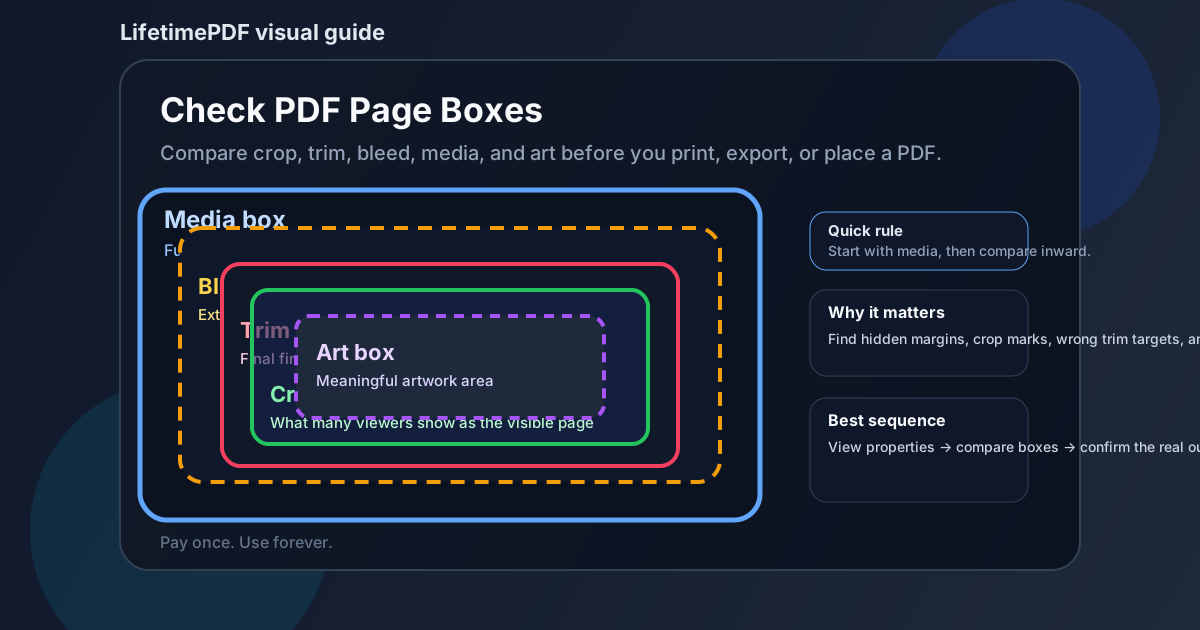
Table of contents
- Quick start: check PDF page boxes in 3 minutes
- What PDF page boxes actually are
- What each box means: media, crop, trim, bleed, and art
- Which box matters for which workflow
- Step-by-step: how to inspect page boxes on a real PDF
- Common page-box problems and what they usually mean
- When to crop the PDF and when to re-export it
- Related LifetimePDF tools and guides
- FAQ (People Also Ask)
Quick start: check PDF page boxes in 3 minutes
If you only need the fastest route from confusion to a dependable answer, use this order:
- Open the exact PDF that will be printed, uploaded, or shared.
- Check the media box first so you know the full stored page canvas.
- Compare it with the crop box to see what the viewer is treating as visible.
- Compare it with the trim box if the finished page size matters.
- Check the bleed box for print jobs that need edge-to-edge output.
- Check the art box only when design or layout software may care about the meaningful artwork region.
What PDF page boxes actually are
PDF page boxes are geometry definitions stored inside the file. Each one describes a different page boundary or meaning. People often assume there is only one “page size,” but PDFs can carry several overlapping ideas of the page at once.
That is why a document can look perfect in a browser tab but still print with odd white borders, scale down in a production workflow, or import into a layout app with unexpected margins. Different software may pay attention to different boxes. Until you inspect them together, it is easy to blame the wrong thing.
Page boxes explain
hidden margins, crop marks, oversized canvases, wrong final trim targets, and why one app shows a tidy page while another reveals extra outer space.
Page boxes matter most when
you care about printing, trimming, placing the PDF into another document, meeting a portal's page-size rules, or preserving exact output geometry.
Page boxes matter less when
the PDF is only being read casually on screen and already behaves correctly everywhere you use it.
In other words, page boxes are not abstract trivia. They are often the real reason a PDF behaves differently across viewers, print paths, and export workflows.
What each box means: media, crop, trim, bleed, and art
The easiest way to remember PDF page boxes is to think from the outside in.
| PDF box | What it represents | When people care most |
|---|---|---|
| Media box | The full stored page canvas inside the PDF | When the file seems larger, stranger, or more padded than expected |
| Crop box | The area many viewers treat as the visible page | When the screen preview looks fine but print or import still behaves oddly |
| Trim box | The intended finished size after cutting | When final printed dimensions must be exact |
| Bleed box | Extra edge area beyond the trim for print production | When full-bleed artwork must survive trimming |
| Art box | An optional box describing the meaningful artwork region | When design or layout software uses artwork boundaries for framing or placement |
Most practical troubleshooting starts with the first three. The media box tells you the full outer truth, the crop box tells you what many viewers are hiding or showing, and the trim box tells you the finished result the file is meant to deliver. Bleed and art become important when the workflow is more print- or design-specific.
Which box matters for which workflow
The "important" page box changes depending on what you are trying to do.
Screen-only reading or sharing
The crop box and apparent page size usually matter most. If the file reads cleanly everywhere, deeper box issues may be irrelevant.
Office printing or portal uploads
The media box and final page size matter because hidden outer canvas space or a wrong stored size can trigger scaling, clipping, or rejection.
Commercial print workflows
Trim and bleed matter most, but they still need to make sense relative to the media box or the file can carry confusing outer space or marks.
Design and layout placement
Media, crop, and art boxes become more important because another app may place, frame, or center the PDF using one of those definitions.
That is why one “fix” does not solve every page-box issue. The same geometry can be harmless in a casual viewing workflow and a serious problem in a print or layout workflow.
Step-by-step: how to inspect page boxes on a real PDF
A useful page-box check is not theoretical. It should help you decide whether the exact file in front of you is safe to leave alone, crop, clean, or rebuild.
1) Open the exact outgoing PDF
Do not inspect a proof, screenshot, or older export if a different file is actually being uploaded or printed. Use the real outgoing PDF so your findings apply to the actual workflow.
2) Start with View PDF Properties
Open View PDF Properties and note the overall page dimensions and page-box data. Starting here keeps you from guessing based on zoom level or thumbnail appearance.
3) Read the media box before the others
This is the outer boundary of the stored page. If the media box is already larger than expected, you know the file is carrying extra canvas somewhere, even if another viewer hides it cleanly.
4) Compare crop and trim next
The crop box tells you what many viewers show as visible, while the trim box tells you the intended finished page. When those differ, you can usually explain why the PDF looks right in one place and wrong in another.
5) Check bleed or art only if the workflow calls for it
Bleed matters when cutting printed output. Art matters in some design or placement workflows. Neither one should distract you if the actual question is simply "Why is this PDF printing smaller than expected?"
6) Decide whether the mismatch is intentional or accidental
Printer marks, extra outer space, and specialized layout metadata can be completely valid. The point of checking page boxes is not to normalize every file. It is to find out whether the file's geometry matches the real job.
Reliable inspection sequence: full canvas first, visible page second, finished size third, print extras fourth, then cleanup only after you know which layer is actually causing the problem.
Common page-box problems and what they usually mean
Once you read page boxes regularly, certain patterns become easy to spot.
Large media box + tidy crop box
The file may contain hidden outer canvas space, crop marks, or export leftovers that the viewer is masking. This often explains weird printing or placement behavior.
Trim box smaller than expected
The finished page target may be wrong, which matters for print jobs and exact submission requirements even if the file still looks fine on screen.
Bleed box missing or too tight
The PDF may not have enough edge coverage for full-bleed print production, which can leave white slivers after trimming.
Art box acting oddly
A layout or design app may be centering on a meaningful-artwork region that does not match the visible or finished page the way you expect.
The key is not memorizing every box definition in isolation. It is learning to compare them and ask, "Does this set of page boundaries make sense for the real output target?"
When to crop the PDF and when to re-export it
Not every page-box mismatch needs the same fix.
Crop the PDF when the problem is mostly cosmetic outer space
If the page is carrying unnecessary margins, marks, or empty canvas that do not belong in the final file, Crop PDF can be the right cleanup step. This is common when the media box is too large but the real content is otherwise fine.
Re-export when the source page setup is wrong
If the trim box, bleed, or overall finished size is incorrect because the original layout was exported badly, post-processing the PDF is often just a patch. A cleaner export from the source file is usually safer.
Leave it alone when the boxes are intentional
Some press-ready files are supposed to carry extra structure. In that case, your goal is validation, not cleanup. Removing legitimate bleed or production space can make the file worse.
If you need one dependable default sequence, use this: inspect the page boxes → identify the real workflow → confirm whether the mismatch is intentional → crop only unnecessary clutter → re-export when the source geometry itself is wrong.
Related LifetimePDF tools and guides
View PDF Properties
Start here when you want the clearest overview of page size and related PDF geometry.
Open the guideCheck PDF Media Box
The best companion when the full stored page canvas seems larger than what you expected.
Read the media-box guideCheck PDF Crop Box
Helpful when a viewer shows one thing but print or placement reveals something else.
Read the crop-box guideCheck PDF Trim Box
Use this when the finished page size, not just the visible page, needs to be exact.
Read the trim-box guideCheck PDF Bleed Box
Important for print workflows that need artwork to extend safely past the cut edge.
Read the bleed-box guideCrop PDF
Useful when the problem is unnecessary outer space rather than the wrong source export.
Open Crop PDFFAQ (People Also Ask)
How do I check PDF page boxes?
Open the PDF properties, start with the media box, then compare the crop box, trim box, bleed box, and art box. That reveals the full stored page canvas, the visible page area, and the final intended page geometry before you change anything.
Which PDF page box matters most?
It depends on the workflow. Media matters for the full stored page, crop matters for the visible page in many viewers, trim matters for the finished size, bleed matters for print trimming, and art matters in some design or layout workflows.
What is the difference between crop box and trim box in a PDF?
The crop box is the area many viewers treat as the visible page, while the trim box represents the intended finished size after cutting. They can match, but they often answer different questions.
Why does my PDF look fine on screen but print or export at the wrong size?
A page-box mismatch is a common reason. One app may obey the crop box while another pays attention to the media box, trim box, or real page size and exposes hidden margins or extra canvas space.
Can I fix PDF page-box problems just by cropping the file?
Sometimes, but not always. Cropping helps when the issue is unnecessary outer space or visible clutter. If the source file was exported with the wrong page setup or finished size, re-exporting is usually cleaner.
Ready to inspect a PDF before it causes trouble?
Best default workflow: inspect the full stored page canvas → compare the visible page and finished size → check bleed or art only if the job needs them → crop clutter when appropriate → re-export when the source geometry itself is wrong
Published by LifetimePDF — Pay once. Use forever.