How to Redact a PDF in Preview: Why Apple Markup Is Not True Redaction and How to Remove Sensitive Content Safely
To redact a PDF in Preview, use Preview to inspect the file and confirm you have the right copy, but do not rely on Preview markup alone if the document will be shared.
For real redaction, remove the underlying content with Redact PDF, then reopen the cleaned file in Preview to verify that the sensitive text or images are truly gone.
That is the honest answer. Preview is excellent for opening a PDF, checking page order, spotting the areas you need to clean, and reviewing the final export on Mac. What it does not do well is guarantee that a black rectangle or highlight actually removed the hidden content underneath. If the PDF is heading to a client, a portal, HR, legal, or anyone outside your own machine, you want true redaction instead of a visual cover-up.
Fastest safe path: open the PDF in Preview, duplicate the original, use a true redaction workflow to remove the sensitive content, then reopen the final file in Preview and check it once before you send it anywhere.
In a hurry? Jump to Quick start: redact a PDF safely when Preview is part of your workflow.
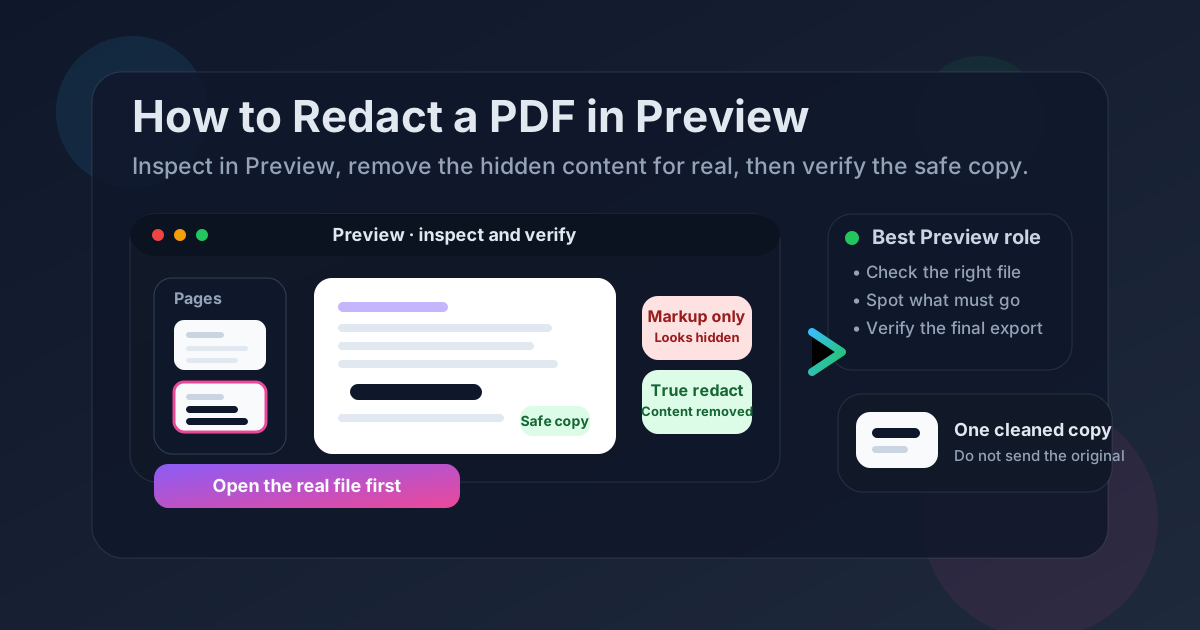
Table of contents
- Quick start: redact a PDF safely when Preview is part of your workflow
- What Preview is good for and where it falls short
- Step-by-step: the safest Preview-first redaction workflow
- Why black boxes in Preview are not enough for shared files
- When a Preview markup copy is fine for personal use only
- How to verify the cleaned PDF before you share it
- Related LifetimePDF tools and guides
- FAQ
Quick start: redact a PDF safely when Preview is part of your workflow
If you already know the document contains names, account numbers, signatures, addresses, pricing, patient data, or internal notes that must disappear, this is the simplest reliable sequence:
- Open the PDF in Preview and make sure it is the exact copy you intend to clean.
- Duplicate the file so you still have one untouched original.
- Use Redact PDF to remove the sensitive content permanently.
- Save the cleaned export with a clear name like contract-redacted-final.pdf.
- Reopen that final file in Preview and search for an obvious removed term if practical.
- Only then upload, email, or share it onward.
What Preview is good for and where it falls short
Preview is one of the handiest built-in PDF tools on Mac because it is already there and opens files fast. For redaction work, that matters more than people think. A lot of mistakes happen before the actual cleanup step. Someone opens the wrong duplicate from Downloads, edits a copy from Mail instead of the real source file, or forgets which version is the safe one.
Preview helps with those practical parts. You can check page order, confirm you are on the right document, zoom in on sensitive sections, and review the final cleaned PDF before you send it out. That makes Preview a very good inspection and verification tool.
The problem is that people often treat Preview's markup tools as if they were a proper redaction system. A black rectangle can hide text visually. It does not automatically guarantee the underlying content is removed from the file you plan to share.
| Task | Preview is good for | Where you should be careful |
|---|---|---|
| Open and inspect the PDF | Very good. Preview is quick, local, and comfortable for reviewing pages. | None, as long as you know which copy you opened. |
| Mark areas that need attention | Fine for temporary personal review notes. | Do not confuse markup with finished redaction. |
| Remove sensitive content permanently | Not the safest job for Preview alone. | Use a true redaction workflow for anything that will be shared externally. |
| Review the cleaned copy before sending | Excellent. Reopening the export in Preview is a smart final check. | Make sure you opened the cleaned version, not the original. |
In other words, Preview belongs in a safe redaction workflow. It just should not carry the whole responsibility by itself.
Step-by-step: the safest Preview-first redaction workflow
Here is the Mac workflow that keeps Preview in the loop without trusting it to do the one job that matters most.
1) Open the exact PDF in Preview
Start with the actual file you plan to send. If it came from Mail, save it first. If it came from a browser download, check whether you are looking at the newest copy or an older numbered duplicate. If it came from a shared drive or iCloud folder, confirm whether you are working from the right version before you change anything.
2) Keep one untouched original
Duplicate the PDF before you start. This is a small step, but it saves time if you later realize you redacted too much, cleaned the wrong page, or need to compare the safe version with the original.
3) Identify every element that needs to disappear
Look for more than the obvious. Names, addresses, signatures, totals, case numbers, client comments, photographs, and handwritten notes can all matter. Preview is useful here because zooming in often reveals details you might otherwise miss.
4) Use a true redaction workflow
Open Redact PDF and remove the sensitive content permanently. This is the important moment. A proper redaction step is about the underlying content, not just how the page looks at first glance.
5) Review metadata and nearby leftovers
Redacting the page content does not automatically clean everything else around it. If the file is sensitive, it is worth checking author, subject, title, or other document properties with PDF Metadata Editor. If the cleaned PDF still needs restricted access, add that later with PDF Protect.
6) Save one clearly named final version
Good filenames prevent a lot of accidents. invoice-redacted-final.pdf is much safer than invoice-new-2.pdf. The goal is to make the shareable file obvious enough that you do not attach the wrong one in a rush.
7) Reopen the final copy in Preview
This is where Preview shines again. Open the cleaned export in Preview, search for a removed name or number if practical, click around the redacted area, and make sure you are looking at the final safe copy instead of the original. That review pass takes less than a minute and prevents expensive mistakes.
Reliable sequence: Preview to inspect, Redact PDF to remove, Preview again to verify.
Why black boxes in Preview are not enough for shared files
This is the part people usually learn the hard way. If you cover text with a black rectangle in Preview, the page may look clean, but the underlying text can still exist in the file. That means someone might still be able to search for it, copy it, extract it, or reveal it through another workflow.
The same caution applies to screenshots, quick crops, and other visual workarounds. They can be fine for temporary personal notes or for showing a coworker where something is on a page. They are not the same thing as properly preparing a safe file for external sharing.
| Method | Looks hidden? | Safe to share? |
|---|---|---|
| Preview black rectangle or highlight | Usually yes | Not reliable enough for sensitive external sharing |
| Screenshot and re-export | Usually yes | Messy and low-trust for document workflows |
| True redaction | Yes | Yes, when you still verify the final cleaned file |
When a Preview markup copy is fine for personal use only
There is one honest exception worth mentioning. Sometimes you are not preparing a document for external sharing at all. You just want to cover something on a temporary copy for your own visual review, a meeting screen share, or a quick internal note to yourself. In those situations, Preview markup can still be useful.
The important boundary is this: if the file will leave your machine, go through a real redaction workflow. If it is just a temporary personal copy and you understand it is not truly cleaned underneath, markup can be perfectly fine.
That distinction matters because it keeps Preview useful without giving it a job it was never meant to carry alone.
How to verify the cleaned PDF before you share it
Verification is what turns a redaction workflow from hopeful to trustworthy.
- Open the final file in Preview. Make sure it is the cleaned export, not the original sitting nearby.
- Search for a removed term. If a client name, account number, or other obvious string should be gone, test it.
- Check the filename carefully. Many sharing mistakes happen because the wrong duplicate gets attached.
- Review metadata if the file is sensitive. Clean up identifying properties if they no longer belong in the document.
- Add protection after cleanup if needed. Redaction removes content. Password protection limits access to the final copy. They solve different problems.
If the redacted PDF is too large for email or a portal after you finish, use Compress PDF on the already-cleaned final file rather than redoing the whole job.
Related LifetimePDF tools and guides
If Preview is part of your Mac PDF workflow, these are the most useful companion tools:
- Redact PDF — remove sensitive text or images from the version you plan to share.
- PDF Metadata Editor — review and clean document properties after redaction.
- PDF Protect — add a password to the final cleaned file if it still needs access control.
- Compress PDF — reduce the final file size if upload limits complain.
Related reading on LifetimePDF: how to redact sensitive information in PDF, how to redact a PDF on Mac, how to redact a PDF on iPhone, how to redact a PDF on iPad, how to password protect a PDF on Mac, and how to edit a PDF in Preview.
Good Mac rule: let Preview help you inspect and verify, but let a real redaction workflow do the actual cleaning.
FAQ: How to redact a PDF in Preview
Can Preview actually redact a PDF?
Not by itself in the way most people mean redaction. Preview is useful for inspection and final review, but for a file you plan to share, use a true redaction workflow to remove the underlying content and then verify the export in Preview.
Is drawing a black box in Preview enough?
No. A black box can hide content visually while leaving the underlying text or image data in the file. That is not a good risk to take with documents going to clients, legal teams, HR portals, or anyone outside your own machine.
What is Preview still useful for during redaction?
Preview is excellent for opening the PDF, confirming you chose the right copy, zooming in on the areas that need cleanup, and reviewing the final cleaned export before you share it.
Should I remove metadata after redacting a PDF?
If the file is sensitive, yes. Metadata can still reveal author names, company information, or document history even after the visible page content has been cleaned.
What order should I use for redact, protect, and compress?
Usually redact first, verify the cleaned copy second, then protect or compress the final safe file if needed. That order keeps the important content-removal step clear and easy to review.
Published by LifetimePDF — Pay once. Use forever.