How to Edit a PDF in Preview: Use Markup for Light Changes, Know When to Switch Tools, and Save the Right Final Copy
To edit a PDF in Preview, open the file in Preview, use the Markup toolbar for highlights, notes, text boxes, signatures, and other light changes, then save a clearly named edited copy after one final check.
If you need to rewrite embedded paragraph text or the PDF is really a scan, Preview is usually the wrong tool; use PDF to Word or run OCR first so the job fits the workflow.
That is the short answer. The useful part is knowing what Preview genuinely handles well, where it starts pretending to be a document editor it is not, and how to avoid the classic Mac problem where Finder, Mail, Downloads, and iCloud Drive all seem to contain the same PDF until they very much do not.
Fastest path: open the real file in Preview, duplicate it if the original matters, use Markup for the small change, switch to a browser-based editor or PDF to Word when the edit stops being small, then reopen the saved copy once before you send it anywhere.
In a hurry? Jump to Quick start: edit a PDF in Preview in a few minutes.
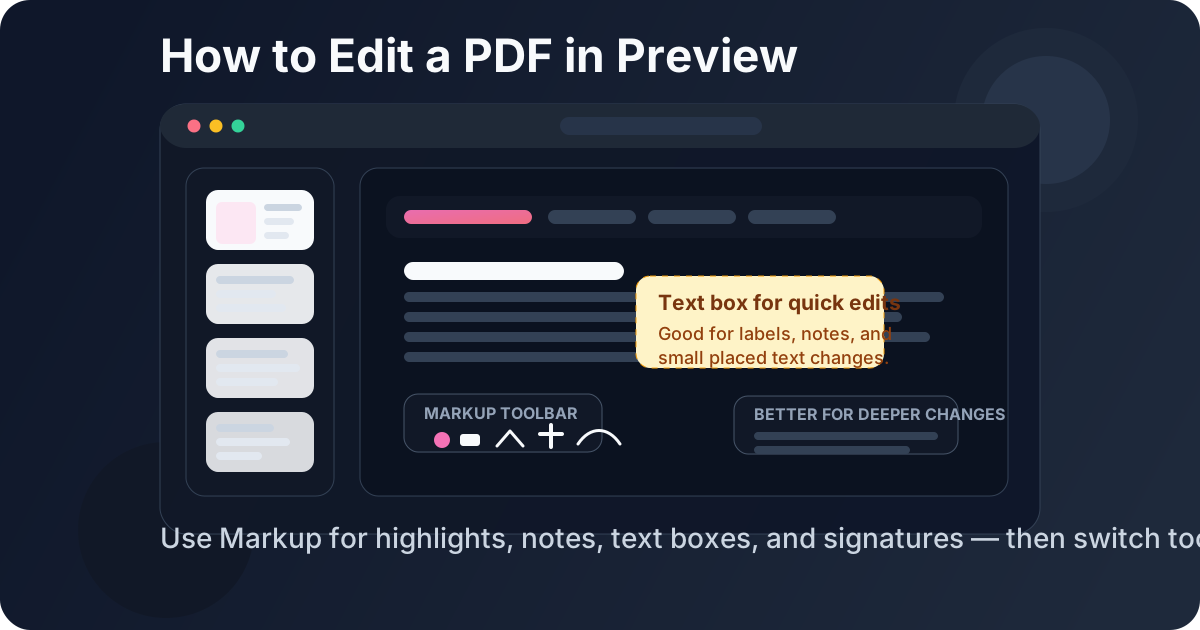
Table of contents
- Quick start: edit a PDF in Preview in a few minutes
- What Preview can and cannot do well
- Step-by-step: edit a PDF in Preview without creating version chaos
- Markup, text boxes, forms, and signatures in Preview
- When Preview is the wrong tool
- How to handle scanned PDFs in a Preview workflow
- How to save, share, and protect the final copy
- Related LifetimePDF tools and Preview guides
- FAQ
Quick start: edit a PDF in Preview in a few minutes
If your PDF is already on your Mac and you mainly want the cleanest practical answer, this is the workflow most people actually need:
- Open the exact PDF in Preview from Finder, Mail, iCloud Drive, or Downloads.
- If the original matters, duplicate the file before editing.
- Open the Markup toolbar and make the light change: highlight, note, arrow, text box, signature, or simple form-style entry.
- If you need cleaner placed text or a flat form that Preview handles awkwardly, use PDF Form Filler or PDF Field Editor.
- If you need to rewrite real sentences or paragraphs, switch to PDF to Word.
- If the text is not selectable, run OCR PDF first.
- Save the finished file with a clear new name and reopen it once in Preview before you upload, attach, or share it.
What Preview can and cannot do well
Preview is one of the most useful built-in Mac apps precisely because it is fast and unpretentious. You double-click a PDF, it opens immediately, and the page feels available. That makes it a great place to review, annotate, sign, and make small corrections.
Where people get frustrated is assuming that because Preview can open a PDF comfortably, it can also handle every kind of PDF editing equally well. It cannot. Some changes belong inside Markup. Others belong in a browser-based editor. Bigger content rewrites belong outside the PDF layout entirely.
| What you need to do | Best option | Why it works better |
|---|---|---|
| Highlight, underline, comment, circle, or point something out | Preview Markup | Fast, built in, and perfect for review-oriented edits where the page layout should stay mostly untouched. |
| Add a signature or initial a finished document | Preview or Sign PDF | Preview is convenient for light Mac signing, while a dedicated signing flow is cleaner when the document needs a more repeatable save-and-send path. |
| Place typed text into a flat form or blank area | PDF Form Filler or PDF Field Editor | Usually gives you cleaner positioning and a more dependable export than fighting with manual text boxes in the wrong places. |
| Rewrite sentences, clauses, or full paragraphs | PDF to Word | Real text rewrites are usually safer outside the fixed PDF layout. |
| Edit a scanned or image-based PDF | OCR PDF first | A scan behaves like a picture until text recognition makes it searchable and selectable. |
In plain English: Preview is excellent for finishing touches, review markup, and simple Mac-side tasks. It is not the cleanest place for deep text surgery.
Step-by-step: edit a PDF in Preview without creating version chaos
1) Start with the real source file
This is the part people skip because it feels obvious. It is not obvious once the same PDF exists in Mail, Downloads, iCloud Drive, and a client folder at the same time. Decide which copy is the real one before you touch anything.
2) Duplicate it if the untouched original still matters
If the document is important, keep yourself a clean exit. Duplicate the file or save a working copy before editing. That makes it much easier to compare versions, undo a bad annotation decision, or produce an untouched original later.
3) Open the Markup toolbar
In Preview, the Markup toolbar is where the app becomes genuinely useful for light editing. This is where you add highlights, notes, shapes, arrows, signatures, and text boxes. It is good at visual annotation because it lets you change the page without pretending the page was born editable.
4) Decide whether your change is markup, placed text, or a real rewrite
A quick arrow pointing to a clause is markup. A short typed label or replacement note can work as placed text. A policy rewrite, paragraph update, or contract language change is a different category entirely. Deciding that early saves time because the right tool becomes obvious.
5) Keep small changes small
Preview is at its best when you are correcting a date with a text box, dropping in initials, filling a simple field, signing a page, circling a number, or leaving a review note. The moment you are wrestling line breaks, paragraph spacing, or hidden layers underneath old text, the job has already outgrown Preview.
6) Reopen the saved result once
After you save the edited copy, open it again in Preview and read it like the next person will. This catches awkward text-box placement, clipped notes, missing signatures, page-order mistakes, and the classic error where you edited the wrong duplicate but did it very confidently.
Clean sequence: choose the real PDF → duplicate if needed → use Preview Markup for light edits → switch tools when the change grows → save the final copy with a clear name → reopen it once before sharing.
Markup, text boxes, forms, and signatures in Preview
Most Preview editing jobs fall into four buckets. Once you know which bucket you are in, the rest becomes calmer.
Highlights, underlines, comments, and shapes
This is Preview's home turf. Reviewing a draft, circling a number, underlining a clause, pointing to a missing field, or leaving a comment for someone else is exactly the kind of editing Preview handles well. It is fast, readable, and local.
Text boxes for light placed text
Text boxes can be genuinely helpful when you only need to place short text in a blank area, label a diagram, add initials next to a mark, or cover a tiny correction with a cleaner note. They are much less appealing when you are trying to rebuild a paragraph with them one line at a time.
Fillable forms vs flat forms
If the PDF already contains proper form fields, Preview may handle basic typing just fine. If the file is a flat PDF that only looks like a form, you may get a cleaner result with PDF Form Filler, because manually balancing text boxes over every line gets old fast.
Signatures and initials
Preview is very convenient for quick Mac signatures and initials when the document is already final. If the real job is just signing, you can also use Sign PDF or read how to sign a PDF on Mac for a more focused workflow.
If you mostly need a polished browser workflow instead of local Mac markup, how to edit a PDF on Mac gives the broader picture, while how to edit a PDF in Safari explains the browser-first route.
When Preview is the wrong tool
The mistake is not using Preview. The mistake is staying with Preview after it stops matching the job.
Switch when the PDF needs real wording changes
If you are replacing sentences, updating policy language, revising contract clauses, or reworking whole sections, move the file into PDF to Word, edit it there, then export again with Word to PDF. That is usually cleaner than trying to fake a rewrite on top of a finished layout.
Switch when a flat form needs neat, repeated text placement
You can brute-force a flat form with Preview text boxes, but the result gets fiddly quickly. If you are entering many fields or want cleaner alignment, use PDF Form Filler instead.
Switch when you are covering text instead of really removing it
Preview is not a substitute for proper redaction. If information must be gone, use Redact PDF. A box sitting over text is not the same thing as the text being removed.
Switch when the layout starts fighting back
If you are zooming in too far, nudging text boxes by single pixels, or wondering why the saved version looks less tidy than the edit screen, that is your sign. The PDF is telling you it wants a different workflow.
Better fit for deeper jobs: Preview for markup, form filler for flat forms, PDF to Word for rewrites, OCR for scans, and redaction for information that truly needs to disappear.
How to handle scanned PDFs in a Preview workflow
Scanned PDFs are where people often blame Preview for a problem caused by the file itself. If the page looks fine but the text will not highlight, copy, or behave like text, the PDF is usually just an image.
The fix is to run OCR PDF first. Once the scan becomes searchable and selectable, you can decide whether Preview is enough for the remaining change or whether the document really belongs in a broader editing workflow.
- Run OCR first if text is not selectable.
- Check names, dates, totals, and signatures carefully after recognition if the scan quality is weak.
- Expect more cleanup when the scan is low-resolution, shadowed, handwritten, or skewed.
- Move to Word only after recognition if the final goal is a deeper text rewrite.
For many real-world PDFs, making the file searchable is already half the battle. Once OCR is done, the rest of the workflow gets much less annoying.
How to save, share, and protect the final copy
Use a filename that tells the truth
Names like final.pdf or edited-new.pdf are how Mac folders become folklore. Use names that tell you what changed, such as application-signed.pdf, contract-commented.pdf, or proposal-revised.pdf.
Protect the final copy if access matters
If the PDF contains sensitive information and should not be casually opened, add password protection after the content is final with PDF Protect.
Redact private details instead of visually hiding them
If information must not remain in the shared file, use Redact PDF. This matters more than people think. Visual coverage is not the same thing as actual removal.
Compress the file if it grew too large
If the edited PDF is bulky because of scans or images, shrink it with Compress PDF before sending it by email or uploading it to a portal.
Related LifetimePDF tools and Preview guides
Editing in Preview often sits inside a larger Mac PDF workflow. These tools and guides pair well with it:
- PDF Field Editor — better for cleaner placed text and browser-based edits.
- PDF Form Filler — helpful when the document is a flat form rather than a proper fillable one.
- Sign PDF — a cleaner signing flow when that is the whole job.
- PDF to Word — the right move for bigger rewrites.
- Word to PDF — export a fresh final PDF after rewriting the source text.
- OCR PDF — make scanned PDFs searchable and editable.
- Redact PDF — remove private information permanently.
- PDF Protect — add password protection after editing.
- Compress PDF — shrink the finished file before sending it.
Related reading on LifetimePDF: how to edit a PDF on Mac, how to sign a PDF on Mac, how to add page numbers to a PDF in Preview, how to merge PDFs in Preview, how to split PDF in Preview, and how to edit a PDF in Safari.
Need a cleaner edit than Preview can comfortably give?
Use Preview for markup, signatures, and light Mac-side changes. Use the broader LifetimePDF editing tools when the PDF needs clean placed text, OCR, redaction, or a real rewrite.
FAQ: How to edit a PDF in Preview
Can Preview edit the actual text of a PDF?
Preview is good for markup, text boxes, signatures, and some form-style tasks, but it is not the best tool for rewriting embedded paragraph text. For bigger wording changes, PDF to Word is usually cleaner.
What kinds of PDF edits work well in Preview?
Preview works well for highlights, notes, underlines, signatures, shapes, arrows, basic text boxes, and quick review work on a Mac. It is strongest when the edit is small and the layout should mostly stay as-is.
Should I use Preview or a browser-based PDF editor on Mac?
Use Preview for light local markup and quick signatures. Use a browser-based PDF editor when you want cleaner placed text, better flat-form handling, or a workflow that is easier to repeat outside the Mac app.
How do I edit a scanned PDF in Preview?
Run OCR first if the text is not selectable. A scanned PDF usually behaves like an image until text recognition makes it searchable and usable.
How do I avoid saving over the wrong PDF in Preview?
Start with one real source file, duplicate it if needed, save the edited version with a clear new name, and reopen that exact copy once before sending it anywhere.
Published by LifetimePDF — Pay once. Use forever.