How to Merge PDFs in Preview: Use Thumbnails, Keep the Order Right, and Save One Clean File
To merge PDFs in Preview, open the first file in Preview, show the thumbnail sidebar, then drag the second PDF or selected pages into the exact spot where they belong and save the combined file with a clear new name.
If the job involves a lot of files, messy scans, or near-duplicate downloads, Preview can still work, but a browser-based Merge PDF tool is usually faster and easier to control.
That is the short answer. The useful part is knowing how to keep the reading order sane, when to duplicate the file before you start, and when Preview stops feeling convenient and starts becoming a slightly polite mess.
Fastest path: if you only have two or three PDFs and already trust the files, Preview is fine. If the packet is bigger, scattered across folders, or likely to need cleanup right after the merge, jump straight to a dedicated merge workflow.
In a hurry? Jump to Quick start: merge PDFs in Preview in a few minutes.
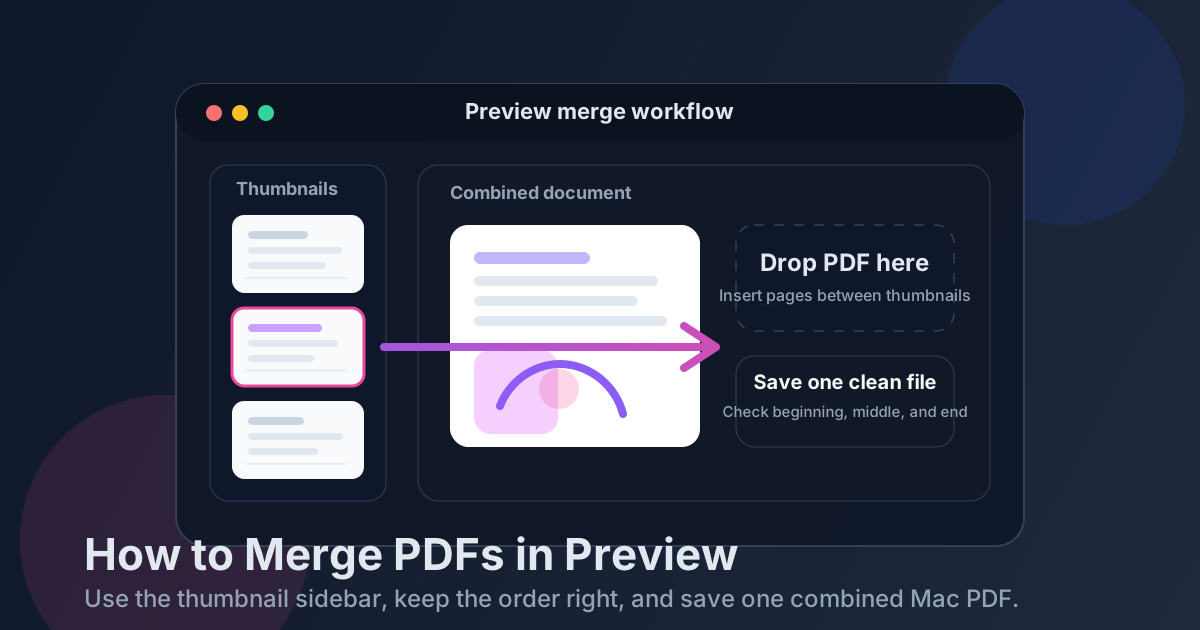
Table of contents
- Quick start: merge PDFs in Preview in a few minutes
- When Preview is actually a good merge tool
- Step-by-step: combine PDFs in Preview
- How to keep the page order right in Preview
- When Preview becomes clumsy and a browser merge tool is easier
- What to do after the merge: reorder, OCR, or compress
- Related LifetimePDF tools and Mac guides
- FAQ
Quick start: merge PDFs in Preview in a few minutes
If the files are already normal PDFs and you mainly want one combined document without installing anything else, this is the shortest reliable Preview workflow:
- Open the PDF that should appear first in the final packet.
- In Preview, show the thumbnail sidebar so you can see each page.
- Drag the second PDF from Finder into the sidebar where it belongs, or drag only the pages you want from another open Preview window.
- Reorder pages in the sidebar until the document reads the right way.
- Save the merged file with a clear name and open the beginning, middle, and end once before you send it anywhere important.
When Preview is actually a good merge tool
Preview has a reputation for being either magical or annoying, depending on how many files someone is trying to wrangle. The honest answer is that it is good at small, local, Mac-shaped PDF jobs.
If you have two or three PDFs in Finder, you know which version is correct, and you mostly need to place one document after another, Preview is perfectly reasonable. It is already there, it opens fast, and the thumbnail sidebar makes page order visible in a way that feels concrete.
| Situation | Best move | Why it works |
|---|---|---|
| Two or three local PDFs that are already final | Use Preview | You can drag pages into place quickly and save one combined file without much ceremony. |
| A packet with many files from Mail, Downloads, and Finder | Use Merge PDF | It is easier to manage the full set in one workflow than to juggle several Preview windows and near-duplicate filenames. |
| The merge will need cleanup right after | Merge first, then organize or compress | It is easier to fix the finished packet once than to keep cleaning every source file in advance. |
| One source is a scan or image | Convert to PDF first, then merge | The final document behaves more predictably when the sources are all proper PDFs. |
In plain language: Preview is good when the job is simple enough that you can still see the whole puzzle in one glance.
Step-by-step: combine PDFs in Preview
Here is the practical workflow most Mac users actually need.
1) Start with the PDF that belongs first
Open the main document in Preview first. If you are building a packet, that might be the cover page, main form, signed contract, report, or summary. Starting with the lead document keeps the rest of the merge intuitive.
2) Show the thumbnail sidebar
If the thumbnails are hidden, turn them on. Preview is much less useful for merging when you cannot see where pages will land. The sidebar is the whole game here.
3) Drag in the second PDF or the pages you actually want
You can drag an entire PDF from Finder into the thumbnail sidebar, or open another PDF in Preview and drag selected pages from one window to the other. Drop them exactly where they should appear in the reading order.
4) Reorder before you save
If something lands in the wrong spot, fix it now while the thumbnail sidebar still makes the mistake obvious. It is much easier to drag pages up or down immediately than to discover the packet is backwards after you sent it.
5) Save the result with a name that tells the truth
If the original matters, duplicate first or save the merged version with a clear new filename. Names like packet-merged.pdf or contract-plus-appendix.pdf are a lot safer than final-final.pdf.
6) Review the beginning, one middle section, and the end
This takes seconds and catches most real mistakes: one wrong version, one duplicate page, one file that should have been first, or one page that never belonged in the packet at all.
Need a cleaner workflow with more files? When the merge is bigger than Preview feels comfortable with, use a dedicated merge tool and keep Preview for the final check.
How to keep the page order right in Preview
Most merge mistakes are not technical failures. They are ordering mistakes. Preview makes the order visible, but you still have to think like the next reader.
Think in reading order, not folder order
The first file in Finder is not automatically the first file in the packet. Put the document the other person should read first at the front. Put appendices, receipts, exhibits, and backup pages later.
Open suspicious duplicates before you merge them
Files like contract.pdf, contract-2.pdf, and contract-final.pdf are how people accidentally merge the wrong version with complete confidence. If two files look similar, open them once before dragging them in.
Move groups of pages, not just single sheets
If a multi-page section belongs together, keep it together. Preview is more reliable when you think in chunks instead of rebuilding a packet one lonely page at a time.
When Preview becomes clumsy and a browser merge tool is easier
Preview starts losing its charm when the packet gets bigger, the files live in too many places, or the workflow needs more than one step.
Preview is still fine when:
- you already have the right PDFs locally,
- there are only a few files,
- the order is obvious, and
- you mainly need a quick combined copy.
A browser-based merge tool is usually easier when:
- the files came from Finder, Mail, Downloads, and cloud folders all at once,
- you expect to reorder, delete, OCR, or compress right after the merge,
- the packet includes many attachments or appendix pages, or
- you are already feeling unsure which version is the real version.
In other words, Preview is good for a tidy desk. Merge PDF is better for real-life paperwork.
What to do after the merge: reorder, OCR, or compress
Once the packet is correct, then decide whether it needs cleanup. That order matters.
If extra pages slipped in
Use Delete Pages or Organize PDF on the finished packet instead of trying to rebuild the whole merge from scratch.
If the file is too large to send
Run Compress PDF after the merge. That is cleaner than shrinking every source file before you even know whether the final packet is right.
If the merged packet includes scans
If the final PDF still behaves like a pile of pictures, use OCR PDF after the merge so the document becomes searchable and easier to review later.
If one source was an image, screenshot, or photo
Turn that source into PDF first with Images to PDF, then merge it with the rest. That usually produces a calmer final document than mixing file types on the fly.
Good cleanup order: merge → review → delete or reorder if needed → OCR scan-based pages → compress only if size still matters.
Related LifetimePDF tools and Mac guides
Merging in Preview is often just one step in the larger Mac document workflow. These tools and guides pair well with it:
- Merge PDF for larger or messier merge jobs.
- Organize PDF for reordering pages after the merge.
- Delete Pages for removing stray sheets or duplicate inserts.
- Compress PDF if the finished packet is too large for email or upload limits.
- OCR PDF for scan-heavy merged files.
Related reading on LifetimePDF: how to merge PDFs on Mac, how to merge PDFs on iPhone, how to merge PDFs on iPad, how to merge PDFs on Android, how to compress a PDF on Mac, and how to OCR a PDF on Mac.
Need one clean PDF without wrestling several windows?
Use Preview when the merge is small and obvious. Use Merge PDF when the packet is larger, messier, or headed straight into more cleanup.
FAQ: How to merge PDFs in Preview
How do I merge PDFs in Preview on Mac?
Open the first PDF in Preview, show the thumbnail sidebar, drag the second PDF or selected pages into the right spot, then save the combined file with a clear new name.
Can I reorder pages while merging PDFs in Preview?
Yes. With the thumbnail sidebar visible, you can drag pages or groups of pages up and down until the packet reads the way you want.
Should I use Preview or a browser-based Merge PDF tool?
Preview is good for smaller local jobs. A browser-based merge tool is usually easier when you are combining more files, working from several folders, or expecting cleanup right after the merge.
Should I merge first or compress first?
Usually merge first. Once the packet is correct, compress the finished PDF only if the destination still rejects it because of size.
What if one source file is a scan or image?
Convert image-based pages to PDF first, merge them, and then run OCR on the finished packet if you want searchable text.
Published by LifetimePDF — Pay once. Use forever.